Table of Contents
This updated guide explores delete these temporary Windows folders to reclaim precious storage space with practical details, clear explanations, and useful takeaways. Windows creates temporary files in the background to keep things running smoothly. But over time, these hidden files silently accumulate in system folders, slowly taking up space you could use for photos, apps, or anything else that is really important to you.
1. User Temp Folder (% Temp%)
The User Temp folder is where applications, background processes, and Windows store temporary files that are left behind. Programs use this folder for installations, logs, cache files, and leftovers from updates or crashes. These files are considered temporary, but are not usually cleaned up.
Over time, especially when installing or uninstalling software frequently, the folder can fill up with junk files and grow to several gigabytes without you realizing it.
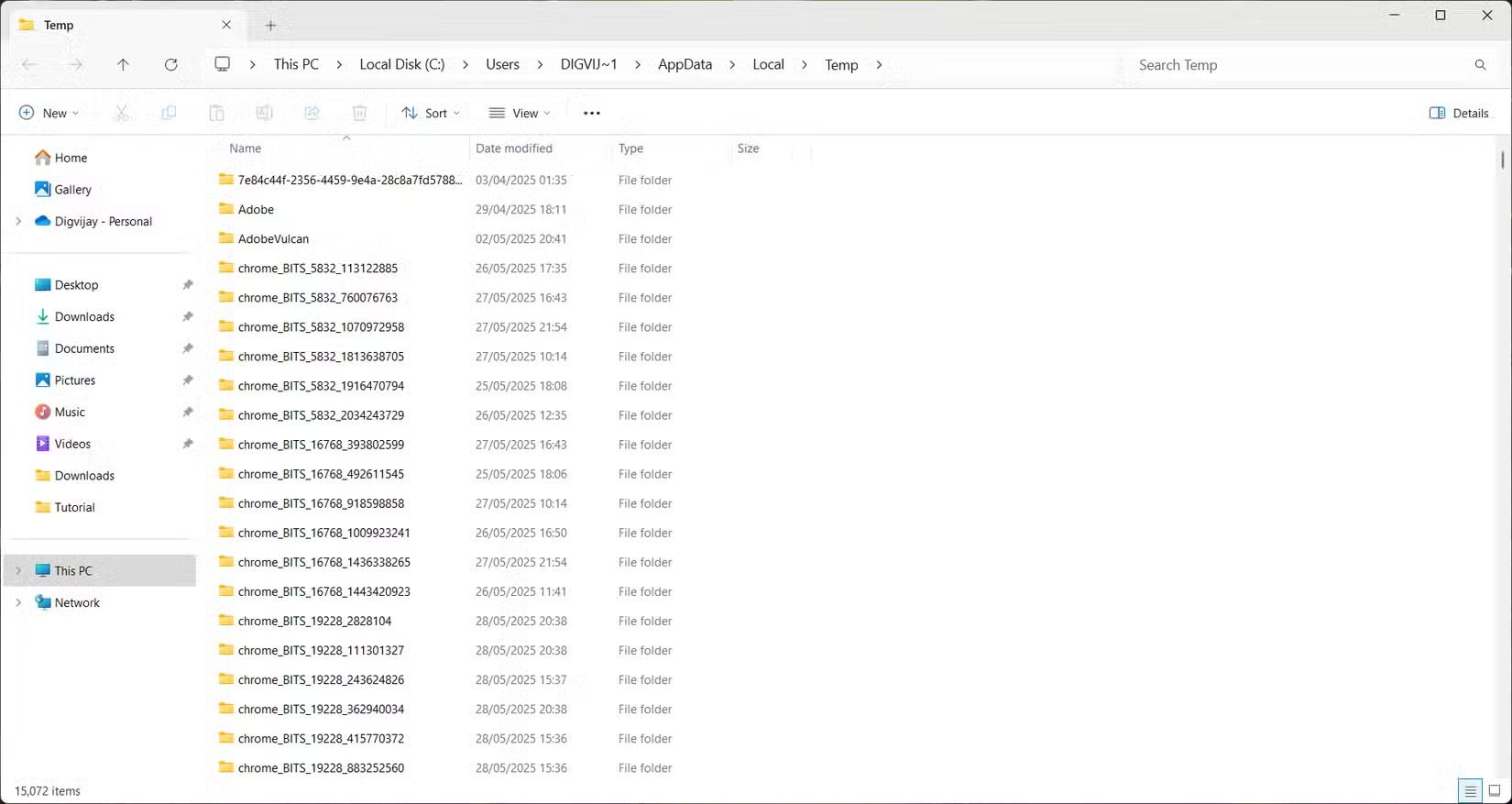
To access and clean up, press Win + R to open the Run dialog box. Then type %temp% and press Enter. This will open the Temp folder in File Explorer. Select everything inside with Ctrl + A , then press Delete. If some files are still being used by background apps or services, Windows will let you know. Skip those files and delete the rest.
2. System Temp Folder
Windows also uses the system Temp folder to store temporary files, but unlike the user-specific folder, this folder is used by the operating system and system-level services. This folder often contains files left over from installations, updates, and other background tasks.
To find this folder, open the Run dialog box, type temp , and press Enter. You can go straight to C:WindowsTemp in File Explorer.
3. Software Distribution Folder
When Windows downloads updates, it stores all the necessary files in the Software Distribution folder before installing them. This folder contains two main parts: Download, which stores the update packages, and DataStore , which stores logs and profiles related to the update history.
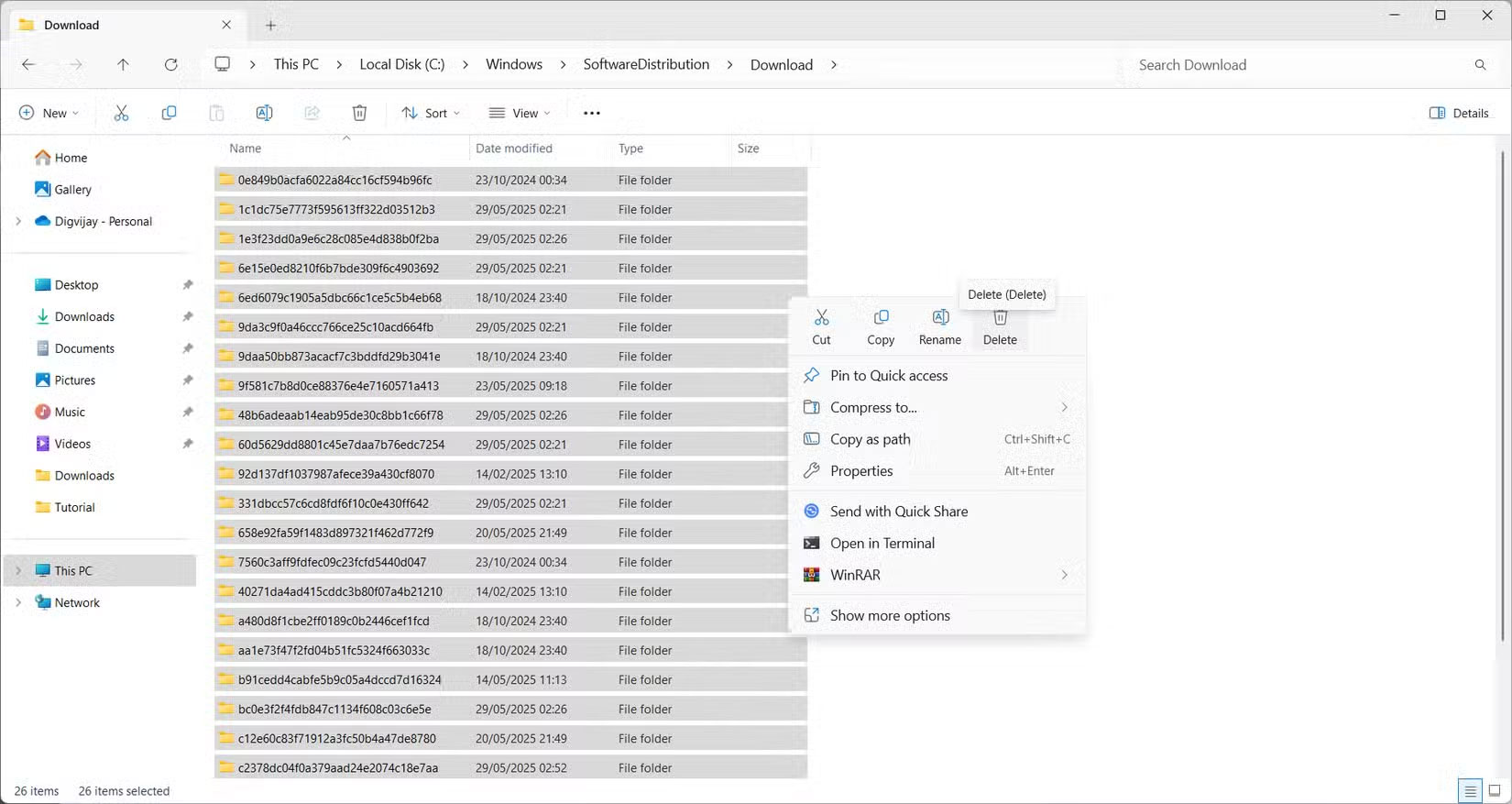
Over time, your Downloads folder can become filled with outdated or incomplete update files that you no longer need. These leftover files are not automatically deleted and take up disk space, especially after multiple system updates or failed installations.
To clean up, open File Explorer and navigate to C:WindowsSoftwareDistributionDownload. Select everything inside and delete. Be careful not to delete the main Software Distribution folder, just the downloaded contents.
4. Recycle Bin
Another place where disk space can build up is in the Recycle Bin. When you delete a file, it does not immediately leave your system. Instead, it goes into the Recycle Bin and stays there until you restore it or the Recycle Bin reaches its limit. This Recycle Bin acts as a safety net in case you accidentally delete something important.
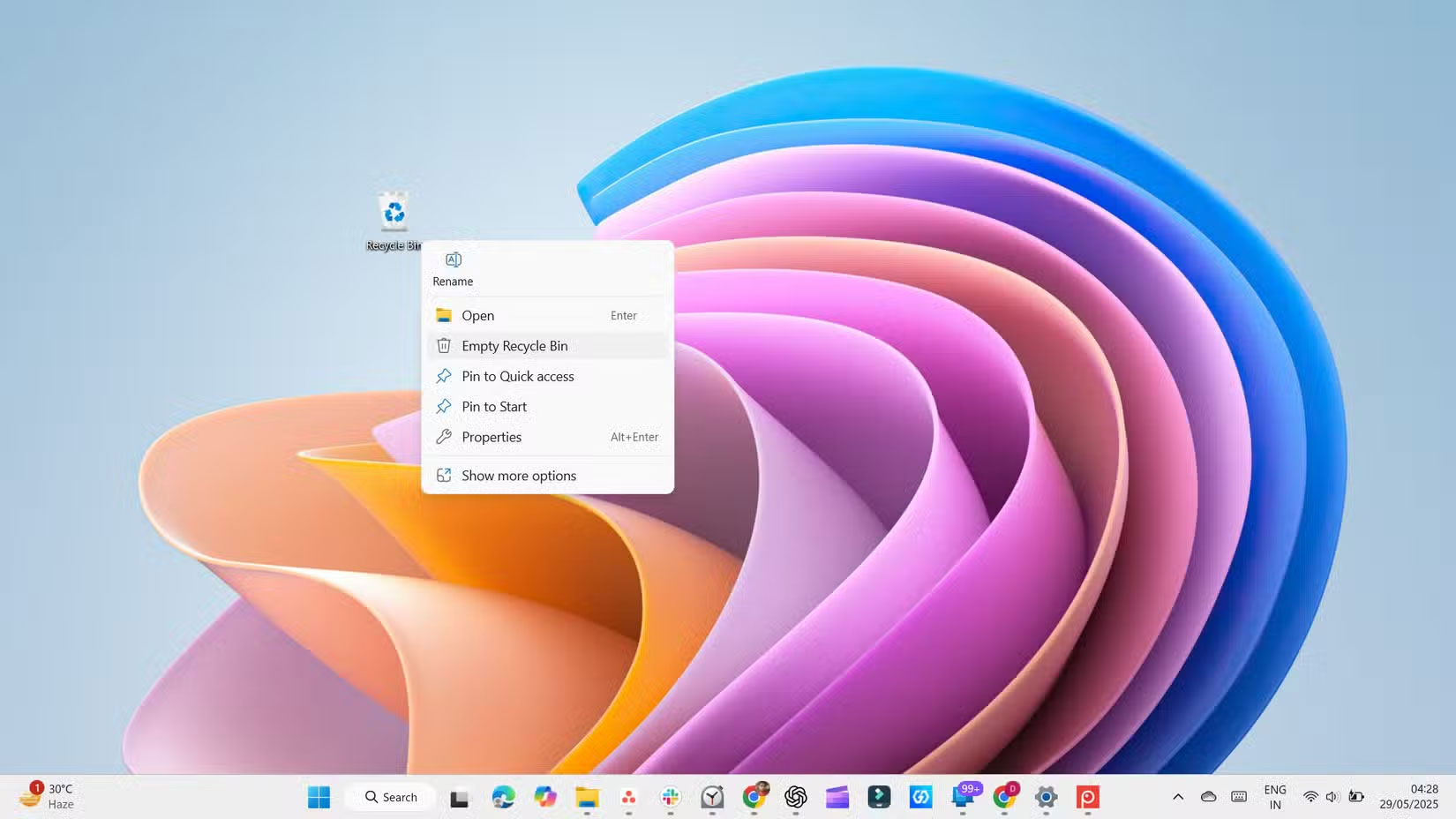
Still, if left unchecked, the Recycle Bin can accumulate a large collection of deleted files and silently waste gigabytes. To avoid this, get into the habit of emptying the Recycle Bin regularly or set Windows to automatically empty the Recycle Bin.
5. Windows.old Folder
When you upgrade to a new version of Windows, the system saves a copy of your old installation in a folder called Windows.old. This folder contains everything from your previous setup, including system files, installed applications, and personal data.
This folder exists in case you want to roll back to a previous version, but if the upgrade went smoothly and you do not intend to roll back, you probably do not need this folder. This folder can be quite large, sometimes taking up 12 to 25GB of space on your hard drive.
6. Delivery Optimization Files
Delivery Optimization Files are cached copies of Windows Update files. They help speed up updates by allowing your PC to share those files with other devices on your network or even online. This reduces Internet usage and speeds up updates.
Still, after installing updates, these files are no longer needed and can take up hundreds of megabytes. it is perfectly safe to delete them and free up some space, especially after major updates.
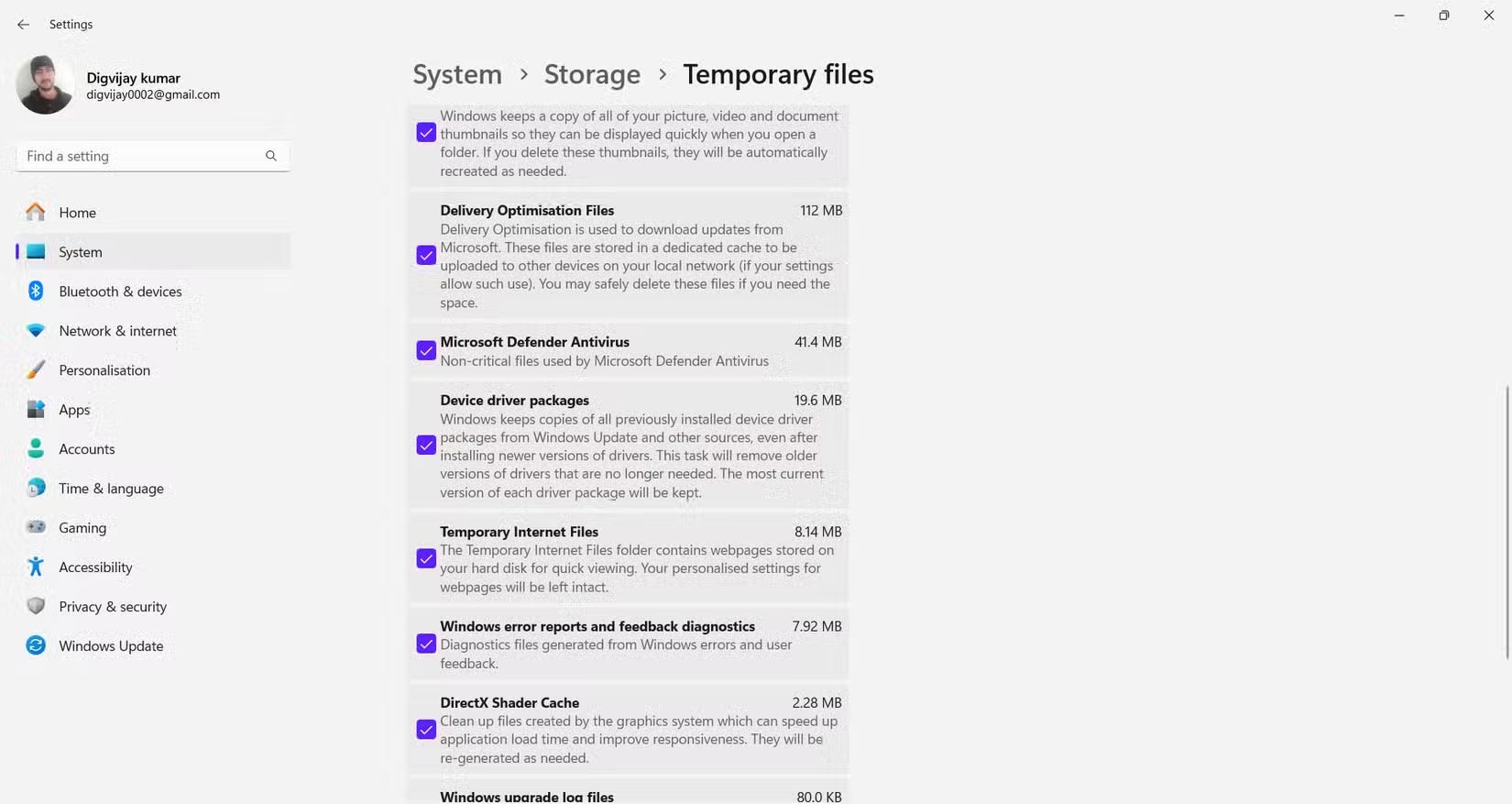
To remove Delivery Optimization Files, navigate to Settings > System > Storage . Under Local Disk (C), choose Temporary files and check Delivery Optimization Files , then choose Remove files to free up disk space.
7. Low Impact File Folders
After you've dealt with the large archive files, there are a few smaller folders you can delete to free up a little more space. These usually do not take up much space, but cleaning them out can still help reduce clutter and keep things organized.
Recent Items Folder
Windows stores shortcuts to files you've recently opened in a hidden folder so you can quickly find them in the Start menu or File Explorer. These are just links, not actual files, but they can accumulate and fill up the folder.
To delete them, press Win + R , type shell:recent , and press Enter. When the folder appears, select everything and delete it. do not worry; you're only deleting the shortcuts, not your actual files.
Downloaded Program Files
Despite the name, this isn't your typical Downloads folder. This is an old location used by Internet Explorer to store ActiveX controls and Java apps, both of which are now obsolete.
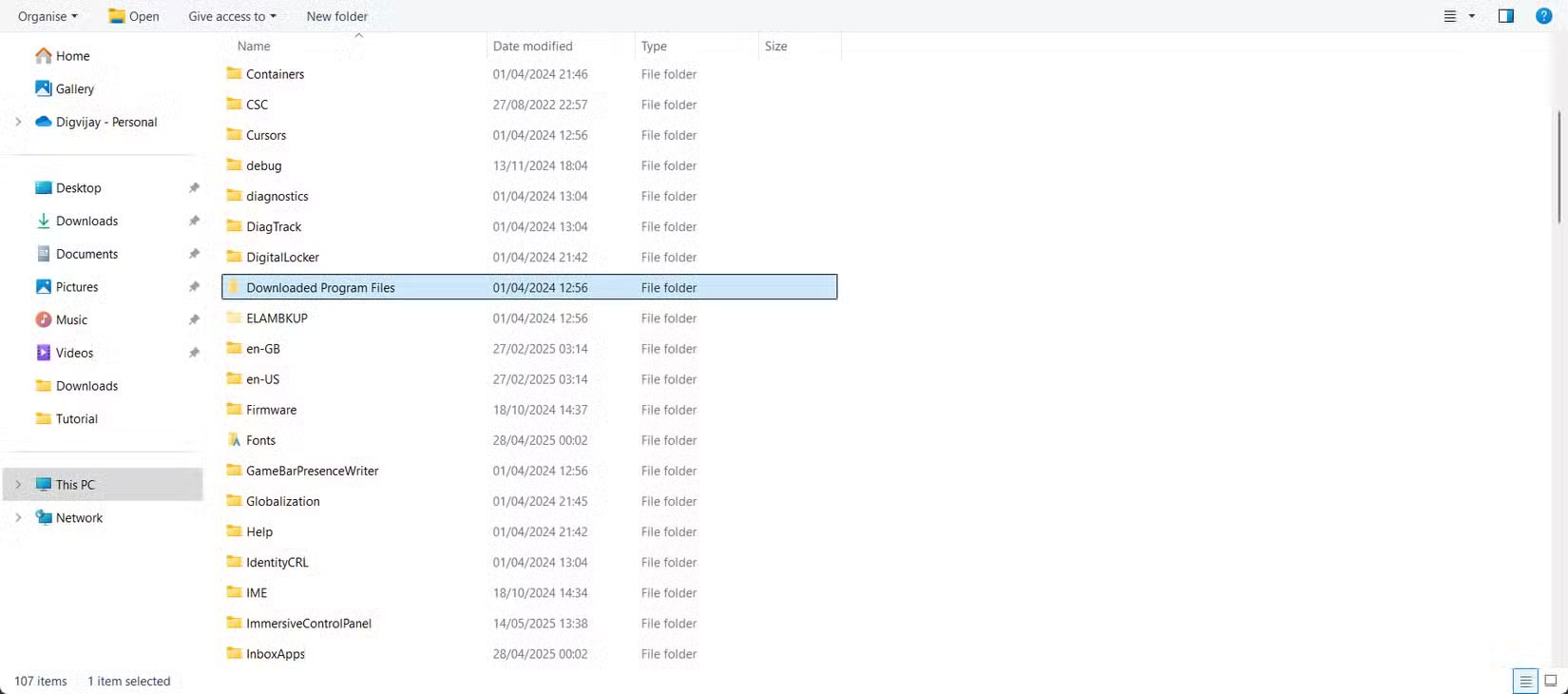
To clean up, open C:WindowsDownloadedProgram Files and delete any files you see. Chances are this folder is empty or full of unused items that you can safely delete.
Thumbnail Cache
Windows creates thumbnail previews of your pictures, videos, and documents to make browsing faster and easier. These previews are stored in a cache, which can grow over time.
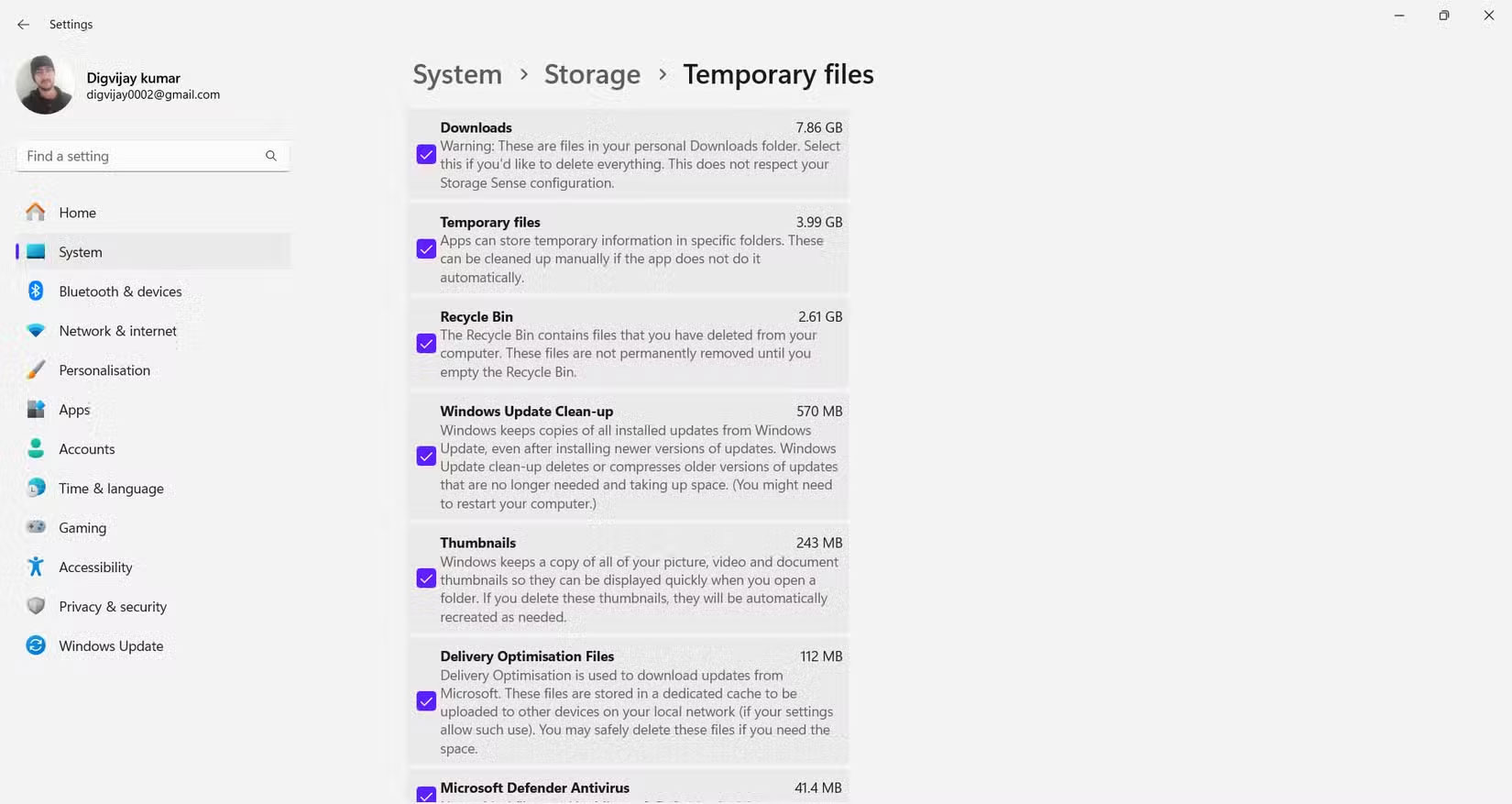
To delete them, open System Settings and open System > Storage > Temporary files . Check the box next to Thumbnails and choose Remove files . Removing these files will not delete your actual files, just the previews that Windows will recreate when needed.
FAQ
What is the main takeaway about Delete These Temporary Windows Folders to Reclaim Precious Storage Space?
The key is to understand the core idea, compare the available options, and apply the practical guidance that matches your situation.
What should beginners know about Delete These Temporary Windows Folders to Reclaim Precious Storage Space?
Start with the essential steps and terminology. Avoid changing advanced settings until you understand how they affect performance, privacy, cost, or compatibility.
How can I use this information in practice?
Follow the relevant section in order, test one change at a time, and confirm the result before moving to the next step or recommendation.
Related Articles
 How to Automatically Delete Temporary Files on Windows 114 minutes read
 How to Use Storage Sense Windows to Free up Disk Space4 minutes read
 Free Up Space on Windows 10 by Deleting Temporary Files3 minutes read
 Automatically Delete Temporary Files Every Time a Windows 104 minutes read
 How to Delete Empty Folders in Windows Computer5 minutes read
 How to Regain Storage Space for Chromebooks8 minutes read
Reader Comments 0
Sign in with email or Google to join the discussion.