Table of Contents
Grok's file workspace can provide a larger editing surface than a normal chat, letting you keep code beside the conversation, request targeted changes, and review the result. It is useful for explanation and small prototypes, but it is not a replacement for a local development environment, version control, tests, or security review.
Feature names and controls can vary by account and product update. If your interface does not show Files, Canvas, or code execution, use a regular chat attachment or continue in your local editor.
1. Create or open a code file
Open Grok's menu and go to Files when that option is available. Create a new file or upload a copy of the code you want to discuss.
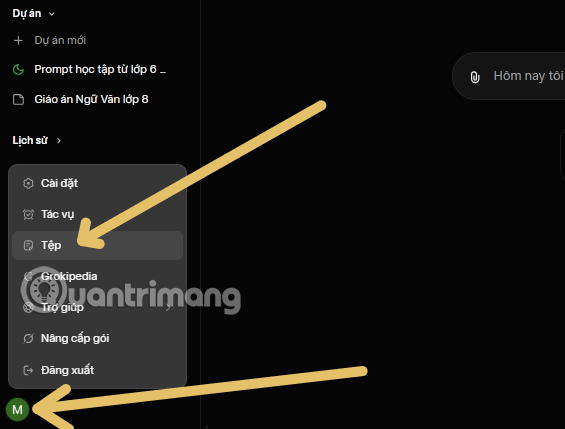
Use a copy or a version-controlled project. Remove API keys, passwords, customer data, private URLs, and other secrets before uploading anything to an external AI service.
2. Select the language or file type
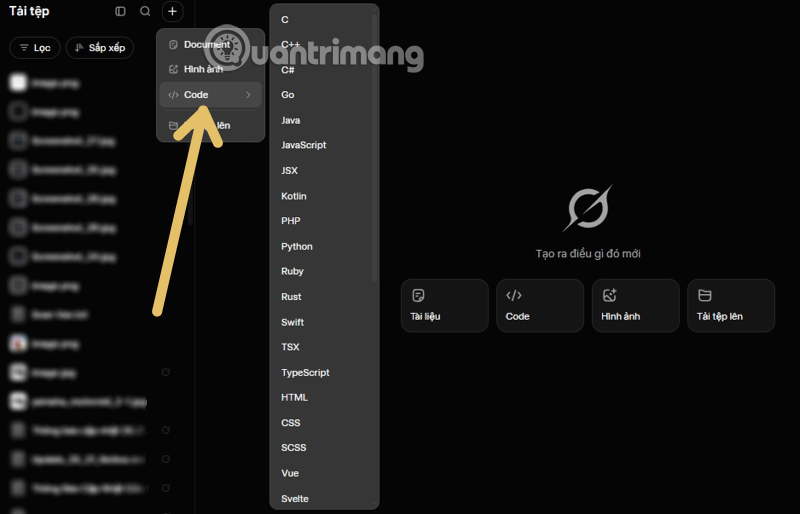
Choose Add and select a code file type where the interface offers one. The language choice mainly affects syntax highlighting and how the workspace interprets the file; it does not guarantee that the program can run in the hosted environment.
3. Add a minimal, reproducible example
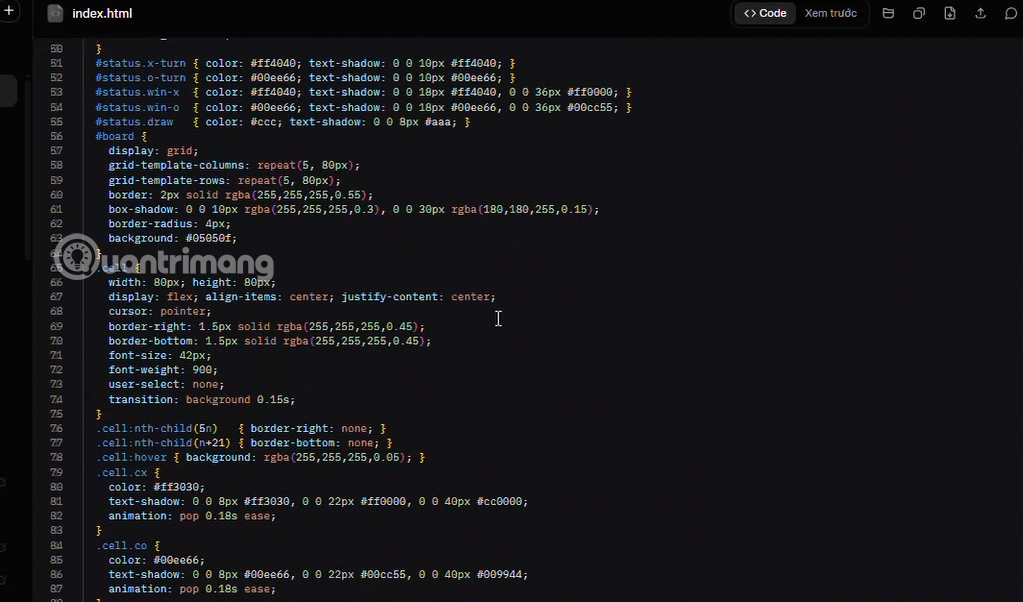
Paste the relevant code into the editor. For a bug, include the exact error message, expected behavior, actual behavior, runtime version, and the smallest input that reproduces the problem. Avoid submitting an entire repository when one function and its tests are enough.
4. Ask for a specific review
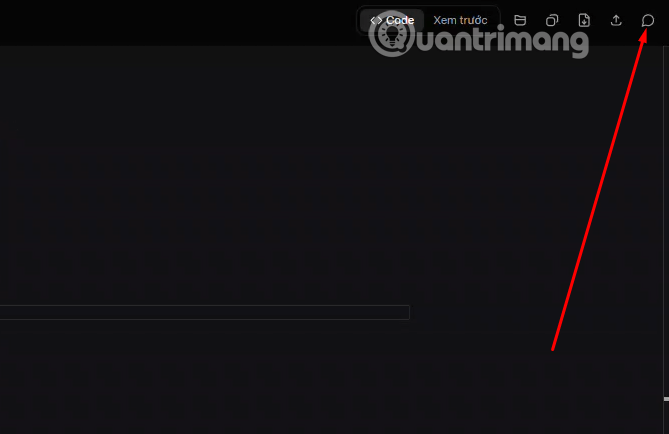
Open the file's chat panel and describe one goal at a time.
Stronger requests include:
Explain the root cause of this exception, then propose the smallest fix. Do not edit yet.Review this authentication handler for concrete vulnerabilities. Separate confirmed issues from hypotheses.Refactor this function for readability without changing its public API. Add tests for existing behavior first.Identify the time and space complexity, then show evidence for any claimed improvement.
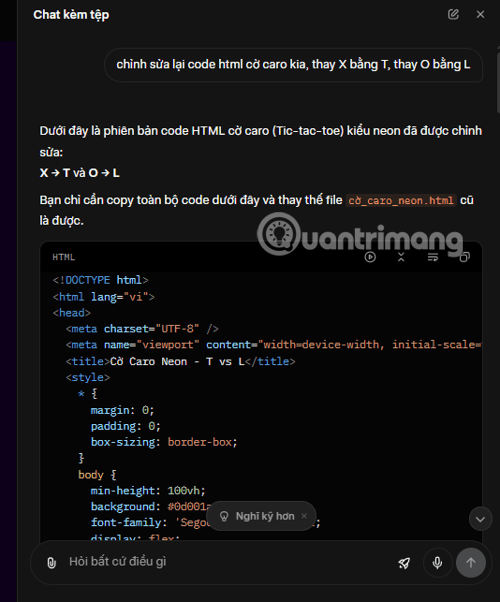
You can also ask for documentation or a line-by-line explanation. Check it against the code; AI explanations can sound plausible while overlooking side effects or framework behavior.
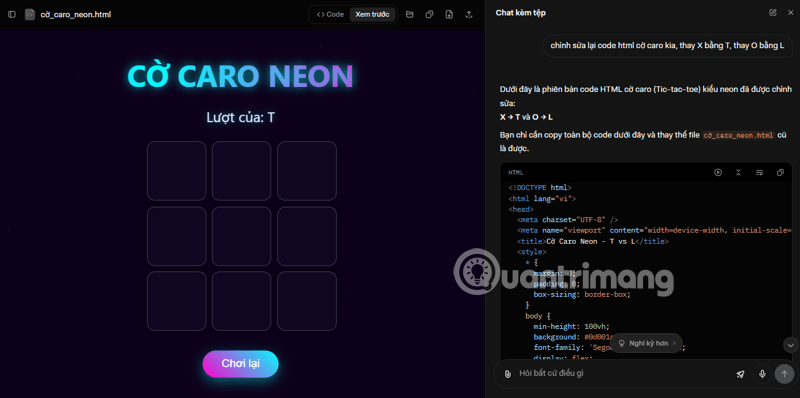
5. Inspect the proposed diff
Use the available comparison or diff view to examine every addition and deletion. Reject unrelated rewrites. Pay special attention to error handling, authorization checks, data validation, dependencies, and changes to public interfaces.
If the workspace edits the file directly, keep the original in version control and copy back only the changes you understand.
6. Run tests in the right environment
Use Run only for code supported by Grok's hosted environment. A successful preview does not prove the code will work with your operating system, production dependencies, database, network, or permissions.
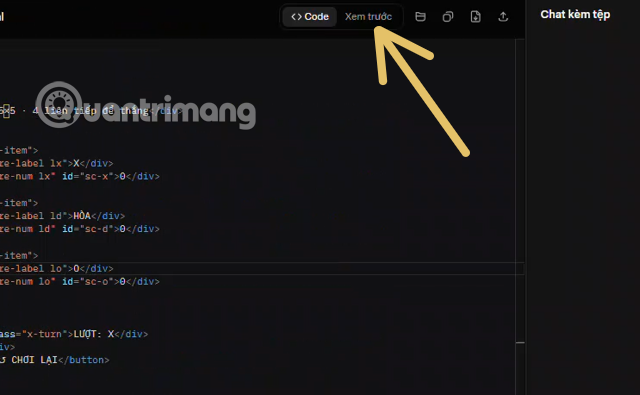
Download the file and run the project's formatter, static analysis, unit tests, integration tests, and security checks locally or in continuous integration. Test failure paths as well as the happy path.
7. Export only reviewed changes
When the result is correct, download the file or copy the accepted diff into a new branch. Do not deploy directly from an AI workspace. Use the same code-review and release process required for human-written changes, including peer approval where the project requires it.
Code-review checklist
- No credentials or sensitive data were uploaded or inserted.
- The change solves the stated problem without unrelated edits.
- New dependencies are necessary, maintained, and correctly licensed.
- Tests cover normal, edge, and failure cases.
- Performance and security claims are supported by measurements or evidence.
- The final diff is reviewed and committed through the project's normal workflow.
Related Articles
 What Is Less CSS and How to Use Less CSS? a Complete Guide9 minutes read
 Set of Multiple Choice Questions About Programming with P124 minutes read
 Beginners of Computer Programming Need to Focus on What?10 minutes read
 Set of Multiple Choice Questions for Programming with P15 Prize5 minutes read
 Set of Multiple Choice Questions About Programming with P10 Prize5 minutes read
 Set of Multiple Choice Questions About Programming with P7 Prize3 minutes read
Reader Comments 0
Sign in with email or Google to join the discussion.