Table of Contents
Claude Cowork can inspect files in a folder you authorize, propose categories, create folders, and move items into a cleaner structure. The safest approach is to make it plan the changes first, review that plan, and allow moves only after you have a backup.
Do not begin with “clean everything” or authorize deletion. File names can be misleading, duplicates may contain different revisions, and an AI classification can be wrong. Start with a small folder and use reversible actions.
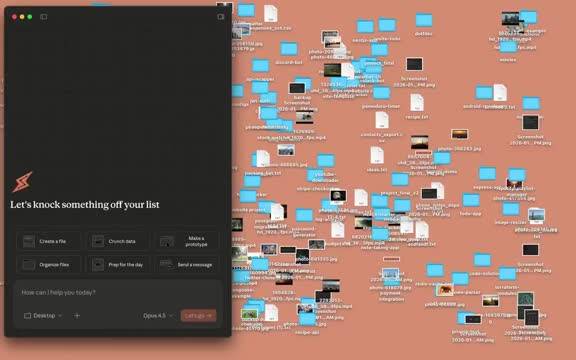
Before you let an AI move files
- Make a backup. Copy the target folder to an external drive or a dated archive that the cleanup task cannot modify.
- Close active projects. Moving an open project can break paths used by editors, scripts, shortcuts, or synchronization tools.
- Choose a narrow scope. Start with a test folder or Downloads, not your entire home directory.
- Exclude sensitive material. Do not grant access to password exports, identity documents, medical records, financial files, or confidential work unless the task truly requires it and your policy permits it.
- Forbid deletion. Ask Claude to place uncertain items in a Review folder rather than removing them.
Cowork works through the Claude desktop environment and needs permission to read or change selected local files. Do not assume that “local file access” means file content is never processed by Anthropic's service. Review the current privacy, retention, and administrator settings that apply to your account before granting access.
Step 1: Ask for an inventory, not a cleanup
Open a Cowork session and authorize only the folder you want to assess. Your first instruction should request a read-only report.
Analyze the files in this folder without moving, renaming, editing, or deleting anything.

Return:
1. file counts by type,
2. the largest files,
3. likely duplicates, without assuming they are identical,
4. active project folders that should stay intact,
5. a proposed folder structure,
6. a list of ambiguous items for manual review.
Check whether the inventory recognizes package files, project folders, photo libraries, application data, and other structures that should not be separated. If the report is inaccurate, correct the rules before any file operation.
Step 2: Define your sorting rules
Broad categories such as Documents, Images, Videos, and Projects are easy to understand, but they may not match how you retrieve files. A client-based, topic-based, or date-based structure can be better for ongoing work.
A practical desktop structure might be:
- Inbox: new items that have not been reviewed;
- Active Projects: complete project folders, kept intact;
- Documents: PDFs, spreadsheets, presentations, and text documents;
- Media: photos, screenshots, audio, and video;
- Installers: setup packages you intentionally want to keep;
- Review: duplicates, unknown formats, and ambiguous files;
- Archive: completed work grouped by year or project.
Tell Claude which folders must never be moved and how naming conflicts should be handled. Avoid automatic renaming unless you have reviewed the proposed convention.
Step 3: Request a move plan
Before execution, ask for a table showing the source path, destination path, reason, and any conflict. Limit the first batch.
Create a proposed move plan for no more than 20 low-risk files.

Do not move project folders, hidden files, application data, aliases, or anything with an uncertain category. Do not delete or overwrite files. If a destination name already exists, place the item in Review and flag the conflict.
A small batch makes errors visible and easy to undo. Verify several source and destination paths manually, especially when names are similar.
Step 4: Execute only approved moves
After the plan looks correct, approve that specific batch. Ask for a move log containing every old and new path. Keep the log outside the folder being reorganized so it is not moved during the task.
If Cowork proposes deleting empty files or folders, decline until you have inspected them. A zero-byte file can be a deliberate marker, and an empty folder can be required by a workflow or synchronization rule.
Step 5: Review the result
- Open several moved documents and media files.
- Launch any affected projects and check relative paths.
- Confirm cloud-sync software is not reporting mass conflicts.
- Search for a few familiar file names to make sure they remain easy to find.
- Compare the move log with the actual folders.
If anything is misplaced, use the log to move it back. Do not proceed to a larger batch until the test set is correct.
Useful follow-up prompts
Separate projects without breaking them
Review the top-level project folders only. Classify each complete folder as Python, JavaScript, or Other based on its manifest and source files. Do not move individual files out of a project. Return a plan before making changes.Find a file after reorganizing
Using the move log, locate the spreadsheet whose name is similar to Q3_budget. Show the current path and two closest matches. Do not open, move, or edit the files.Design an ongoing system
Propose a simple weekly process for Desktop and Downloads. New files should enter an Inbox folder, uncertain items should go to Review, and nothing should be deleted automatically.
Troubleshooting
Cowork cannot see a folder
Check the folder selected in the session and the operating system's file-access permissions. Grant access only to the needed location rather than the entire disk.
A project stops working after a move
Restore the complete project folder to its original path from the backup or move log. Then check shortcuts, environment files, and tools that stored an absolute path.
Cloud storage creates duplicates
Pause the cleanup, allow synchronization to finish, and compare versions manually. Do not let an AI delete apparent duplicates based only on file names.
The classification is inconsistent
Reduce the batch size and replace vague categories with explicit rules based on file type, project manifest, date, or known client name. Put all unresolved items in Review.
Keep the desktop clean after the first pass
Create a small number of stable destinations and schedule a brief manual review each week. The most useful AI-assisted system is not the one that moves the most files; it is the one whose rules you understand and can maintain without risking data loss.
Related Articles
 Clean Up Mac Screens with Stacks Feature4 minutes read
 How to Connect an MCP Server Filesystem to Claude Desktop7 minutes read
 How to Use Claude Cowork to Run Your Business with AI12 minutes read
 What Is the Claude Code: Clear Explanation7 minutes read
 Tips for Using Project in Claude Effectively to Create a Personal AI Space8 minutes read
 Setting up and Running Claude Cowork for the First Time5 minutes read
Reader Comments 0
Sign in with email or Google to join the discussion.