Table of Contents
NotebookLM can send many notes and generated reports to Google Docs, while tabular content may open in Google Sheets. If you need Markdown, PDF, Word, plain text, or a complete chat archive, the available route depends on the type of content and the export controls currently shown in your notebook.
Start with NotebookLM's built-in export because it keeps the process inside your Google account. Use manual copying or a third-party extension only when the native option does not cover the content or format you need.
Export a note or report to Google Docs
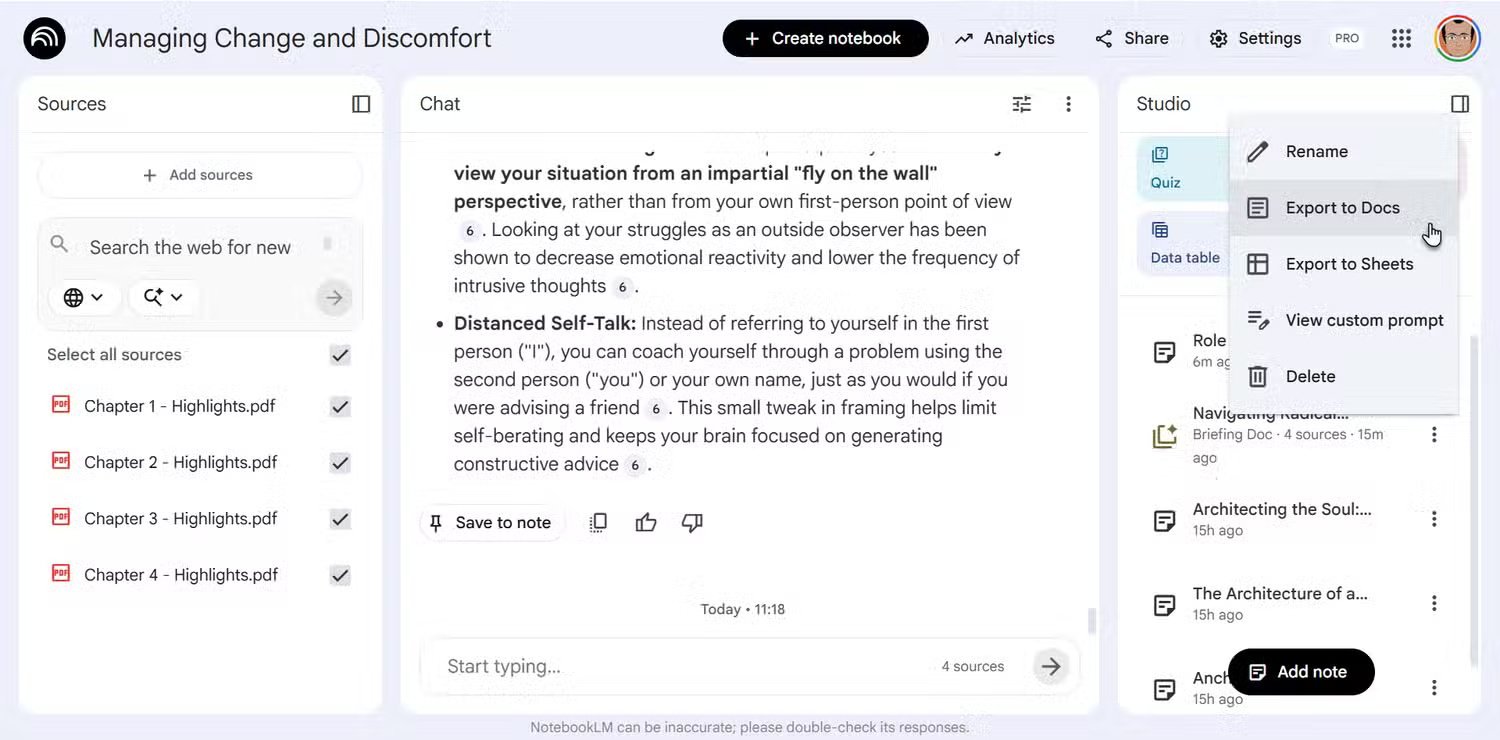
In the Studio panel, open the three-dot menu next to a supported note or report and choose Export to Docs. If the content is primarily a table, NotebookLM may offer or use Google Sheets instead.

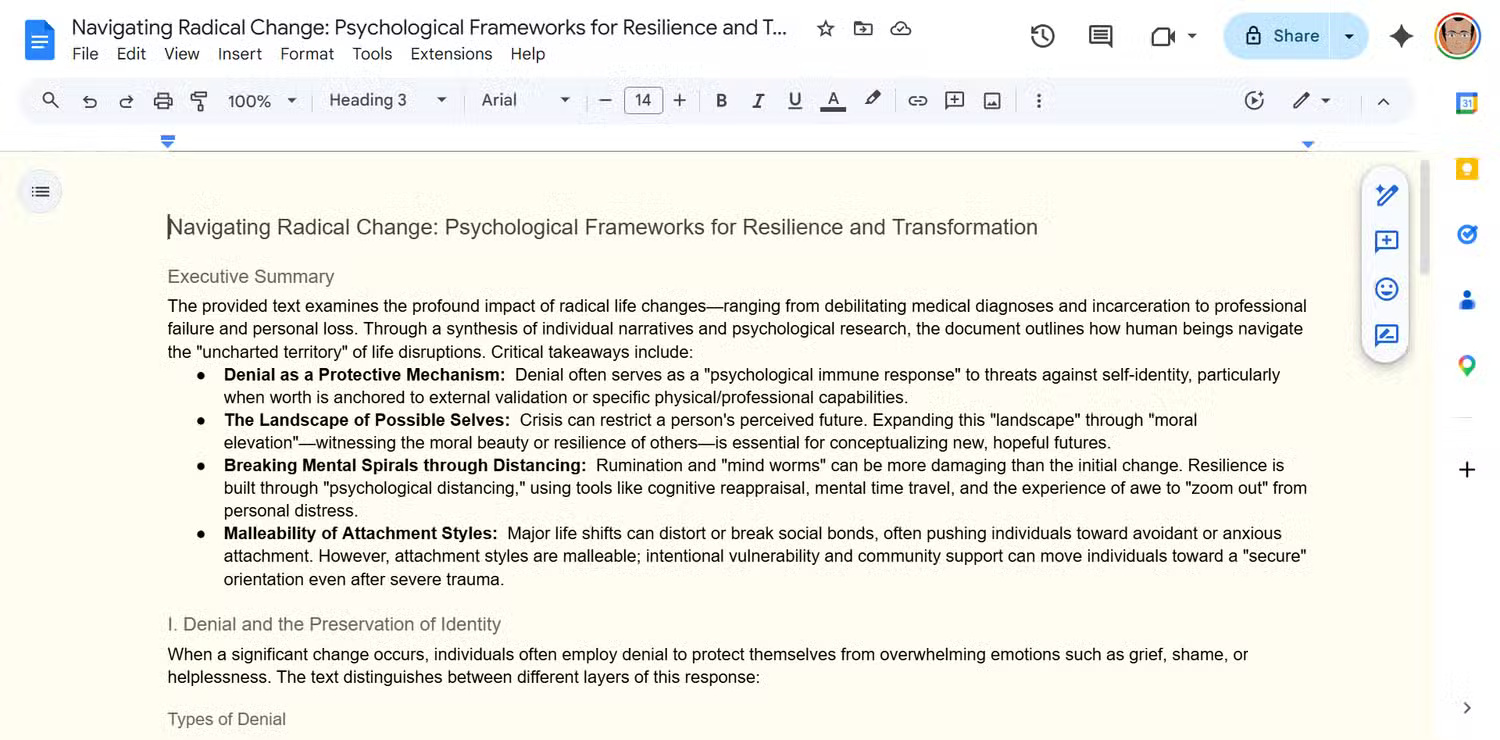
Once the content is in Docs, use File > Download to save it in an available format such as DOCX or PDF. This extra conversion step is inconvenient for users of Notion or Obsidian, but it produces an editable document without granting another tool access to the notebook.
Copy a formatted report into a Markdown editor
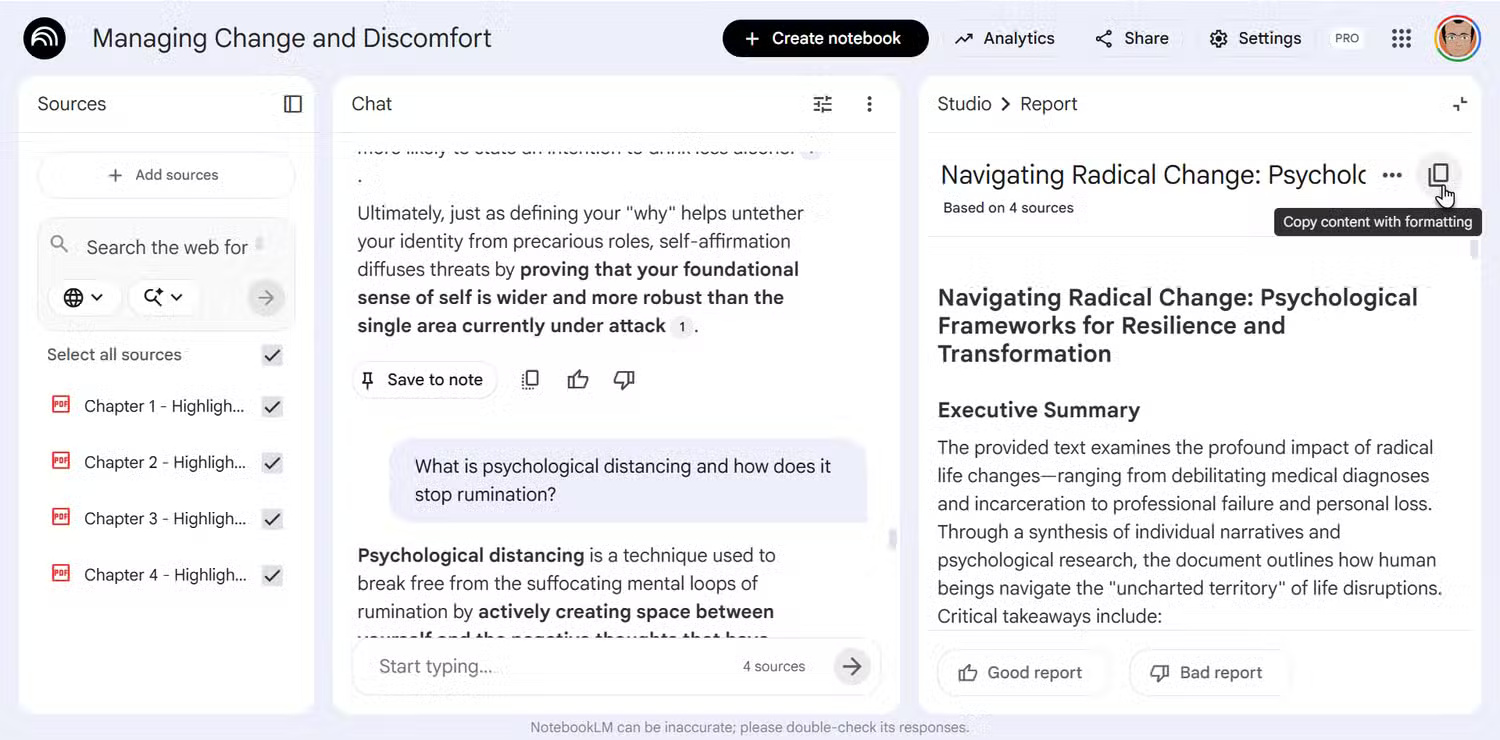
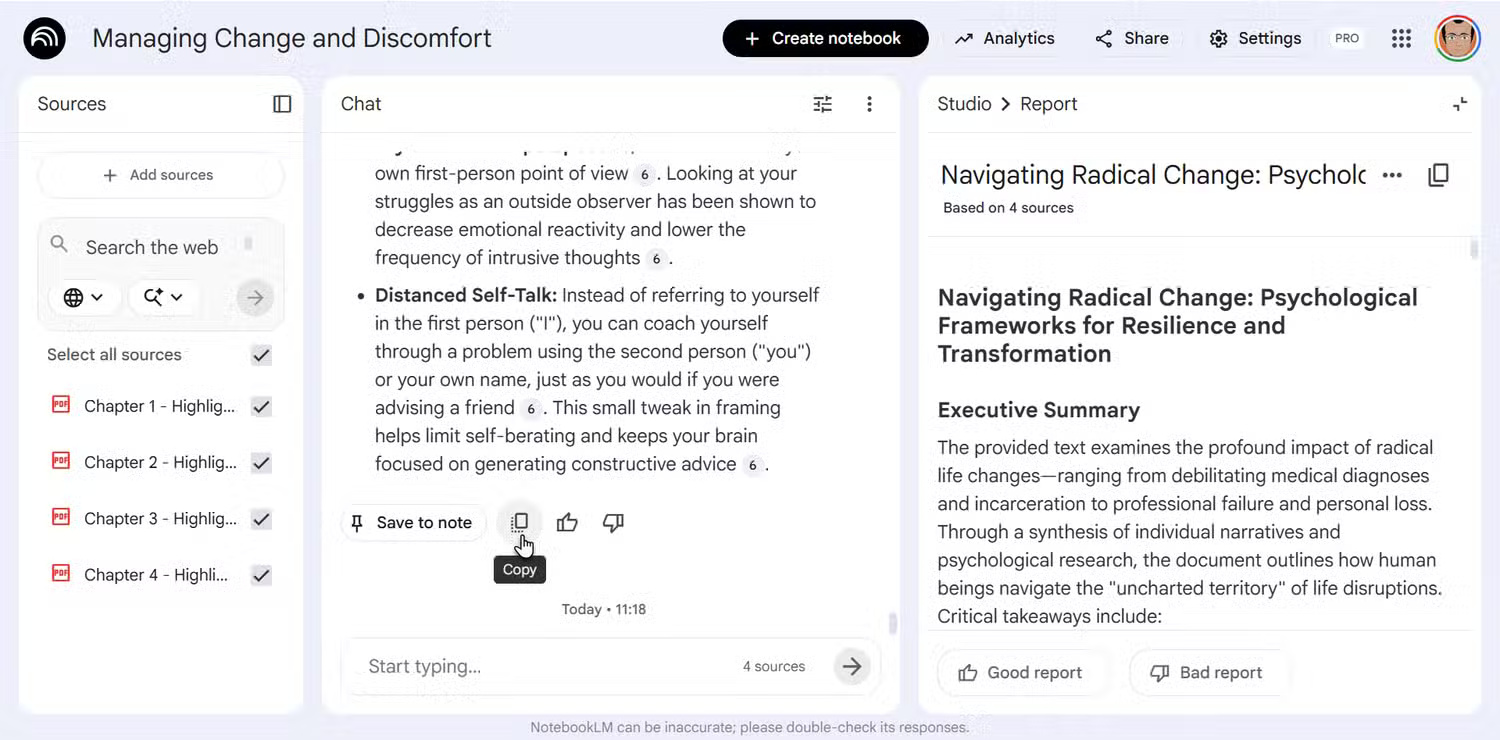
For a study guide, summary, or similar report, select the report text and copy it into a Markdown-aware editor. Headings, lists, and emphasis may transfer cleanly to tools such as Obsidian, Notion, or a code editor.
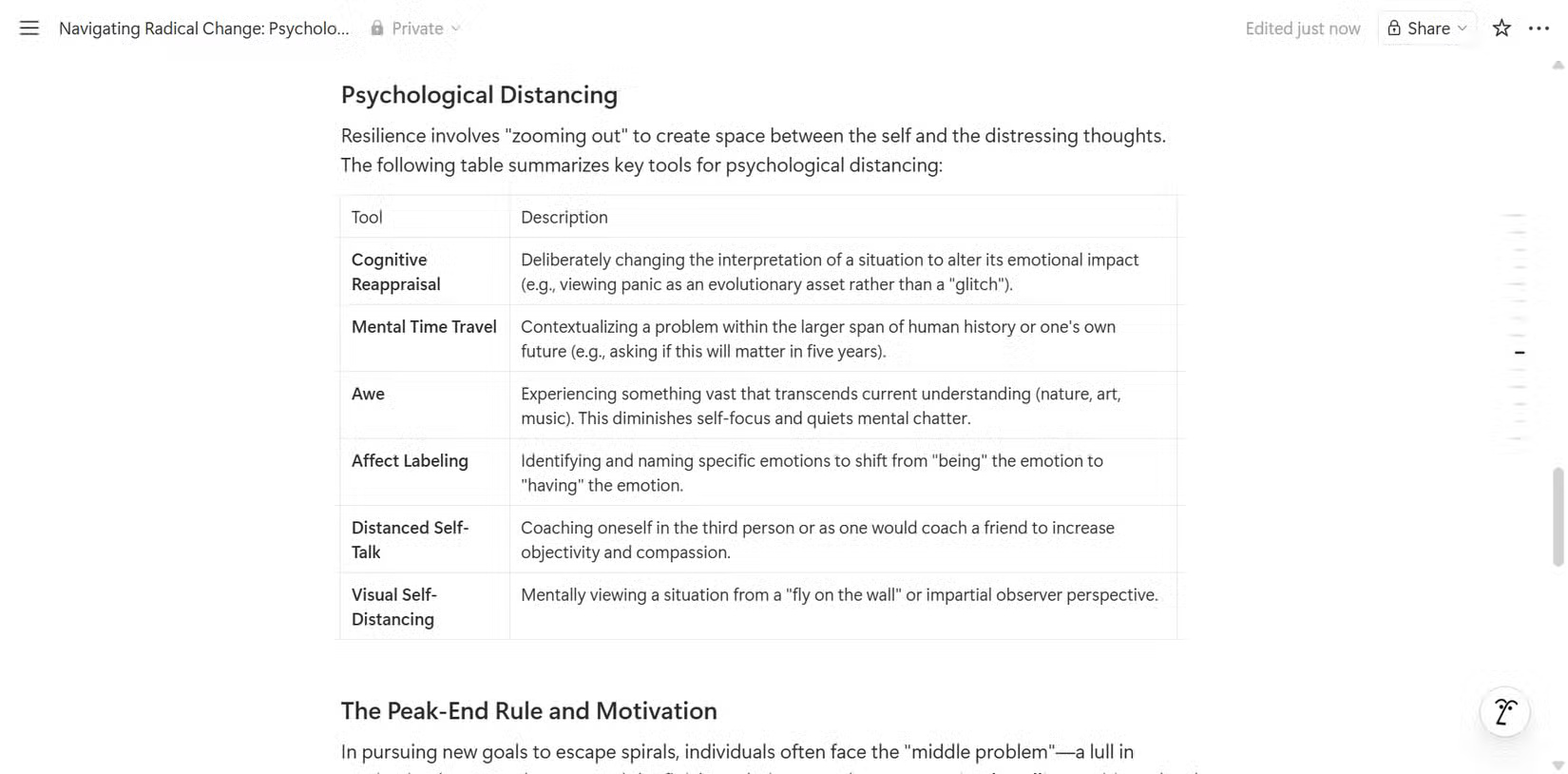
Check the pasted document before relying on it. Complex tables, citations, footnotes, and nested lists may require manual repair. For repeatable work, test the process with one short report and confirm that the target editor interprets the formatting correctly.
Combine notes before moving them
If your notebook offers Convert all notes to source, you can combine the notes into one source inside NotebookLM. This is useful when keeping all text together matters more than preserving each note as a separate item.
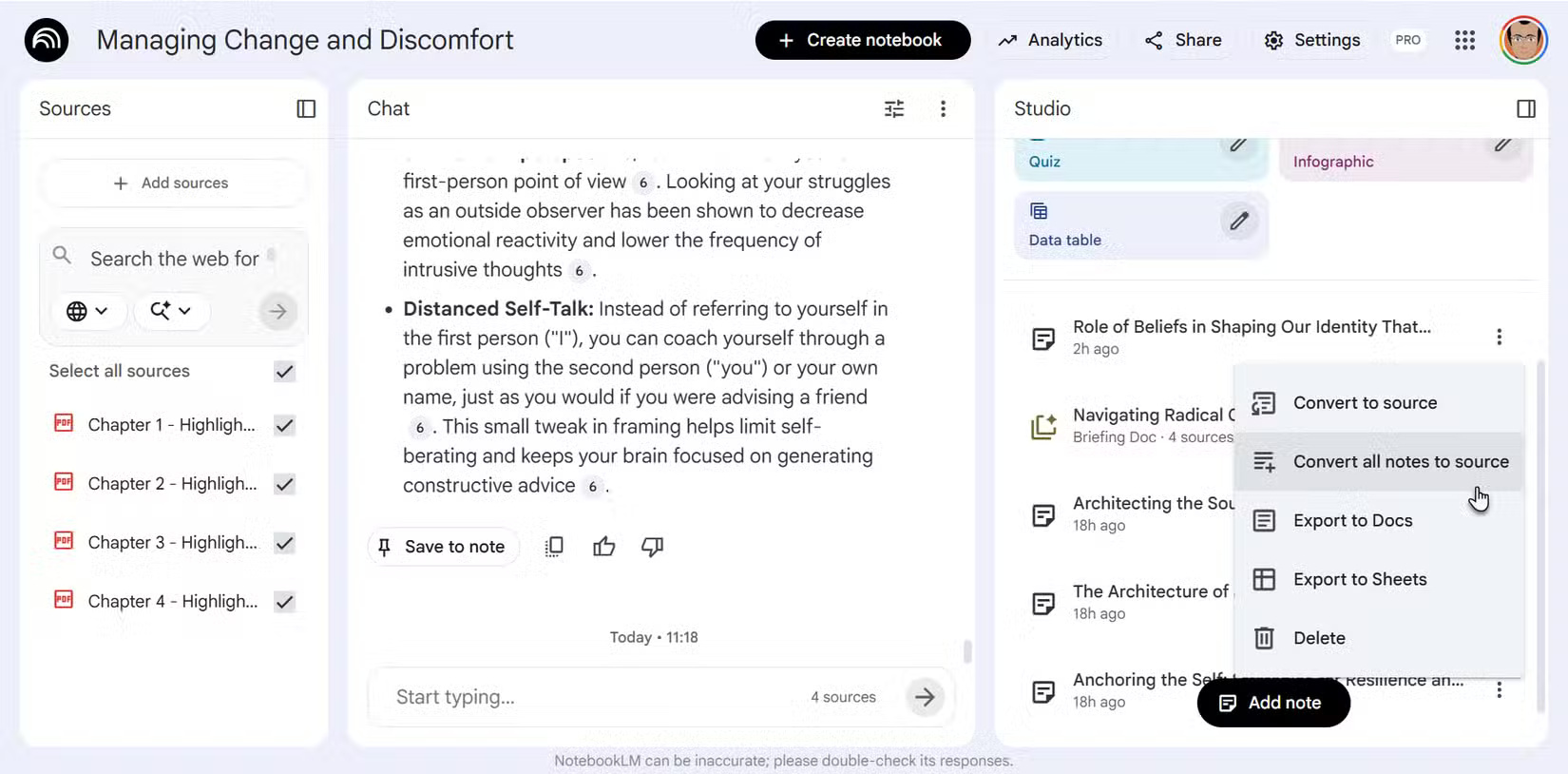
The result is still inside the notebook, so it is not a complete backup. Copy or export the combined content to another location if you need an independent archive. Do not delete an original source until you have confirmed that the replacement contains everything you need and that recovery is possible.
Use browser extensions cautiously
Some Chrome extensions advertise direct export of NotebookLM notes, reports, or chat logs to formats such as Markdown, PDF, Word, CSV, or Anki. These tools can save time when the built-in export is insufficient.
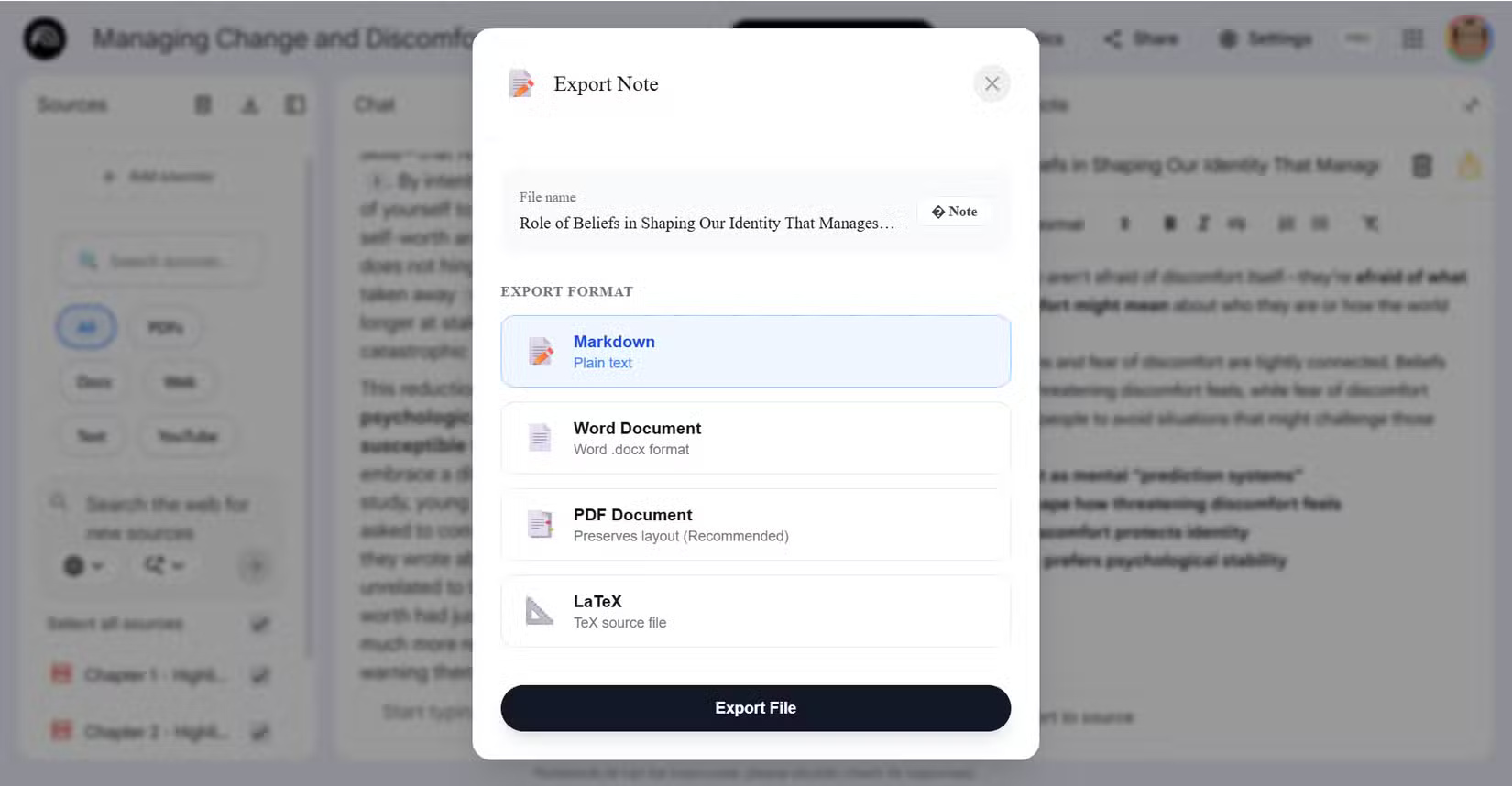
An extension may be able to read the content displayed in NotebookLM, including private research material. Before installing one, review its developer, requested permissions, privacy policy, recent updates, and independent user reports. Avoid using an untrusted extension with confidential, personal, or company information. Export a small notebook first and compare the downloaded file with the original.
Use Gemini only for formatting cleanup
Another option is to copy the raw text into Gemini and ask it to organize the formatting before exporting the result to Docs.
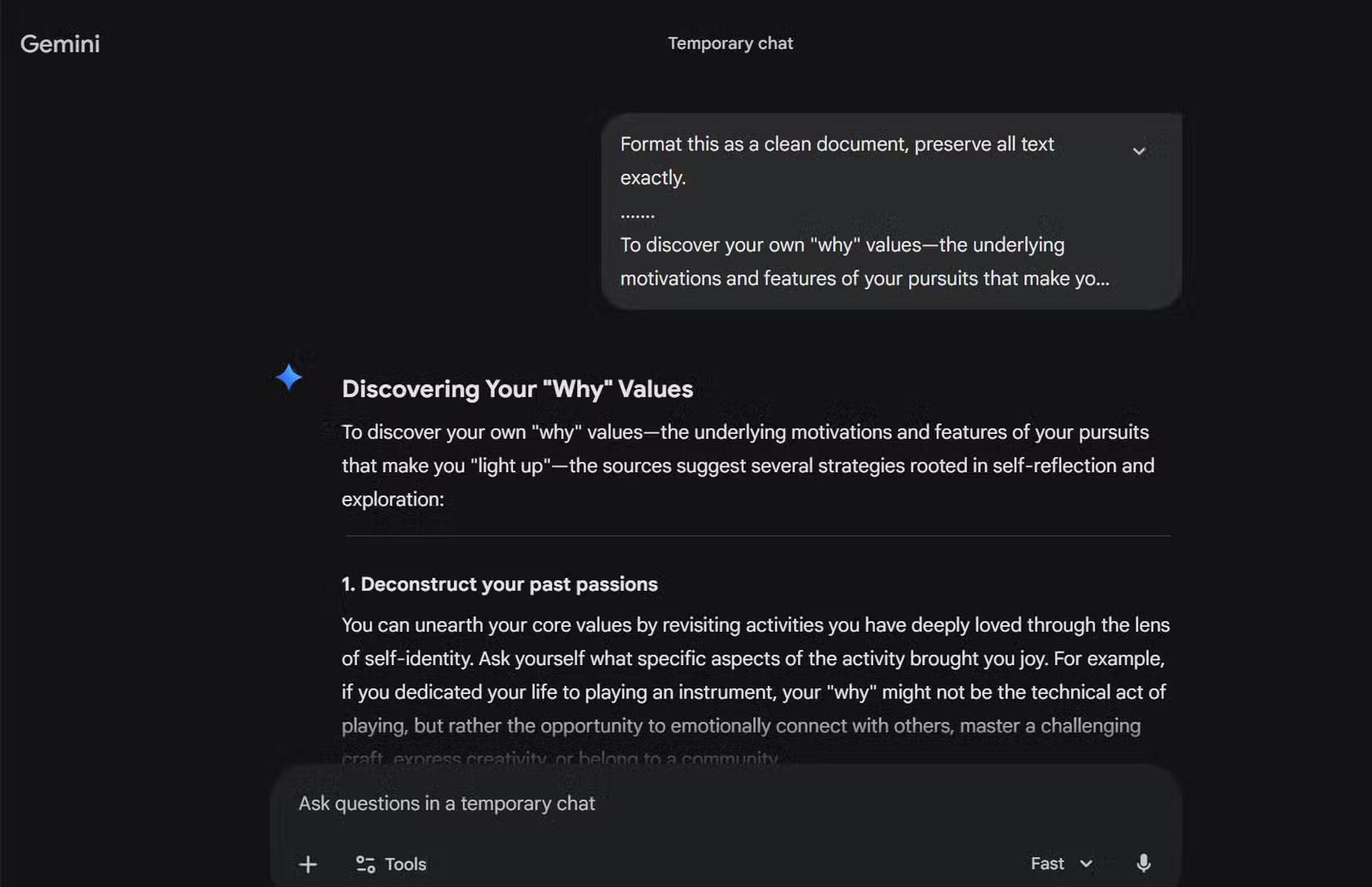
A precise prompt is:
Format this text as a clean document. Preserve every word, number, citation, and link exactly. Do not summarize, rewrite, correct, or add information.Even with that instruction, an AI system can omit or alter content. Compare the formatted version with the source, especially when the document contains quotations, references, technical values, or material that must remain exact.
Choose the safest export path
- Google Docs or Sheets: best for a supported native export and later conversion to PDF or DOCX.
- Copy and paste: practical for one report that already has simple Markdown-style formatting.
- Combined source: useful for gathering many notes before copying, but not an independent backup by itself.
- Browser extension: convenient for bulk or specialized formats, but requires careful permission and privacy review.
- Gemini formatting: helpful for messy text only when you verify that no content changed.
Related Articles
 Create Data Tables at Lightning Speed in NotebookLM5 minutes read
 What Is Temporary File? How to Delete Temporary Files on4 minutes read
 How to Fix Temporary Files Taking up a Lot of Space on Your Computer7 minutes read
 How to Rid Your Computer of Temporary Files6 minutes read
 Free Up Space on Windows 10 by Deleting Temporary Files3 minutes read
 How to Clear Temp Files in Windows 104 minutes read
Reader Comments 0
Sign in with email or Google to join the discussion.