Table of Contents
Explore your browser is slowing down your computer, including the key concepts, practical examples, important considerations, and useful guidance.
Nothing on the computer indicated a clear cause
System check revealed nothing
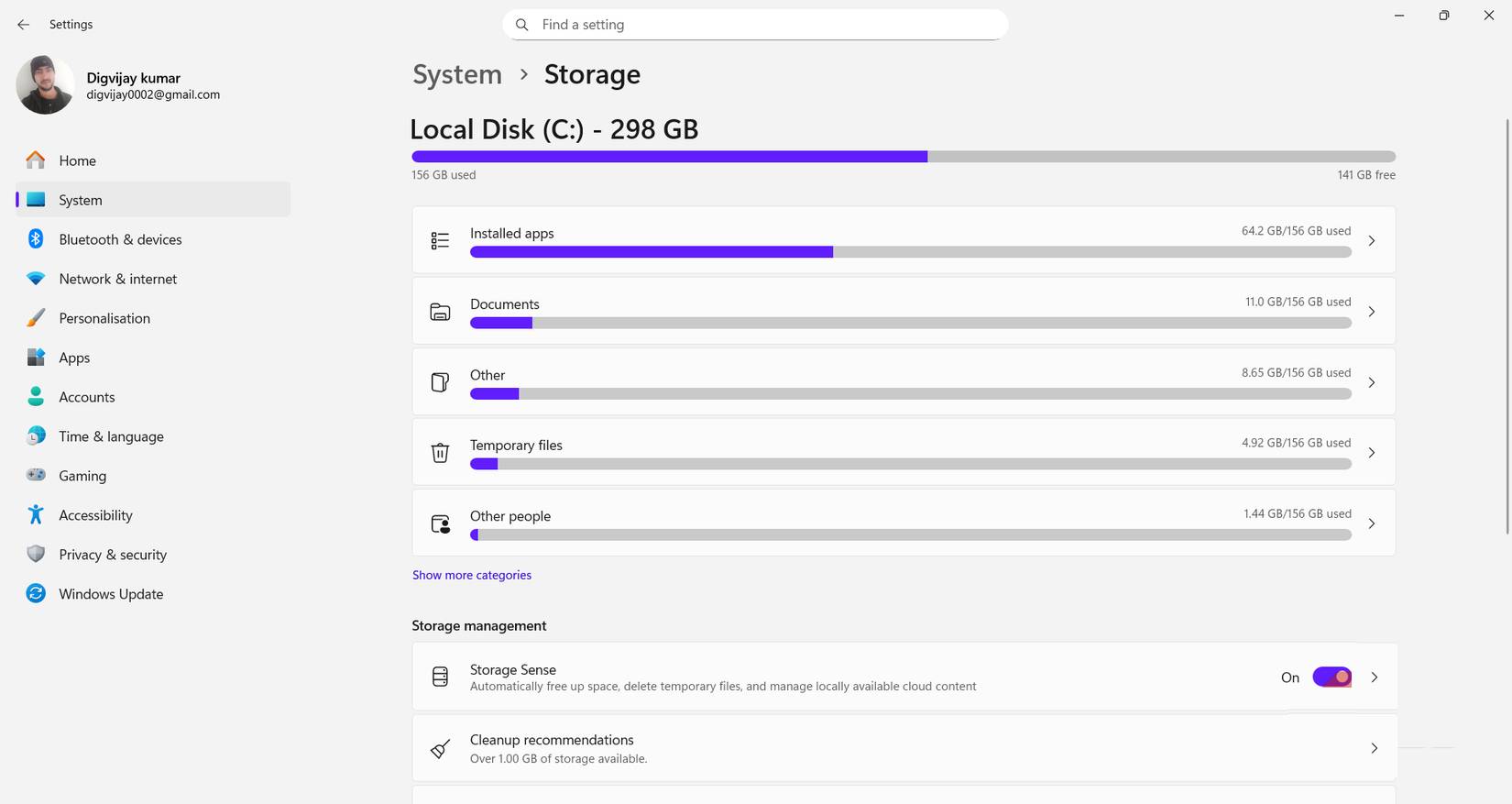
The first thing to consider is the system itself. If something is slowing down the computer, people expect it to show up in the usual places. They check storage usage, look at startup applications, and scan through running processes, but nothing unusual or showing clear signs of overload. CPU, disk, and memory usage are all within normal ranges.
They also reviewed recent updates and settings, suggesting that something new might have changed how the system operates. The timing of the issue did not coincide with any Windows updates or software installations. During normal use, there were no error messages, warnings, or system crashes.
Because there were no matching bugs, crashes, or updates, it was difficult to pinpoint the cause. Instead, it appeared as short delays in everyday tasks. By the time those checks were completed, it became clear that the cause wasn't where you were looking.
An application that dominates Task Manager
Mismatch in memory usage
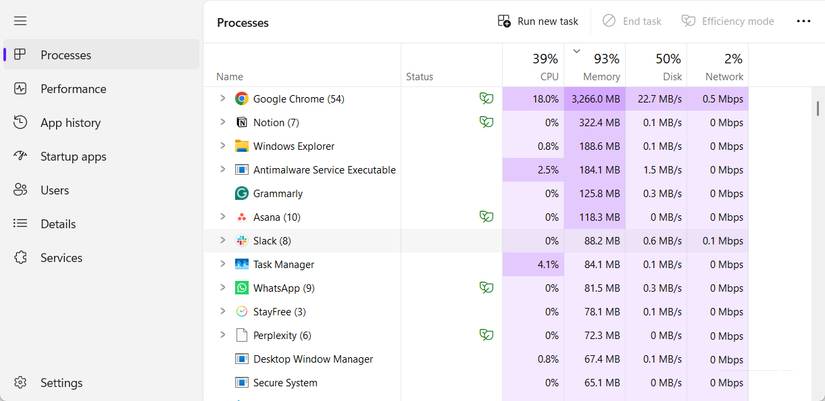
When those checks don't lead anywhere, open Task Manager to see how your computer is actually using its resources in daily tasks. CPU usage remains low, and disk activity is virtually unchanged, even if a noticeable slowdown is present. This makes a bottleneck due to the processor or hard drive unlikely.
However, memory usage tells a different story. On a system with 16GB of RAM, usage consistently hovers above 90%, leaving only about 1 gigabyte free. In the Processes window, Chrome consistently tops the list, running dozens of processes and using more memory than any other open application. Other open applications use only a fraction of Chrome's memory.
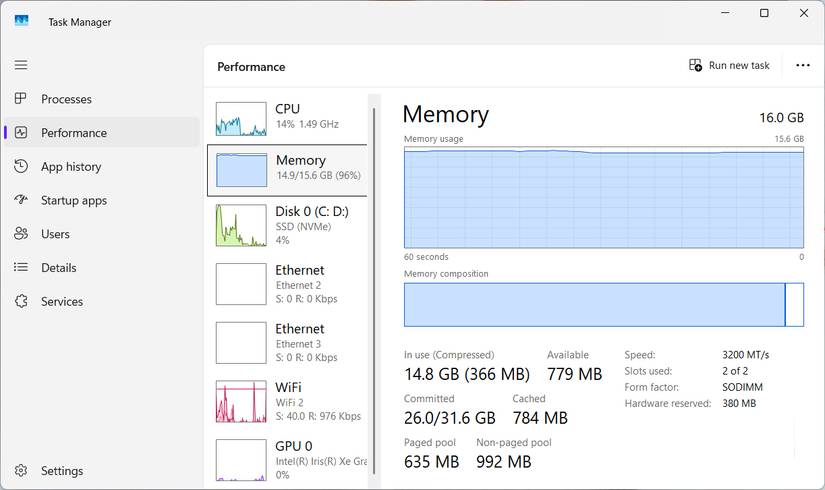
Examining these numbers over time has clarified what's happening. This isn't a short-term spike followed by a drop after page load. Memory usage remains high even during light browsing, and opening more tabs only increases it. Closing tabs helps, but the system never returns to normal levels.
In summary, the previous slowdowns become easier to explain. The delays in switching tabs, typing, or moving between applications are not due to CPU overload or disk limitations. They are consistent with constant memory pressure, with the browser taking up a large portion.
The browser is bearing the brunt of the load
Constant memory strain from web browsing

Monitoring memory usage while working will change how you understand the issue. Even with light web browsing, memory usage remains high. That's when the scale of what's open starts to stand out. Dozens of tabs are sitting there "for later," and many tabs persist even when you're not touching them. No single tab is more prominent than others. The load comes from the number of tabs running simultaneously.
Opening new tabs increases memory usage, and closing them reduces it. The important thing is what level of memory usage stabilizes afterward. I closed a few tabs and saw the numbers drop, but it still fluctuated within a normal range. Even after reducing the number of tasks, the browser was still using more memory than anything else on the system. It was carrying the entire load of the session, not just the workload at hand.
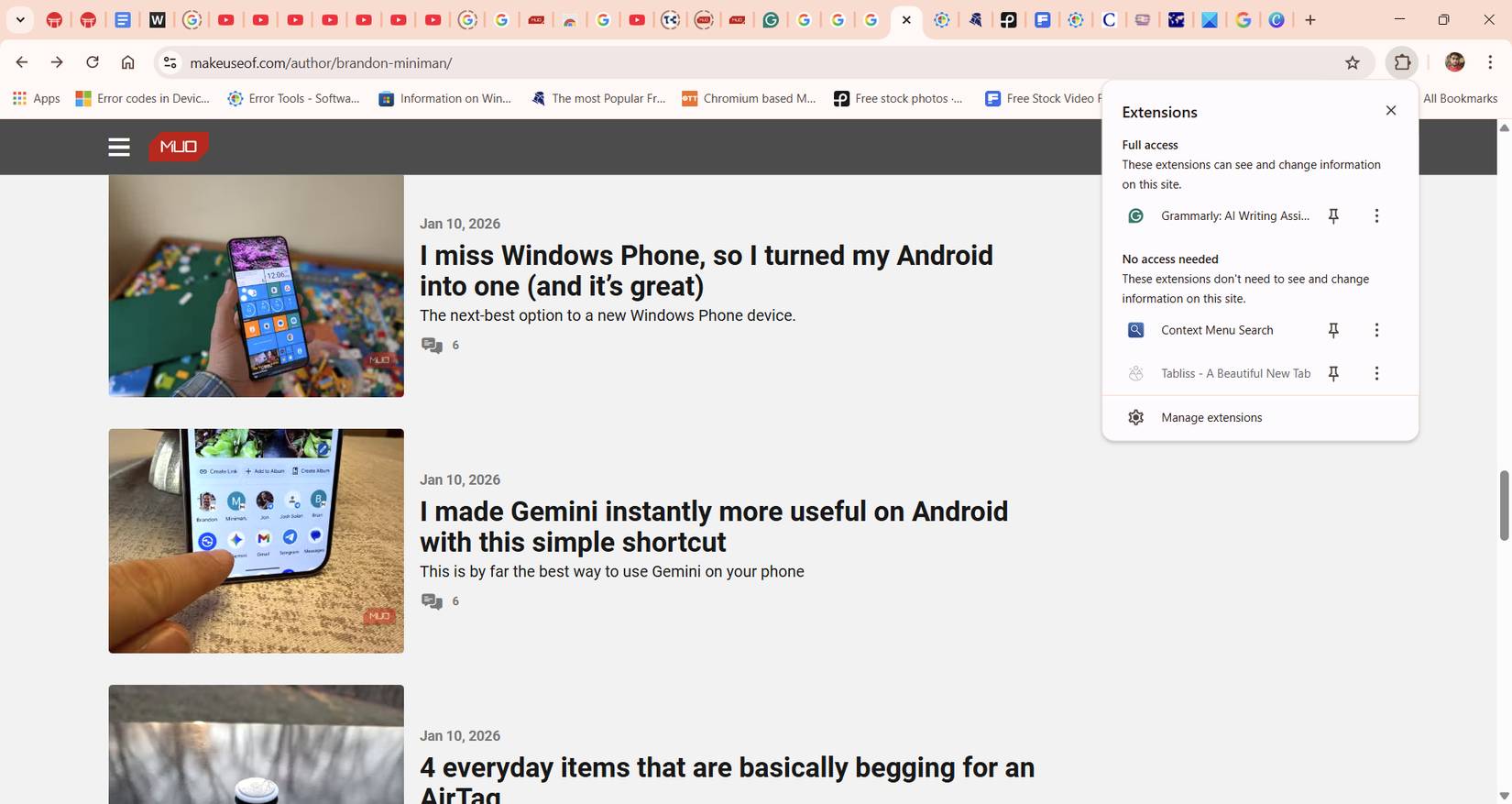
This prolonged resource usage doesn't match what's displayed on the screen. Memory remains high even without active interaction, suggesting background activity. Closer observation reveals unused extensions are responsible for much of that load. Short spikes in GPU activity during light usage often coincide with moments when the interface appears slightly sluggish. These spikes coincide with hardware acceleration being enabled, even when nothing graphically demanding is happening.
At that point, the explanation was no longer theoretical. The slowdown wasn't coming from Windows or the hardware. The problem stemmed from a web browsing session that had become increasingly sluggish over time, with no clear point of overload.
After tracing the cause of the slowdown step by step, the problem ultimately boils down to one thing. Windows isn't the issue, and neither is the hardware. The slowdown coincides with the browser maintaining high RAM usage for extended periods. That connection explains the lag, and once you reduce the load, the computer will function normally again.
Final Thoughts
Understanding your browser is slowing down your computer makes it easier to evaluate the information and apply the most relevant recommendations. Focus on the key points above and verify details that may change over time.
FAQ
What is your browser is slowing down your computer?
Explore your browser is slowing down your computer, including the key concepts, practical examples, important considerations, and useful guidance.
What key points does this article cover?
The article focuses on Nothing on the computer indicated a clear cause, System check revealed nothing, An application that dominates Task Manager, with practical explanations and examples.
How can you use this information in practice?
Use the explanations to compare options, verify important details, and make a more informed decision. Apply the recommendations that best match your goals and situation.
Related Articles
 Follow These 7 Steps to Keep Windows 11 from Slowing Down Again!7 minutes read
 9o0gle.com: Steps to Remove Malware 9o0gle. Com12 minutes read
 Edge: Complete Guide3 minutes read
 How to Create Wifi Hotspot on UC Browser Web Browser5 minutes read
 How to Set the Default Browser When Opening Any Link on the Computer4 minutes read
 Samsung Claims Not to Slow Down Old Smartphones3 minutes read
Reader Comments 0
Sign in with email or Google to join the discussion.