Table of Contents
Explore simple tips to reduce cpu usage on Windows, including the key concepts, practical examples, important considerations, and useful guidance.
Restart your computer to refresh the system
In many cases, a reboot is enough to bring your CPU back to a stable level. A reboot closes hung applications, clears temporary errors, stops unnecessary background processes, and frees up memory. It's like a full system refresh, making it easy to see your actual CPU usage once your computer is running smoothly.
Turn off running applications that you are not using
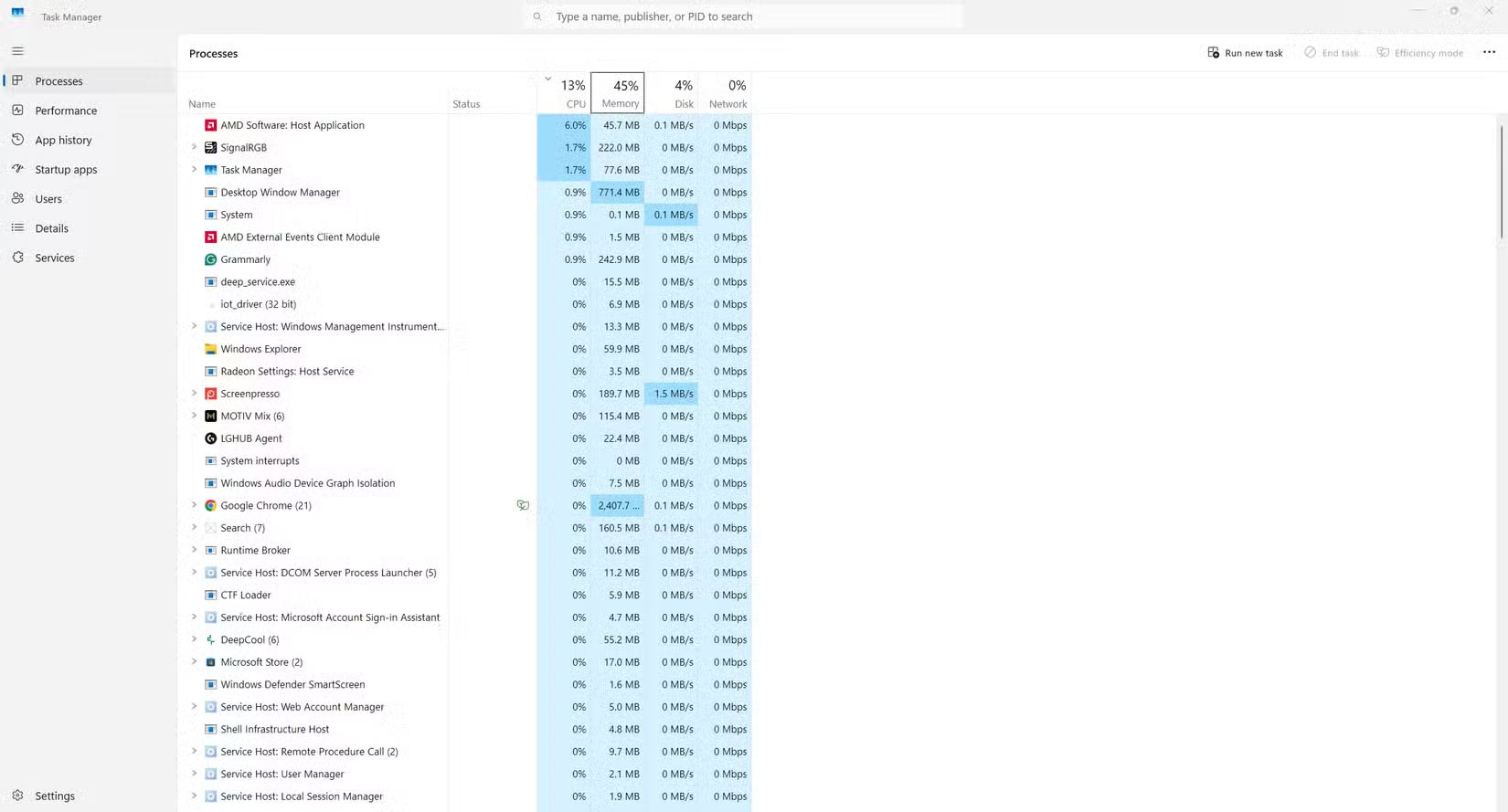
Open Task Manager and look at Processes to see which programs are taking up the most resources. This isn't a foolproof way to measure, but it's a great way to spot the culprits that are causing your CPU to run too fast. It could be a heavy application, or it could be something as light as Discord, Slack, or a background program you forgot about. Shutting down unused applications always frees up your CPU and makes your system more responsive.
Reduce the number of applications that start automatically with Windows
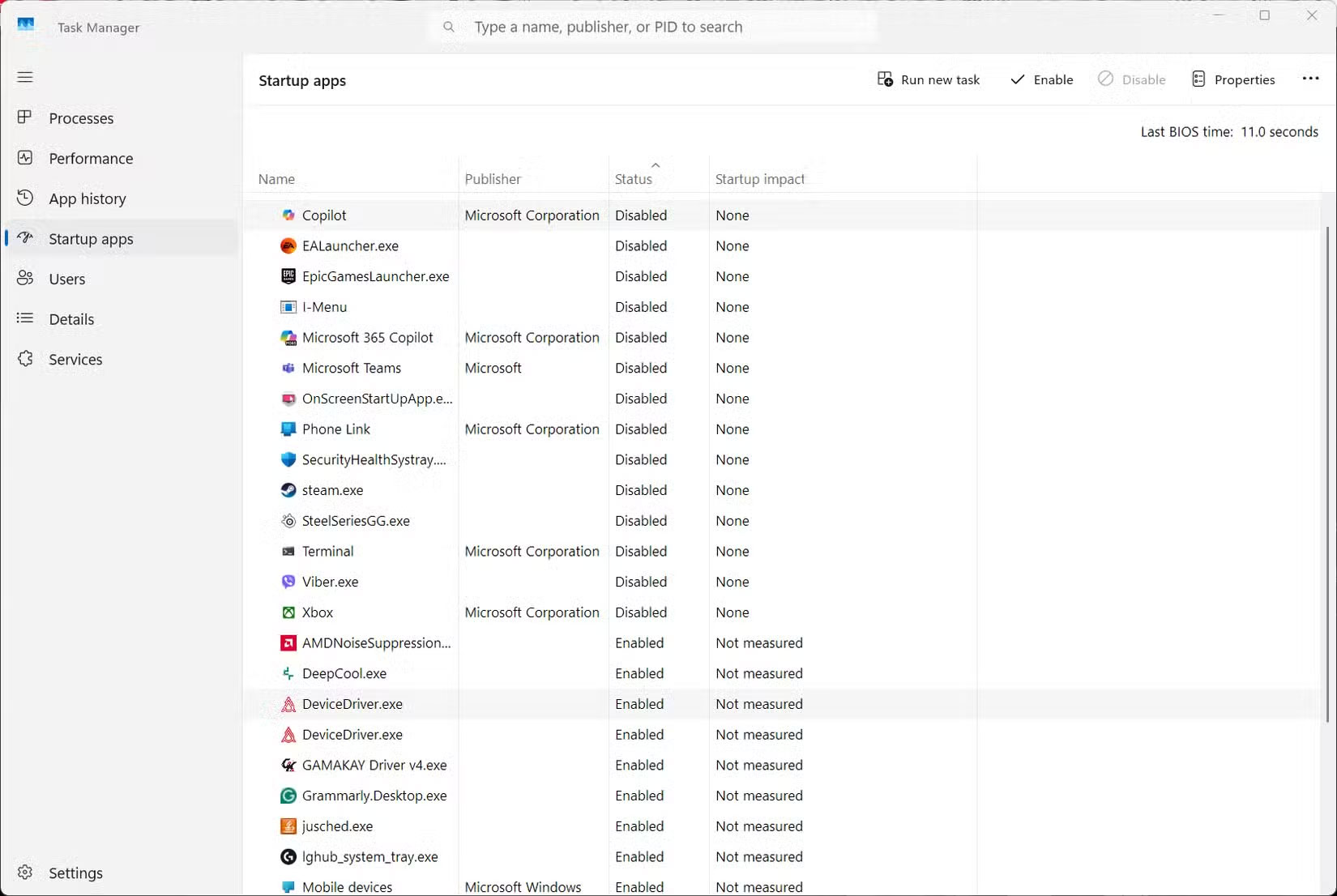
If your computer is sluggish when you turn it on, the cause may be the apps that automatically run with Windows. In Task Manager, the Startup Apps section allows you to disable the automatic startup of unnecessary applications. The system will be much lighter when it does not have to handle too many programs right from the start.
You can completely disable each application manually, or use the msconfig utility to block all non-Microsoft services. However, the second method should be done carefully to avoid accidentally disabling important services such as sound drivers or LAN.
Optimize Windows background services (Windows Services)
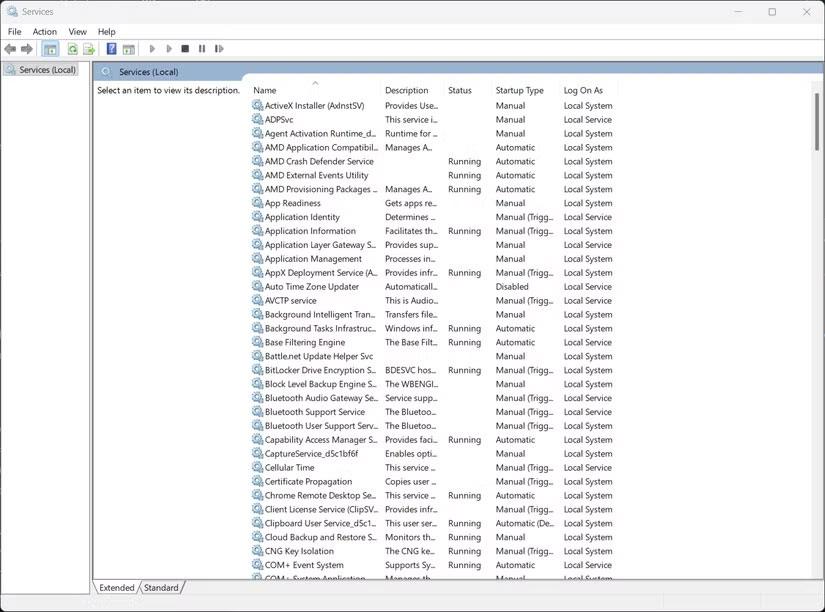
Windows has a lot of services running in the background to keep its features running. But not all of them are necessary. For example, if you don't use a printer, Print Spooler is a service that can be turned off. Or Windows Search—which creates a search index—can be disabled if you rarely use the file search feature.
Services like Remote Registry, Xbox services, Windows Error Reporting, and Geolocation can also be disabled on demand. This doesn't make a huge difference, but on a slow machine or with a low CPU, it can help reduce the load a bit.
Adjust Power Plan to limit CPU power
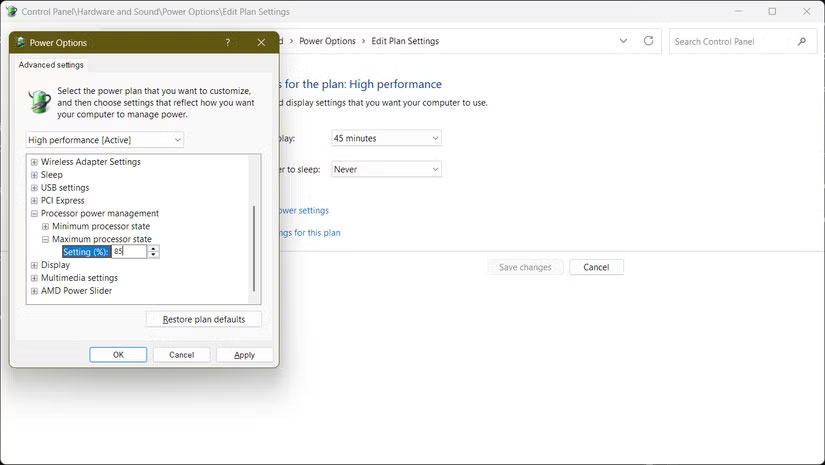
If your goal is to keep your laptop cooler, reduce fan noise, or save battery life, you can set a limit on how much the CPU can run at maximum capacity. In the Power Plan settings, simply reduce the 'Maximum processor state' to around 80–85% and you'll see a noticeable difference. Your laptop will stay cooler, but still be powerful enough for light tasks like web browsing, chatting, or typing.
Update drivers, BIOS and Windows
Old drivers or outdated applications can also cause your CPU to work harder. Manufacturers often release updates to fix bugs, optimize performance, and address issues that cause high CPU usage. The BIOS also plays an important role because it directly affects how your CPU manages its clock speed and power. Windows Updates can also cause temporary CPU spikes, as the system needs time to complete background tasks. If the problem persists, you can try updating to a newer patch or rolling back to a previous version.
Just combine a few suitable steps, the CPU usage on Windows will be significantly reduced. The device runs smoother, the battery lasts longer and limits the prolonged overheating. These are all simple, safe ways, you can completely do it yourself without the need for external software.
Final Thoughts
Understanding simple tips to reduce cpu usage on windows makes it easier to evaluate the information and apply the most relevant recommendations. Focus on the key points above and verify details that may change over time.
FAQ
What is simple tips to reduce cpu usage on windows?
Explore simple tips to reduce cpu usage on Windows, including the key concepts, practical examples, important considerations, and useful guidance.
What key points does this article cover?
The article focuses on Restart your computer to refresh the system, Turn off running applications that you are not using, Reduce the number of applications that start automatically with Windows, with practical explanations and examples.
How can you use this information in practice?
Use the explanations to compare options, verify important details, and make a more informed decision. Apply the recommendations that best match your goals and situation.
Related Articles
 How to Reduce the Memory Usage of Firefox: Step-by-Step8 minutes read
 How to Reduce the High CPU Usage of Game DVR in Windows 104 minutes read
 24 Simple Tips to Help You Relax, Reduce Stress in Just 5 Minutes9 minutes read
 How to Adjust Settings to Reduce Phone Usage Time: Step-by-Step Guide5 minutes read
 Chrome Flags That Can Actually Reduce RAM Usage: Explained7 minutes read
 How to Reduce Lag, Jerk Game Play on Windows 10?4 minutes read
Reader Comments 0
Sign in with email or Google to join the discussion.