Table of Contents
Canva's AI Quiz Maker can generate multiple-choice questions and place them into a presentation. It is useful for creating a first draft of a classroom review, but the teacher should verify every question, answer, and explanation before students see it.
Open AI Quiz Maker in a presentation
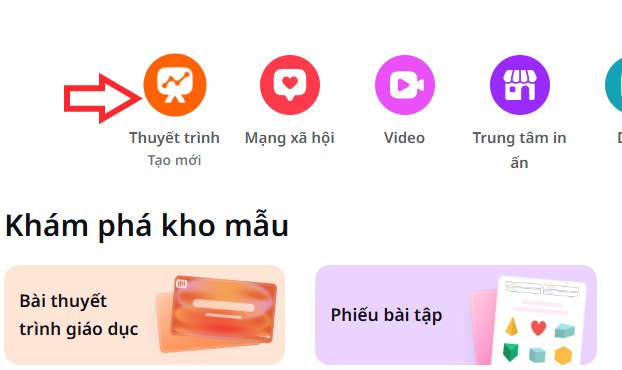
Step 1: Sign in to Canva and create or open a Presentation.
Open Apps, search for quiz, and select AI Quiz Maker.


Describe the quiz you need
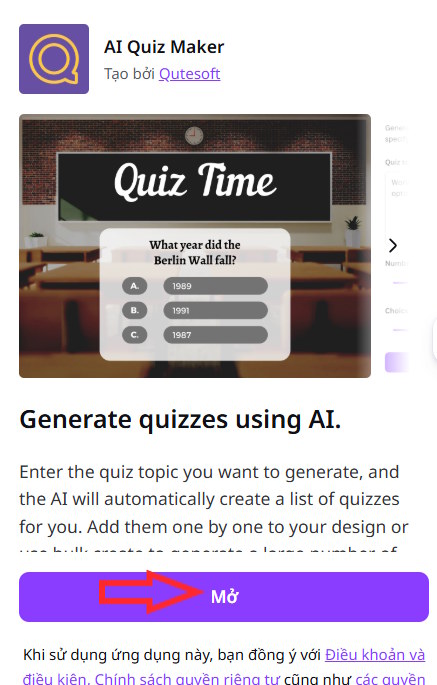
Step 2: Select Open to add the app to the current design.
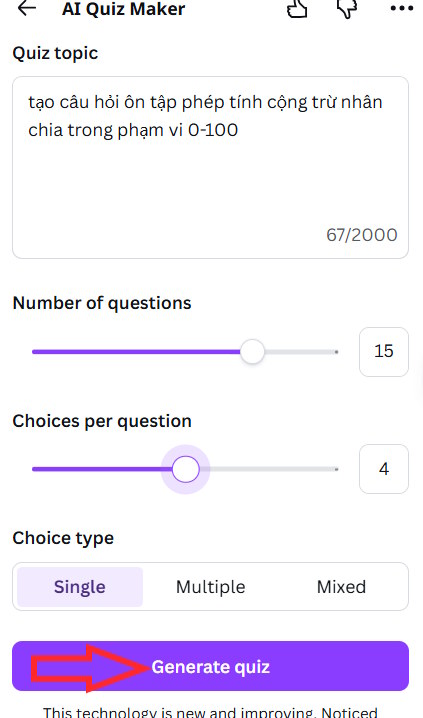
Enter a specific request that includes the subject, learner level, scope, difficulty, and any material the questions must follow. For example:
Create 10 multiple-choice questions for Grade 8 students reviewing photosynthesis. Cover inputs, outputs, chloroplasts, and the role of light. Use one correct answer and three plausible distractors per question. Avoid trick questions.Choose the number of questions, the number of choices, and whether a question has one correct answer or multiple correct answers. Then select Generate quiz.
Add the questions to the presentation
Step 3: Review the generated question list, then select Add to design.

Canva may create separate slides for a question and its answer. Confirm the sequence before presenting so an answer does not appear too early.
Edit the design and content
Step 4: Adjust the background, title, colors, and layout using Canva's normal presentation tools.

Keep question text large enough to read from the back of the room and make each answer option visually distinct. Do not let decoration obscure a minus sign, unit, scientific symbol, or important part of an image.

Step 5: Add transitions or animations only when they help reveal information in the intended order.

When the deck is ready, present it from Canva or download it in an appropriate format.

Check the quiz before using it
- Verify every correct answer against the course material.
- Remove questions with more than one defensible answer unless multiple answers are intentional.
- Rewrite vague wording, double negatives, and clues that reveal the correct option.
- Make distractors plausible but clearly wrong for a knowledgeable student.
- Check names, dates, calculations, symbols, and units.
- Ensure the difficulty matches what students were taught.
- Add a short explanation to the answer slide when feedback will help learning.
AI Quiz Maker should reduce the time required to build the initial deck, not replace subject-matter review. A shorter, verified quiz is more useful than a larger set of unreliable questions.
Related Articles
 Quickly Create Multiple-choice Questions from Slides4 minutes read
 How to Create Presentation Slides Using Canva AI5 minutes read
 How to Translating Presentation Slides in Canva AI3 minutes read
 How to Create Multiple-choice Questions in ScratchJR (Part 1)4 minutes read
 Guide to Creating Multiple Choice Questions on Vnedu4 minutes read
 How to Create a Jeopardy Game in Google Slides9 minutes read
Reader Comments 0
Sign in with email or Google to join the discussion.