Table of Contents
To investigate a slow Windows PC, measure what changes when the slowdown occurs. Resource Monitor can identify a busy process; HWiNFO can show hardware sensor trends; CrystalDiskInfo can flag reported drive-health concerns. Other tools help with broader health checks or memory instability. No single green status proves the whole computer is healthy.
1. Windows Device performance & health
Open Windows Security > Device performance & health for a basic report. Follow up on warnings about storage or other listed areas, but treat this as a starting point rather than a complete hardware test.
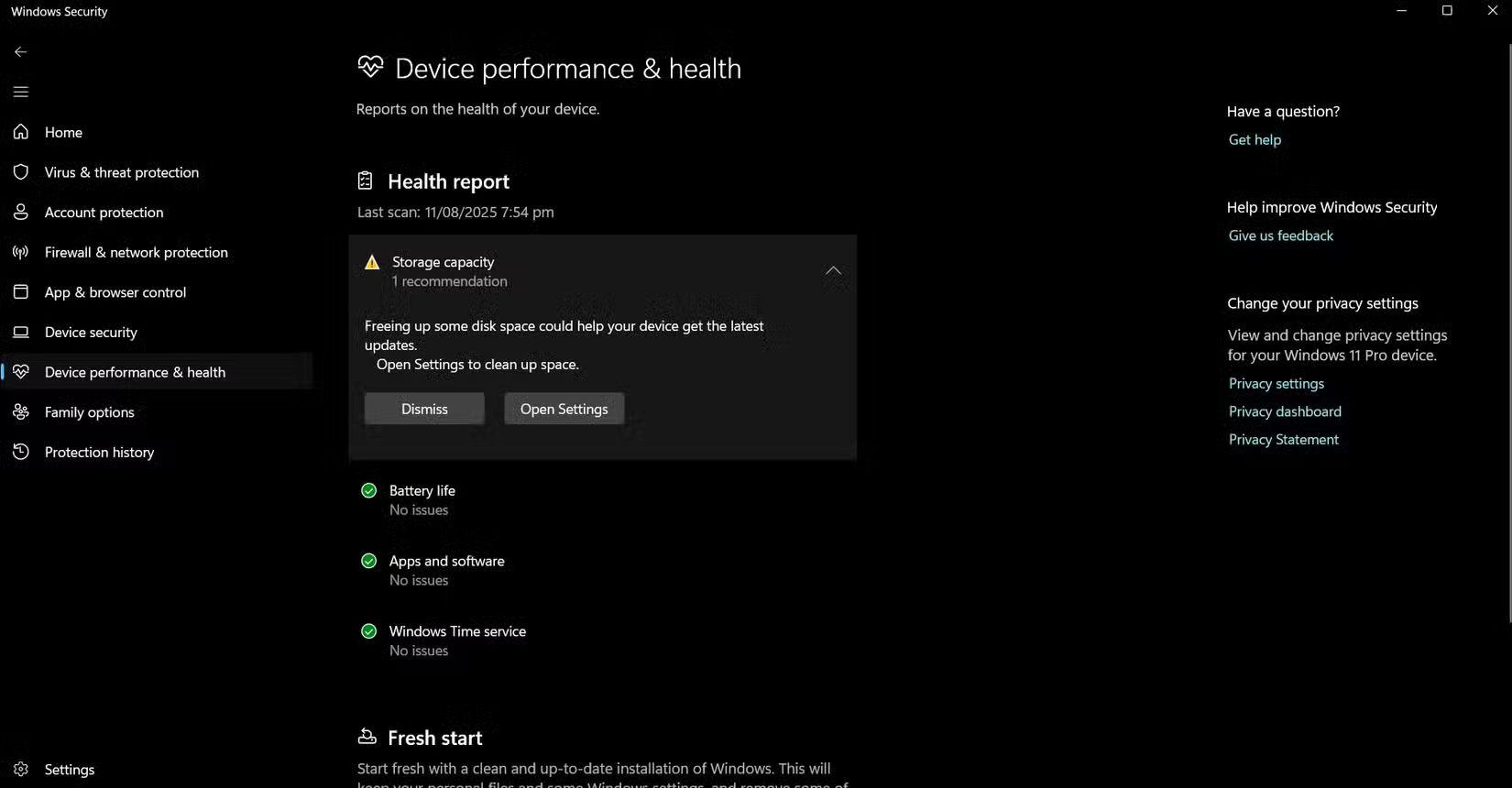
A clean report does not rule out an overloaded application, thermal throttling or an intermittent fault. Note when the problem occurs before moving to a more specific tool.
2. Resource Monitor
Press Windows + R, enter resmon and press Enter. Compare CPU, memory, disk and network activity while the PC is idle and while reproducing the delay.
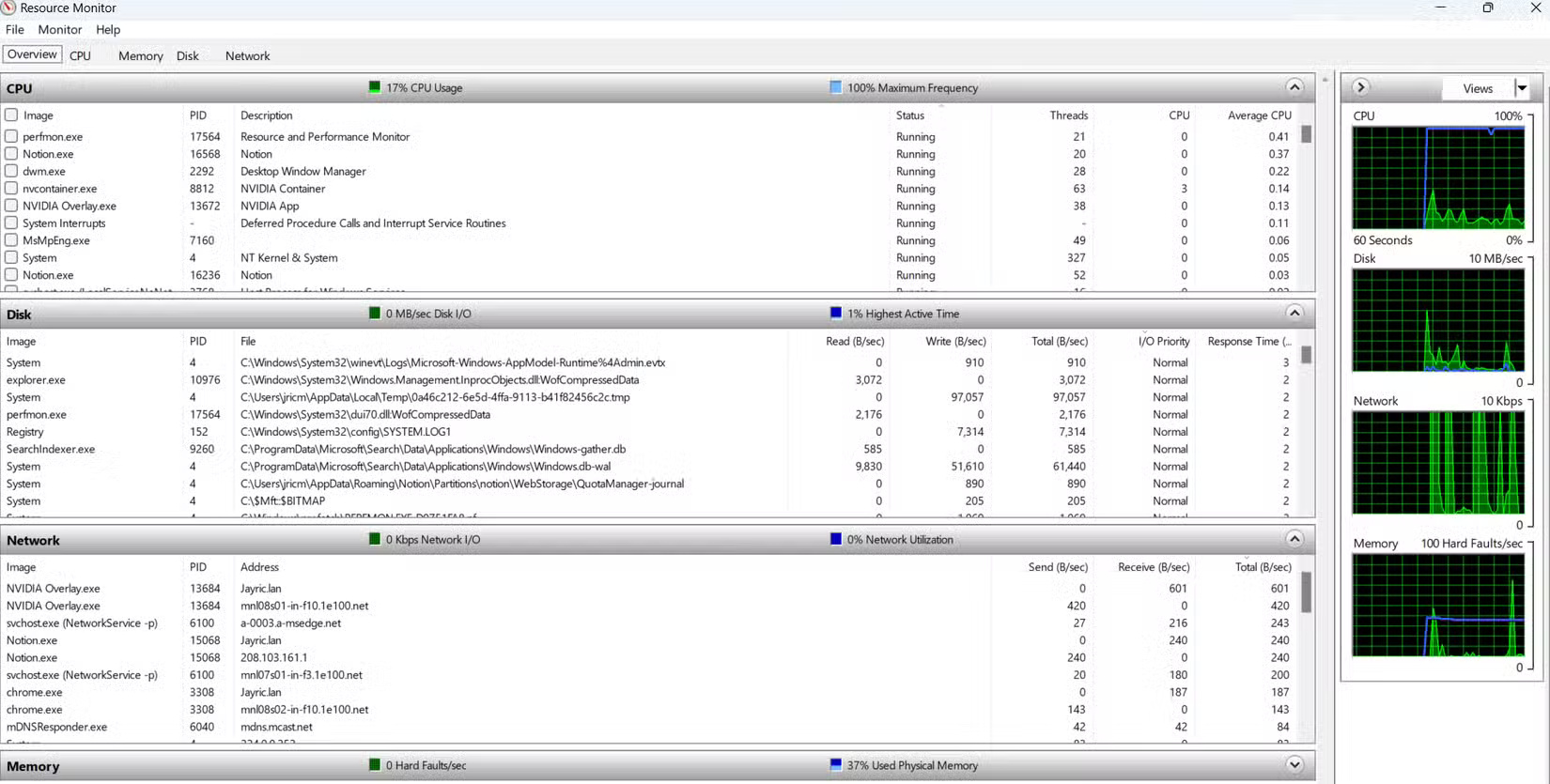
Look for sustained pressure that coincides with the symptom. A brief spike during an app launch can be normal. Record the process name and affected resource instead of ending unfamiliar processes at random.
Use the resource-usage measurement guide to make a repeatable comparison.
3. Windows Memory Diagnostic
Memory testing is more relevant to unexplained crashes, corruption or freezes than to one slow webpage. Save your work first, run mdsched.exe and choose whether to restart now or test at the next restart.
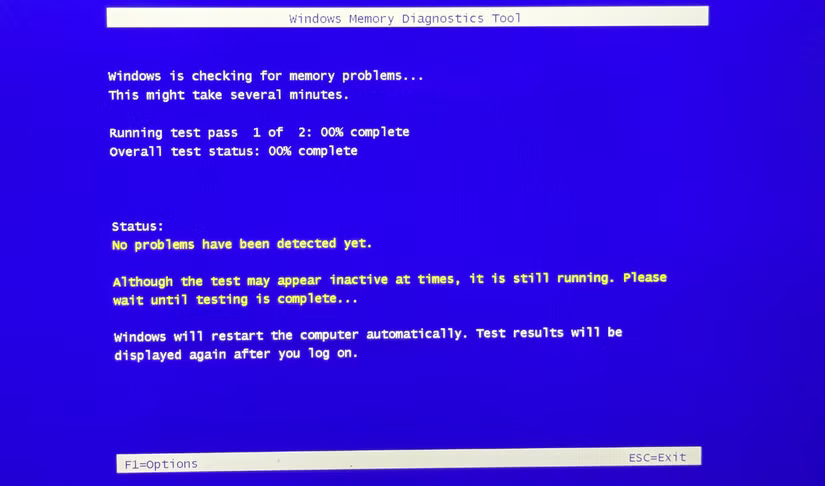
The test interrupts normal use. Record the result after it completes. An error deserves investigation, while a pass does not prove that every memory or stability issue has been excluded. See testing memory and stability for the next checks.
4. HWiNFO
HWiNFO shows detailed hardware information and sensor readings. Download the appropriate installer or portable package from its official site; follow the instructions for that package rather than treating an installer as an archive.
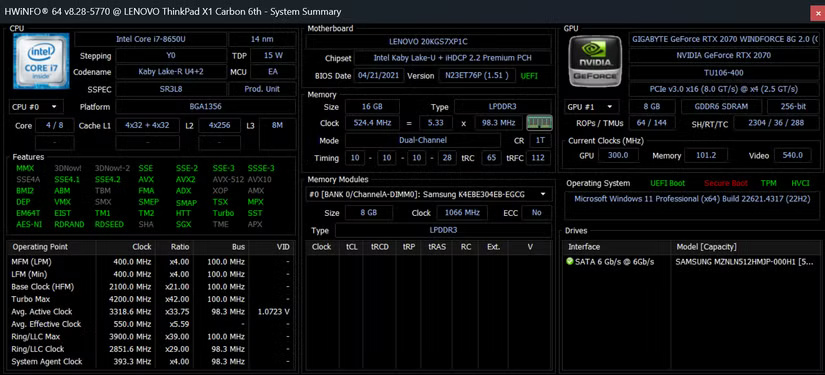
Use the sensor view to compare temperatures, clocks and load during the same workload. A recorded maximum is not enough by itself: compare it with the component’s specifications and check whether clocks drop when performance does. Not every device exposes every sensor, and labels can require interpretation.
The free license is intended for personal, noncommercial use; check the current terms for workplace use.
5. Wintoys
Wintoys brings several Windows settings and information panels into one interface. Its dashboard can be convenient, but observation and repair are different operations.
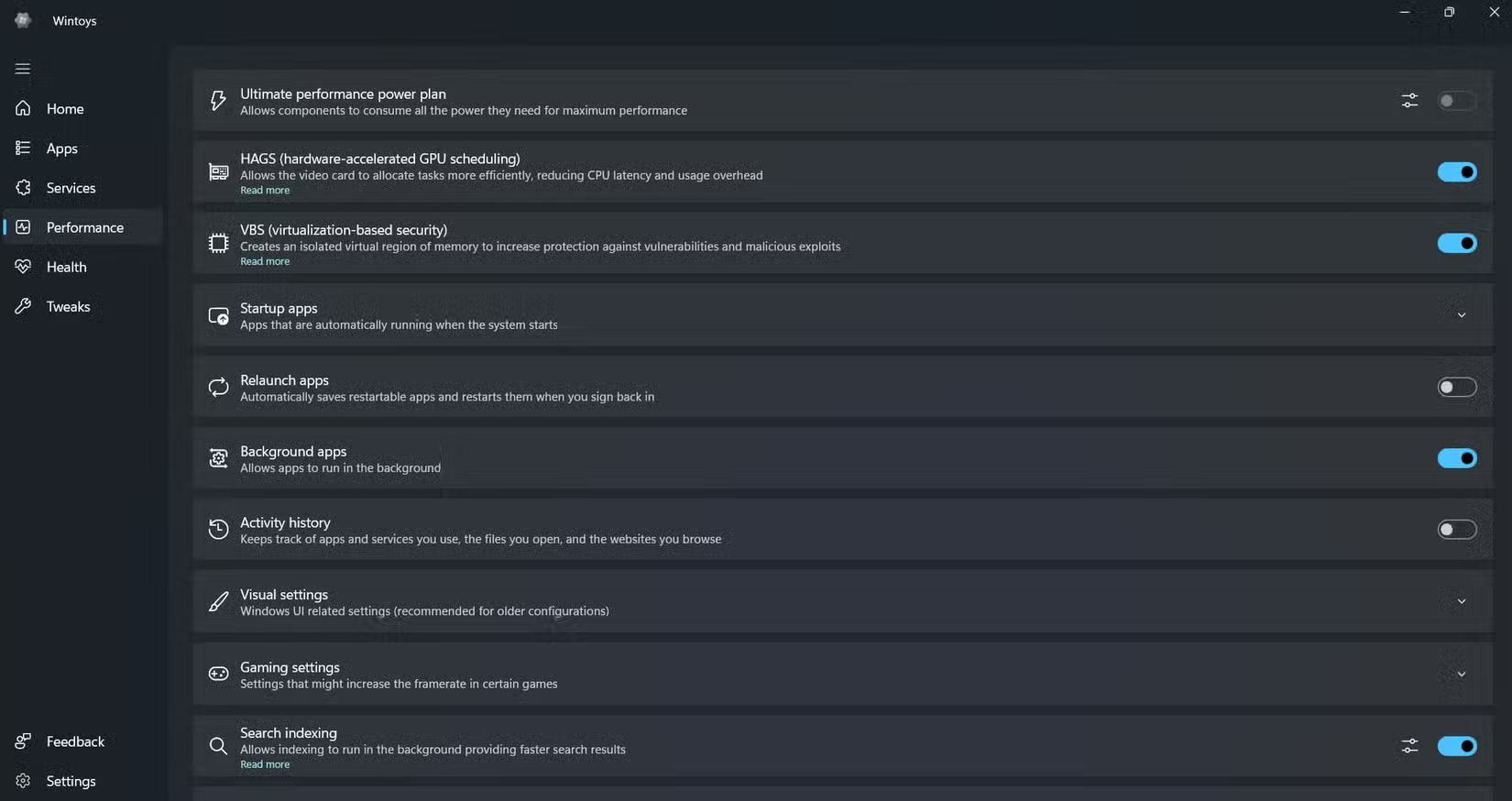
Do not run every repair or optimization toggle just because the PC feels slow. Record a baseline, identify a specific issue and make one reversible change at a time. Built-in Task Manager and Resource Monitor are enough to begin without installing another utility.
6. CrystalDiskInfo
CrystalDiskInfo reads supported storage-health information, including SMART data. Download it from the official Crystal Dew World source and check that you are using CrystalDiskInfo, not the separate CrystalDiskMark benchmark.
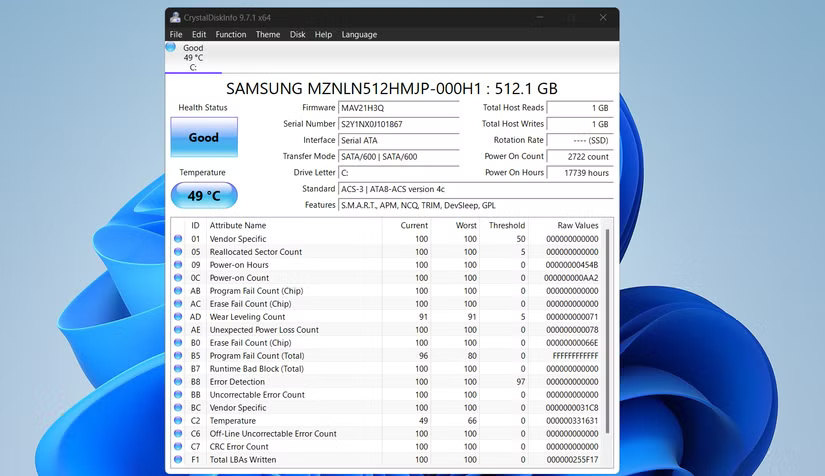
Read the health label and the attributes behind it. Caution or Bad deserves attention, especially alongside read errors or missing files. Back up important data before further testing. “Good” does not guarantee a drive will not fail, and one attribute should not be dismissed as normal solely because the drive still works.
Attribute meaning varies between HDDs, SSDs and manufacturers. USB enclosures can also limit what the tool sees. Use the drive manufacturer’s guidance for interpretation rather than applying a universal threshold.
Turn observations into a next step
Write down the workload, time, top process and relevant readings. Then test one likely cause. If data is disappearing, a drive makes unusual noises or hardware errors recur, prioritize backup and qualified support over repeated stress tests. The PC troubleshooting checklist can help keep the investigation focused.
Related Articles
 Follow these 7 steps to keep Windows 11 from slowing down again!
 How to check whether your browser is slowing down your Windows PC
 How to Make Your Computer Run Faster
 4 Free Windows Tools to Optimize System Performance and Security That You Should Try
 9 Free Windows Tools You Can't Live Without
 Find unlimited free Wi-Fi hotspots in almost anywhere
Reader Comments 0
Sign in with email or Google to join the discussion.