Table of Contents
Explore chrome flags that can actually reduce ram usage, including the key concepts, practical examples, important considerations, and useful guidance.
So if you're experiencing sluggishness when using the browser with a few tabs open, you're not alone. Luckily, you can fix Chrome's memory-hogging tendencies by enabling or disabling some hidden features, called flags. These are experimental features that are still in development, but Google has made them available for anyone to use.
Partial swap
Improved memory management and responsiveness
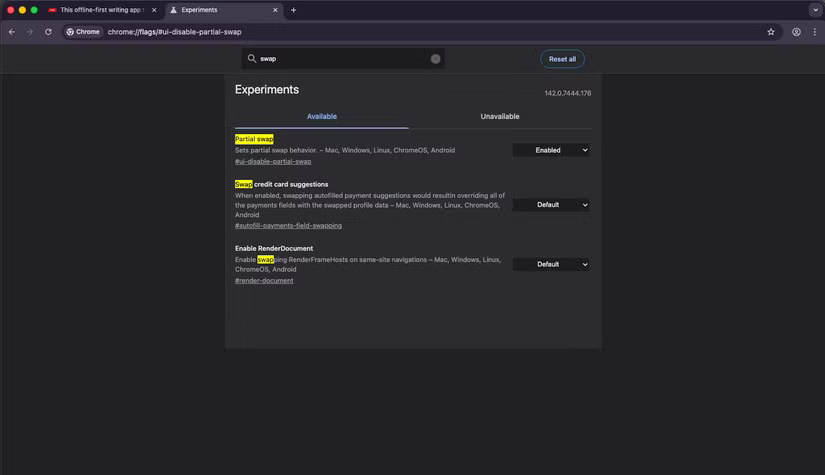
One of the important Chrome flags that can help fix high memory usage is Partial Swap. The name might not give you away if you're not technically savvy, but this feature improves memory management in Chrome by prioritizing the most active tabs. Additionally, Partial Swap helps Chrome manage memory better and improve responsiveness by only updating the parts of the interface that have changed and leaving the rest unchanged.
Instead of updating the entire interface, this feature only updates the parts that have changed, reducing memory usage and speeding up Chrome. The Chrome Partial Swap flag is chrome://flags/#ui-disable-partial-swap . This flag is enabled by default, but to be sure, type chrome://flags/#ui-disable-partial-swap into the Chrome address bar and check to see if it's enabled. If not, toggle Partial Swap to Enabled .
Infinite Tab Freezing
Automatically freeze certain tabs
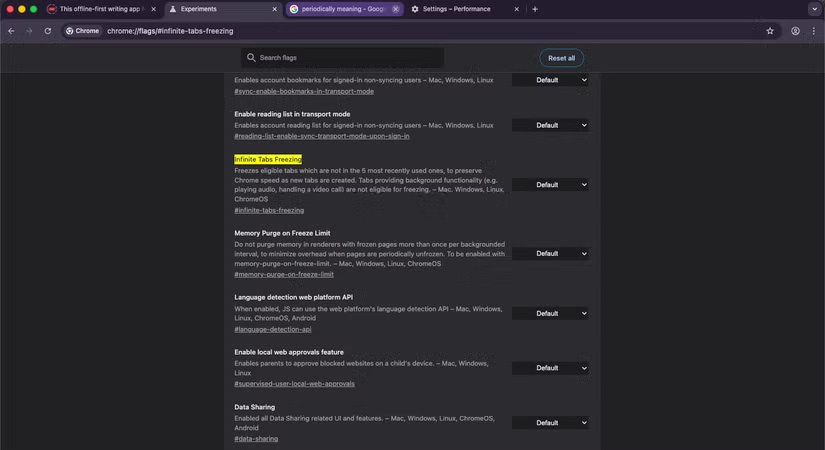
When you have dozens of tabs open in Chrome, you'll notice that the browser automatically freezes some of them to free up memory. Since each tab in Chrome runs as a separate process in memory, each new tab you open creates a new process. While this improves security, it does lead to high memory usage - don't be surprised if Chrome uses 30GB of memory.
The best way to solve this problem is to enable Chrome's experimental Infinite Tab Freezing feature, which automatically freezes every tab except the five most recently used and active tabs (like those playing music or videos). By freezing tabs, Chrome pauses JavaScript and any background activity, which reduces memory usage and can help improve your browser's performance. To enable the Infinite Tab Freezing flag, type chrome://flags/#infinite-tabs-freezing and change the setting to Enabled .
Memory Purge on Freeze Limit
Limit how often Chrome clears frozen pages
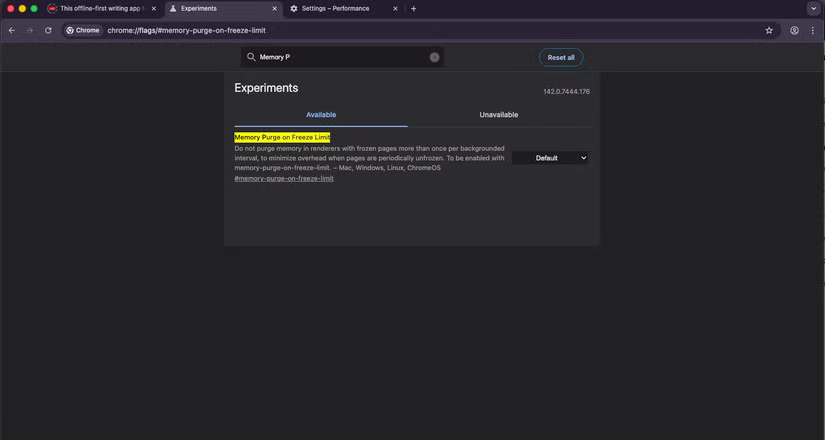
This Chrome flag reduces the browser's memory usage by optimizing how it manages memory for frozen tabs. We discussed how Chrome can freeze tabs to reduce memory usage above, but what you may not know is that the browser has to run a background process to do this.
While clearing memory from frozen or inactive tabs helps reduce memory usage, if Chrome has to do it constantly, it can lead to a processing overload. As you might have guessed, this can inadvertently increase memory usage if inactive pages are reopened periodically. That's where Chrome's Memory Purge on Freeze Limit flag comes in handy.
This flag limits memory purge, allowing Chrome to do it once per background interval for frozen tabs, thus reducing processing load, resulting in lower memory usage. It may not result in a significant reduction in memory usage, but for Chrome, any small tweak that can help it run with less RAM is really appreciated. The Chrome flag for this feature is chrome://flags/#memory-purge-on-freeze-limit.
Disable Subframe Process Reuse
Allows sharing of processes between tabs to reduce memory usage
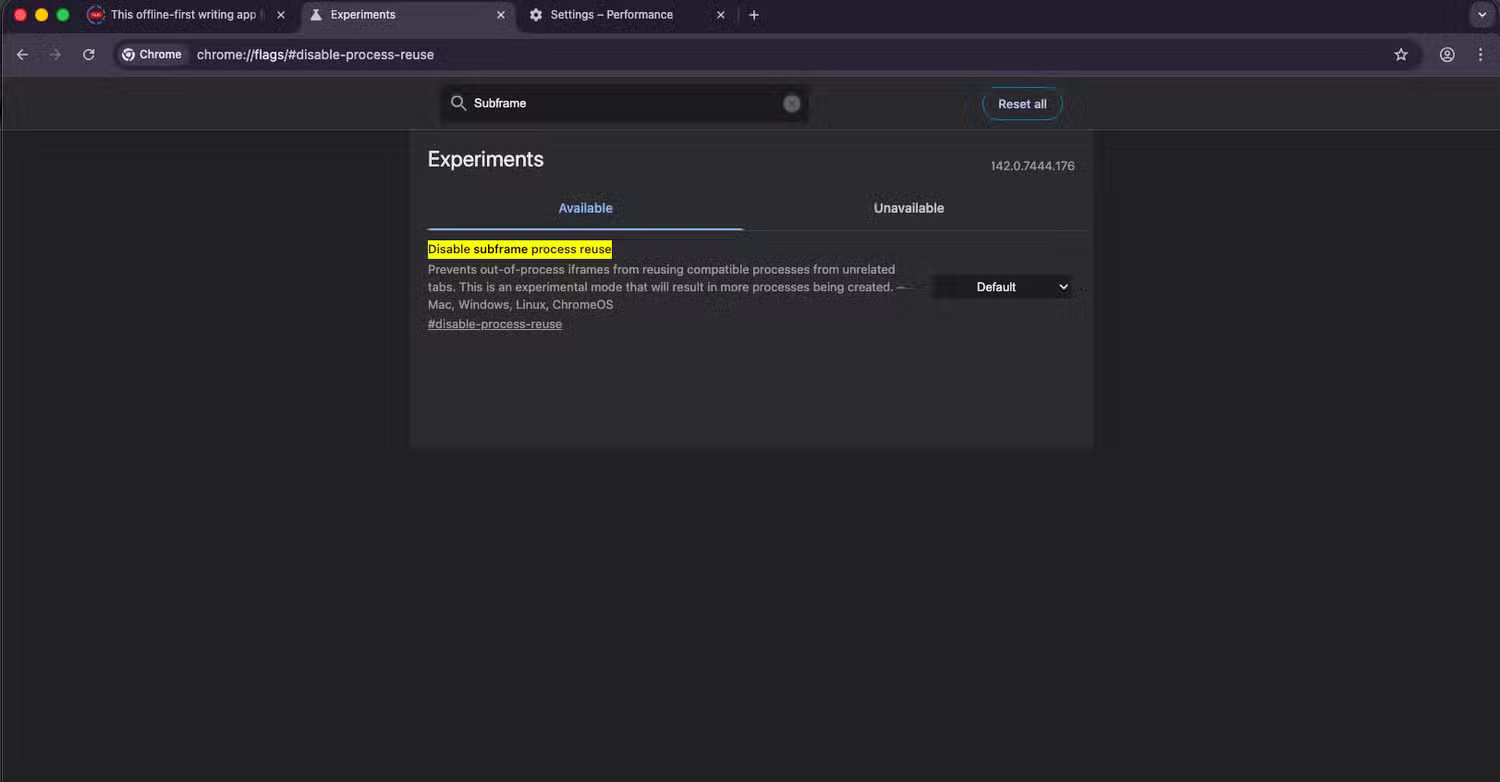
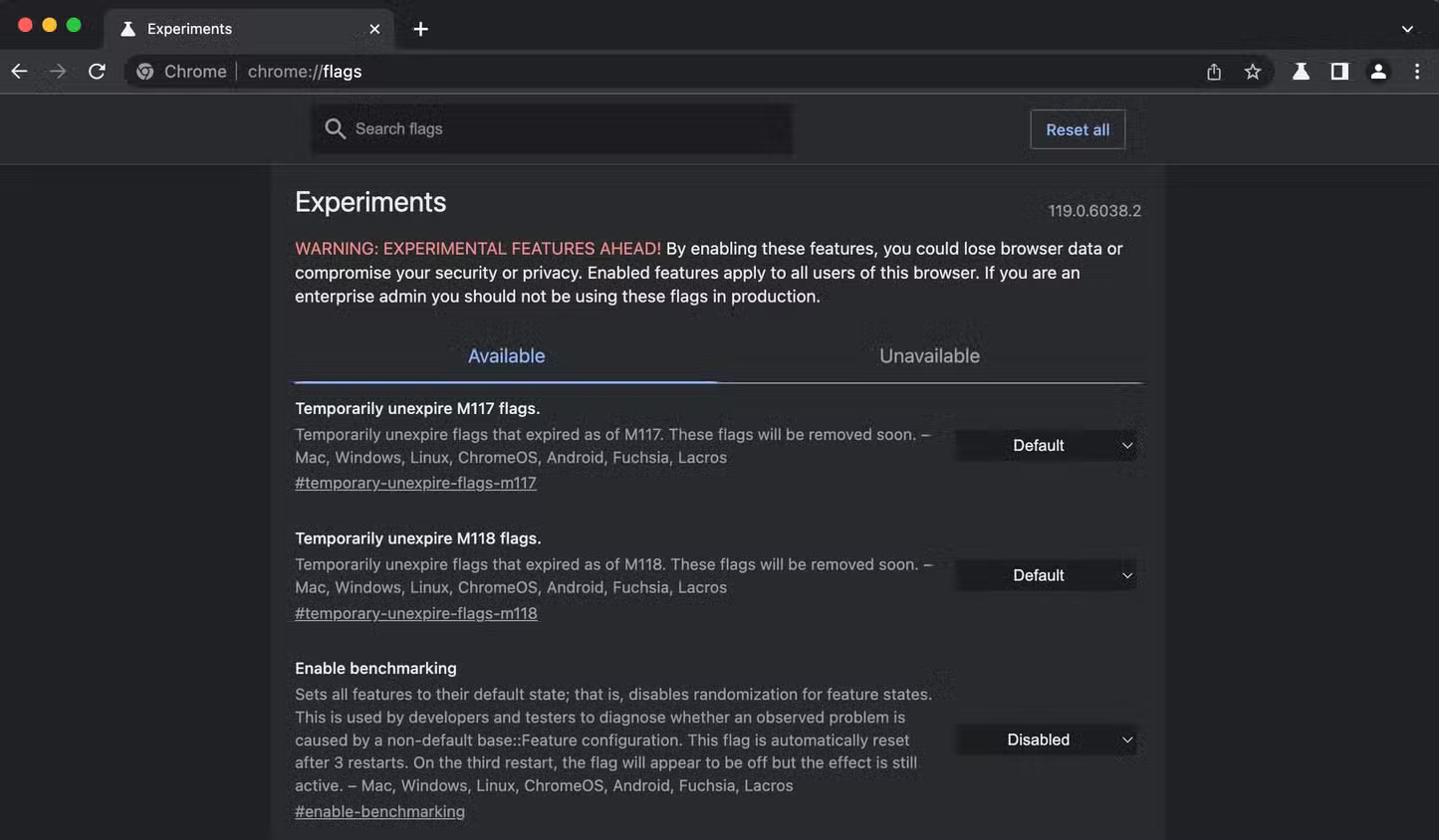
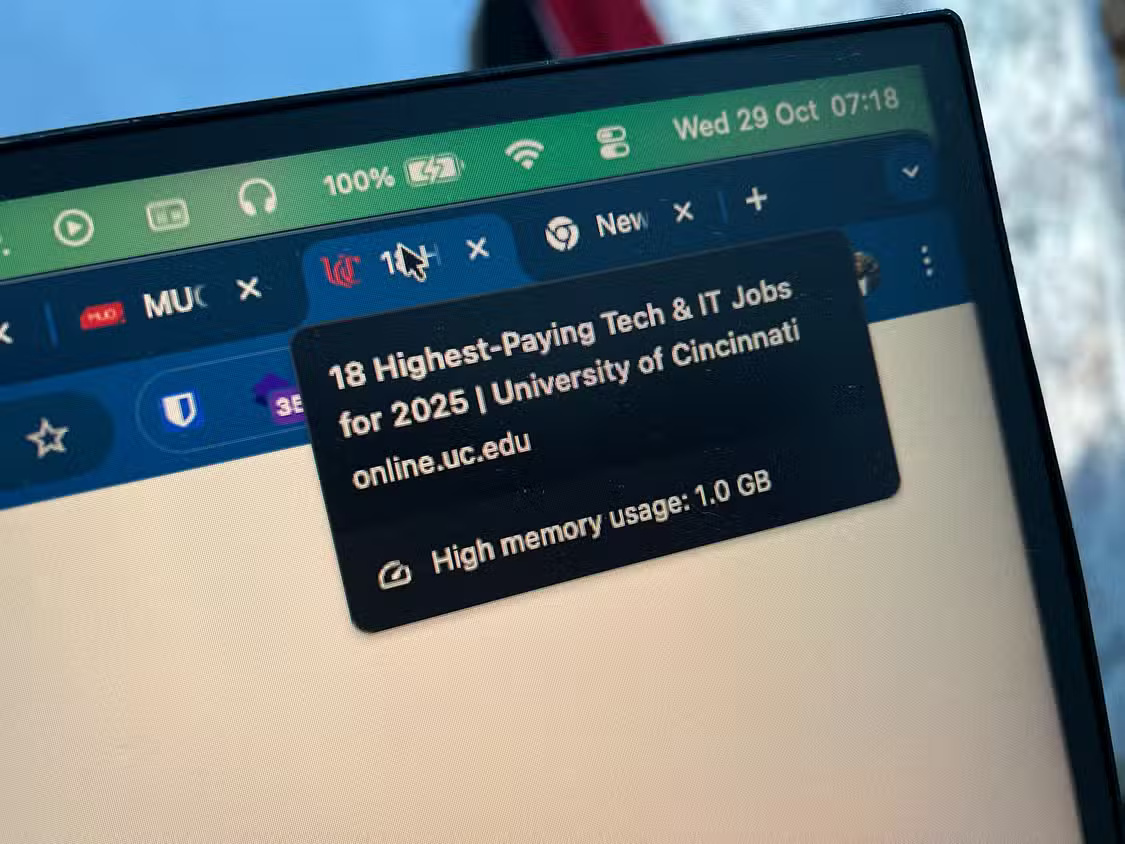
As mentioned earlier, Chrome takes advantage of an architecture where each tab creates a new process in memory for isolation. However, this leads to high memory usage, especially when you have dozens of tabs open, all running as separate processes in memory. Another flag you can use to reduce Chrome's memory usage is the chrome://flags/#disable-process-reuse flag. When this flag is disabled, Chrome reduces memory usage by reusing idle renderer processes from other tabs.
This reduces the need for the browser to create new processes for each new tab you create, which reduces memory usage. This feature is usually disabled by default, but you can check to see if it's enabled in yours. If it is, make sure to disable it, as it will allow Chrome to reuse processes, saving you precious memory.
Final Thoughts
Understanding chrome flags that can actually reduce ram usage makes it easier to evaluate the information and apply the most relevant recommendations. Focus on the key points above and verify details that may change over time.
FAQ
What is chrome flags that can actually reduce ram usage?
Explore chrome flags that can actually reduce ram usage, including the key concepts, practical examples, important considerations, and useful guidance.
What key points does this article cover?
The article focuses on Partial swap, Improved memory management and responsiveness, Infinite Tab Freezing, with practical explanations and examples.
How can you use this information in practice?
Use the explanations to compare options, verify important details, and make a more informed decision. Apply the recommendations that best match your goals and situation.
Related Articles
 8 Best Chrome Flags You Should Use7 minutes read
 12 Chrome Flags Useful You Should Activate on Android7 minutes read
 Meaning of Strange Flags in the World5 minutes read
 How to Create Tab Groups in Chrome on Android with Chrome Flags7 minutes read
 9 Chrome Flags You Should Activate to Have a Better Browsing10 minutes read
 How Does Google Chrome Run Faster?3 minutes read
Reader Comments 0
Sign in with email or Google to join the discussion.