Table of Contents
Canva Magic Write drafts and revises text inside Canva Docs, presentations and other designs. Use it to develop an outline, rewrite a selected passage or prepare presenter notes, then check the result against your own facts and intended voice.
What Magic Write does
Magic Write is Canva's AI writing assistant. It responds to your prompt and can help generate, continue, summarize or change the tone of text. It produces a draft for you to edit; a short prompt alone does not guarantee accurate or publication-ready copy. Canva's Magic Write overview describes its current availability and terms.
Draft text in Canva Docs
- Open Canva Docs and find the Magic Write option in the editor. Canva's menus can vary by design type and account.
- Enter the topic, audience, purpose, desired length and tone. For example: “Draft a five-bullet agenda for a 30-minute team meeting about next month's launch; include time for questions.”
- Review the generated text. If the editor offers a similar-content or refinement action, request a narrower change such as a shorter opening or a different tone.
- Replace vague claims, verify facts and edit the wording before using the draft.
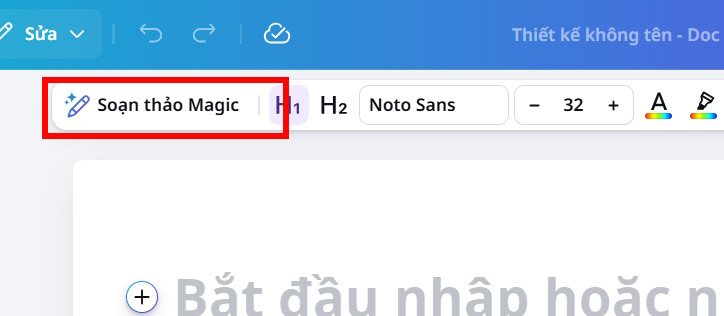
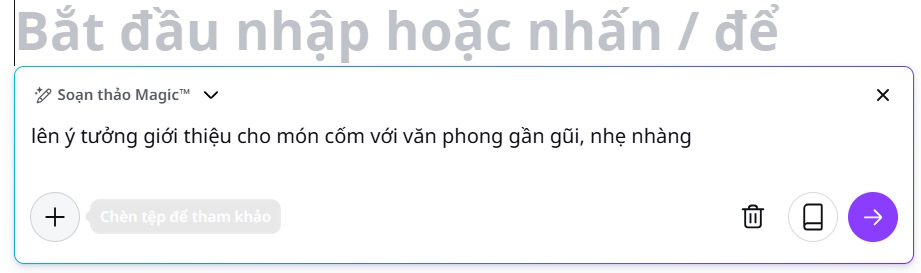
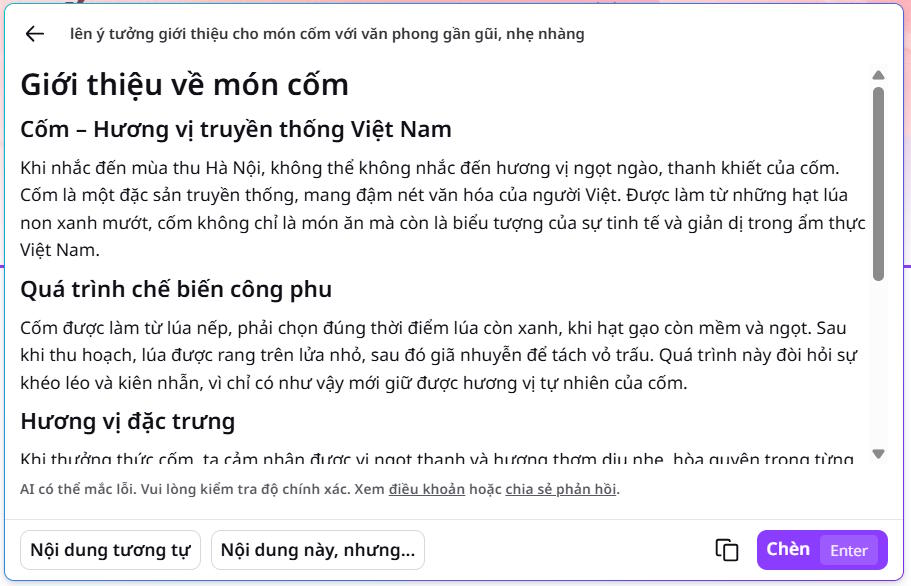
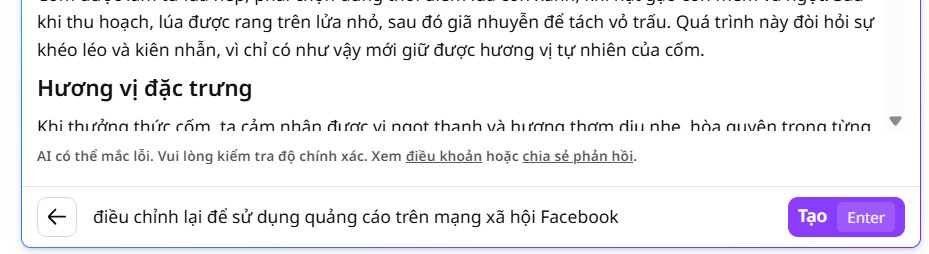
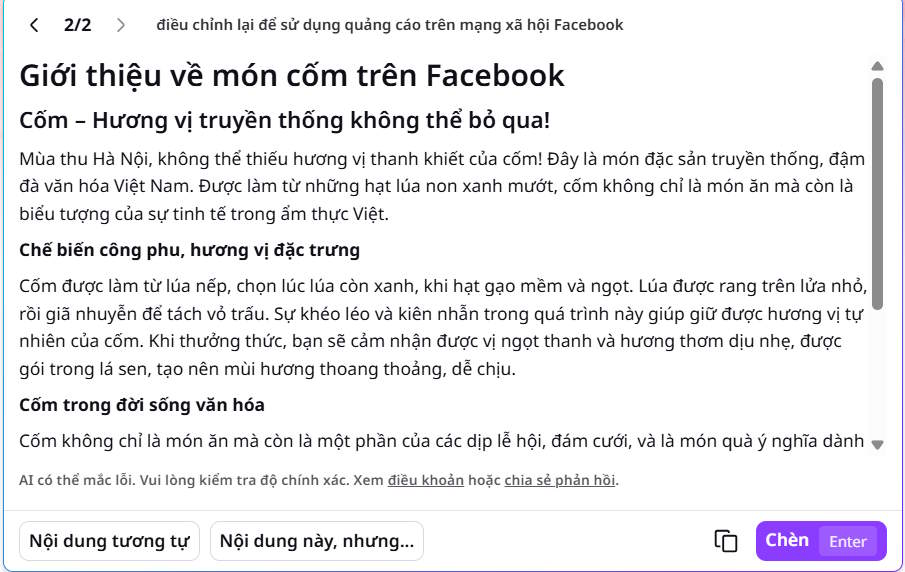
The screenshots show the prompt and refinement flow in the interface used for this example; option names may change. Magic Write is the writing feature, whereas Magic Editor is a separate Canva tool for visual edits. For related tools, see our overview of Canva AI tools.
Revise text you already wrote
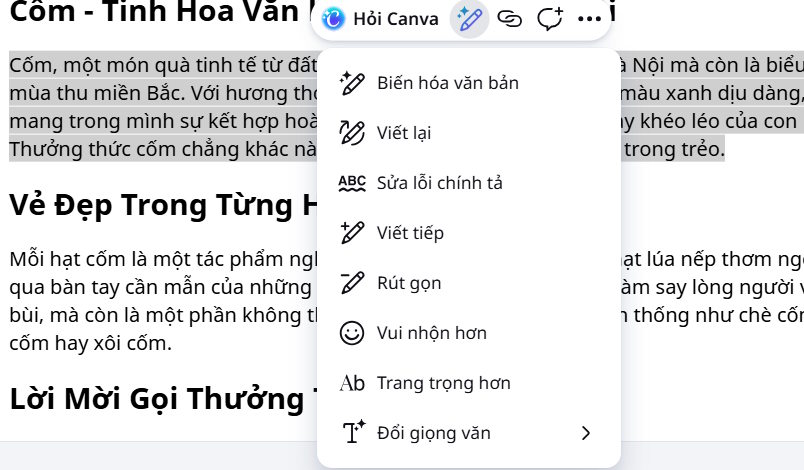
Select the passage to change, open the Magic Write text action and choose an available option, such as rewrite, simplify, continue writing, spelling correction or a tone change. Read the result beside the original: a rewrite can alter meaning or remove necessary details. Keep the version that serves your reader, and restore any lost facts.
Create presenter notes
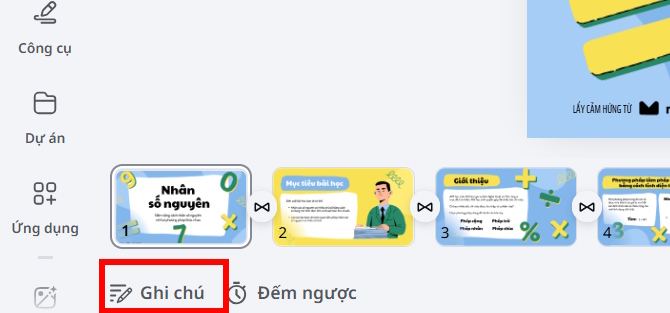
In a Canva presentation, open the notes area for a slide. If the Magic Write note action is available, generate a note from the slide content or supply a prompt describing what the speaker should explain. Edit the note so it adds useful context rather than reading the slide aloud. Repeat for the slides that need notes.
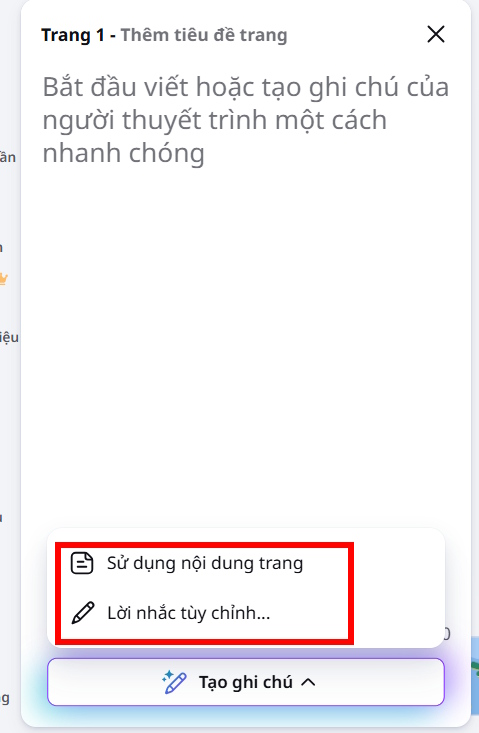
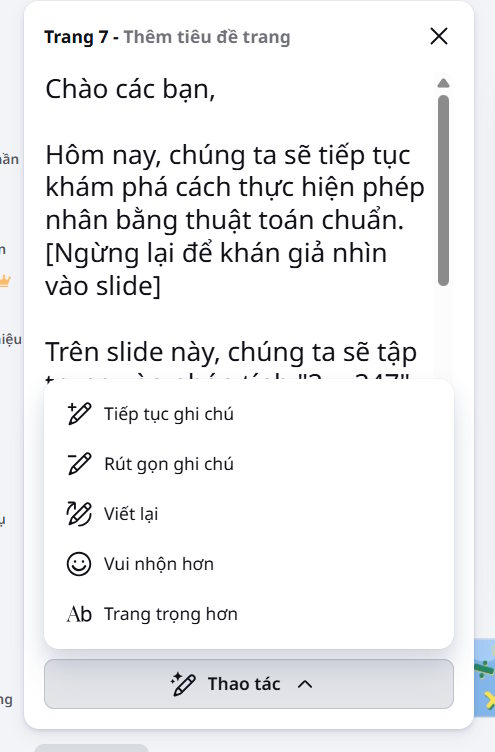
Generated notes may invent transitions or details absent from the slide. Check names, figures and claims, then rehearse with the final notes. For another application, see how to extract and edit image text with Canva AI.
Related Articles
 How to Create a Personal Writing Style in Magic Write Canva4 minutes read
 Instructions on Creating Canva Sheets Using Magic Write: Explained5 minutes read
 How to Use Magic Morph in Canva AI: Step-by-Step Guide4 minutes read
 Quickly Create Multiple-choice Questions from Slides4 minutes read
 How Do I Convert Between Different Design Formats in Canva: Explained4 minutes read
 4 New Canva Features You'll Love11 minutes read
Reader Comments 0
Sign in with email or Google to join the discussion.