Table of Contents
Explore powerpoint 2019 (part 9): using find && replace, including the key concepts, practical examples, important considerations, and useful guidance.
How to find text in PowerPoint
1. From the Home tab, click the Find command.
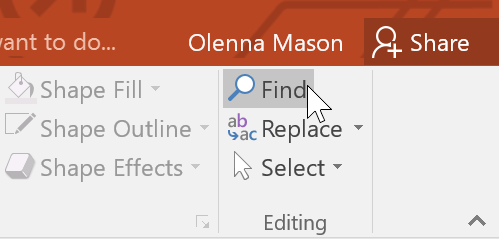
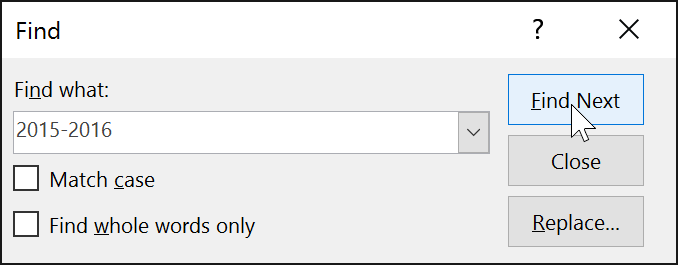
2. A dialog box will appear. Enter the text you want to search for in the " Find what:" field, then click "Find Next".
3. If the text is found, it will be selected.
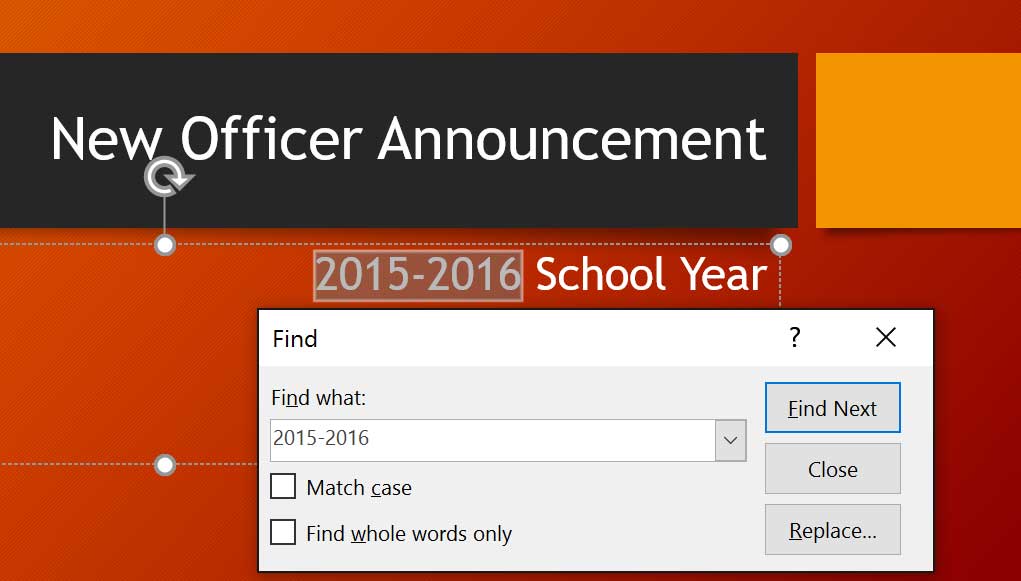
You can also access the Find command by pressing Ctrl + F on your keyboard.
How to replace text in PowerPoint
You might find that you've been making mistakes repeatedly throughout your presentation—such as misspelling someone's name—or you need to change a specific word or phrase to something else. You can use the Replace feature to make quick revisions.
1. From the Home tab, click the Replace command.

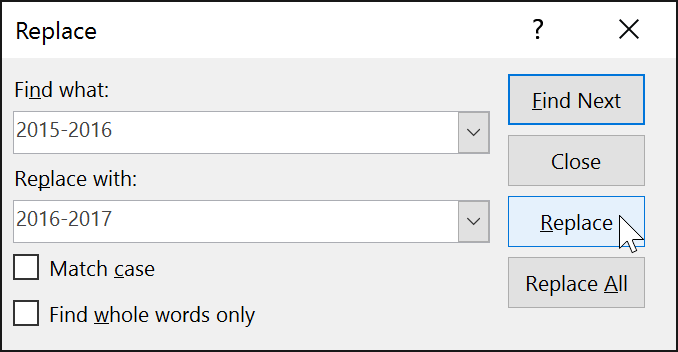
2. A dialog box will appear. Enter the text you want to search for in the " Find what:" field.
3. Enter the text you want to replace in the " Replace with:" field, then click "Find Next".
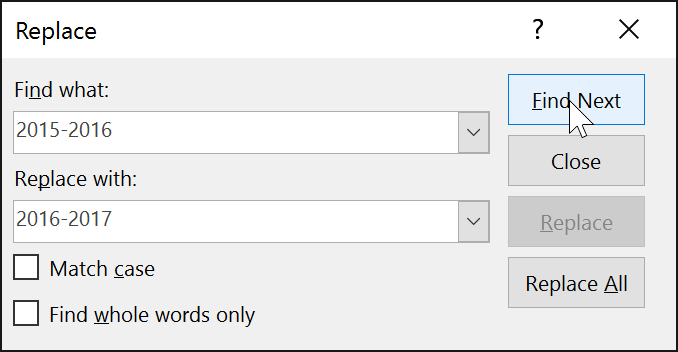
4. If the text is found, it will be selected. Review the text to ensure you want to replace it.
5. If you want to replace text, select one of the replacement options. The Replace option will replace individual instances, and Replace All will replace all instances. The example will use the Replace option.
6. The selected text will be replaced.
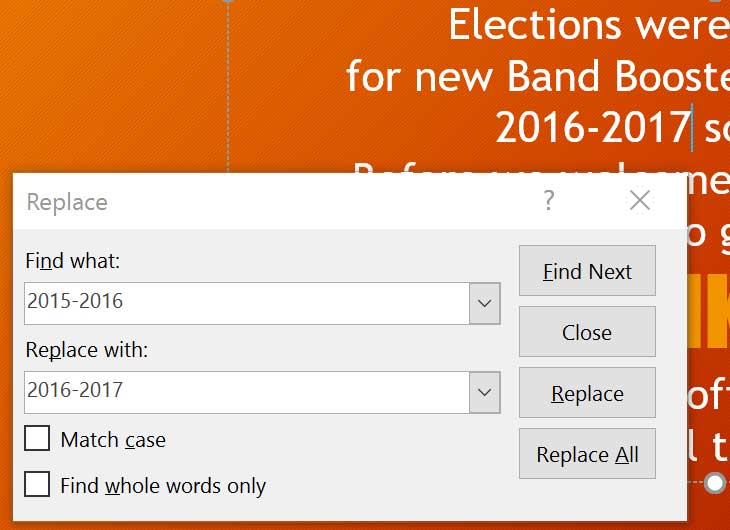
7. PowerPoint will move to the next section in the presentation. When you have finished replacing the text, click Close to exit the dialog box.
When using Replace All , it's important to remember that it may find matching results that you didn't anticipate and may not actually want changed. Only use this option if you are absolutely certain that it won't replace anything you didn't intend to change.
Final Thoughts
Understanding powerpoint 2019 (part 9) makes it easier to evaluate the information and apply the most relevant recommendations. Focus on the key points above and verify details that may change over time.
FAQ
What is powerpoint 2019 (part 9)?
Explore powerpoint 2019 (part 9): using find && replace, including the key concepts, practical examples, important considerations, and useful guidance.
What key points does this article cover?
The article focuses on How to find text in PowerPoint, How to replace text in PowerPoint, with practical explanations and examples.
How can you use this information in practice?
Use the explanations to compare options, verify important details, and make a more informed decision. Apply the recommendations that best match your goals and situation.
Related Articles
 PowerPoint 2016: Using the Find && Replace Feature5 minutes read
 Use the Find & Replace Feature in PowerPoint 20164 minutes read
 Tutorial for Word 2016 (Part 5): Use Find and Replace5 minutes read
 PowerPoint 2019 (Part 1): Getting Started with PowerPoint: Explained7 minutes read
 50 Alternative Slideshow Applications for PowerPoint10 minutes read
 PowerPoint 2019 (Part 14): Inserting Images: Explained7 minutes read
Reader Comments 0
Sign in with email or Google to join the discussion.