Table of Contents
Explore powerpoint 2019 (part 16): shapes, including the key concepts, practical examples, important considerations, and useful guidance.
How to insert a shape
1. Select the Insert tab, then click the Shapes command in the Illustrations group. A drop-down menu of shapes will appear.
2. Choose your desired shape.
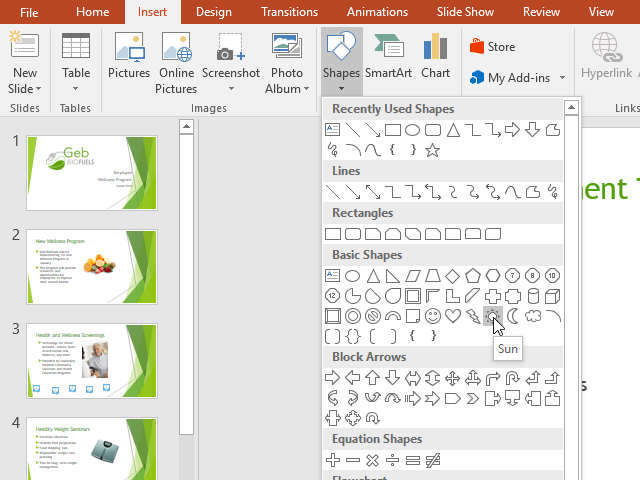
3. Click and drag to the desired location to add the shape to the slide.
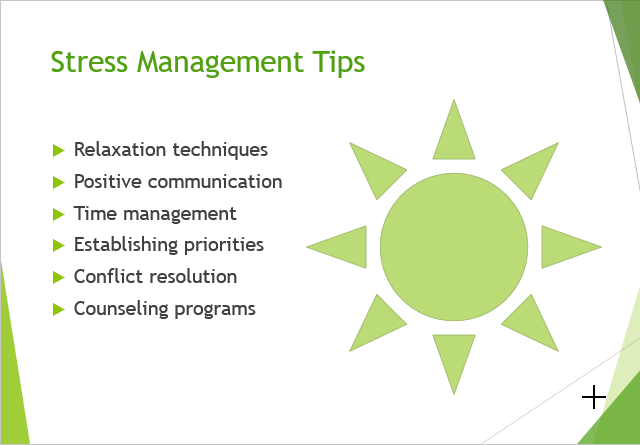
Modify the shape or text box
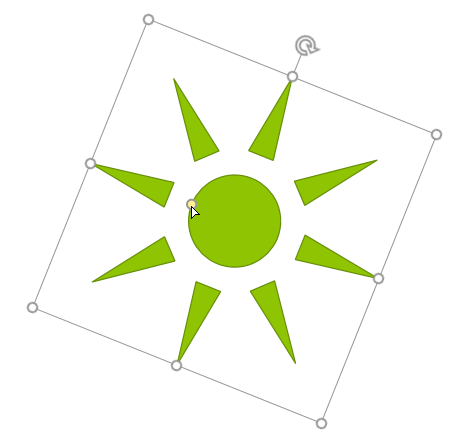
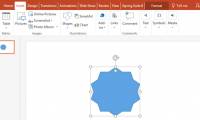
When you click on a shape or text box, handles will appear, allowing you to manipulate that shape. There are several types of handles.
- Resize Handles : Click and drag the resize handles until the shape or text box is the desired size. You can use the resize handles in the corners to change both the height and width at the same time.
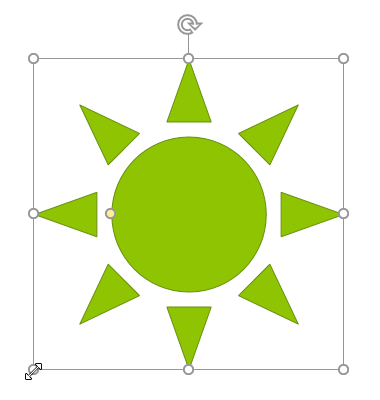
- Rotate handle : Click and drag the rotate handle to rotate the shape.
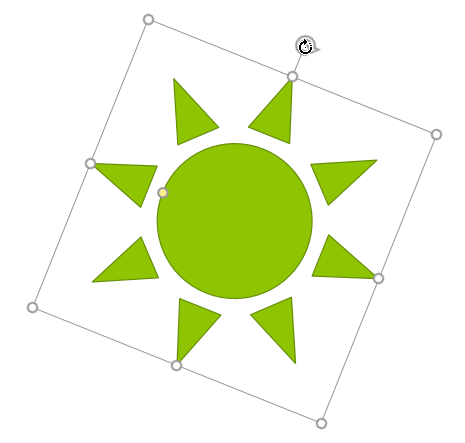
- Yellow handles : Some shapes have one or more yellow handles that can be used to customize the shape. For example, with the sun shape, you can change the proportions of the shape.
In addition to resizing, customizing, and rotating shapes, you can align, arrange, and group them.
Format shapes and text boxes
PowerPoint allows you to modify shapes and text boxes in various ways so you can tailor them to your project. You can change shapes and text boxes to different forms, format their style and color, and add effects.
How to change the shape
Choosing a shape style allows you to apply preset colors and effects to quickly change the appearance of a shape or text box. These options will depend on the colors—part of the current theme.
1. Select the shape or text box you want to change.
2. On the Format tab, click the More drop-down arrow in the Shape Styles group.
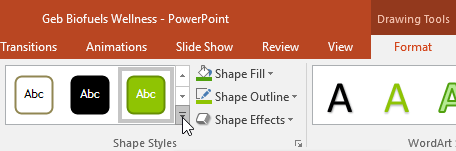
3. A drop-down menu of styles will appear. Select the style you want to use.
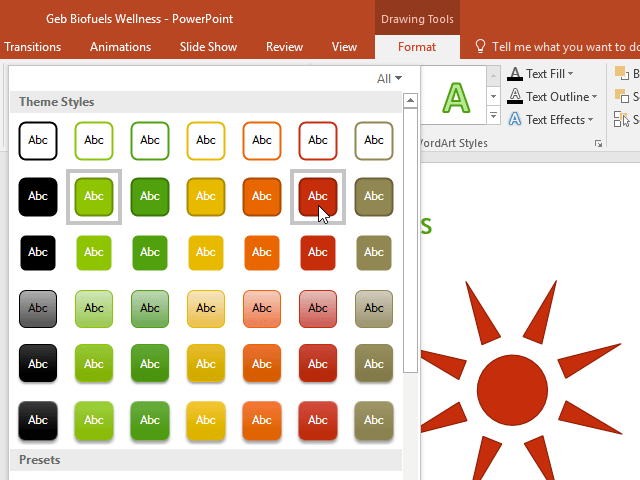
4. The shape or text box will appear in the selected style.
How to change the color of a shape
1. Select the shape or text box you want to change.
2. On the Format tab, click the Shape Fill drop-down arrow . The Shape Fill menu will appear.
3. Move your mouse over the different colors. Select the color you want to use. To see additional options, select More Fill.
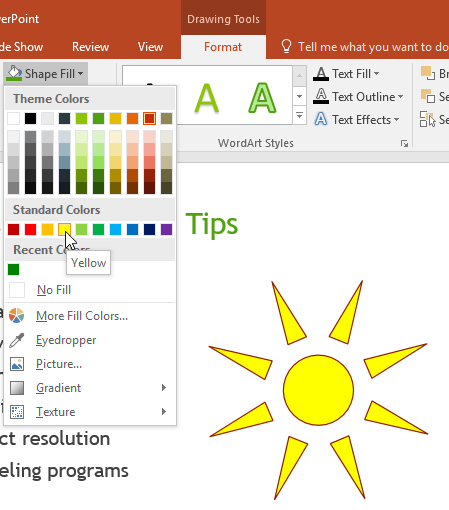
4. The shape or text box will appear with the selected color.
If you want to use a different color type, select Gradient or Texture from the drop-down menu. You can also select No Fill to make it transparent.
How to change the shape border
1. Select the shape or text box you want to change.
2. On the Format tab, click the Shape Outline drop-down arrow . The Shape Outline menu will appear.
3. Choose the color you want to use. If you want to make the outline transparent, select No Outline.
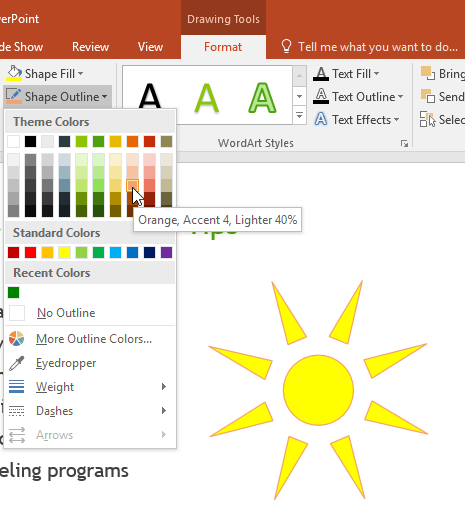
4. The shape or text box will appear within the selected border color.
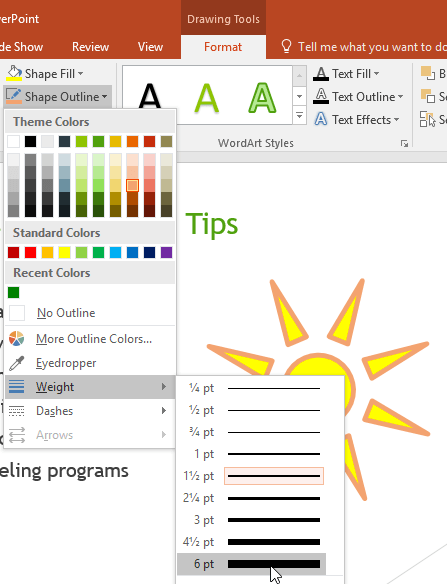
From the drop-down menu, you can change the border color, thickness, and set it to a dashed line if desired.
How to add shape effects
1. Select the shape or text box you want to change.
2. On the Format tab, click the Shape Effects drop-down arrow. In the menu that appears, hover over the effect style you want to add, and then select your desired preset effect.
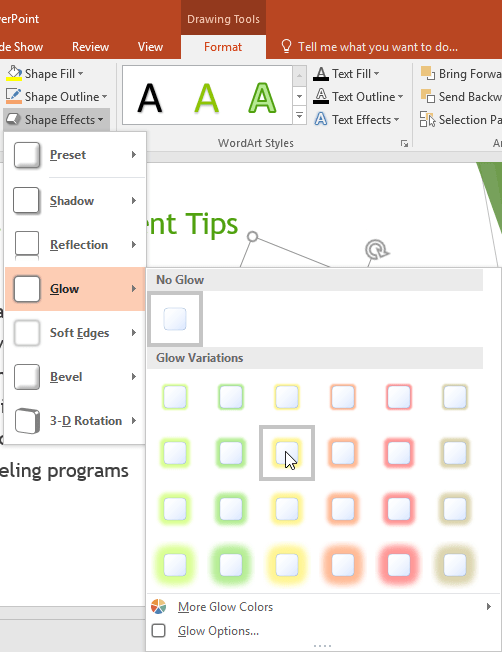
3. The shape will appear with the selected effect.
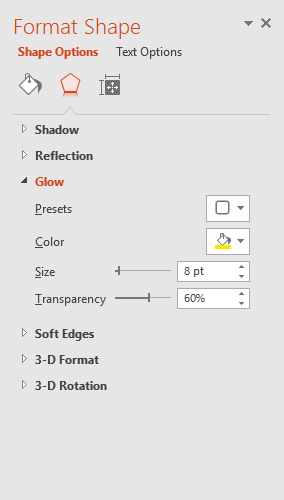
To further adjust the shape effects, select Options at the bottom of each menu. The Format Shape panel will appear, allowing you to customize the effects.
How to change it into a different shape
1. Select the shape or text box you want to change. The Format tab will appear.
2. On the Format tab, click the Edit Shape command. In the menu that appears, hover over Change Shape and select the desired shape.
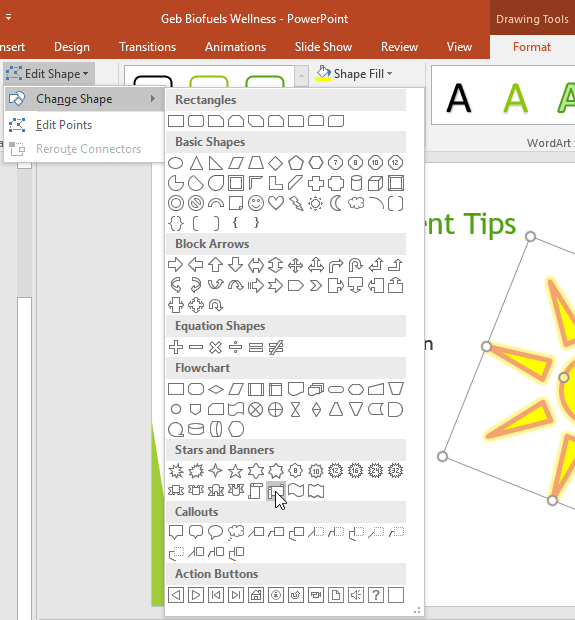
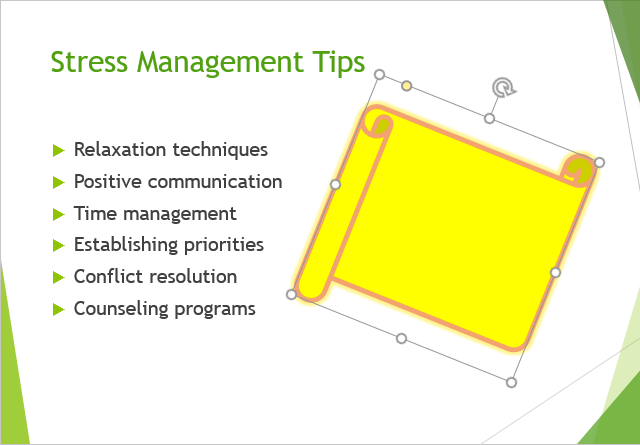
3. A new shape will appear.
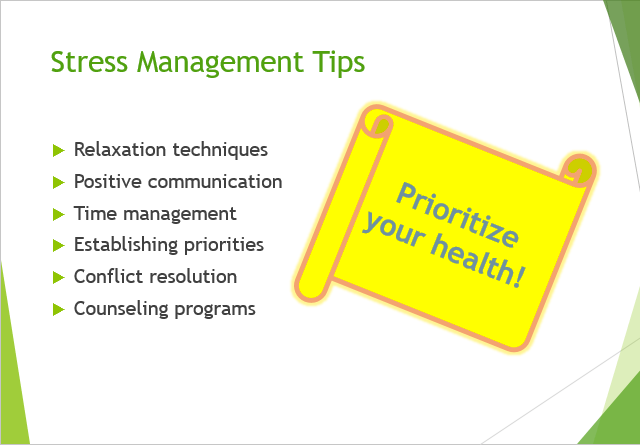
If you wish, you can enter text into a shape. Once the shape appears in the document, simply begin typing. Then, you can use the formatting options on the Home tab to change the font, font size, or color of the text.
Final Thoughts
Understanding powerpoint 2019 (part 16) makes it easier to evaluate the information and apply the most relevant recommendations. Focus on the key points above and verify details that may change over time.
FAQ
What is powerpoint 2019 (part 16)?
Explore powerpoint 2019 (part 16): shapes, including the key concepts, practical examples, important considerations, and useful guidance.
What key points does this article cover?
The article focuses on How to insert a shape, Modify the shape or text box, Format shapes and text boxes, with practical explanations and examples.
How can you use this information in practice?
Use the explanations to compare options, verify important details, and make a more informed decision. Apply the recommendations that best match your goals and situation.
Related Articles
 Shapes Powerpoint: How to Include Shapes in Powerpoint3 minutes read
 PowerPoint 2016: Working with Shapes8 minutes read
 Manipulate Shapes in PowerPoint 20166 minutes read
 PowerPoint 2019 (Part 15): Image Formatting: Explained7 minutes read
 PowerPoint 2019 (Part 17): Aligning, Arranging, and Grouping Objects9 minutes read
 PowerPoint 2019 (Part 18): Adding Animations to Text and Objects10 minutes read
Reader Comments 0
Sign in with email or Google to join the discussion.