Table of Contents
Explore powerpoint 2019 (part 5): working with text, including the key concepts, practical examples, important considerations, and useful guidance.
How to select text
Before you can move or rearrange text, you need to select that text.
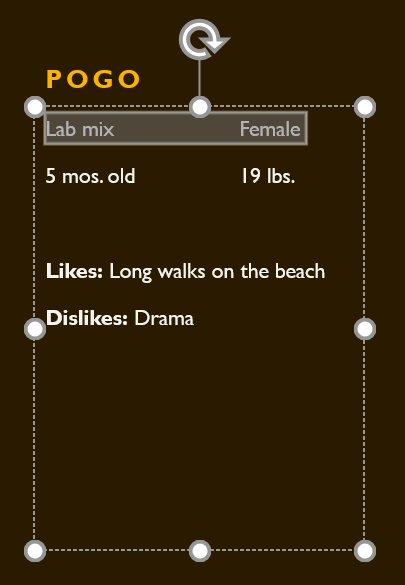
Click next to the text you want to select, drag your mouse over the text, and then release the mouse. The text will be selected.
Copy and move text
PowerPoint allows you to copy text already on one slide and paste it elsewhere, which can save you time. If you want to move the text, you can cut and paste or drag and drop it.
How to copy and paste text
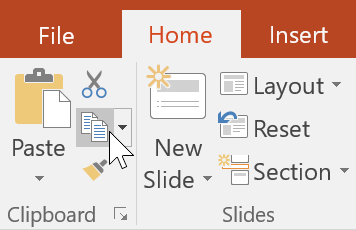
1. Select the text you want to copy, then click the Copy command on the Home tab.
2. Place the insertion point where you want the text to appear.
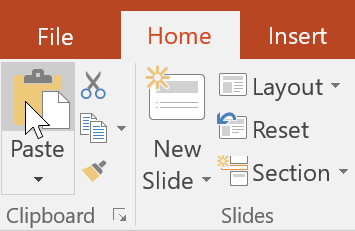
3. Click the Paste command on the Home tab.
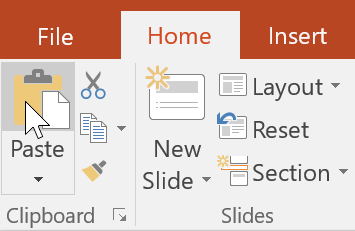
4. The copied text will appear.
How to cut and paste text
1. Select the text you want to move, then click the Cut command.
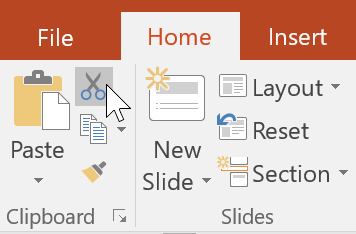
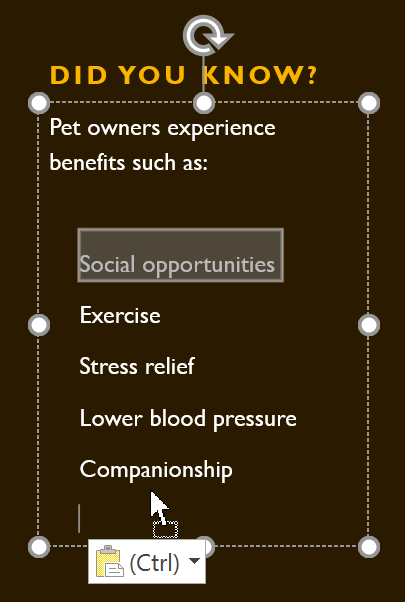
2. Place the insertion point where you want the text to appear, then click the Paste command.
3. The text will appear in the new location.
You can access the cut, copy, and paste commands using keyboard shortcuts. Press Ctrl + X to cut, Ctrl + C to copy, and Ctrl + V to paste.
How to drag and drop text
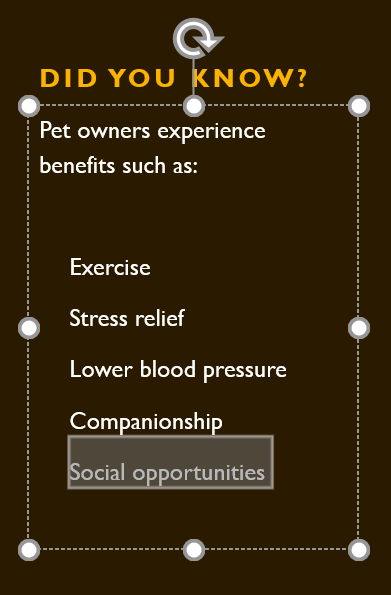
1. Select the text you want to move, then click and drag the text to the desired location.
2. The text will appear in the new location.
Format and align text
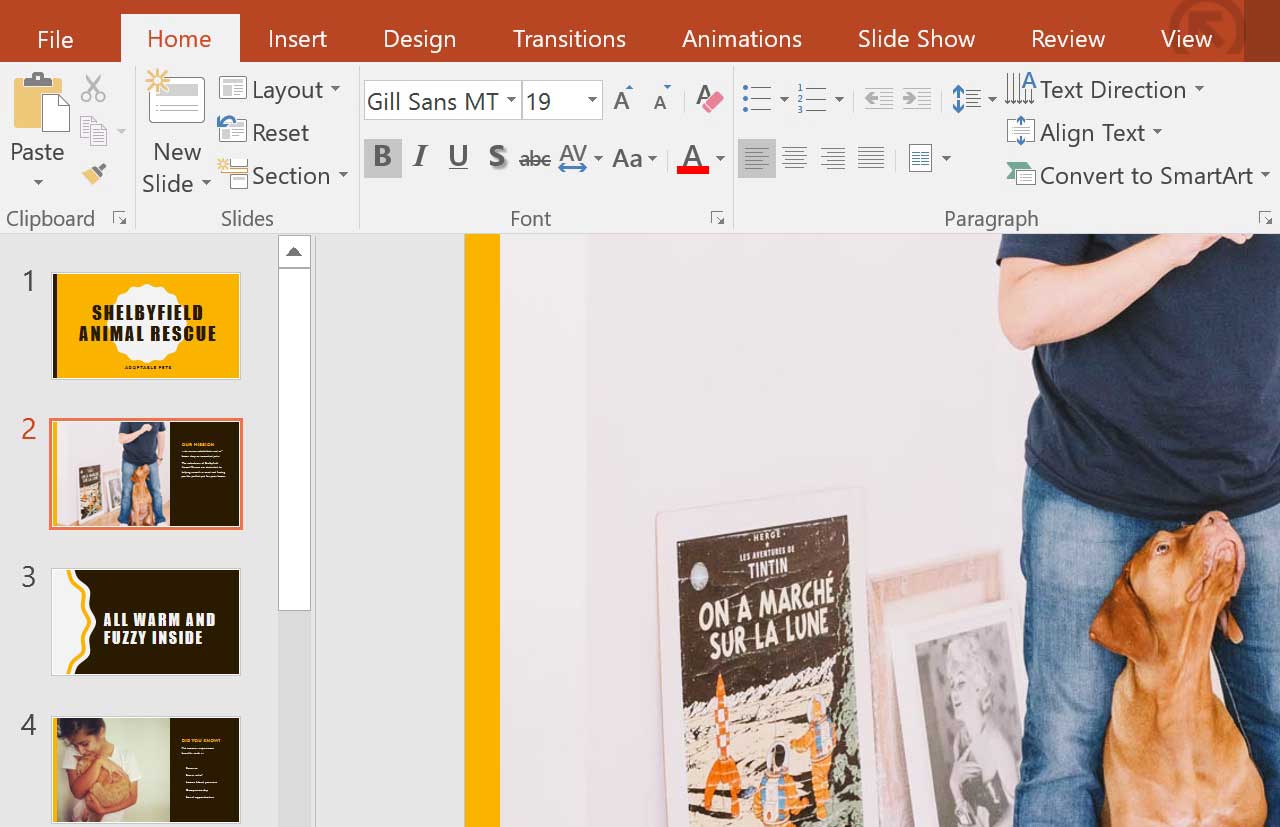
Well-formatted text can draw the audience's attention to specific parts of a presentation and help emphasize important information. In PowerPoint, you have several options for adjusting text, including size and color. You can also adjust text alignment to change how it appears on slides.
Final Thoughts
Understanding powerpoint 2019 (part 5) makes it easier to evaluate the information and apply the most relevant recommendations. Focus on the key points above and verify details that may change over time.
FAQ
What is powerpoint 2019 (part 5)?
Explore powerpoint 2019 (part 5): working with text, including the key concepts, practical examples, important considerations, and useful guidance.
What key points does this article cover?
The article focuses on How to select text, Copy and move text, How to copy and paste text, with practical explanations and examples.
How can you use this information in practice?
Use the explanations to compare options, verify important details, and make a more informed decision. Apply the recommendations that best match your goals and situation.
Related Articles
 PowerPoint 2016: How to Work with Text5 minutes read
 How to Add Alt Text to an Object in PowerPoint4 minutes read
 PowerPoint 2019 (Part 9): Using Find && Replace4 minutes read
 PowerPoint 2019 (Part 18): Adding Animations to Text and Objects10 minutes read
 PowerPoint 2019 (Part 4): Basic Slide Concepts: Explained11 minutes read
 How to Center the Cell in the PowerPoint Table5 minutes read
Reader Comments 0
Sign in with email or Google to join the discussion.