Table of Contents
Explore powerpoint 2019 (part 8): managing slides, including the key concepts, practical examples, important considerations, and useful guidance.
Introduction to slide views
PowerPoint includes several slide views, all useful for different tasks. The slide view commands are located in the lower right corner of the PowerPoint window. There are four main slide views.

- Normal view : This is the default view, where you create and edit slides. You can also move slides in the Slide Navigation pane on the left.

- Slide sorter view : In this view, you'll see thumbnail versions of each slide. You can drag and drop slides to quickly rearrange them.

- Reading view : This view fills the PowerPoint window with a preview of the presentation. It includes easily accessible navigation buttons in the bottom right corner.

- Slide show view : This is the view you will use to present to your audience. This command will start the presentation from the current slide. You can also press F5 on your keyboard to start over. A menu will appear in the bottom left corner when you move your mouse. These commands allow you to navigate through the slides and access various other features, such as pen and highlighter.

Outline view
Outline view displays the text in the slides as an outline. This allows you to quickly edit slide text and view the content of multiple slides at once. You can use this layout to review how to organize your slideshow and prepare your presentation.
How to view outline
1. From the View tab, click the Outline View command.

2. The outline of the text in the slide will appear in Slide Navigation.
3. You can type directly into the outline to make changes to your slide text.

Slide notes
You can add notes to your slides from Notes. Often referred to as presenter notes, they can help you distribute or prepare for your presentation.
How to add notes
1. Click the Notes command at the bottom of the screen to open the Notes control panel.

2. Click and drag the edge to the edge of this panel to resize it if desired.

3. Click on the Notes panel and start typing to add a note.
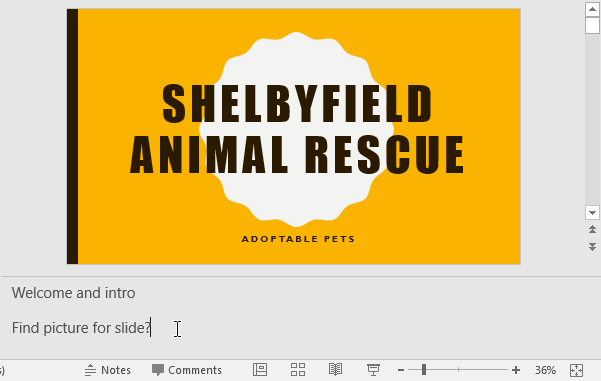
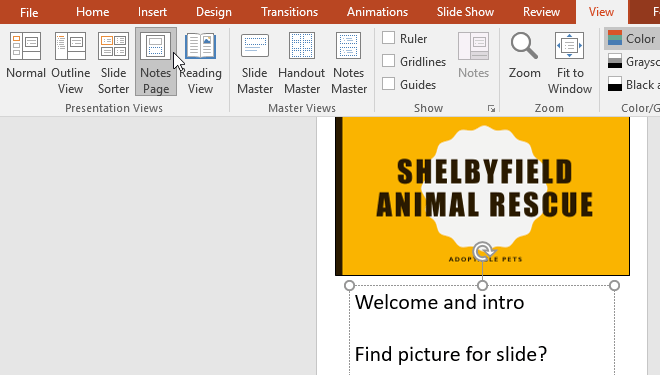
You can also access the Notes Page view to edit and review your notes. Simply click the Notes Page command from the View tab. From there, you can enter notes in the text box below each slide.
Parts of the slide
If you have many slides, you can organize them into sections to make navigating the presentation easier. Sections can be collapsed or expanded in Slide Navigation and named for easy reference.
How to create slide sections
The example would add two sections: one for dogs ready for adoption and one for cats and other pets.
1. Select the slide where you want to begin a section.

2. From the Home tab, click the Section command, then select Add Section from the drop-down menu.
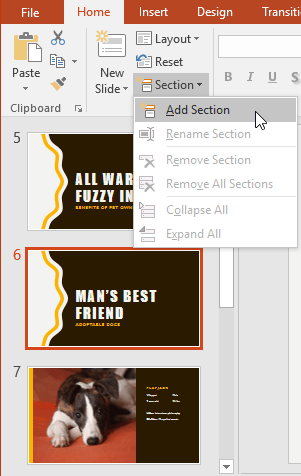
3. An untitled section will appear in Slide Navigation.

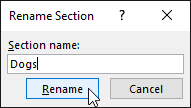
4. To rename a section, click the Section command, then select Rename Section from the drop-down menu.
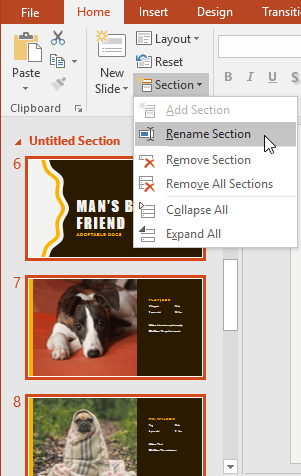
5. Enter the new section name in the dialog box, then click Rename.
6. Repeat to add more sections if needed.
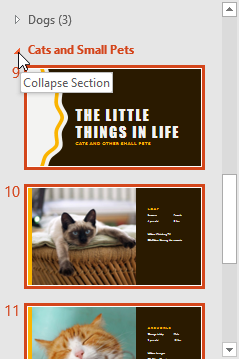
7. In Slide Navigation , click the arrow next to the section name to collapse or expand that section.
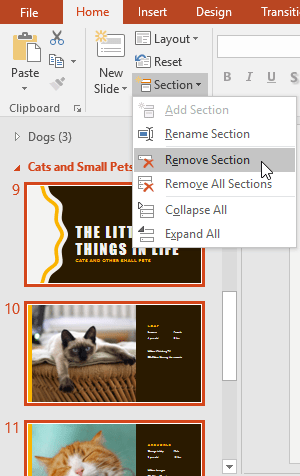
To remove a section, click the Section command, then click Remove Section. You can also click Remove All Sections to remove all sections from your slides.
Final Thoughts
Understanding powerpoint 2019 (part 8) makes it easier to evaluate the information and apply the most relevant recommendations. Focus on the key points above and verify details that may change over time.
FAQ
What is powerpoint 2019 (part 8)?
Explore powerpoint 2019 (part 8): managing slides, including the key concepts, practical examples, important considerations, and useful guidance.
What key points does this article cover?
The article focuses on Introduction to slide views, Outline view, How to view outline, with practical explanations and examples.
How can you use this information in practice?
Use the explanations to compare options, verify important details, and make a more informed decision. Apply the recommendations that best match your goals and situation.
Related Articles
 PowerPoint 2019 (Part 4): Basic Slide Concepts: Explained11 minutes read
 PowerPoint 2019 (Part 21): Tables: Explained7 minutes read
 PowerPoint 2019 (Part 12): Lists: Explained6 minutes read
 PowerPoint 2019 (Part 19): Inserting Video: Explained8 minutes read
 PowerPoint 2019 (Part 14): Inserting Images: Explained7 minutes read
 PowerPoint 2016: Managing Slides in PowerPoint: What You Need to Know7 minutes read
Reader Comments 0
Sign in with email or Google to join the discussion.