Table of Contents
PowerPoint 2019 creates slide presentations containing text, pictures, charts, and other media. To begin, open a blank presentation and use the Ribbon for slide-editing commands, the thumbnail pane to select slides, and File for saving and printing. This guide explains the desktop interface shown in the screenshots.
PowerPoint interface
When PowerPoint starts without opening an existing file, it normally shows the Start screen. From here, you can create a new presentation, choose a template, and access your recently edited presentations.
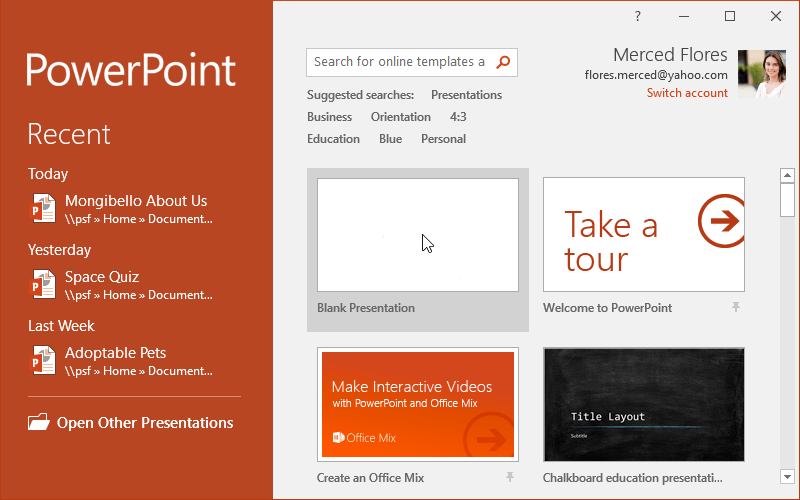
From the Start Screen , locate and select Blank Presentation to access the PowerPoint interface.
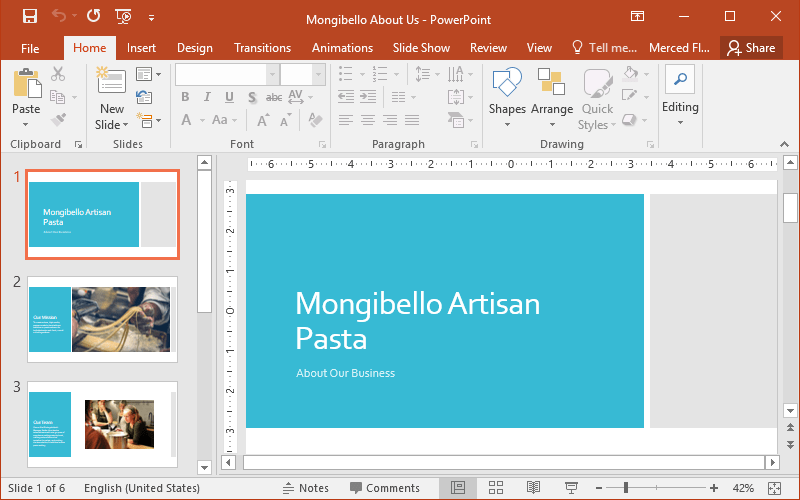
Working with the PowerPoint environment
The Ribbon and Quick Access Toolbar are where you'll find commands to perform common tasks in PowerPoint. The Backstage view provides you with various options for saving, opening files, printing, and sharing documents.
Ribbon
PowerPoint uses a tabbed Ribbon system instead of traditional menus. The Ribbon contains multiple tabs, each with several groups of commands. For example, the Font group on the Home tab contains commands for formatting text in a document.
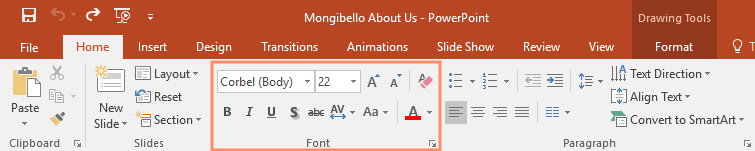
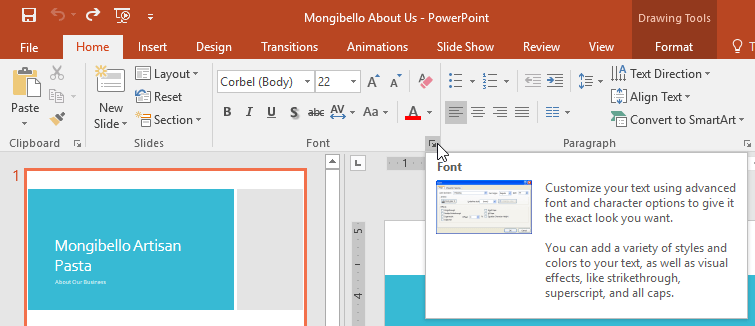
Some groups also have a small arrow in the bottom right corner that you can click to access more options.
Show and hide the Ribbon
The Ribbon is designed to accommodate the current task, but you can choose to minimize it if you find it takes up too much screen space. Click the Ribbon Display Options arrow in the upper right corner of the Ribbon to display the drop-down menu.
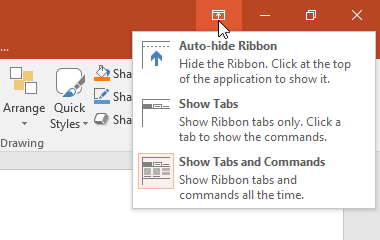
- Auto-hide Ribbon : Expands the presentation workspace and hides the Ribbon. To show the Ribbon, click the Expand Ribbon command at the top of the screen.
- Show Tabs : This option hides all command groups when not in use, but the tabs will remain visible. To display the Ribbon, simply click on a tab.
- Show Tabs and Commands : This option maximizes the Ribbon. All tabs and commands will be displayed. This option is selected by default when you open PowerPoint for the first time.
Find a command with Tell Me
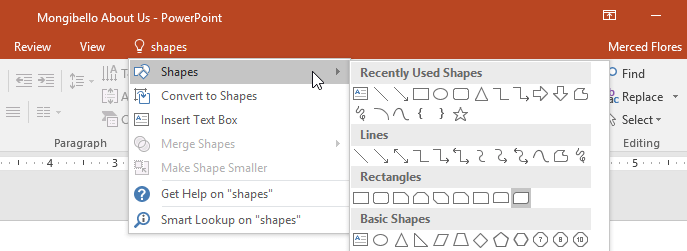
If you're having trouble finding a command you want, the Tell Me feature can help. Type a task or command name in the Tell me what you want to do box and review the matching commands. In some updated Office interfaces, this box is labeled Search. You can then use the command directly from the menu without having to search for it on the Ribbon.
Quick Access Toolbar
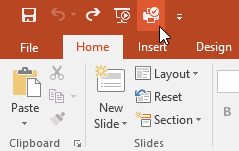
Located just above the Ribbon, the Quick Access Toolbar lets you access common commands regardless of which tab is selected. It commonly includes commands such as Save, Undo, and Start From Beginning; the visible commands depend on your settings. You can add other commands to suit your preferences.
Add a command to the Quick Access Toolbar
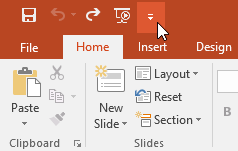
1. Click the drop-down arrow to the right of the Quick Access Toolbar .
2. Select the command you want to add from the drop-down menu. To choose from other commands, click More Commands.
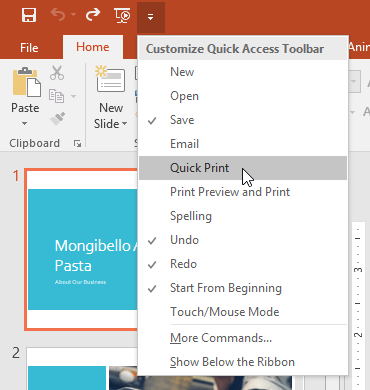
3. The command will be added to the Quick Access Toolbar .
Ruler, guides, and gridlines
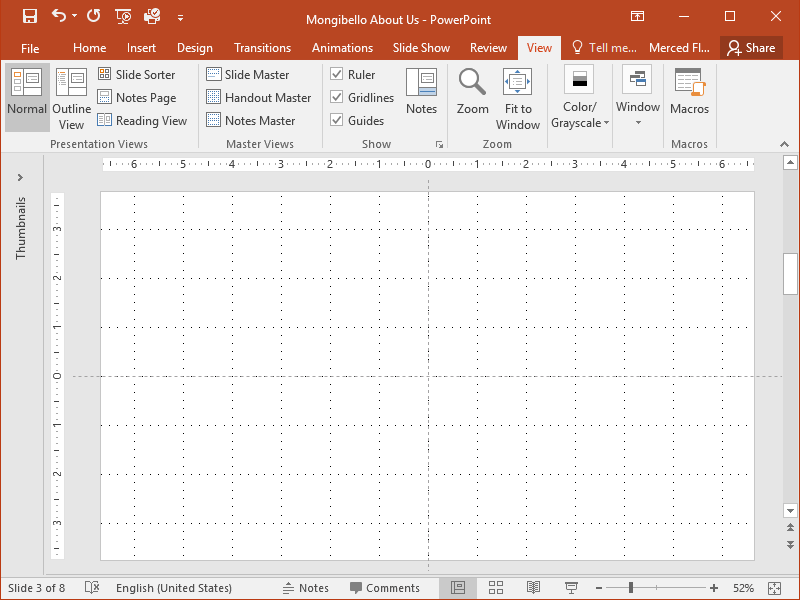
PowerPoint includes several tools to help organize and arrange content on slides, including rulers, guide lines, and gridlines. These editing aids help position objects; they are not slide content. For precise layouts, use alignment and grouping commands. Simply click the checkboxes in the Show group on the View tab to show and hide these tools.
Zoom and other view options
PowerPoint offers several viewing options to change how your presentation is displayed. You can choose to view your presentation in Normal view, Slide Sorter view, Reading view , or Slide Show view . Normal is for editing, Slide Sorter is for ordering thumbnails, Reading is a windowed preview, and Slide Show is for presenting. Zoom changes only your editing view, not the slide’s dimensions or font sizes.
Switch slide views
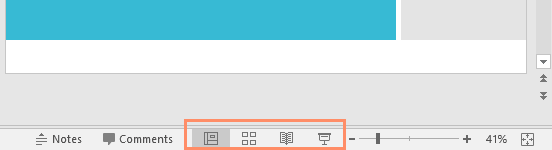
Switching between slide views is easy. Simply locate and select the desired slide view command in the bottom-right corner of the PowerPoint window.
Zoom in or out
To zoom in or out, click and drag the zoom control slider in the bottom-right corner of the PowerPoint window. You can also select the + or - commands to zoom in or out in smaller increments. The number next to the slider shows the current zoom percentage, also known as the zoom level.

Backstage view
Backstage view gives you various options for saving, opening, printing, and sharing your presentation.
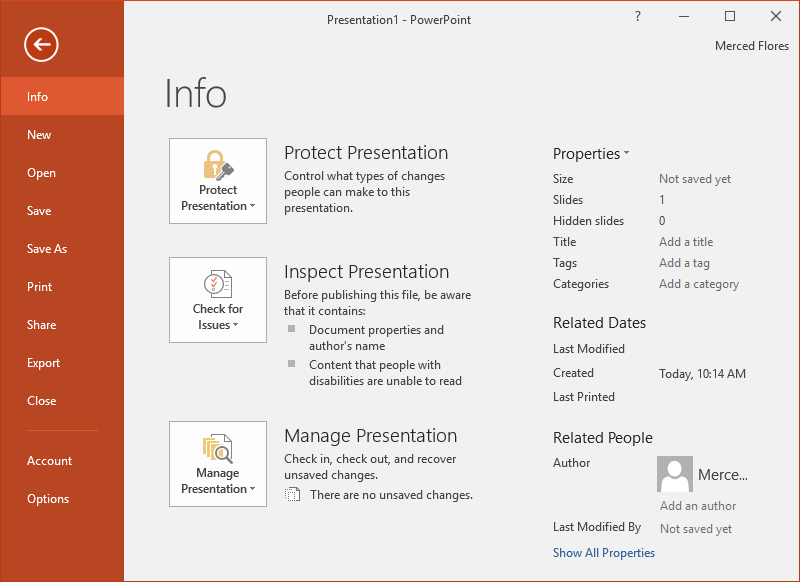
Click File to open Backstage view. Choose a command such as Open, Save As, or Print; use the back arrow to return to the presentation. See saving and recovering a presentation for the file commands.
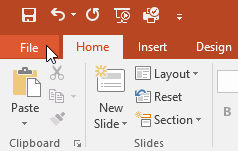
When a command is missing or unavailable
Some tabs appear only after selecting an object, such as a picture or shape. Click the intended object before looking for its formatting tools. If the Ribbon is collapsed, expand a tab or choose Show Tabs and Commands. A command may also be unavailable when the selection does not support it.
Practice with a blank presentation
- Open PowerPoint and create a new blank presentation.
- Set Ribbon Display Options to Show Tabs, then click Home to display its commands.
- Open the Quick Access Toolbar menu and add New or another command you regularly use.
- Type Shapes in the Tell Me box and choose the matching command.
- Choose a shape, then click and drag on the slide to draw it. Select the shape and notice the contextual Format tab.
- Show the ruler if it's not already displayed.
- Zoom in on the presentation up to 120%.
- Change the Ribbon Display Options to Show Tabs and Commands .
Related Articles
 PowerPoint 2016: Getting Started with Microsoft PowerPoint 20168 minutes read
 PowerPoint 2019 (Part 11): Presenting Slideshows: Explained9 minutes read
 PowerPoint 2019 (Part 6): Applying Themes: Explained5 minutes read
 PowerPoint 2019 (Part 5): Working with Text: Explained4 minutes read
 PowerPoint 2019 (Part 16): Shapes: Explained7 minutes read
 PowerPoint 2019 (Part 10): Printing Your Presentation: Explained4 minutes read
Reader Comments 0
Sign in with email or Google to join the discussion.