Table of Contents
Explore powerpoint 2019 (part 6): applying themes, including the key concepts, practical examples, important considerations, and useful guidance.
What is a theme?
In PowerPoint, themes provide a quick and easy way to change the design of your presentation. They control the main color scheme, base fonts, slide layout, and other important elements. All the elements of a theme will work well together, meaning you won't have to spend a lot of time formatting your presentation.
Each theme uses its own set of slide layouts. These layouts control how your content is arranged, so the effect can be quite dramatic. In the examples below, you can see that the placeholders, fonts, and colors are different.

If you use a unique slide layout—such as Quote with Caption or Name Card —then switching to a theme that doesn't include this layout might produce unexpected results.
Every PowerPoint theme—including the default Office theme—has its own theme elements. These elements include:
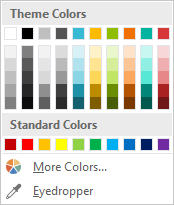
- Theme colors : There are 10 theme colors, along with darker and lighter variations, available from any Color menu.
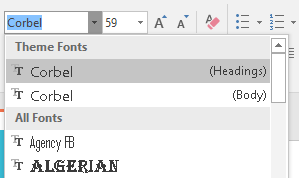
- Theme fonts : There are two theme fonts available at the top of the Font menu in Theme Fonts.
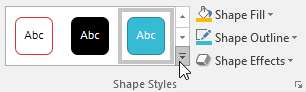
- Theme effects : These effects influence the preset shape styles. You can find the shape styles on the Format tab whenever you select a SmartArt shape or graphic.
When you switch to a different theme, all these elements will update to reflect the new theme. You can significantly change the appearance of your presentation in just a few clicks.
If you apply fonts or colors that aren't part of the theme, they won't change when you select a different theme. This includes colors selected from the Standard Colors or More Colors options and fonts selected from All Fonts. Using non-theme elements can be useful when you want certain text to have a specific color or font, such as a logo.
You can also customize themes and define your own theme elements.
Apply themes
All themes available in PowerPoint are located in the Themes group on the Design tab. Themes can be applied or changed at any time.
Here's how to apply a theme:
1. Select the Design tab on the Ribbon, then find the Themes group. Each image represents a theme.
2. Click the More drop-down arrow to see all available themes.

3. Choose your desired theme.
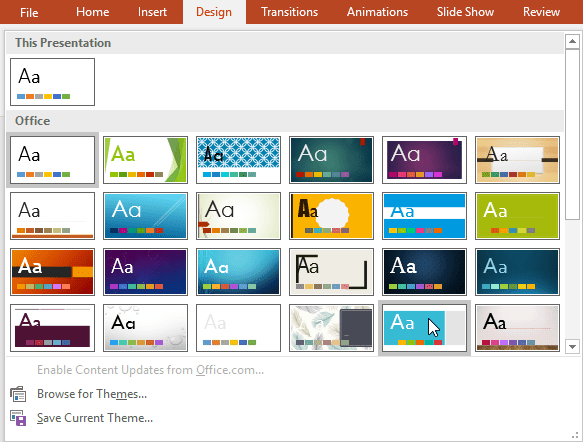
4. The theme will be applied to the entire presentation. To apply a different theme, simply select it from the Design tab.
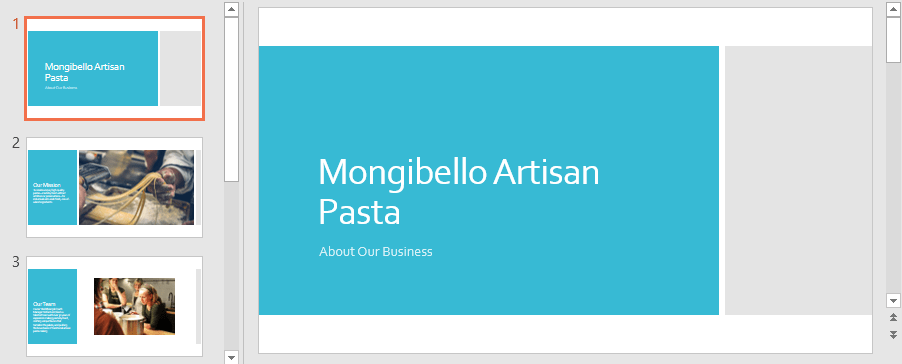
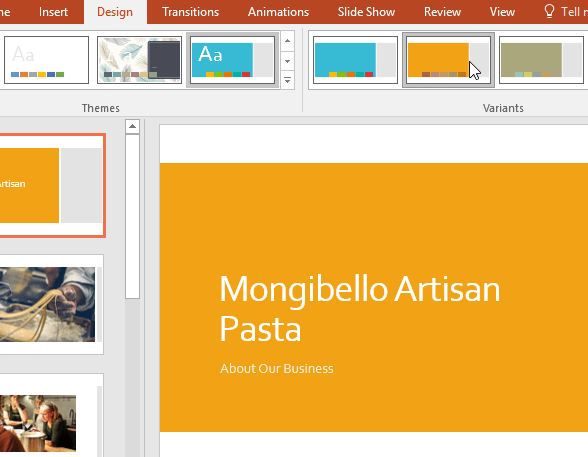
After applying a theme, you can choose a variation of the theme from the Variants group. Variants use different theme colors while maintaining the overall look of the theme.
Final Thoughts
Understanding powerpoint 2019 (part 6) makes it easier to evaluate the information and apply the most relevant recommendations. Focus on the key points above and verify details that may change over time.
FAQ
What is powerpoint 2019 (part 6)?
Explore powerpoint 2019 (part 6): applying themes, including the key concepts, practical examples, important considerations, and useful guidance.
What key points does this article cover?
The article focuses on What is a theme?, Apply themes, with practical explanations and examples.
How can you use this information in practice?
Use the explanations to compare options, verify important details, and make a more informed decision. Apply the recommendations that best match your goals and situation.
Related Articles
 PowerPoint 2019 (Part 7): Applying Transition Effects: Explained8 minutes read
 PowerPoint 2016: Apply Themes in PowerPoint5 minutes read
 PowerPoint 2019 (Part 1): Getting Started with PowerPoint: Explained7 minutes read
 How to Change the Theme in PowerPoint 20167 minutes read
 PowerPoint 2019 (Part 11): Presenting Slideshows: Explained9 minutes read
 PowerPoint 2019 (Part 5): Working with Text: Explained4 minutes read
Reader Comments 0
Sign in with email or Google to join the discussion.