Table of Contents
If OneDrive options such as Share or View online are missing when you right-click a file, first confirm that the file is inside a folder currently synced by OneDrive. On Windows 11, also select Show more options in the compact context menu. If the commands are still absent, work through the fixes below in order.
1. Confirm OneDrive is running, then restart Explorer
Look for the OneDrive cloud icon in the taskbar notification area. If it is missing, open Start, search for OneDrive, and launch the app. Sign in if prompted and wait until the affected folder finishes syncing.
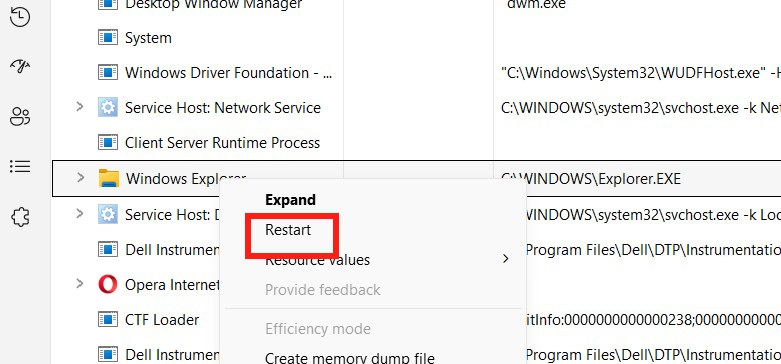
Next, press Ctrl + Shift + Esc to open Task Manager. Find Windows Explorer on the Processes tab, right-click it, and select Restart. For more detail, see this guide to restarting Windows Explorer.
2. Reset the OneDrive sync app
Resetting OneDrive rebuilds its local settings and sync connections without deleting files stored in OneDrive. You may need to select your synced folders again afterward.
- Press Windows + R.
- Enter the following command and select OK:
%localappdata%MicrosoftOneDriveOneDrive.exe /resetIf Windows cannot find the executable, try:
C:Program FilesMicrosoft OneDriveOneDrive.exe /resetOn 32-bit installations, the alternate path is:
C:Program Files (x86)Microsoft OneDriveOneDrive.exe /resetWait a minute, then search for and open OneDrive from Start if it does not restart automatically.
3. Check the OneDrive policy setting
This method applies to Windows editions that include Local Group Policy Editor. Press Windows + R, enter gpedit.msc, and press Ctrl + Shift + Enter.
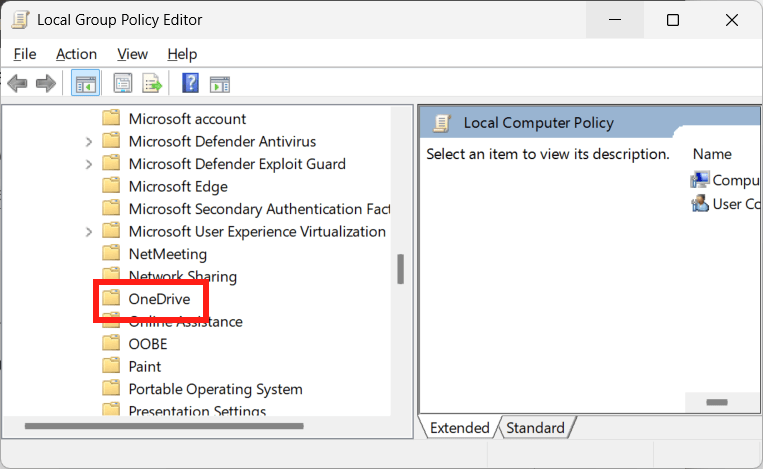
Go to User Configuration > Administrative Templates > Windows Components > OneDrive.
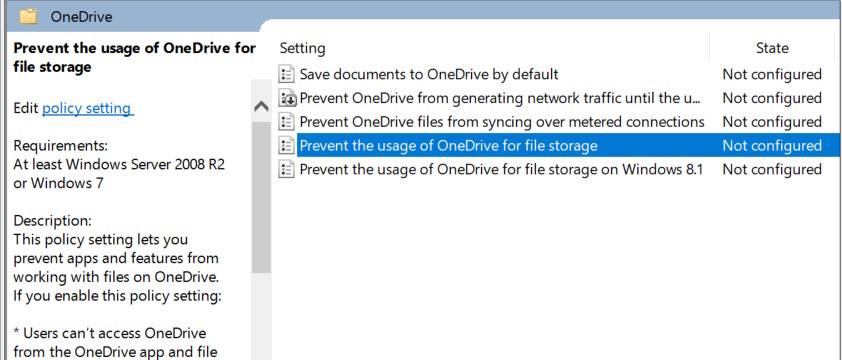
Open Prevent the usage of OneDrive for file storage.
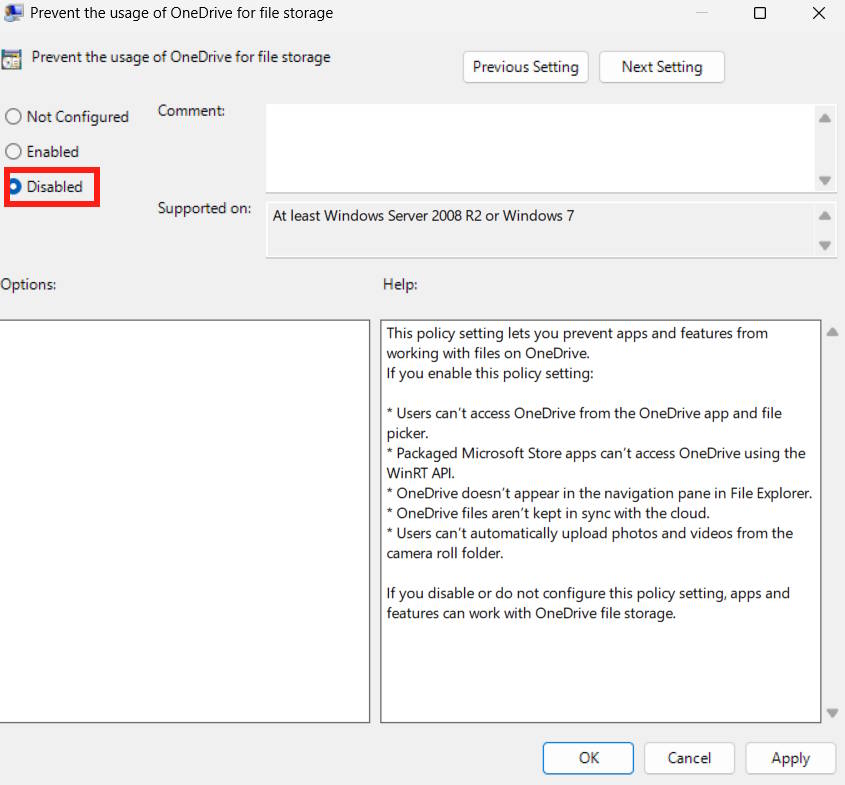
Choose Disabled or Not Configured, then select Apply and OK.
Open an elevated Command Prompt, run gpupdate /force, and restart Windows.
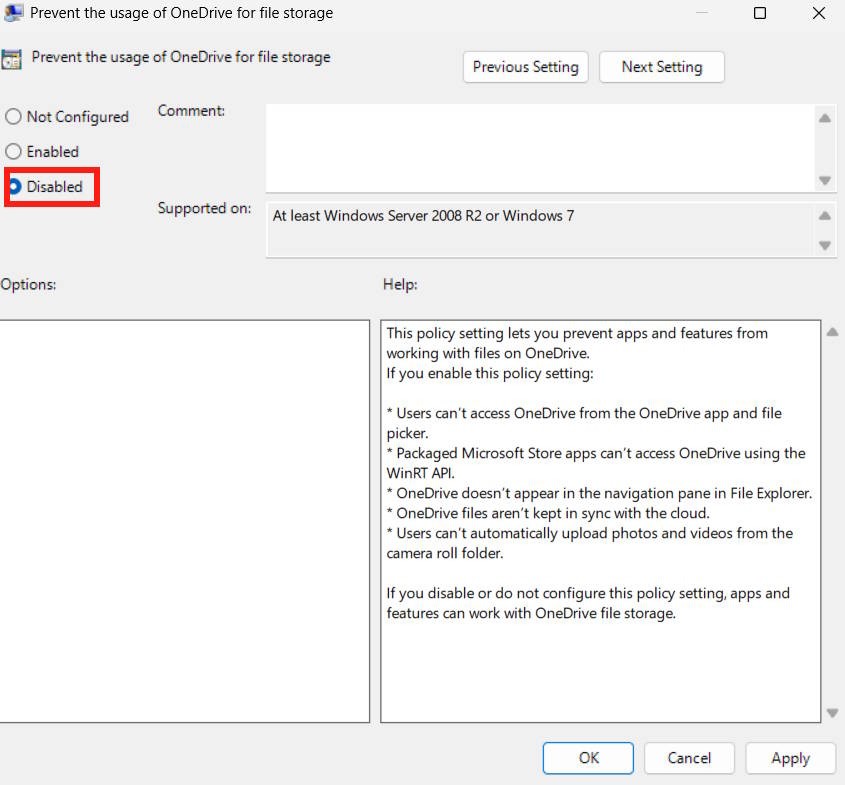
If this is a work or school computer, an administrator may enforce the setting. Do not override an organization-managed policy; contact the administrator instead.
4. Repair the OneDrive context-menu handler
Use this advanced fix only if the earlier steps fail. Incorrect Registry changes can affect Windows, so consider exporting the key before editing it. See how to open Registry Editor if needed.
Open Registry Editor and navigate to:
HKEY_CLASSES_ROOT*shellexContextMenuHandlers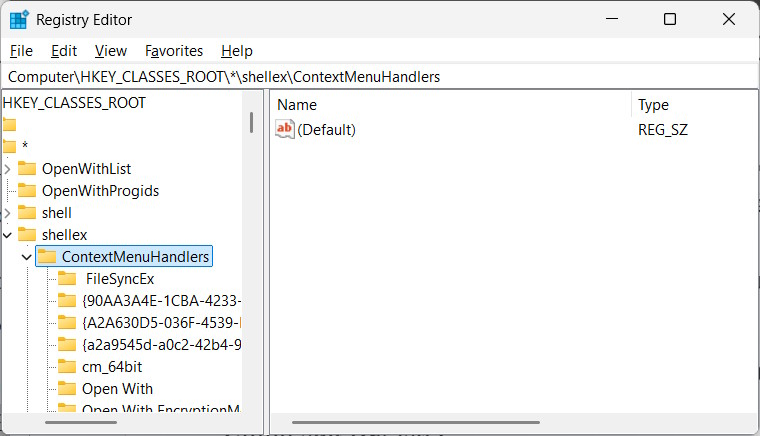
If there is no OneDrive subkey, right-click ContextMenuHandlers, choose New > Key, and name it OneDrive.
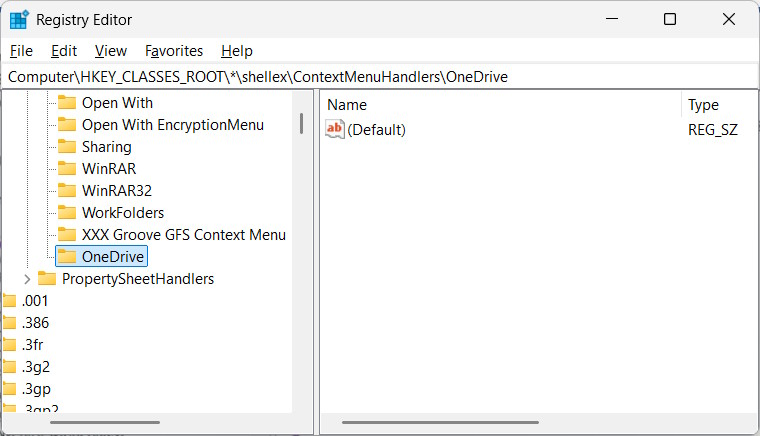
Select the new key, double-click (Default), and set its value to:
{CB3D0F6C-BCB3-4C3D-8B3E-47D12D4958E3}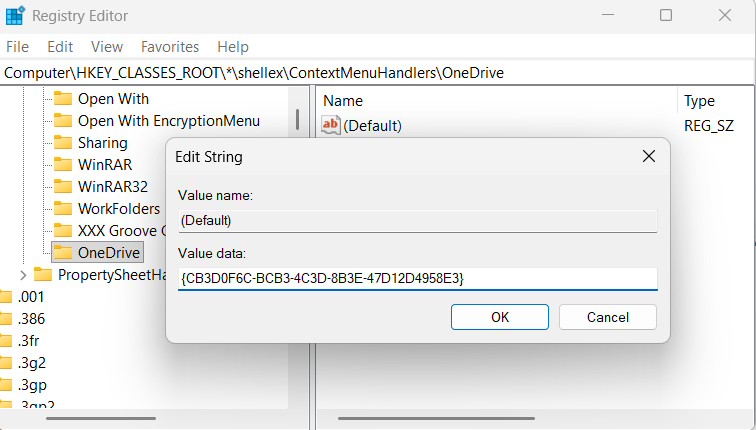
Restart Windows Explorer and test a file inside your OneDrive folder. If the commands remain missing, reinstalling the current OneDrive sync app is safer than adding more unverified Registry entries.
Related Articles
 How to Add / Remove Move to OneDrive Context Menu in Windows 104 minutes read
 The Context Menu of Windows 11 Will Have a New Eye-catching4 minutes read
 Windows 11: Complete Guide: Microsoft Is Committed to Improving the3 minutes read
 This Small Application Helps Bring the Context Menu3 minutes read
 Edit Menu Context on macOS7 minutes read
 OneDrive Launches File Protection for Windows 10 Users4 minutes read
Reader Comments 0
Sign in with email or Google to join the discussion.