Table of Contents
An AI assistant can turn a messy inventory message into rows for Excel or Google Sheets, but it cannot resolve an unstated unit price or missing date by guessing. Extract the fields first, flag ambiguity, then use spreadsheet formulas and check the result against the original message.
Read the message as source data
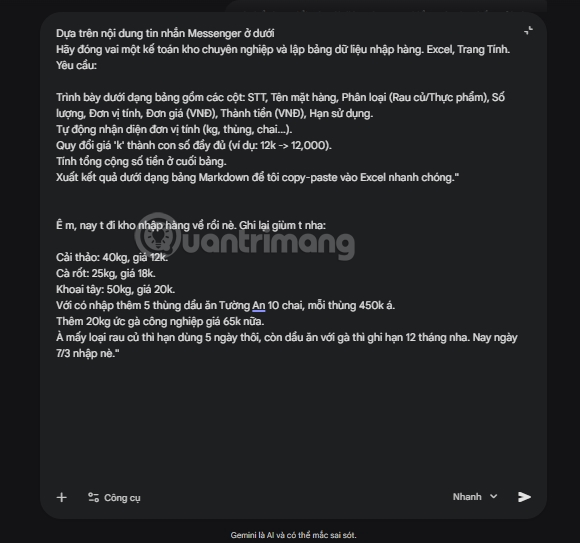
Consider a note listing 40 kg of cabbage at “12k,” 25 kg of carrots at “18k,” 50 kg of potatoes at “20k,” 20 kg of chicken breast at “65k,” and five cases of cooking oil at 450k VND per case, with ten bottles in each case. “k” means thousands in this context, so 450k becomes 450,000 VND. The oil line describes five cases at a case price; it also implies 50 bottles, but 450,000 must not be multiplied by 50. The kilogram quantities do not explicitly say whether their quoted prices are per kilogram, so mark those price units for confirmation.
A message that says “March 7” without a year cannot establish a full receipt date. A claimed shelf life is also not the same as a verified expiration date printed on packaging. Keep such details in a review column rather than inventing exact dates.
Use a prompt that exposes uncertainty
Remove private customer or colleague details before pasting the message into an AI service. Then use a prompt like this:
Extract one inventory row per item from the message below. Return tab-separated values with columns: Item, Quantity, Unit, Unit price (VND), Price unit, Shelf-life note, Needs review, Source phrase. Expand "k" to thousands. Keep cases and bottles distinct. Do not assume a price is per kg unless stated. Do not invent a year or expiration date. Leave unknown numeric cells blank and explain them in Needs review. Do not include a Markdown table or a calculated grand total.

MESSAGE:
[paste the cleaned message here]
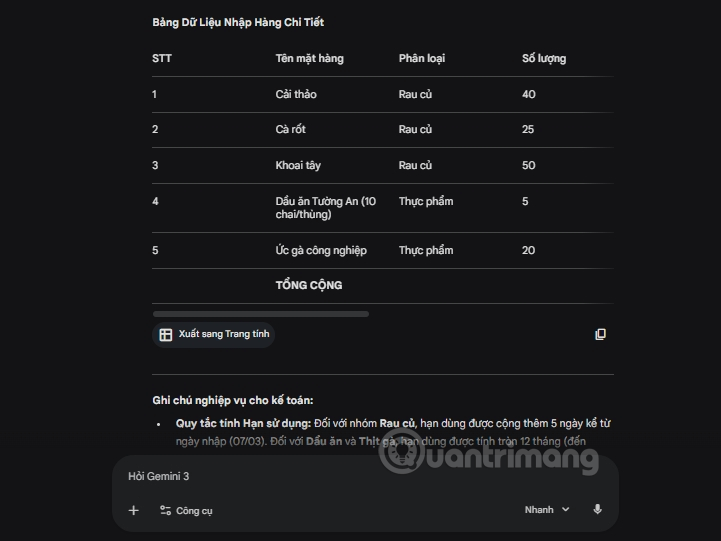
The screenshots below show an earlier Markdown-based workflow; tab-separated output is easier to import and audit. Compare each returned row with the source before using it. TipsMake's structured extraction lesson has a broader verification checklist.

Paste into a spreadsheet and calculate
Copy the tab-separated output into an empty sheet. If the text lands in one column, use the spreadsheet's import or text-to-columns control and select tabs as the delimiter. Check that 12,000 and 450,000 are stored as numbers, not text. Some spreadsheet locales interpret punctuation differently, so inspect a few cells before calculating.
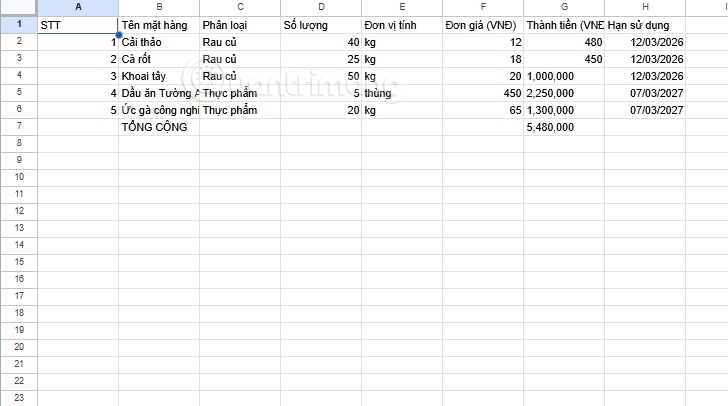
Once quantities and price units are confirmed, arrange columns as A: Item, B: Quantity, C: Unit, D: Unit price, E: Line total. Enter =B2*D2 in E2 and fill it down; use =SUM(E2:E6) for a five-row total. A spreadsheet formula recalculates when a reviewed value changes, unlike a total typed by an AI assistant. See basic spreadsheet formulas for the underlying steps.
Check before using the inventory
- Match every item and quantity to the message; confirm whether “price 12k” means per kg or per item.
- Keep five oil cases at the case price unless you deliberately convert both quantity and unit price to bottles.
- Confirm the receipt year and any expiry date from records or labels; do not calculate one from an unverified shelf-life note.
- Review the formula range, total, and number format. If the source text is untrusted, check cell contents that begin with an equals sign before allowing them to run as formulas.
For a more direct Sheets-specific workflow, see how to convert content into a Google Sheets table.
Related Articles
 How to Open Microsoft Excel from Command Prompt5 minutes read
 How to Use the Command History Function in Command Prompt9 minutes read
 Use the Command in Windows: How to Using Command Prompt20 minutes read
 Steps to Create USB Boot Using Command Prompt6 minutes read
 Excel 2016 - Lesson 7: Formatting Excel Spreadsheets9 minutes read
 Guide to Full Excel 2016 (Part 7): Format Spreadsheet Data9 minutes read
Reader Comments 0
Sign in with email or Google to join the discussion.