Table of Contents
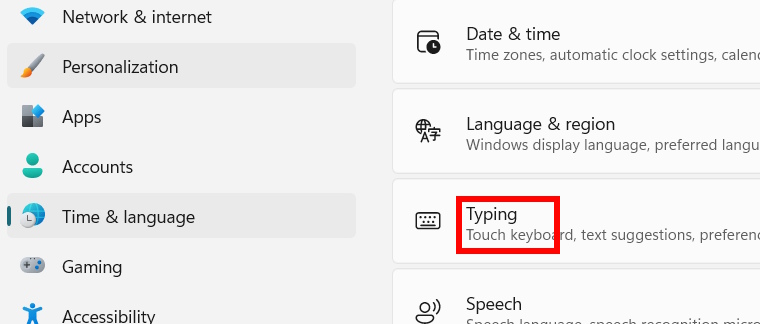
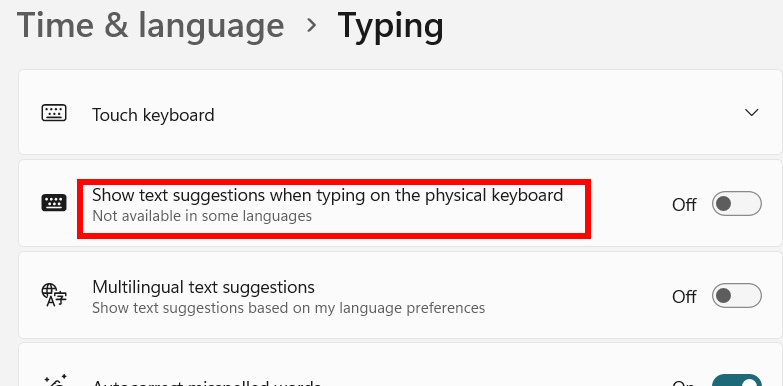
To stop suggested words appearing while you type on a physical keyboard in Windows 11, open Settings → Time & language → Typing and turn off Show text suggestions when typing on the physical keyboard. This changes a Windows typing option for your account. App-specific suggestions in a browser or word processor may have separate controls.
Turn off physical-keyboard suggestions
- Press Windows+I to open Settings.
- Select Time & language, then Typing.
- Switch off Show text suggestions when typing on the physical keyboard.
- Try typing in a text field to confirm that the suggestion strip no longer appears.
Check multilingual and other suggestions
If you use several input languages, the separate Multilingual text suggestions option controls predictions across supported languages. Turn it off as well if those are the suggestions you want to stop. Microsoft's text suggestions instructions show the same settings path.
If suggestions still appear in one app, check that app's own spelling or autocomplete settings. The touch keyboard has its own behavior and options; TipsMake's virtual keyboard guide explains where to find them. If you were trying to remove suggestions from Start rather than from typing, use the separate Start menu suggestions guide.
The Windows Settings toggle is the supported, reversible way to change this preference. It also lets you turn predictions back on without editing system configuration.
Related Articles
 How to Enable or Disable Text Suggestions on Windows 103 minutes read
 Instructions on How to Turn Off Suggestions (Suggested Apps) on6 minutes read
 How to Turn Off Website Suggestions on Windows 11 Start Menu4 minutes read
 How to Turn Off Add-on Suggestions on Firefox3 minutes read
 How to Turn Off Content Suggestions on Excel3 minutes read
 How to Turn Off Application Loading Suggestions on Windows 103 minutes read
Reader Comments 0
Sign in with email or Google to join the discussion.