Table of Contents
Explore powerpoint 2019 (part 3): saving your presentation, including the key concepts, practical examples, important considerations, and useful guidance.
Save and Save As
PowerPoint offers two ways to save files: Save and Save As . These options work in similar ways, with a few key differences.
- Save: When creating or editing a presentation, you'll use the Save command to save your changes. You'll use this command in almost every situation. When saving a file, you'll only need to choose a name and location the first time. Then, simply click the Save command to save the file with the same name and location.
- Save As: You will use this command to create a copy of your presentation while keeping the original. When using Save As , you will need to choose a different name and/or location for the copied version.
Introducing OneDrive
Most features in Microsoft Office, including PowerPoint, are geared towards saving and sharing documents online. This is accomplished with OneDrive, an online storage space for documents and files. If you want to use OneDrive, make sure you're signed in to PowerPoint with your Microsoft account.
How to save a presentation
It's important to save your presentation whenever you start a new project or make changes to an existing one. Saving early and regularly can help prevent your work from being lost if something goes wrong. You'll also need to pay attention to where you save your presentation so you can easily find it later.
1. Locate and select the Save command on the Quick Access Toolbar .
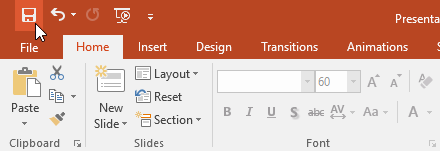
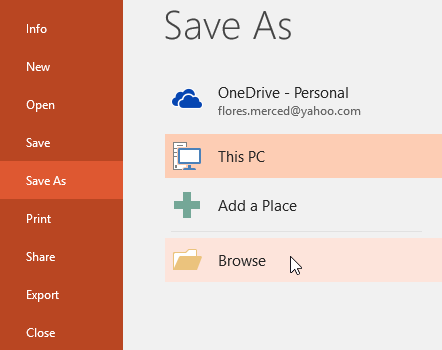
2. If you are saving a file for the first time, the Save As panel will appear in the Backstage view.
3. Next, you'll need to choose where to save and name the file. Click Browser to select a location on your computer. You can also click OneDrive to save the file to cloud storage.
4. The Save As dialog box will appear. Choose the location where you want to save the presentation.
5. Enter a name for your presentation, then click Save.
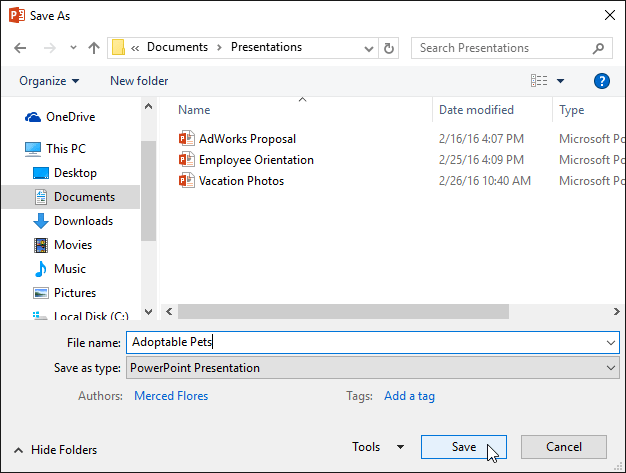
6. The presentation will be saved. You can click the Save command again to save your changes when modifying the presentation.
You can also execute the Save command by pressing Ctrl + S on your keyboard.
Use Save As to create a copy
If you want to save a different version of your presentation while keeping the original, you can create a copy. For example, if you have a file named Client Presentation , you can save it as Client Presentation 2 so you can edit the new file and still reference the original version.
To do this, you will need to click the Save As command in the Backstage view. Just like when saving a file for the first time, you will need to choose a save location and name the new file.

How to change the default save location
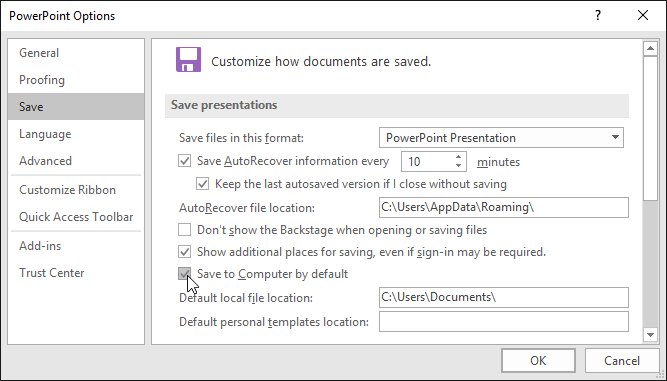
If you don't want to use OneDrive, you might be frustrated that OneDrive is selected as the default save location. If you find this inconvenient, you can change the default save location so that This PC is selected instead of OneDrive.
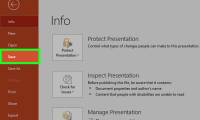
1. Click on the File tab to access the Backstage view.
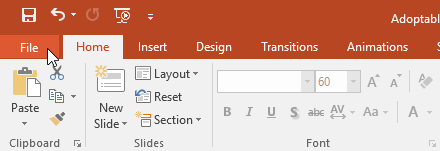
2. Click on Options.

3. The PowerPoint Options dialog box will appear. Select Save , select the box next to Save to Computer by default , and then click OK. The default save location will be changed.
Use AutoRecover
PowerPoint automatically saves your presentations to a temporary folder while you're working on them. If you forget to save your changes or if PowerPoint crashes, you can recover the files using AutoRecover.
How to use AutoRecover
1. Open PowerPoint. If automatically saved versions of the file are found, the Document Recovery panel will appear.
2. Click to open an existing file. The presentation will be restored.
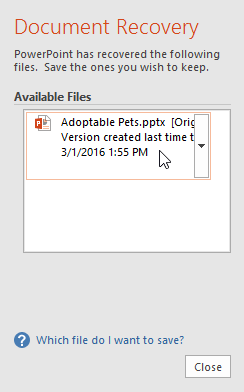
By default, PowerPoint automatically saves every 10 minutes. If you are editing a presentation that is less than 10 minutes long, PowerPoint may not create an autosave version.
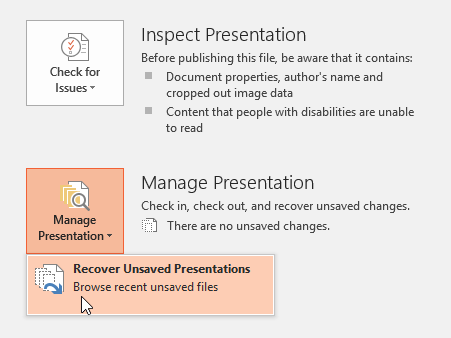
If you can't find the file you need, you can browse through all the automatically saved files from the Backstage view. Simply select the File tab, click Manage Presentation , and then select Recover Unsaved Presentations.
Export the presentation
By default, PowerPoint presentations are saved in the.pptx file format. However, sometimes you need to use a different file type, such as a PDF presentation or PowerPoint 97-2003. It's easy to export a PowerPoint presentation to many different file types.
- PDF: This action will save the presentation as a PDF document instead of a PowerPoint file.
- Video: This action will save the presentation as a video.
- Package for CD: This feature saves the presentation in a folder along with Microsoft PowerPoint Viewer, a special slideshow player that anyone can download.
- Handouts: This option will print a version of the document containing the slides for the viewer's reference.
- Other file type: This option saves the file in other file formats, including PNG and PowerPoint 97-2003.
How to export a presentation
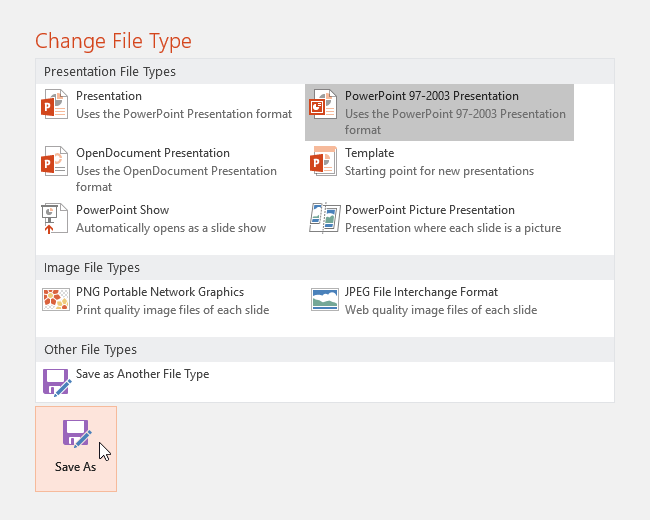
For example, we will save the presentation as a PowerPoint 97-2003 file.
1. Click on the File tab to access the Backstage view.
2. Click on Export , then select the desired option. For example, we would select Change File Type.
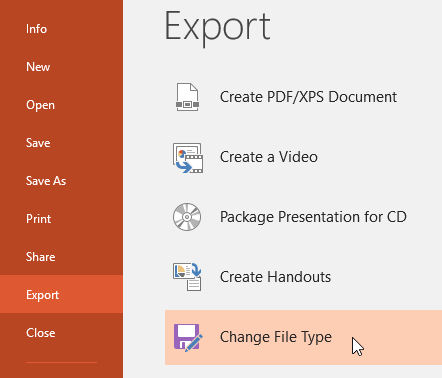
3. Select the file type, then click Save As.
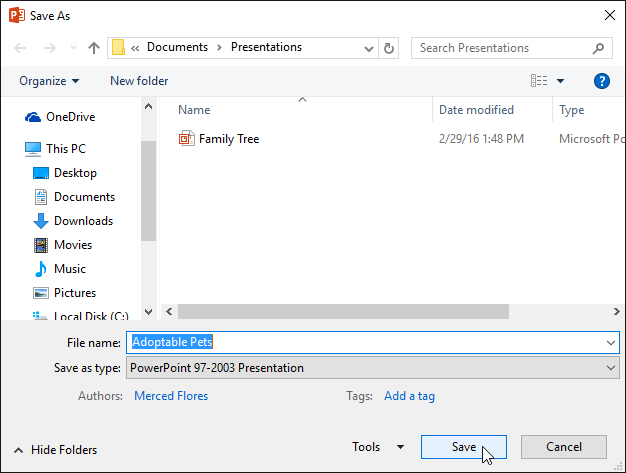
4. The Save As dialog box will appear. Choose the location where you want to save the presentation, enter a file name, and then click Save.
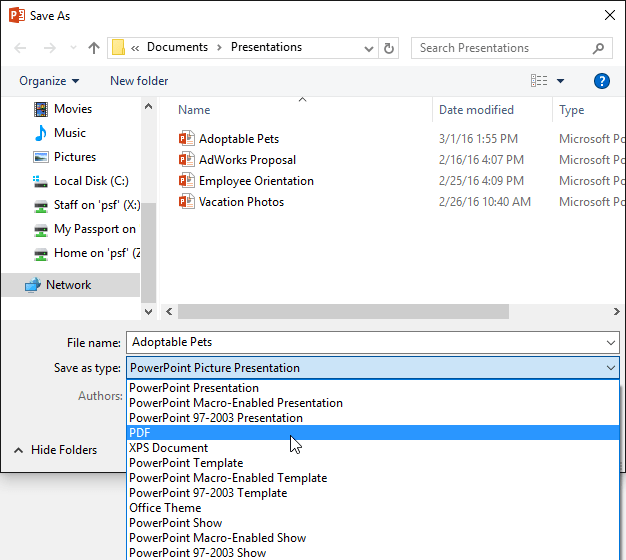
You can also use the Save As type drop-down menu in the Save As dialog box to save your presentation in various file types. Be careful to select the correct file type that others can open.
Share the presentation
PowerPoint makes it easy to share and collaborate on presentations using OneDrive. Previously, if you wanted to share a file with someone, you could send it as an email attachment. While convenient, this system also created multiple versions of the same file, making things difficult to organize.
When you share a PowerPoint presentation, you're essentially giving others access to the same file. This allows you and the people you share it with to edit the same presentation without having to monitor multiple versions.
To share the presentation, it must first be saved to OneDrive. To share the presentation:
1. Click the File tab to access the Backstage view, then click Share.

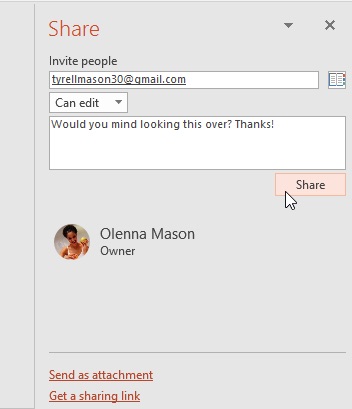
2. PowerPoint will return to Normal view and open the Share panel on the right side of the window. From here, you can invite people to share your document, see a list of people who have access to the document, and grant them permission to edit or just view the document.
Final Thoughts
Understanding powerpoint 2019 (part 3) makes it easier to evaluate the information and apply the most relevant recommendations. Focus on the key points above and verify details that may change over time.
FAQ
What is powerpoint 2019 (part 3)?
Explore powerpoint 2019 (part 3): saving your presentation, including the key concepts, practical examples, important considerations, and useful guidance.
What key points does this article cover?
The article focuses on Save and Save As, Introducing OneDrive, How to save a presentation, with practical explanations and examples.
How can you use this information in practice?
Use the explanations to compare options, verify important details, and make a more informed decision. Apply the recommendations that best match your goals and situation.
Related Articles
 PowerPoint 2019 (Part 25): Evaluating Your Presentation: Explained5 minutes read
 PowerPoint 2019 (Part 2): Creating and Opening Presentations7 minutes read
 PowerPoint 2019 (Part 31): Rehearsing and Recording Your Presentation6 minutes read
 PowerPoint 2019 (Part 11): Presenting Slideshows: Explained9 minutes read
 Slide: How to Create a Powerpoint Presentation11 minutes read
 PowerPoint 2019 (Part 1): Getting Started with PowerPoint: Explained7 minutes read
Reader Comments 0
Sign in with email or Google to join the discussion.