Table of Contents
Explore powerpoint 2019 (part 10): printing your presentation, including the key concepts, practical examples, important considerations, and useful guidance.
Print layout
PowerPoint offers several layouts to choose from when printing your presentation. The layout you choose will primarily depend on why you're printing the slides. There are four types of print layouts.
- Full Page Slides : This feature prints a full page for each slide in the presentation. This layout is most useful if you need to review or edit the printed version of your presentation.

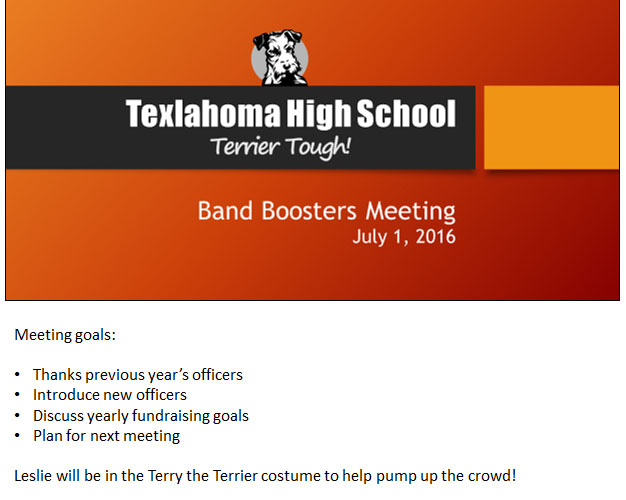
- Notes Pages : This feature prints each slide, along with any presenter notes for that slide. If you've included multiple notes for each slide, you can keep a printed copy of those notes with you during the presentation.
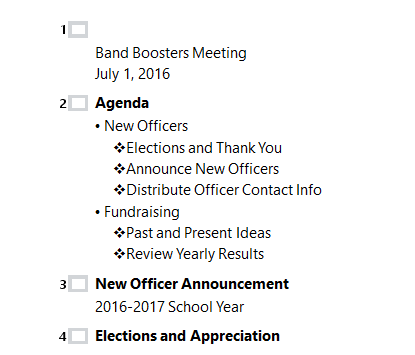
- Outline : This mode prints out the overall outline of the slideshow. You can use this to review how to organize your slides and prepare for your presentation.
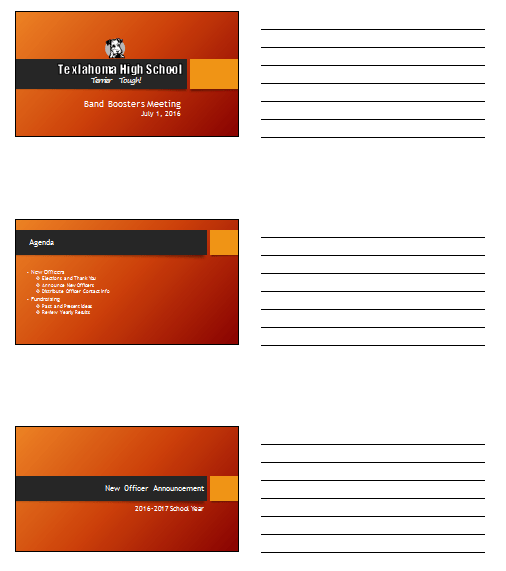
- Handouts : This mode prints thumbnail versions of each slide, with optional space for notes. This layout is especially useful if you want to give your audience a physical copy of the presentation. The optional space allows them to take notes on each slide.
How to access the Print control panel
1. Select the File tab. The Backstage view will appear.
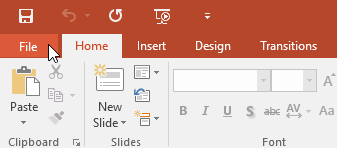
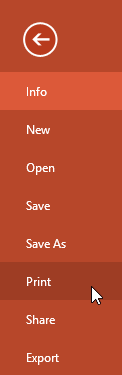
2. Select Print.
The Print control panel will appear.
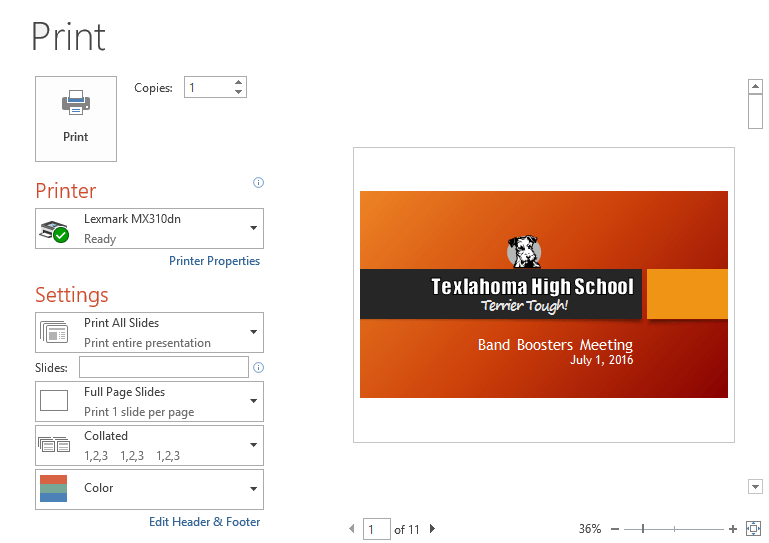
You can also access the Print control panel by pressing Ctrl + P on your keyboard.
How to print a presentation
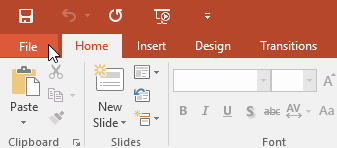
1. Select the File tab. The Backstage view will appear.
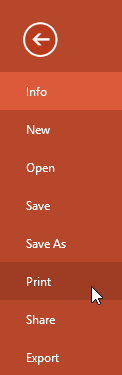
2. Select Print. The Print control panel will appear.
3. Select your desired printer and print area.
4. Select your desired print layout and color settings.
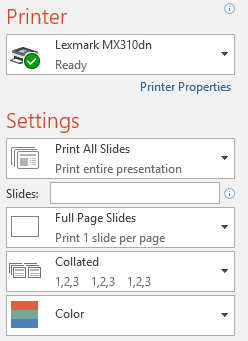
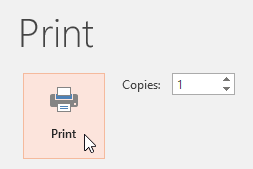
5. Once you have finished modifying the settings, click Print.
Final Thoughts
Understanding powerpoint 2019 (part 10) makes it easier to evaluate the information and apply the most relevant recommendations. Focus on the key points above and verify details that may change over time.
FAQ
What is powerpoint 2019 (part 10)?
Explore powerpoint 2019 (part 10): printing your presentation, including the key concepts, practical examples, important considerations, and useful guidance.
What key points does this article cover?
The article focuses on Print layout, How to access the Print control panel, How to print a presentation, with practical explanations and examples.
How can you use this information in practice?
Use the explanations to compare options, verify important details, and make a more informed decision. Apply the recommendations that best match your goals and situation.
Related Articles
 PowerPoint 2019 (Part 25): Evaluating Your Presentation: Explained5 minutes read
 PowerPoint 2019 (Part 3): Saving Your Presentation: Explained10 minutes read
 PowerPoint 2019 (Part 2): Creating and Opening Presentations7 minutes read
 PowerPoint 2019 (Part 31): Rehearsing and Recording Your Presentation6 minutes read
 MS PowerPoint - Lesson 10: Print PowerPoint 2003 Presentations6 minutes read
 PowerPoint 2019 (Part 11): Presenting Slideshows: Explained9 minutes read
Reader Comments 0
Sign in with email or Google to join the discussion.