Table of Contents
Explore powerpoint 2019 (part 2).
How to create a new presentation
When starting a new project in PowerPoint, you'll often want to begin with a blank presentation.
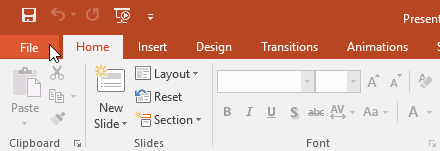
1. Select the File tab to go to Backstage view.
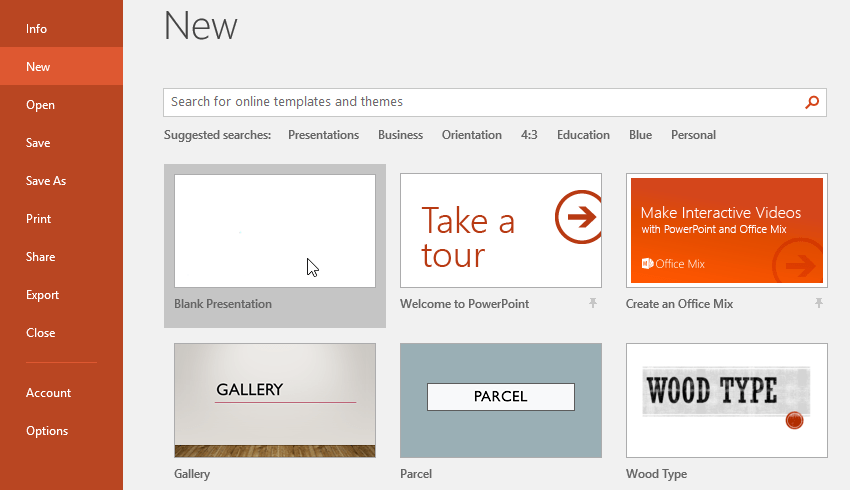
2. Select New on the left side of the window, then click Blank Presentation.
3. A new presentation will appear.
How to create a new presentation from a template
A template is a pre-designed presentation that you can use to quickly create new slideshows. Templates often include custom formatting and design, so they can save you a lot of time and effort when starting a new project.
1. Click the File tab to access the Backstage view , then select New.
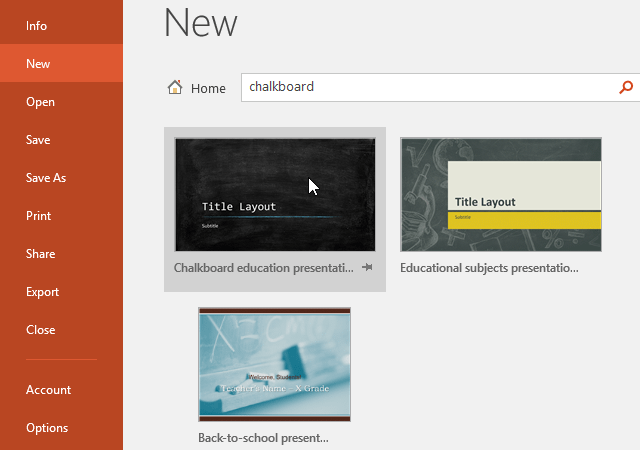
2. You can click on a suggested search to find templates or use the search bar to find something more specific. For example, you could search for the keyword " chalkboard".
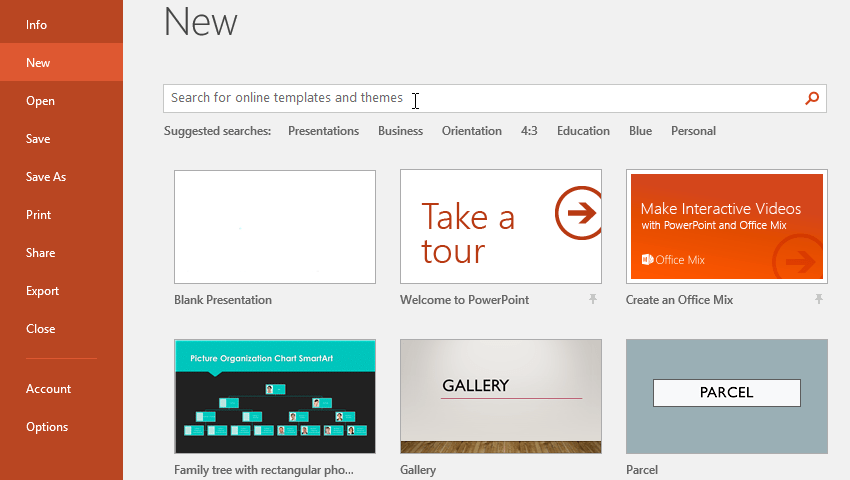
3. Choose a template to review.
4. A preview of the template will appear, along with additional information on how the template can be used.
5. Click Create to use the selected template.
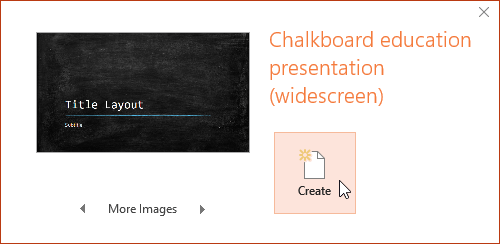
6. A new presentation will appear with the selected template.
It's important to note that not all templates are created by Microsoft. Many are created by third-party vendors and even individual users, so some options may work better than others.
How to open an existing presentation
In addition to creating a new presentation, you often need to open a previously saved presentation.
1. Select the File tab to go to Backstage view, then click Open.
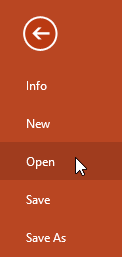
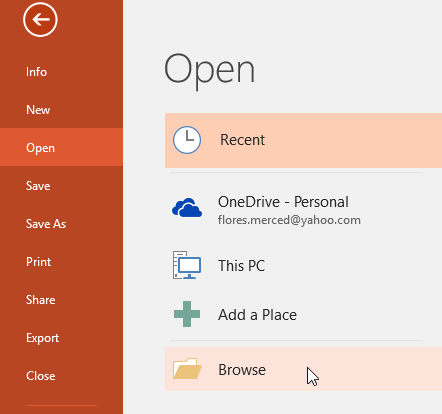
2. Click Browse. You can also select OneDrive to open files stored on your cloud storage.
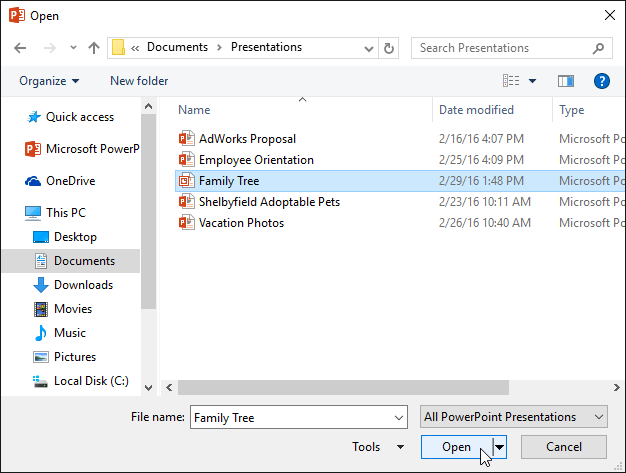
3. The Open dialog box will appear. Locate and select the presentation, then click Open.
Most features in Microsoft Office, including PowerPoint, are geared towards saving and sharing documents online. This is accomplished with OneDrive, which is online storage for your documents and files. If you want to use OneDrive, make sure you're signed in to PowerPoint with your Microsoft account.
How to pin a presentation
If you frequently work with the same presentation, you can pin it to the Backstage view for easy access.
1. Select the File tab to go to Backstage view, then click Open. Your recent presentation will appear.
2. Hover your mouse over the presentation you want to pin, then click the staple icon.
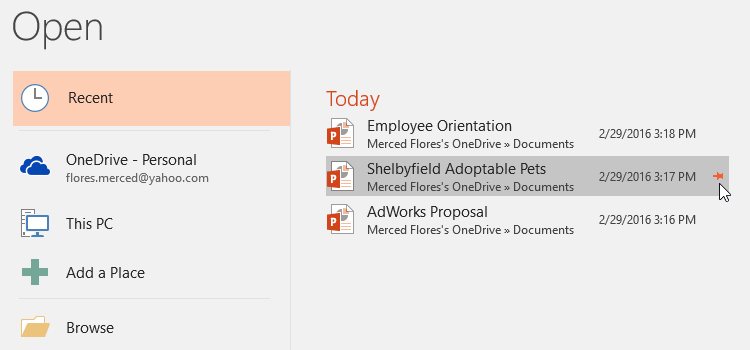
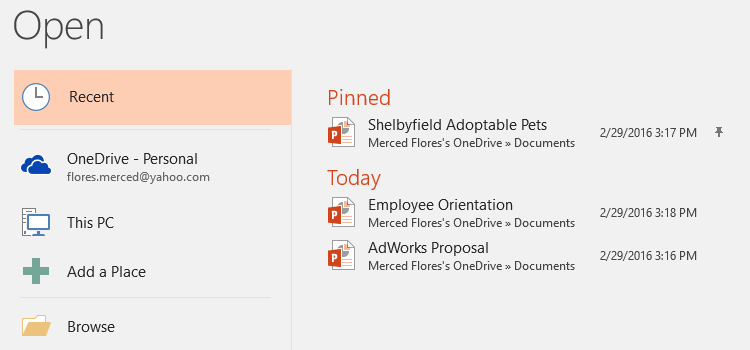
3. The presentation will remain in the list of recent presentations until it is unpinned. To unpin a presentation, click the pin icon again.
Compatibility Mode
Sometimes you may need to work with presentations created in earlier versions of PowerPoint, such as PowerPoint 2003 or PowerPoint 2000. When you open these types of presentations, they will appear in Compatibility Mode.
Compatibility Mode disables certain features, so you'll only be able to access commands included in the program used to create the presentation. For example, if you open a presentation created in PowerPoint 2003, you'll only be able to use the tabs and commands available in PowerPoint 2003.
In the image below, you can see at the top of the window that the presentation is in Compatibility Mode. This disables some of PowerPoint's current features, including newer slide transition styles.
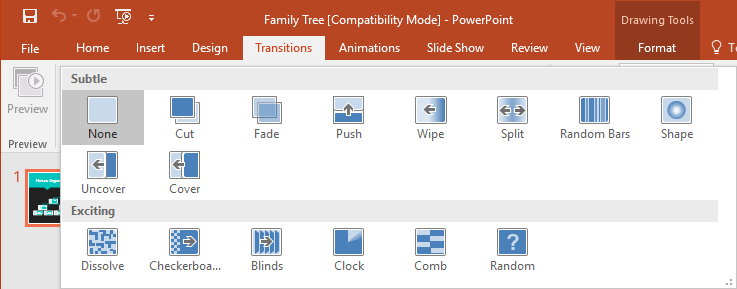
To exit Compatibility Mode, you'll need to convert the presentation to the current version. However, if you're collaborating with others who only have access to an older version of PowerPoint, it's best to leave the presentation in Compatibility Mode so the formatting doesn't change.
How to convert a presentation
If you want to access newer features, you can convert the presentation to the current file format.
Please note that converting the file may cause some changes to the original layout of the presentation.
1. Click on the File tab to access the Backstage view.
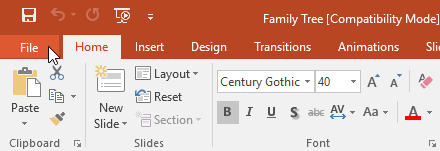
2. Locate and select the Convert command.
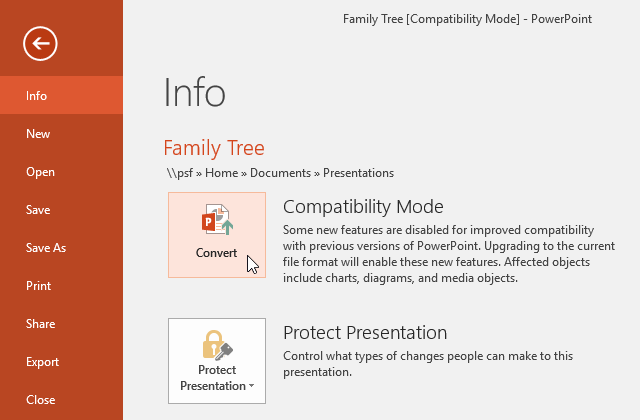
3. The Save As dialog box will appear. Choose the location where you want to save the presentation, enter a file name, and click Save.
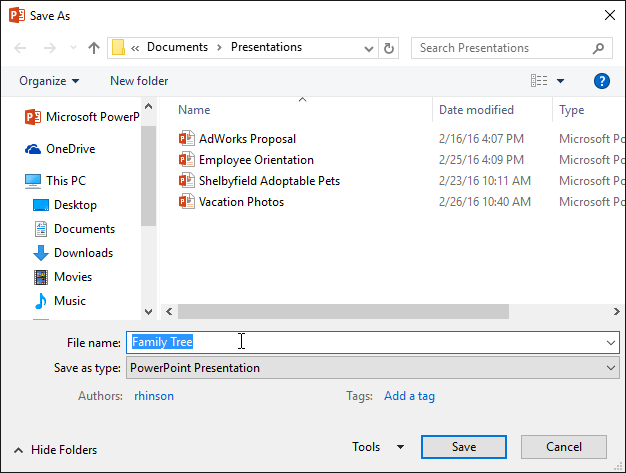
4. The presentation will be converted to the latest file type.
Final Thoughts
Understanding powerpoint 2019 (part 2) makes it easier to evaluate the information and apply the most relevant recommendations. Focus on the key points above and verify details that may change over time.
FAQ
What is powerpoint 2019 (part 2)?
Explore powerpoint 2019 (part 2).
What key points does this article cover?
The article focuses on How to create a new presentation, How to create a new presentation from a template, How to open an existing presentation, with practical explanations and examples.
How can you use this information in practice?
Use the explanations to compare options, verify important details, and make a more informed decision. Apply the recommendations that best match your goals and situation.
Related Articles
 PowerPoint 2019 (Part 1): Getting Started with PowerPoint: Explained7 minutes read
 PowerPoint 2019 (Part 32): Sharing Presentations Online: Explained5 minutes read
 PowerPoint 2019 (Part 10): Printing Your Presentation: Explained4 minutes read
 PowerPoint 2019 (Part 11): Presenting Slideshows: Explained9 minutes read
 50 Alternative Slideshow Applications for PowerPoint10 minutes read
 How to Make PowerPoint for Beginners: How to Use PowerPoint8 minutes read
Reader Comments 0
Sign in with email or Google to join the discussion.