Table of Contents
Gemini in Chrome can bring the current webpage into an AI conversation, reducing the need to copy text between tabs. Depending on your account, region, subscription, and Chrome version, it may also offer image tools or agent-style browsing.
Those capabilities can save time, but they also give an AI service access to page content and, in some cases, permission to interact with websites. Use the smallest amount of access needed for the task, review the result, and keep sensitive or irreversible actions under your control.
Open Gemini and check what the current tab shares
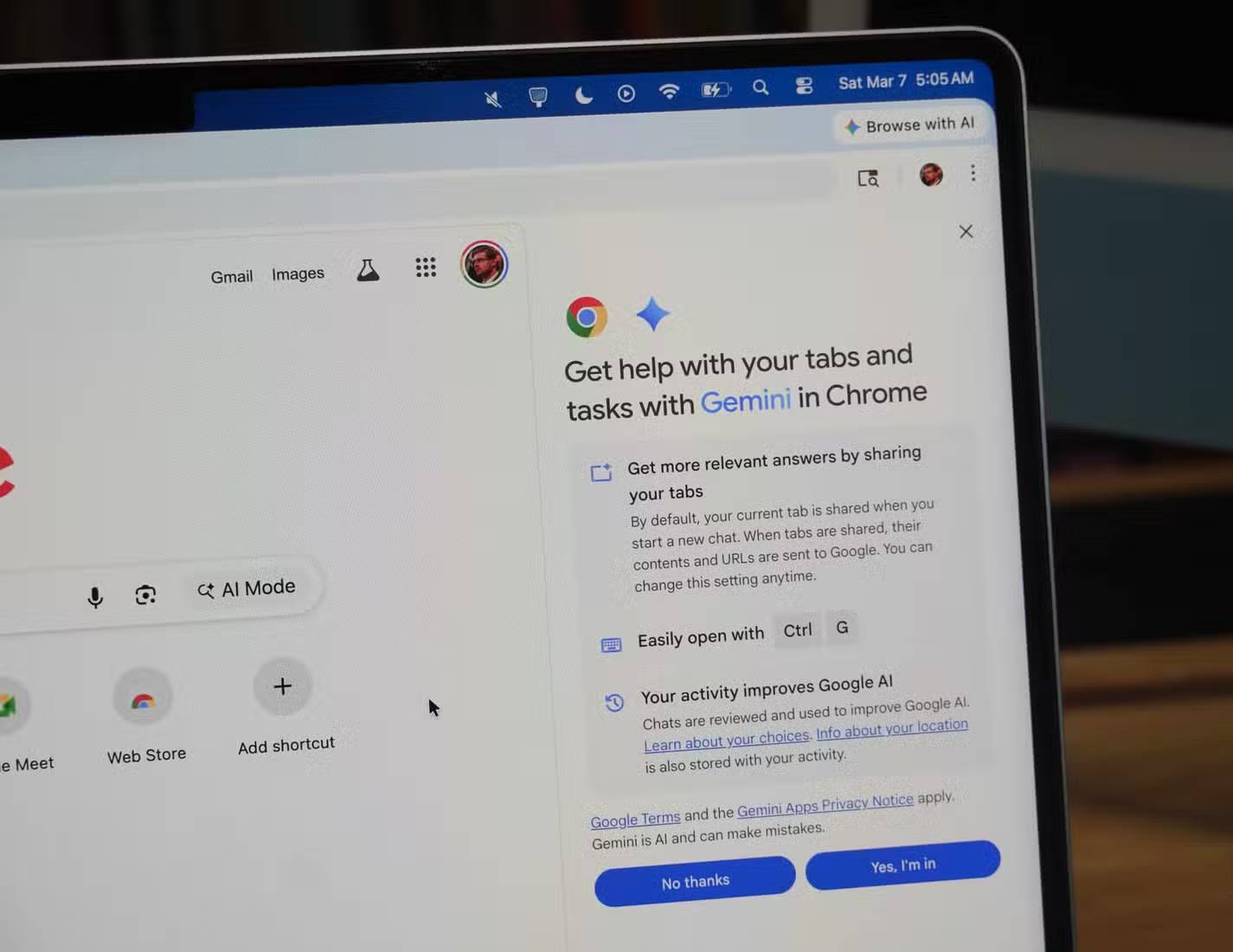
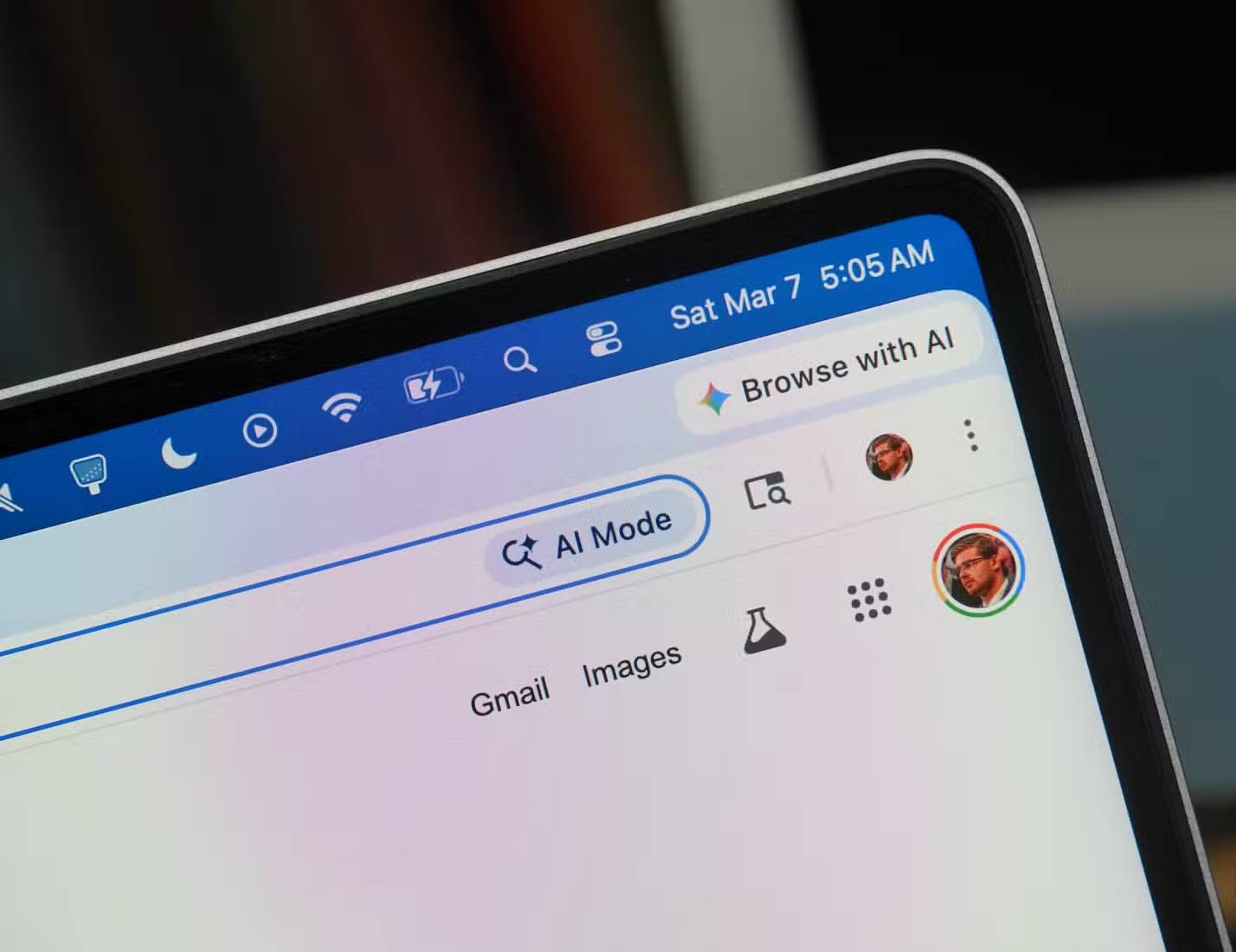
When the feature is available, Chrome displays a Gemini or AI control near the toolbar. Opening it shows a side panel so you can ask about the page without leaving it. The exact icon and keyboard shortcut can change, so use the labels in your installed Chrome version rather than relying on an old screenshot.
Before sending a prompt, look for an indicator that the current tab will be included. Page sharing is useful for summarizing an article or comparing details, but it may expose text that is visible only because you are signed in.
Do not share these pages casually
- Online banking, tax, insurance, or medical portals
- Private email, direct messages, or customer records
- Internal company dashboards and confidential documents
- Pages containing passwords, recovery codes, API keys, or personal identifiers
If the task does not require page context, turn off tab sharing or open Gemini separately. Also review Chrome and Google account activity settings if you do not want prompts retained according to the service's current policy.
1. Summarize and question a webpage
The side panel is most dependable when you give it a narrow request grounded in the visible page. Instead of “Tell me about this,” ask for a particular output:
- “Summarize the three main arguments and quote the section headings they come from.”
- “List the installation steps in order, without adding steps that are not on this page.”
- “Compare the two plans in the table and identify any missing price information.”
- “Find every deadline shown on this page and preserve the stated time zone.”
Check important details in the original page. A page-aware model can still omit qualifiers, misread a table, or confuse navigation text with article content.
2. Work with a prominent image without downloading it first
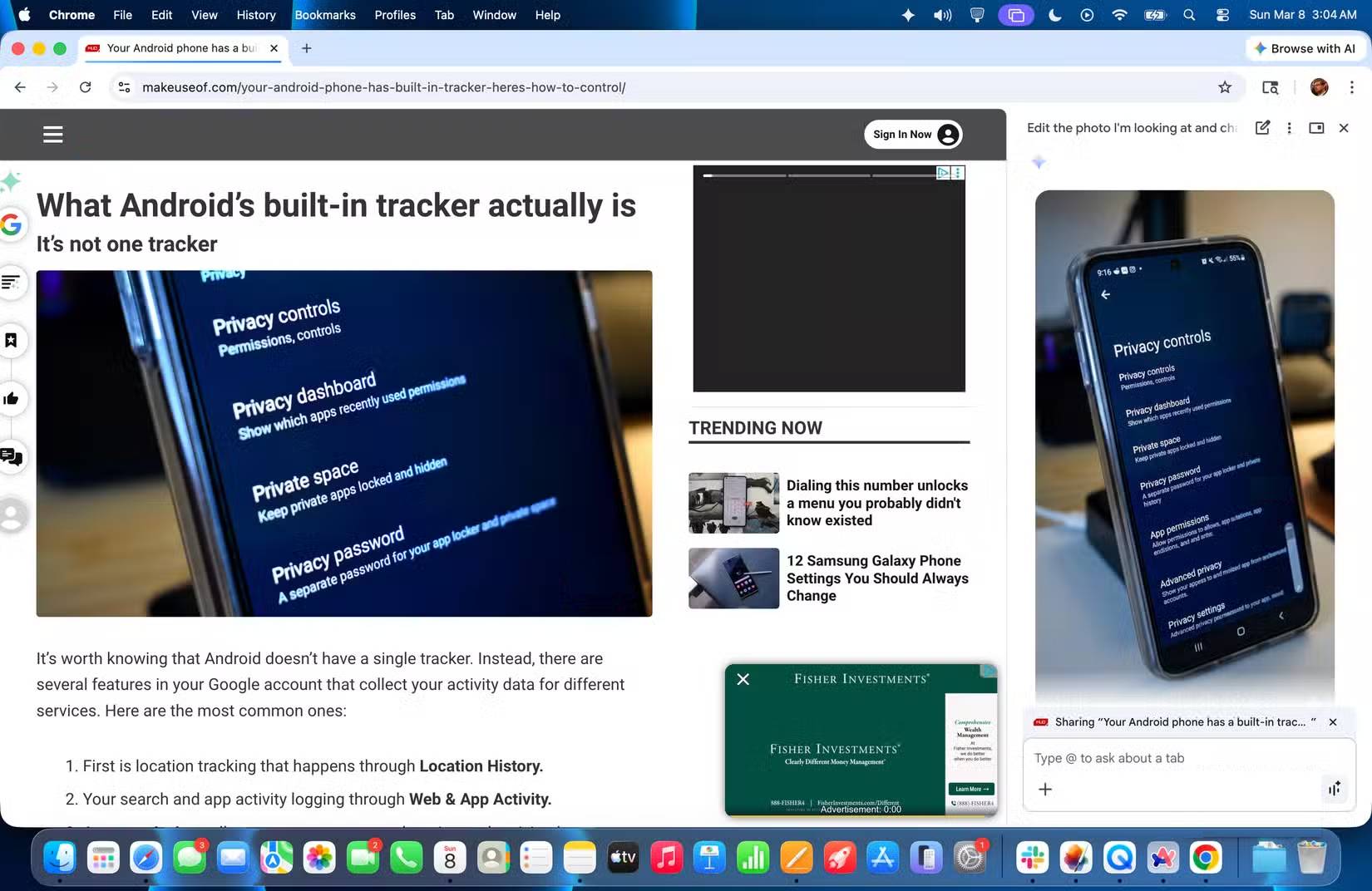
Some versions of Gemini in Chrome can reference a visible image and create an edited variation. For example, you might ask it to change the aspect ratio, remove a distracting background element, or draft alt text.
Be explicit about which image you mean, especially on pages with galleries or advertisements. Describe its location or subject rather than assuming the largest image will always be selected.
Check rights and accuracy
Editing an image in the browser does not grant permission to reuse it. Confirm that you own the image or have an appropriate license. For product, news, technical, or documentary images, inspect the output for invented details before publishing it.
3. Delegate a supported browsing task
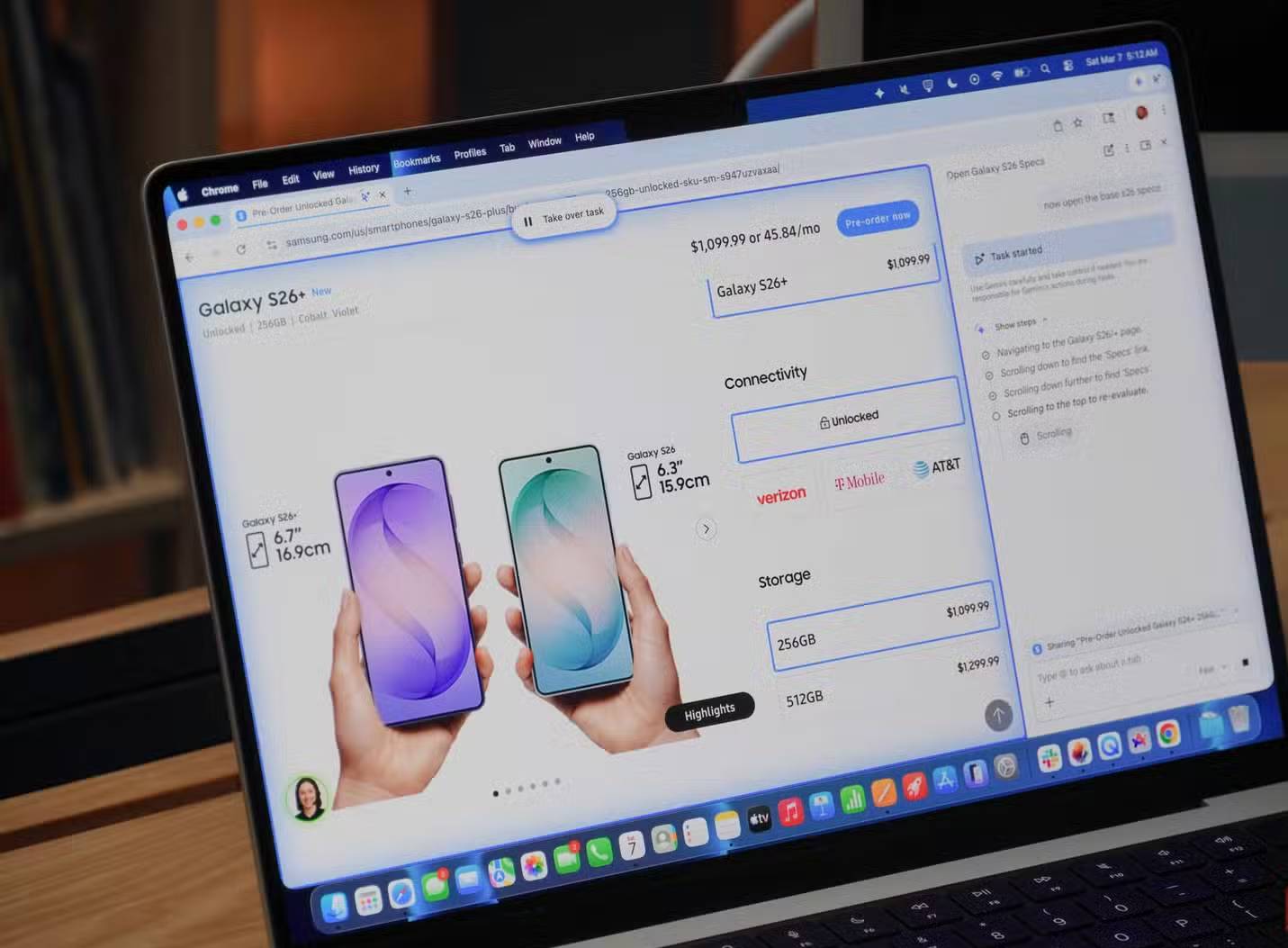
Agent-style browsing can carry out a sequence of website interactions, such as collecting options from several pages or filling non-sensitive fields. Availability may be limited by region, account type, subscription, managed-browser policy, or a staged rollout.
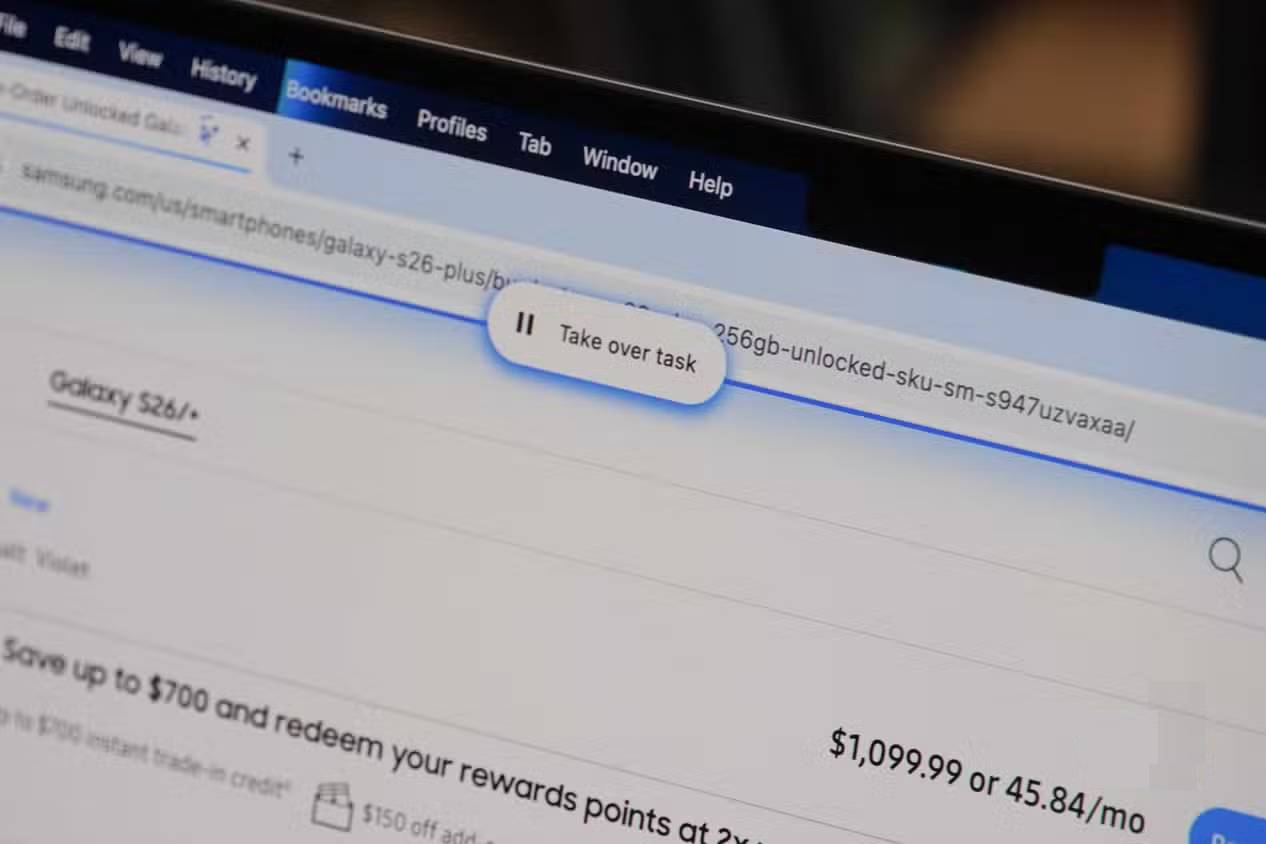
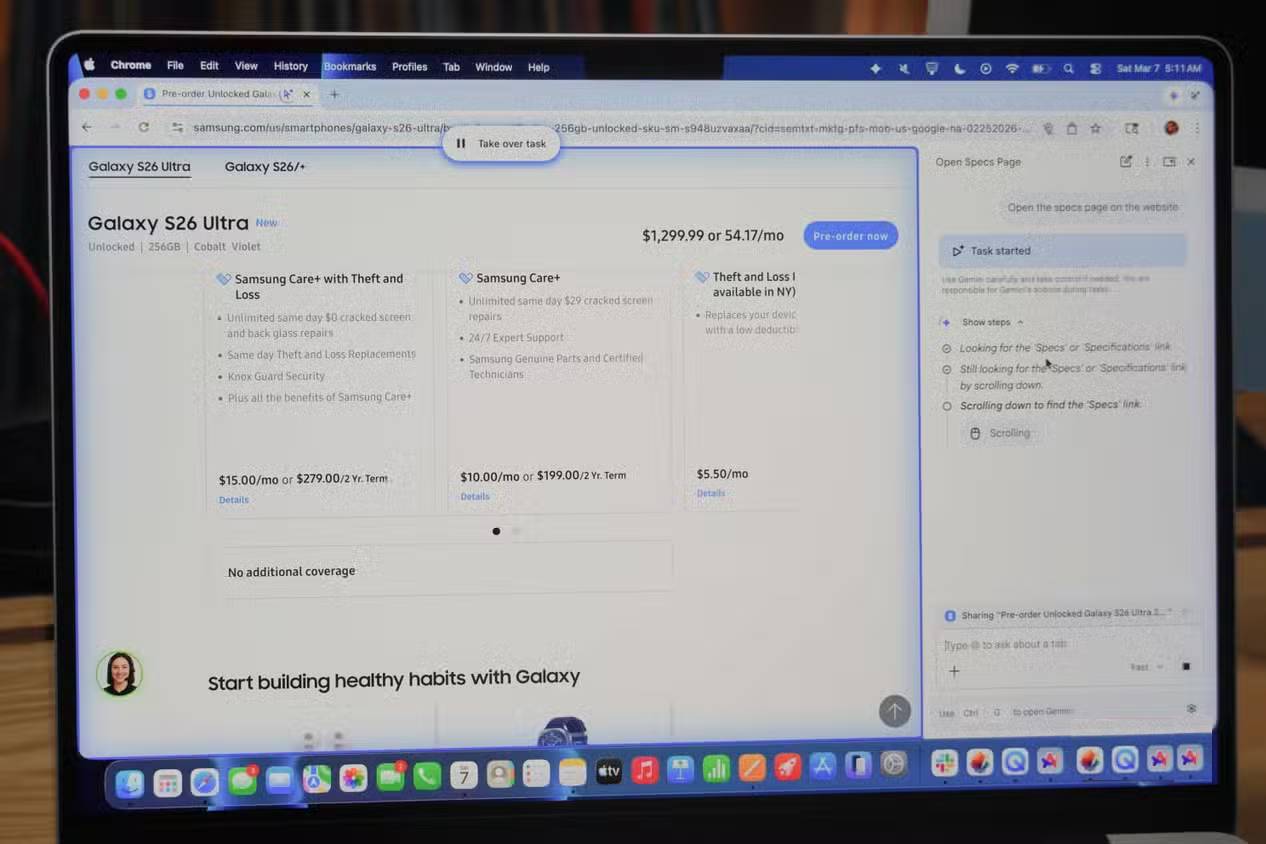
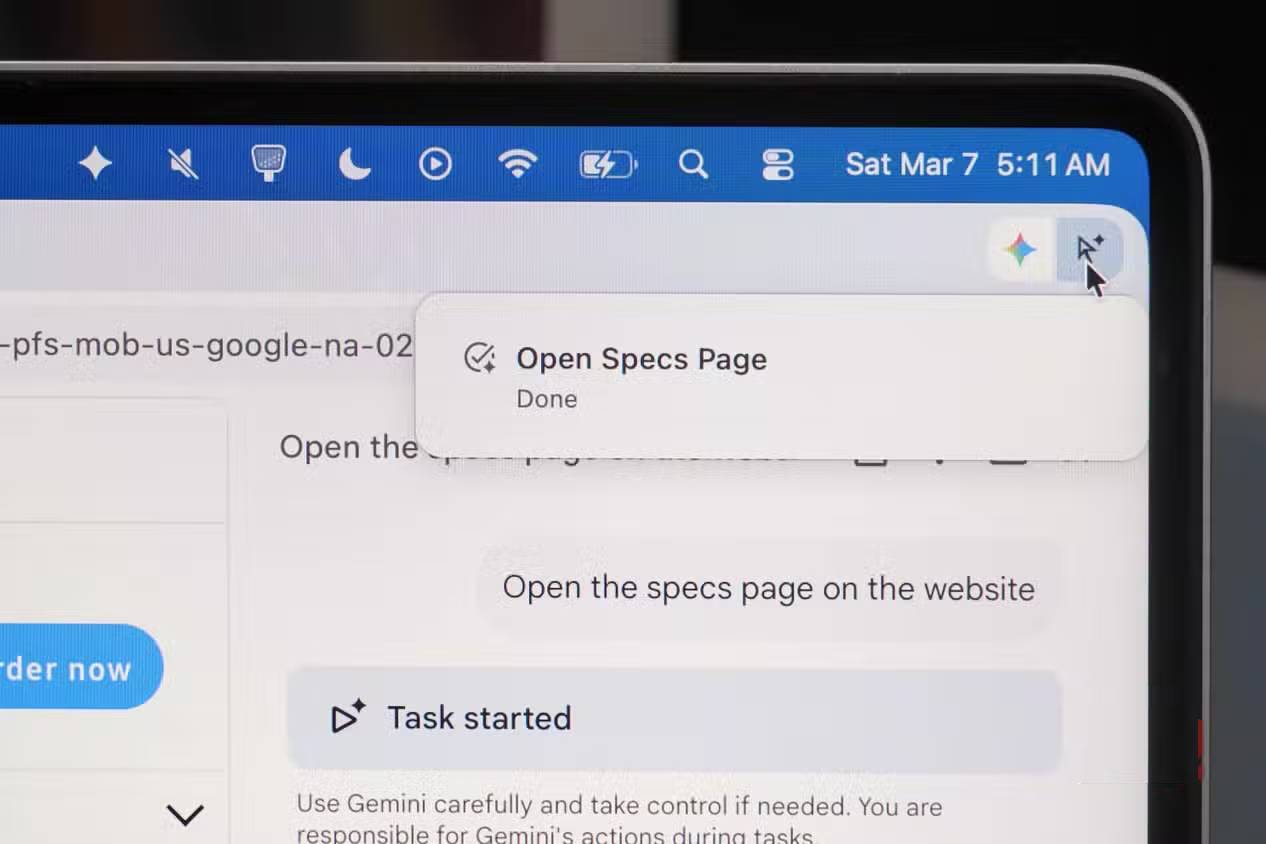
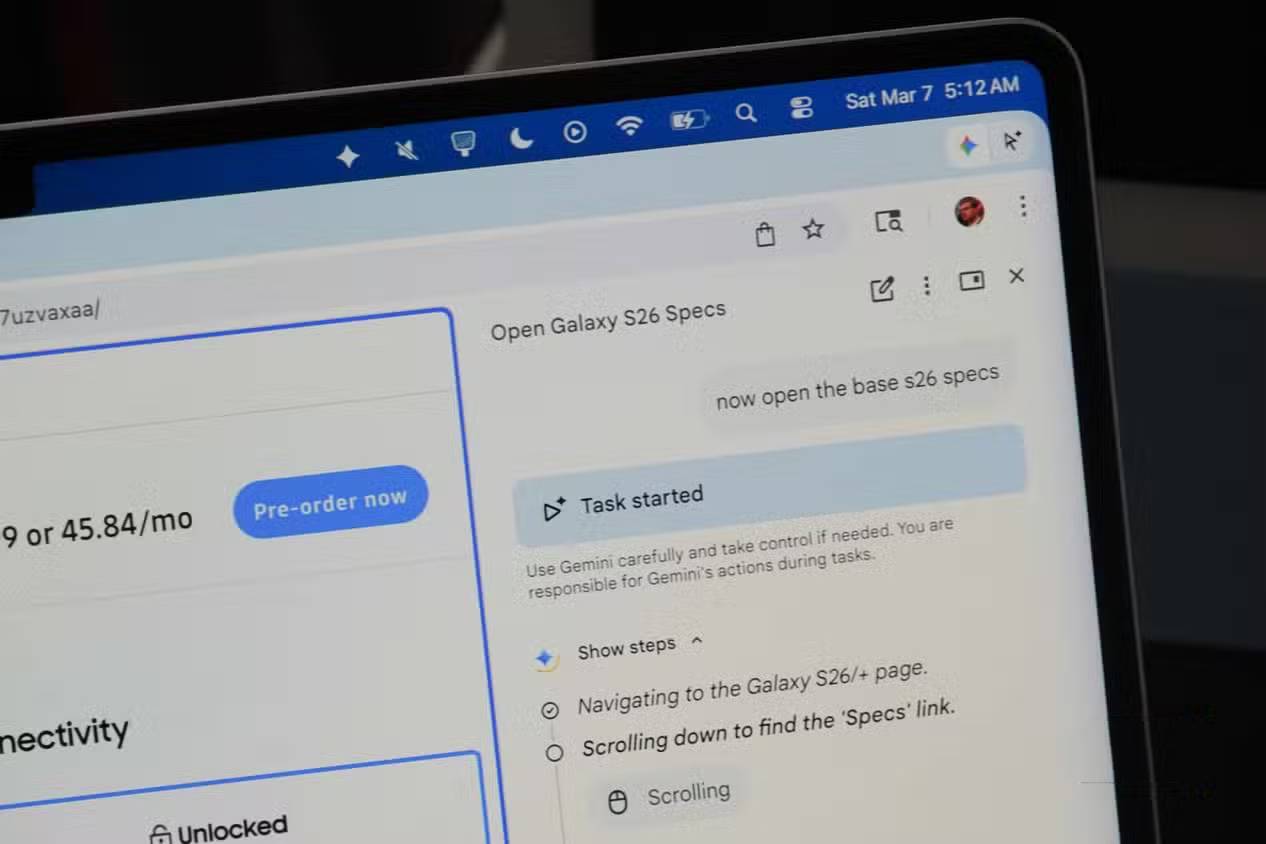
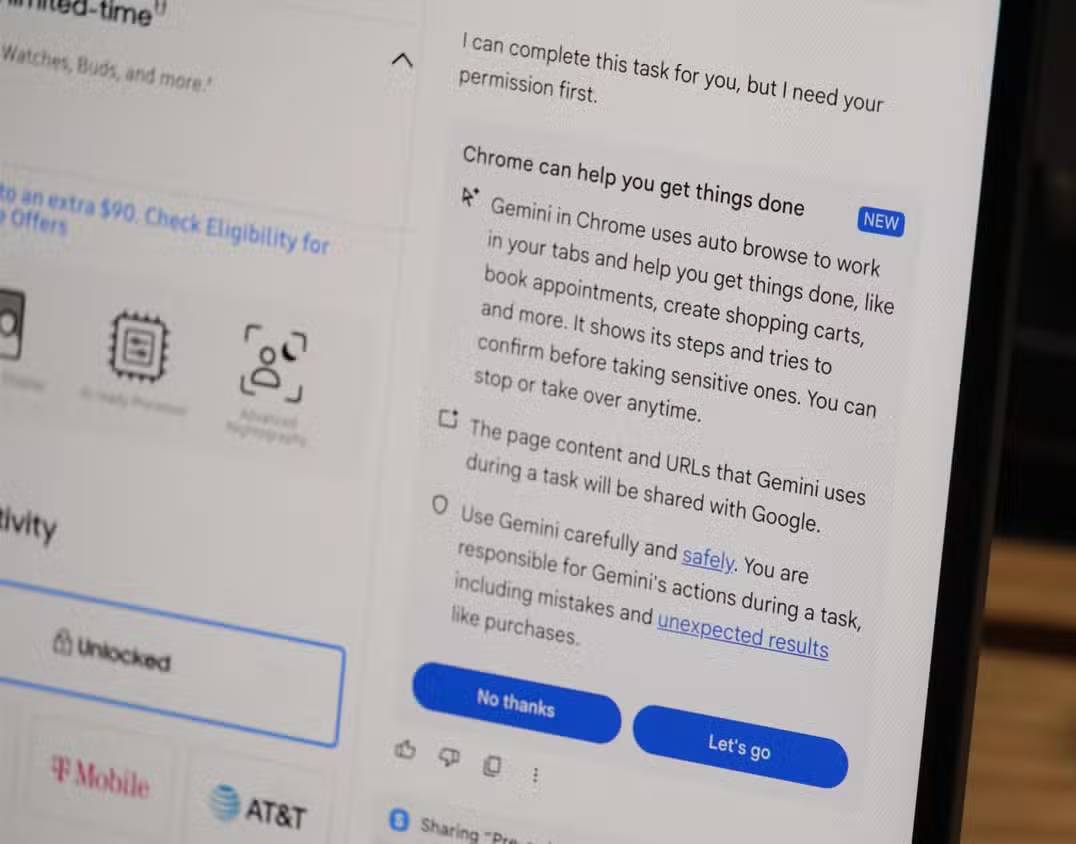
Start with a reversible, low-risk task. Ask the agent to research and prepare rather than to make a final commitment. For example, “Compare these three products and put price, warranty, and delivery date in a table” is safer than “Buy the best one.”
Actions you should review yourself
- Purchases, subscriptions, refunds, and financial transfers
- Sending messages, posting content, or submitting applications
- Changing passwords, security settings, or account recovery details
- Deleting files, messages, appointments, or cloud data
- Entering medical, financial, employment, or identity information
Do not grant broad website or password access merely to avoid a few clicks. If an automated task reaches a sign-in, confirmation, or payment screen, inspect the destination and details before proceeding.
A practical workflow
- Choose a bounded task. State what Gemini may read and what output you want.
- Limit context. Share only the necessary tab and close or exclude sensitive pages.
- Ask for evidence. Request headings, page sections, or source URLs that let you verify the answer.
- Review proposed actions. Check form values, recipients, dates, prices, and permissions.
- Complete consequential steps yourself. Keep the final decision visible and deliberate.
Troubleshooting missing features
If you do not see the same controls as the screenshots, update Chrome, check whether you are signed in to an eligible Google account, and review managed-browser restrictions. A feature announced for Chrome may still be rolling out or may not be offered in every country or subscription tier.
Gemini in Chrome is most useful as a context-aware assistant, not as an unquestioned replacement for your judgment. Page summaries, targeted image work, and carefully scoped automation can remove repetitive steps while leaving privacy and final decisions in your hands.
Related Articles
 Chrome Is Using Gemini Nano AI to Detect Phishing5 minutes read
 Gemini 3.1 Pro or Gemini 3 Pro: Better?8 minutes read
 Does Chrome Download Gemini Nano? How to Check and Remove It10 minutes read
 How to Turn Off Gemini in Google Docs10 minutes read
 What Is Google Gemini? How Does Gemini Work?6 minutes read
 The Quickest Way to Disable Gemini in Gmail, Google Photos, and Chrome7 minutes read
Reader Comments 0
Sign in with email or Google to join the discussion.