Table of Contents
Explore powerpoint 2019 (part 25).
Comments on the presentation
When editing or collaborating on a presentation, you might want to add notes or suggestions without actually changing the slides. Leaving comments allows you to note something without altering the slides. Comments can then be added and read by the original author or any other reviewer.
How to add a comment
1. Select the text or object (or click the slide area) where you want the annotation to appear.
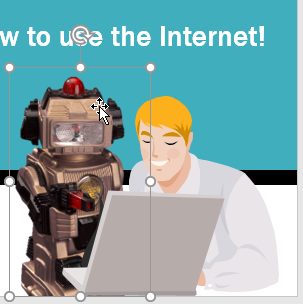
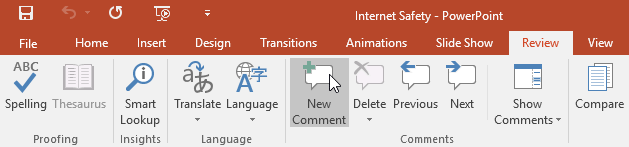
2. Go to the Review tab, then click the New Comment command.
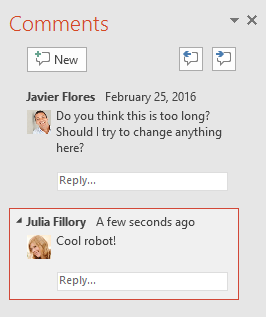
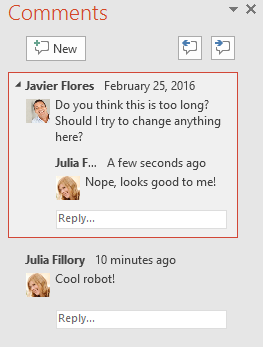
3. The Comments panel will appear. In this example, this panel contains an existing comment from another reviewer (Javier), plus a space for your comment.
4. Type your comment into the box, then press Enter or click anywhere outside the box to save the comment.
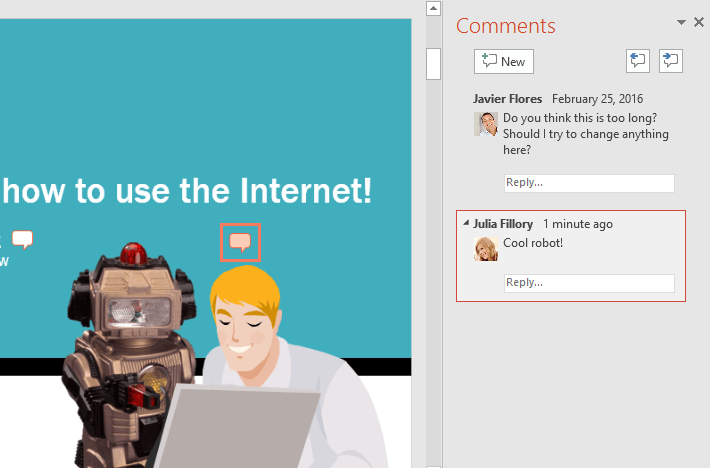
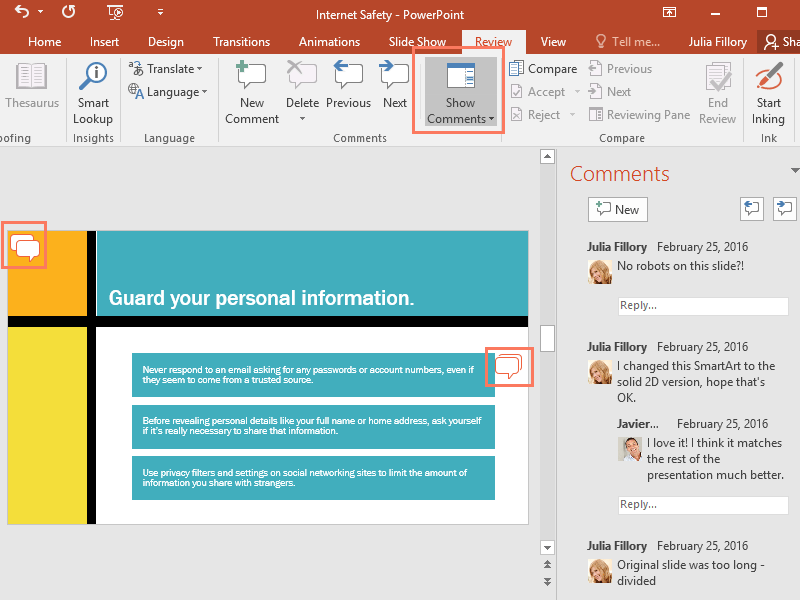
5. Comments will be indicated by a small icon on the slide.
View comments
You can view or reply to any comments—including those from other reviewers—by returning to the Comments section. Simply click the comment icon on the slide or click the Show Comments command on the Review tab.
How to edit a comment
1. In the Comments section, select the comment you want to edit.
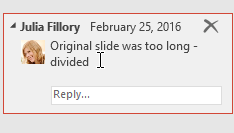
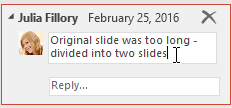
2. Enter your desired changes, then press Enter or click anywhere outside the comment box. Your changes will be applied.
How to reply to a comment
1. In the Comments section, click Reply below the comment you want to reply to.
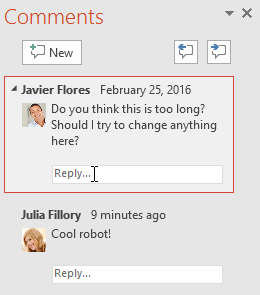
2. Type your answer, then press Enter or click anywhere outside the box. Your comment will appear below the original comment, and an additional icon will be added to the slide.
Delete comment
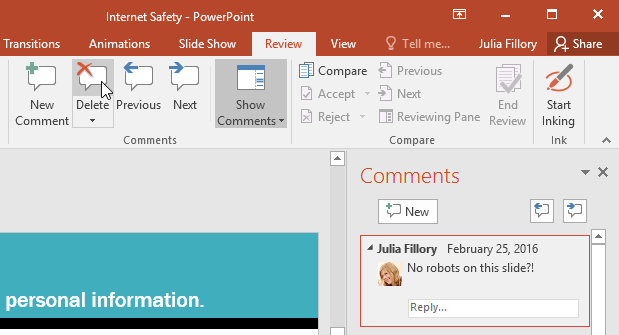
To delete a comment, select the comment you want to delete, then go to the Review tab and click the Delete command.
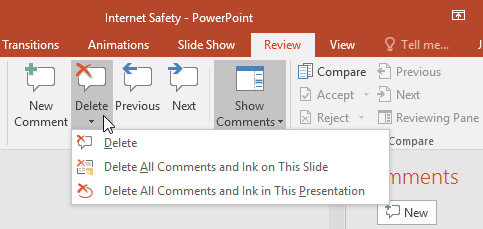
To delete multiple comments, click the drop-down arrow below the Delete command. You can delete comments from your current slide or from the entire presentation.
Compare the presentations
There are situations where you might end up with more than one version of the same presentation. For example, you might create multiple drafts, or a collaborator or colleague might save their own unique copy.
You can easily compare and combine multiple versions using PowerPoint's Compare feature. This allows you to see the differences between two versions of the same presentation, so you can decide which changes to include in the final version.
How to compare two presentations
This example will compare two versions of the Internet Safety for Everyone presentation.
1. Open a version of the presentation you want to compare. For example, it would start with powerpoint_reviewing_practice.
2. From the Review tab, select the Compare command.
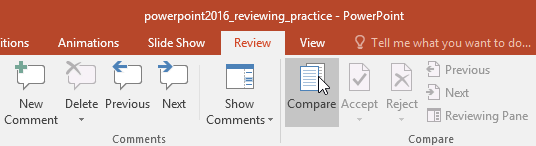
3. A dialog box will appear. Select the second version of the presentation you want to compare, then click Merge. For example, we would select internet safety - tim's edits .
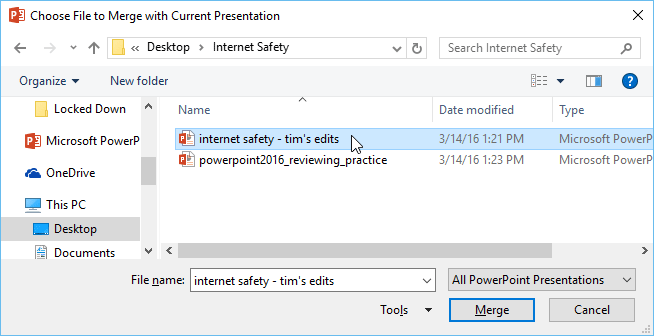
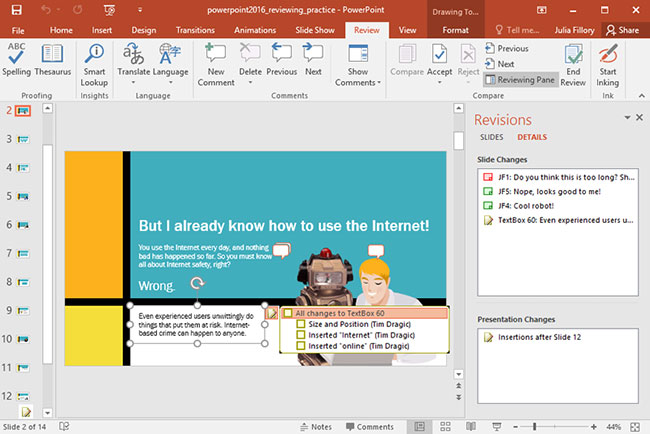
4. The Revisions panel will appear, allowing you to compare the two presentations.
Final Thoughts
Understanding powerpoint 2019 (part 25) makes it easier to evaluate the information and apply the most relevant recommendations. Focus on the key points above and verify details that may change over time.
FAQ
What is powerpoint 2019 (part 25)?
Explore powerpoint 2019 (part 25).
What key points does this article cover?
The article focuses on Comments on the presentation, How to add a comment, View comments, with practical explanations and examples.
How can you use this information in practice?
Use the explanations to compare options, verify important details, and make a more informed decision. Apply the recommendations that best match your goals and situation.
Related Articles
 PowerPoint 2016: Reviewing Your Presentation6 minutes read
 PowerPoint 2019 (Part 3): Saving Your Presentation: Explained10 minutes read
 PowerPoint 2019 (Part 2): Creating and Opening Presentations7 minutes read
 PowerPoint 2019 (Part 31): Rehearsing and Recording Your Presentation6 minutes read
 PowerPoint 2019 (Part 11): Presenting Slideshows: Explained9 minutes read
 Slide: How to Create a Powerpoint Presentation11 minutes read
Reader Comments 0
Sign in with email or Google to join the discussion.