Table of Contents
Learn how to view saved passwords on iPhone and edit passwords easily with clear steps, practical tips, and troubleshooting guidance for a reliable result.
Of course, it's best if you remember all your passwords, otherwise the Safari app on your iPhone will ask you to save passwords for each website. Normally, Safari will suggest autofilling passwords at the appropriate time, but you can completely control all the passwords that have been saved on your device.
View saved passwords on iPhone running iOS 14 or later
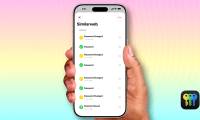
To view saved passwords on iPhone running iOS 14, iOS 15, iOS 16, iOS 17, do the following:
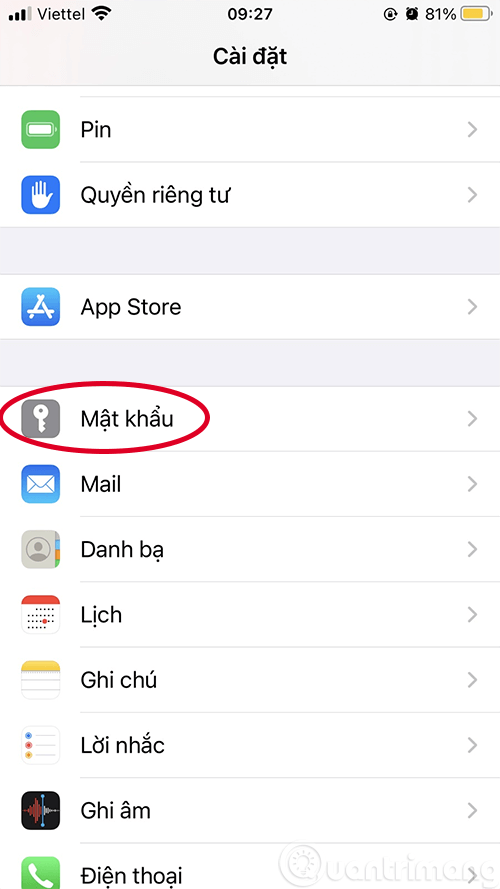
Step 1: Go to Settings , scroll down and click on Password .
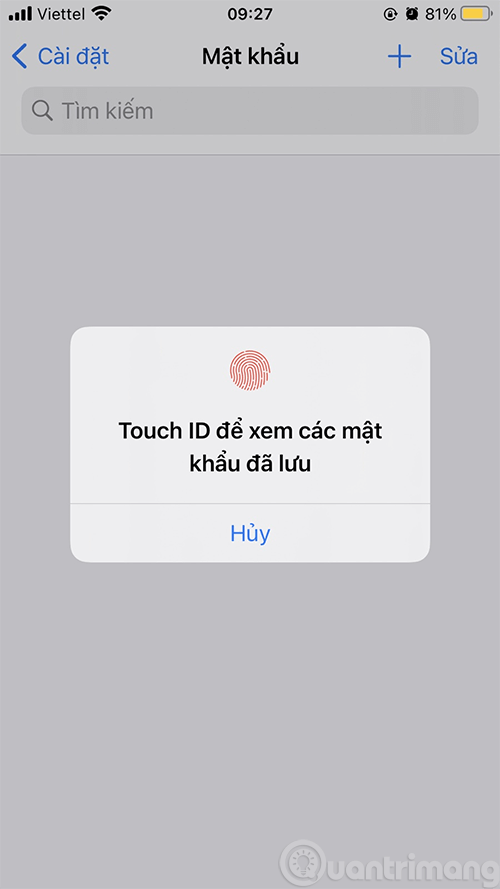
Step 2: Enter your password or use Touch ID or FaceID to view saved passwords on your iPhone.
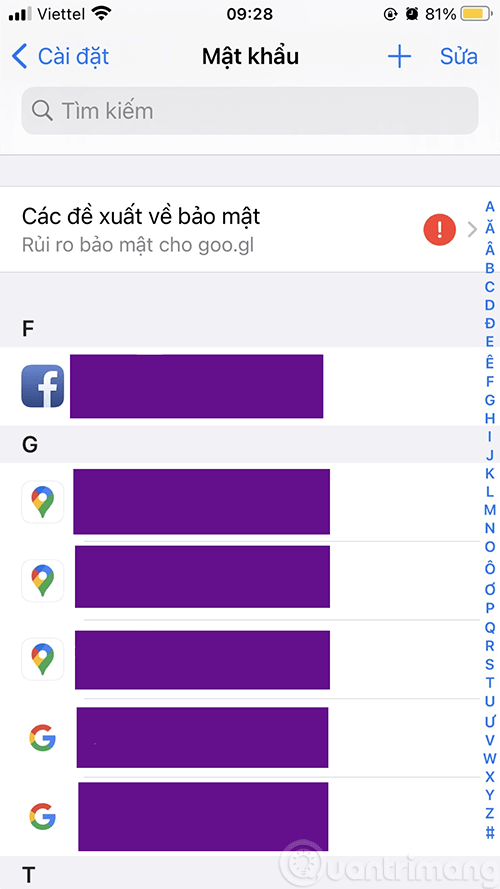
Step 3: Click on an item to view the detailed password for the website/app you saved.
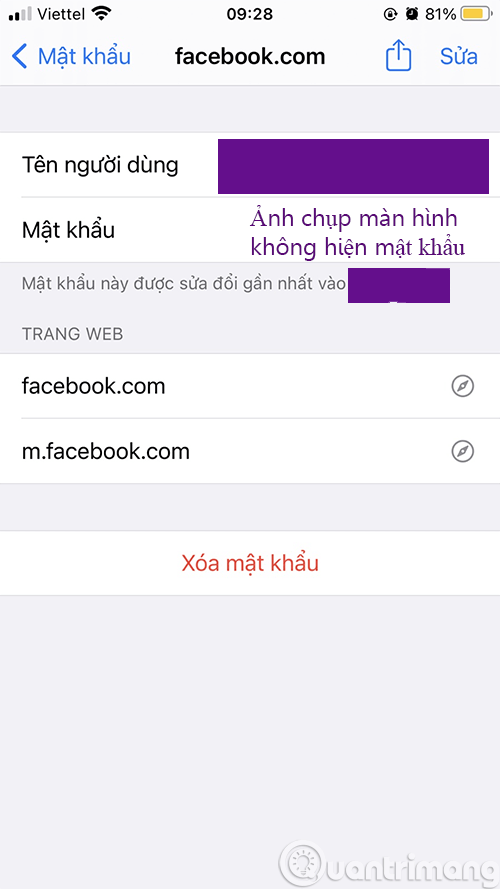
In the iPhone screenshot above, iOS automatically covers the password, so you can't see anything in the password section, but if you look on your device, you definitely have the password ^^.
How to view saved passwords on iPhone running iOS 13 or earlier
1. Open the Settings app on your iPhone.
2. Click on Passwords & Accounts .
3. Tap Websites & App Passwords . You can enter your device password or sign in with Touch ID or Face ID.
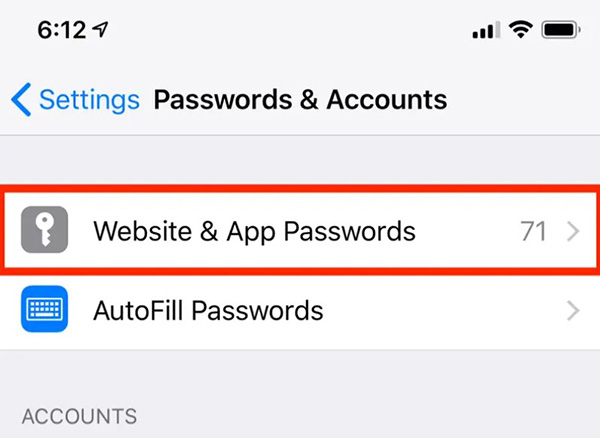
4. Your iPhone will now display a list of saved passwords. To view password details (username and password, website URL), tap each section.
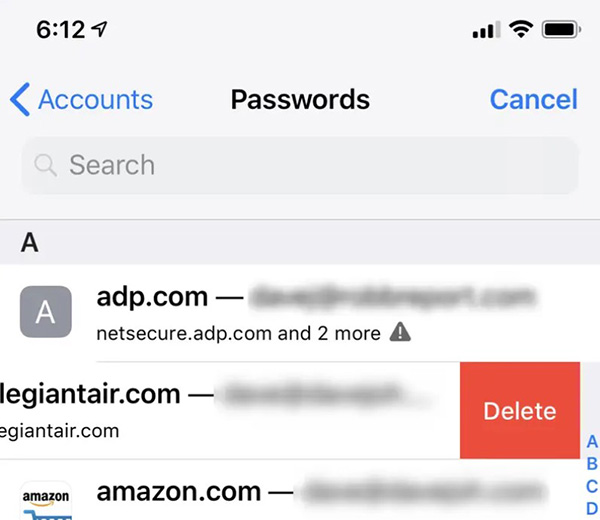
Edit saved passwords on iPhone
You also do steps 1 to 4 as above, then there will be a few options as follows:
- If you no longer need the saved password and want to delete it, swipe left and click Delete .
- If you want to edit a password, tap and select Edit in the top right corner of the screen. Select Done to save the changes.
- If you want to go to a website and change your password, click on the password and select Change Password on Website . Safari will open the corresponding website where you can update your password.
Final Thoughts
Use this guide as a practical checklist for how to view saved passwords on iphone and edit passwords easily. Work through the steps in order, verify each result, and adjust the options to match your needs.
FAQ
What do you need before following this How to View Saved Passwords on iPhone and Edit Passwords Easily guide?
Review the required tools, accounts, settings, or materials mentioned in the article. Learn how to view saved passwords on iPhone and edit passwords easily with clear steps, practical tips, and troubleshooting guidance for a reliable result.
What are the main steps for how to view saved passwords on iphone and edit passwords easily?
Follow the sections in order, especially View saved passwords on iPhone running iOS 14 or later, How to view saved passwords on iPhone running iOS 13 or earlier, Edit saved passwords on iPhone. Complete each step before continuing and verify the result as you go.
What should you do if the process does not work as expected?
Recheck the prerequisites, update the relevant app or service, review the settings, and repeat the step that caused the issue. Use any troubleshooting notes included in the guide.
Related Articles
 How to View Saved Passwords in Web Browsers3 minutes read
 How to View and Quickly Delete Saved Passwords on Chrome9 minutes read
 How to View Wi-Fi Passwords Saved on Your Phone, Computer4 minutes read
 Instructions for Viewing Saved Passwords on Bchrome2 minutes read
 Steps to View Saved Passwords in Safari on Mac4 minutes read
 How to View Old Account Passwords Saved on iPhone3 minutes read
Reader Comments 0
Sign in with email or Google to join the discussion.