Table of Contents
Explore powerpoint 2019 (part 24): spell and grammar check, including the key concepts, practical examples, important considerations, and useful guidance.
How to perform a spell check
1. From the Review tab, click the Spelling command.
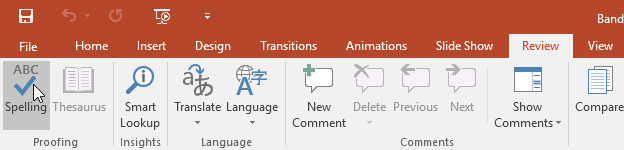
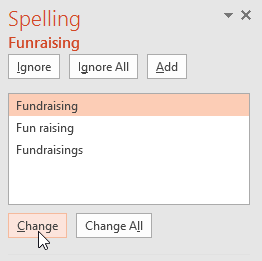
2. The Spelling panel will appear on the right. For each error in the presentation, PowerPoint will try to offer one or more suggestions. You can select a suggestion and click Change to correct the error.
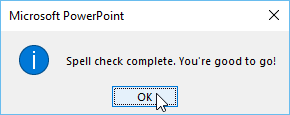
3. PowerPoint will go through each error until you have reviewed all of them. After reviewing the last error, a dialog box will appear confirming that the spell check is complete. Click OK.
If no suggestions are given, you can manually type the spelling on the slide.
Ignore the spelling "error"
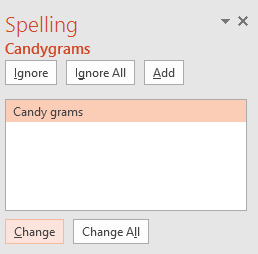
Spell checking isn't always accurate. Sometimes PowerPoint might think a word is misspelled (even though it's not). This often happens with names of people and proper nouns, which may not be in a dictionary. If PowerPoint indicates an error, you can choose not to change it using one of the options:
- Ignore: This action will skip the word without changing it.
- Ignore All: This action will skip the word without changing it and will also ignore all other instances of the word in the presentation.
- Add: This action adds the word to the dictionary so that it will never show up as an error again. Make sure the word is spelled correctly before selecting this option.
Automatic spell check
By default, PowerPoint automatically checks your presentation for spelling errors, so you may not even need to run a separate check using the Spelling command. These errors are indicated by red wavy lines.
How to use the automatic spell check feature
1. Right-click on the underlined word. A menu will appear.
2. Click on the correct spelling of the word in the suggested list.
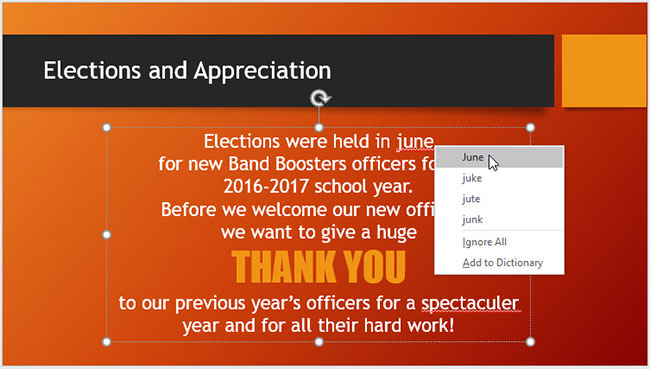
3. The revisions will be reflected in the presentation.
You can also choose to ignore an underlined word ( Ignore ) or add it to the dictionary ( Add to Dictionary ).
Modify proofing options
PowerPoint allows you to modify proofreading options, giving you more control over how PowerPoint reviews your text. For example, you can customize automatic spell checking to change how PowerPoint marks spelling errors. You can also enable grammar checking to help find and correct spelling errors contextually.
How to modify proofreading options
1. Click on the File tab to access the Backstage view.
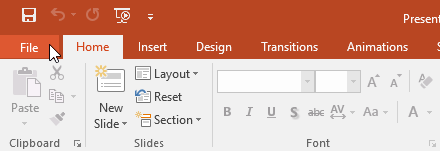
2. Select Options. A dialog box will appear.

3. Select Proofing , then customize the options as needed. When you're finished, click OK.
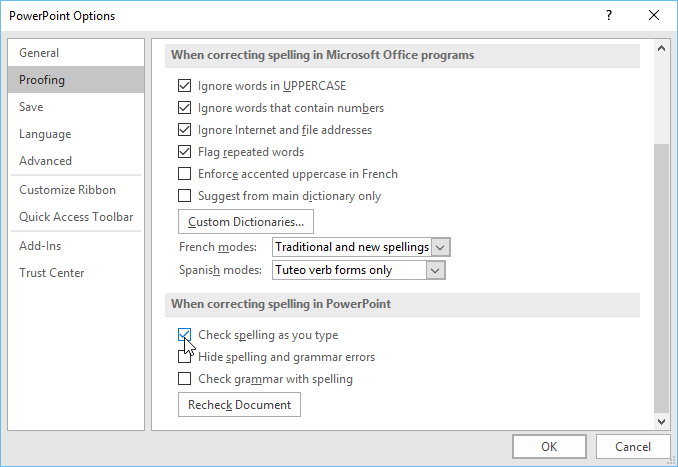
Modifying settings in PowerPoint Options —including proofreading—will affect any presentations you edit in PowerPoint, not just the current one.
Final Thoughts
Understanding powerpoint 2019 (part 24) makes it easier to evaluate the information and apply the most relevant recommendations. Focus on the key points above and verify details that may change over time.
FAQ
What is powerpoint 2019 (part 24)?
Explore powerpoint 2019 (part 24): spell and grammar check, including the key concepts, practical examples, important considerations, and useful guidance.
What key points does this article cover?
The article focuses on How to perform a spell check, Ignore the spelling "error", Automatic spell check, with practical explanations and examples.
How can you use this information in practice?
Use the explanations to compare options, verify important details, and make a more informed decision. Apply the recommendations that best match your goals and situation.
Related Articles
 Powerpoint 2016: Check Spelling and Grammar4 minutes read
 Check Spelling and Grammar in PowerPoint 20164 minutes read
 17 Useful Tools to Best Check English Spelling and Grammar27 minutes read
 Word 2016 Full Guide (Part 23): How to Check Spelling and Grammar5 minutes read
 How to Turn Off Spell Check Mode in Windows 10?2 minutes read
 How to Turn Off Spell Check in Word - Turn Off Red Underline in Word4 minutes read
Reader Comments 0
Sign in with email or Google to join the discussion.