Table of Contents
Explore powerpoint 2019 (part 23): smartart graphics, including the key concepts, practical examples, important considerations, and useful guidance.
How to insert SmartArt graphics
1. Select the slide where you want the SmartArt graphic to appear.
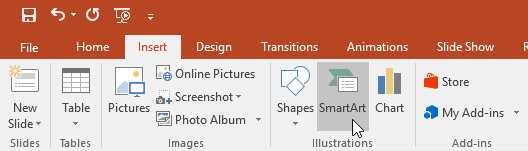
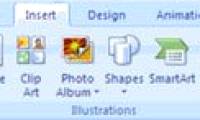
2. From the Insert tab, select the SmartArt command in the Illustrations group.
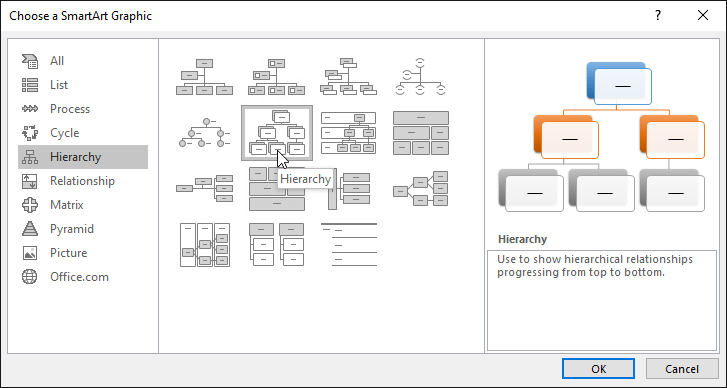
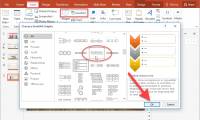
3. A dialog box will appear. Select a category on the left, choose your desired SmartArt graphic, and then click OK.
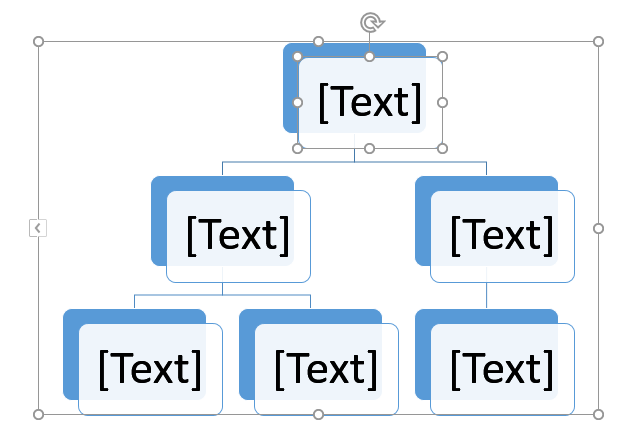
4. The SmartArt graphic will appear on the current slide.
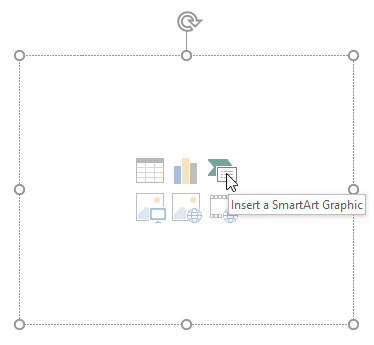
You can also click the Insert a SmartArt Graphic command in the placeholder to add SmartArt.
How to add text to SmartArt graphics
1. Select SmartArt graphics. A text pane will appear on the left.
2. Enter text next to each bullet point in the text box. The text will appear in the corresponding shape. It will automatically resize to fit within the shape.
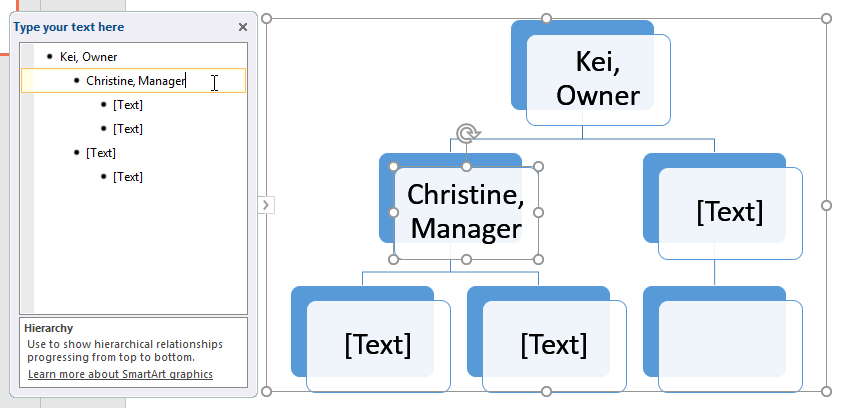
You can also add text by clicking on the desired shape and then typing. This works well if you only need to add text to a few shapes. However, for more complex SmartArt graphics, working in the text pane is often quicker and easier.
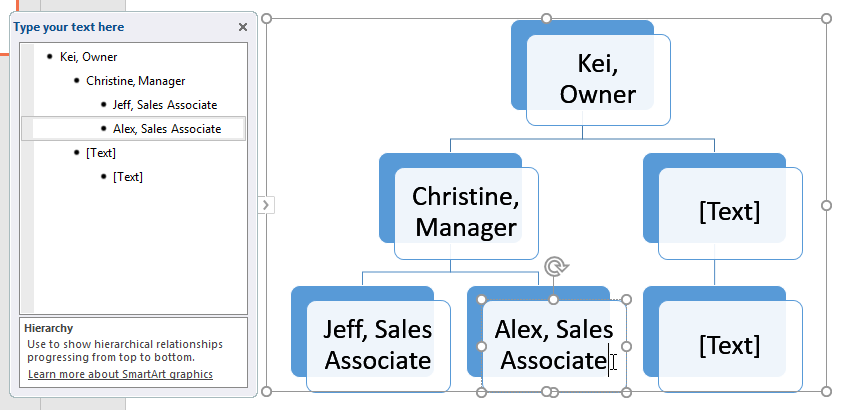
How to rearrange, add, and remove shapes
It's easy to add new shapes, change their order, and even remove shapes from a SmartArt graphic. You can do all of this in the text pane, and it's very similar to creating a multi-level list outline. For more information on multi-level lists, you can refer to the article on Lists in PowerPoint 2019.
To downgrade a shape, select the desired bullet point, then press the Tab key. The bullet symbol will move to the right and the shape will move down one level.
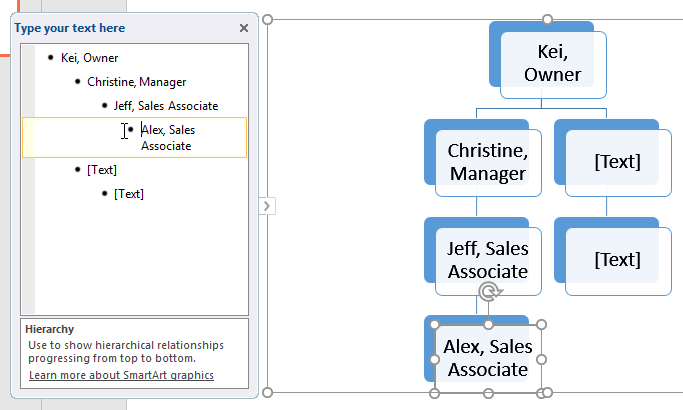
To upgrade a shape, select the desired bullet point, then press the Backspace key (or Shift + Tab ). The bullet symbol will move to the left and the shape will move up one level.
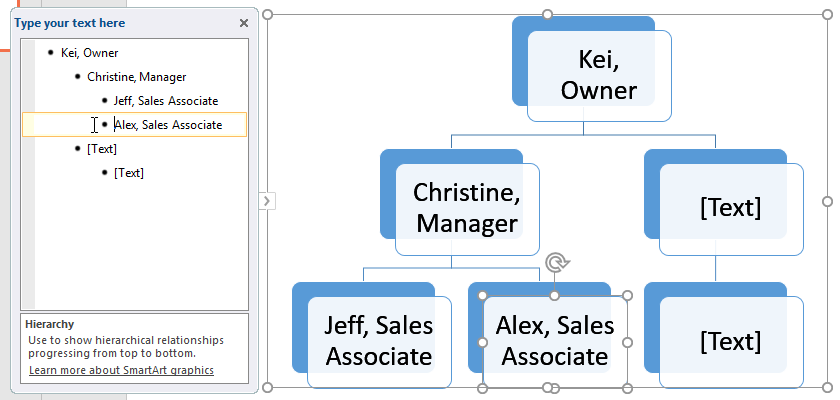
To add a new shape, place the insertion point after the desired bullet point, then press Enter. The new bullet point will appear in the text pane and the new shape will appear in the graphics.
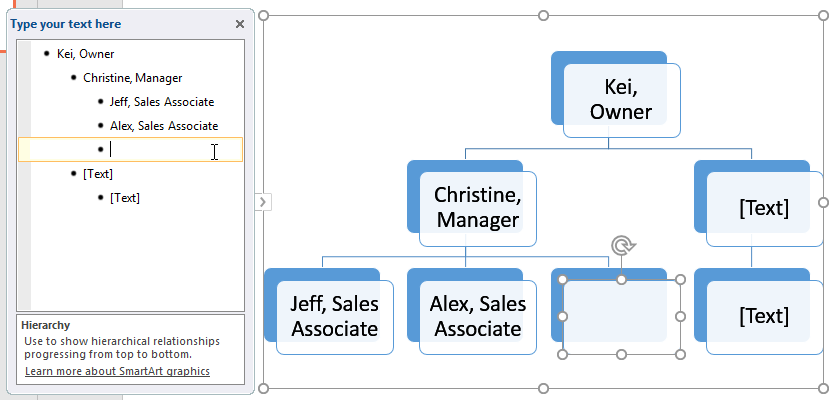
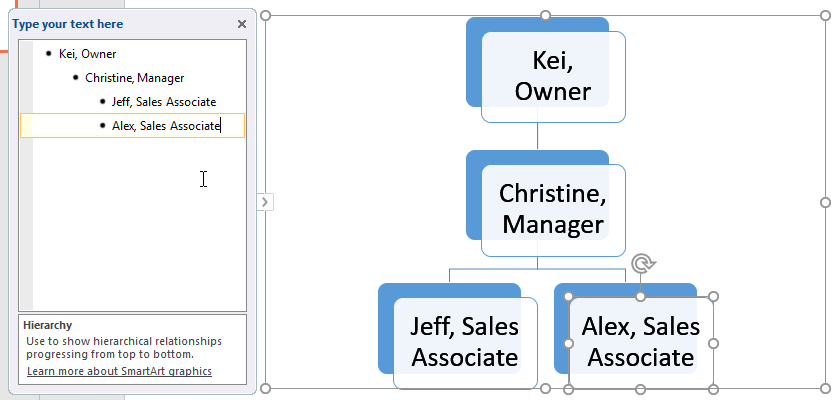
To delete a shape, keep pressing Backspace until the bullet point is removed. The shape will then be removed. This example will delete all shapes without text.
Organize SmartArt from the Design tab
If you don't want to use the text pane to organize your SmartArt, you can use the commands on the Design tab in the Create Graphic group. Simply select the shape you want to modify, then choose the desired command.
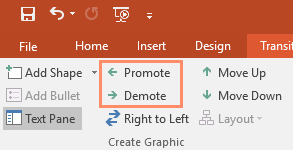
- Promote and Demote: Use these commands to move a shape up or down between levels.
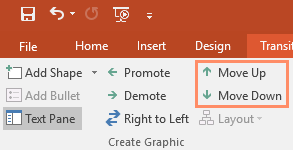
- Move Up and Move Down : Use these commands to change the order of shapes on the same level.
- Add Shape : Use this command to add a new shape to the graphic. You can also click the drop-down arrow for more precise placement options.
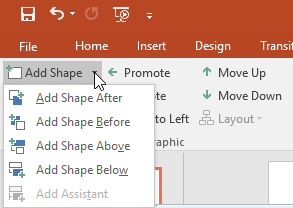
The example has organized a graphic with a hierarchical layout. Not all SmartArt graphics use this type of layout, so keep in mind that these commands may work differently (or not at all) depending on how your graphic is laid out.
Customize SmartArt
After inserting SmartArt, there are a few things you might want to change about its appearance. Whenever you select a SmartArt graphic, the Design and Format tabs will appear on the right side of the Ribbon. From here, it's easy to edit the style and layout of the SmartArt graphic.
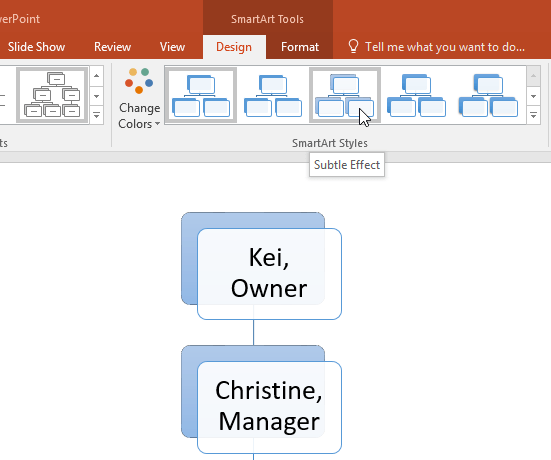
There are several SmartArt styles that allow you to quickly modify their appearance. To change a style, select the desired style from the SmartArt Styles group.
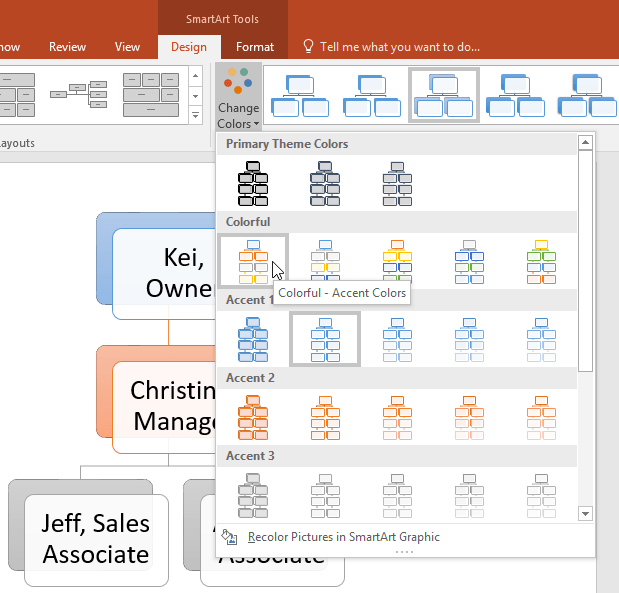
You have many different color combinations to use with SmartArt. To change the colors, click the Change Colors command and select the desired option from the drop-down menu.
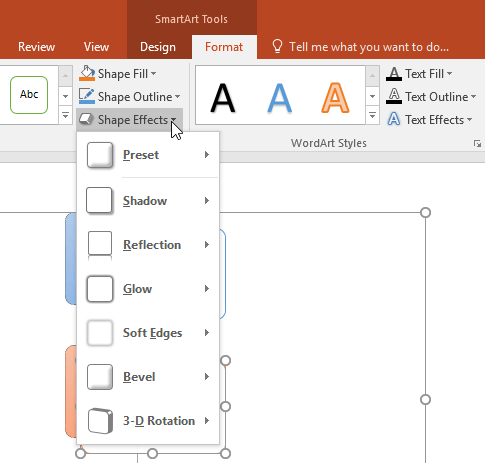
You can also customize each shape independently. Simply select any shape in the graphics, then choose your desired option from the Format tab.
How to change the SmartArt layout
If you don't like how your information is arranged in SmartArt graphics, you can always change its layout to better suit your content.
1. From the Design tab, click the More drop-down arrow in the Layouts group.
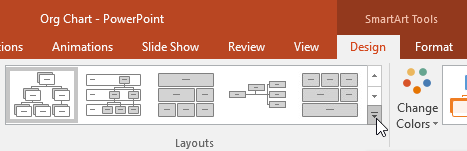
2. Choose your desired layout or click More Layouts to see additional options.
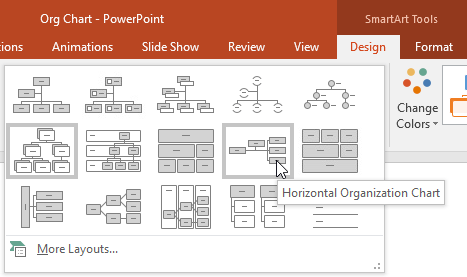
3. The selected layout will appear.
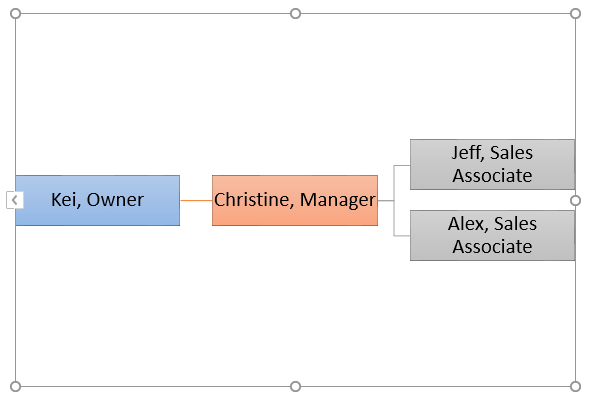
4. If the new layout is too different from the original, some of your text may not appear. Before deciding to use a new layout, double-check to ensure no important information is lost.
Final Thoughts
Understanding powerpoint 2019 (part 23) makes it easier to evaluate the information and apply the most relevant recommendations. Focus on the key points above and verify details that may change over time.
FAQ
What is powerpoint 2019 (part 23)?
Explore powerpoint 2019 (part 23): smartart graphics, including the key concepts, practical examples, important considerations, and useful guidance.
What key points does this article cover?
The article focuses on How to insert SmartArt graphics, How to add text to SmartArt graphics, How to rearrange, add, and remove shapes, with practical explanations and examples.
How can you use this information in practice?
Use the explanations to compare options, verify important details, and make a more informed decision. Apply the recommendations that best match your goals and situation.
Related Articles
 Work with Smartart Graphics in PowerPoint 20166 minutes read
 PowerPoint 2016: Working with SmartArt Graphics7 minutes read
 Use SmartArt Effects in PowerPoint3 minutes read
 Full Word Tutorial 2016 (Part 26): Create Smartart Graphics7 minutes read
 MS PowerPoint 2007 - Lesson 7: Insert Images and Graphics in the4 minutes read
 How to Create Smartart Graphics in Excel: Smartart Excel4 minutes read
Reader Comments 0
Sign in with email or Google to join the discussion.