Table of Contents
Explore powerpoint 2019 (part 30): action buttons, including the key concepts, practical examples, important considerations, and useful guidance.
When someone clicks or hovers over the button, the selected action occurs. Action buttons can do many of the same things as links. Their intuitive style makes them particularly useful for self-running presentations at booths and kiosks.
Insert action buttons
You can insert action buttons on a single slide or a button on every slide. The latter option can be useful if you want every slide to link back to a specific slide, such as the title page or table of contents.
How to insert an action button on a slide
1. Click on the Insert tab.
2. Click on the Shapes command in the Illustrations group. A drop-down menu will appear with action buttons at the bottom.
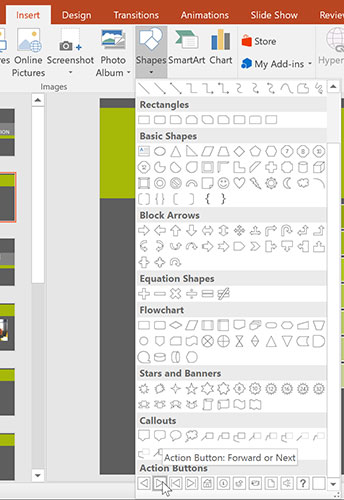
3. Select the desired action button.
4. Insert a button into the slide by clicking at the desired location. The Action Settings dialog box will appear.
5. Select the Mouse Click or Mouse Over tab. Selecting the Mouse Click tab means the action button will only perform the action when clicked. Selecting the Mouse Over tab will make the action button perform the task when you move your mouse over it.
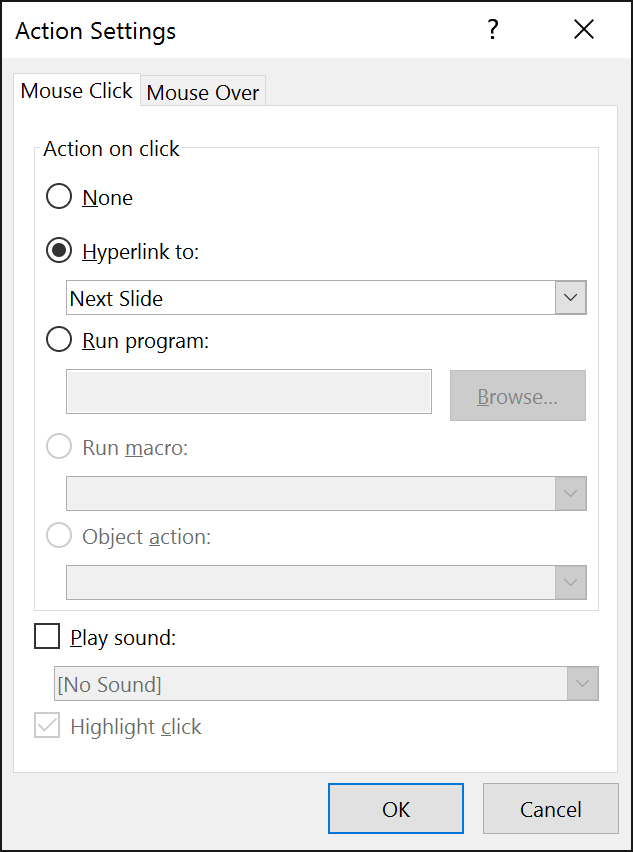
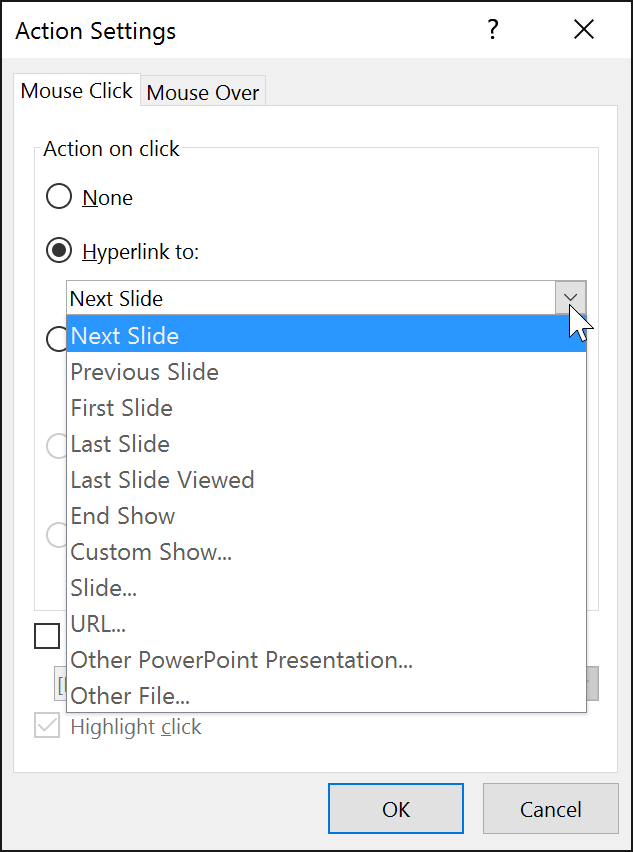
6. In the Action on click section, select Hyperlink to:, then click the drop-down arrow and choose an option from the menu.
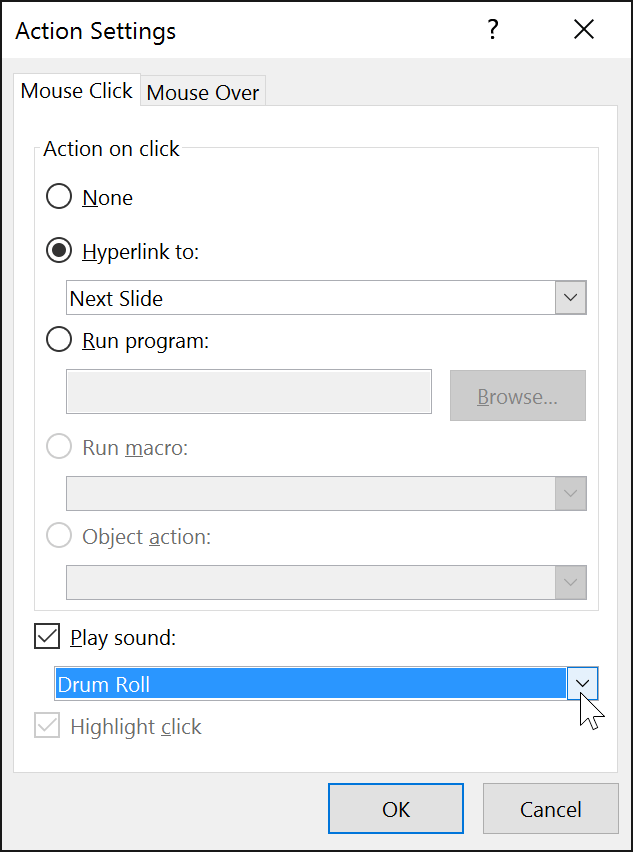
7. Select the Play Sound box if you want to play a sound when you click the action button. Choose a sound from the drop-down menu or select Other sound to use an audio file on your computer. When you're finished, click OK.
How to insert an action button on all slides
If you want to add an action button to every slide, you can do so with a feature called Slide Master View . However, using Slide Master View can be a bit complicated if you haven't used it before. If you plan to edit your slides this way, please refer to the article: Slide Master View.
1. Click on the View tab.
2. In the Master Views group, click the Slide Master command. In the left navigation pane, scroll up and select the first slide.
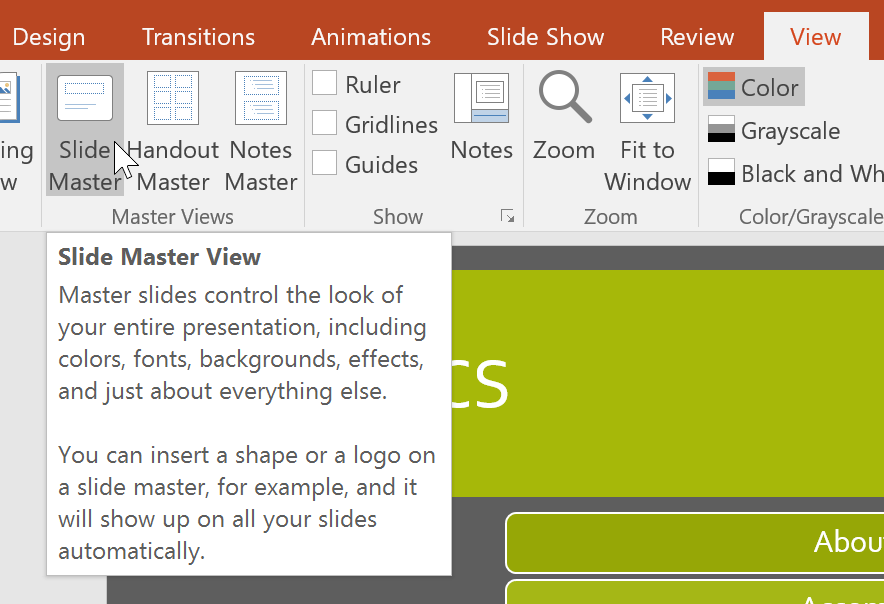
3. Go to the Insert tab and select an action button from the bottom of the Shapes menu. Click on the slide to add the action button and select the desired options from the dialog box that appears.
4. Go back to the Slide Master tab and click Close Master View. The new action button will now appear on every slide.

To edit, move, or delete a task button inserted in this way, click the View tab, then click Slide Master. Click Close Master View after making any desired changes.
If you notice that an action button doesn't appear on certain slides, you may need to uncheck the Hide Background Graphics box.

How to test an action button
After creating an action button, you should test it.
1. Click on the Slide Show tab.
2. In the Start Slide Show group, click From Current Slide .
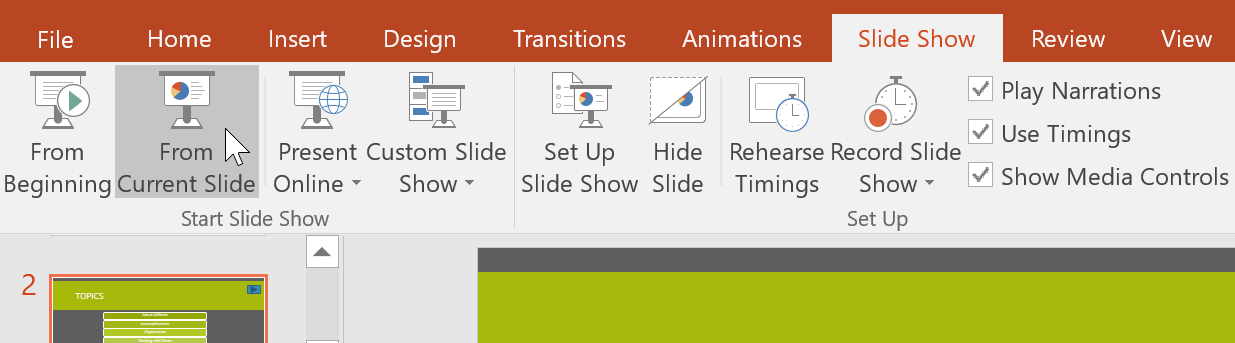
3. Click your action button.
4. After you have checked, right-click anywhere on the screen and select End Show.
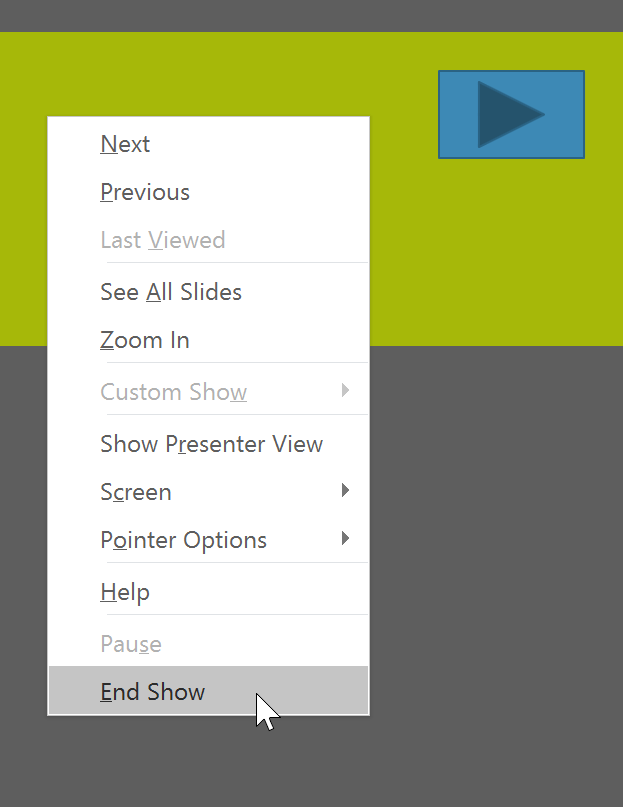
If the action button isn't working as intended, follow the instructions below to edit it.
How to edit an action button
1. Select the action button.
2. Click on the Insert tab.
3. In the Links group, click the Action command. The Actions Settings dialog box will appear.
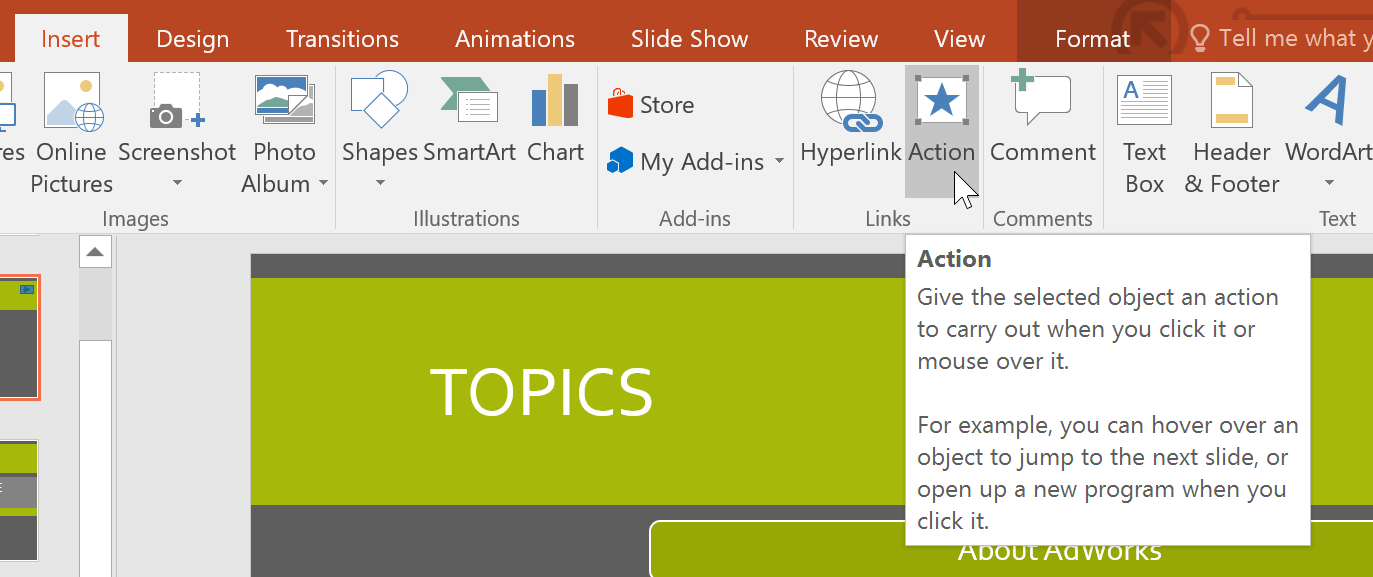
4. Edit the action or hyperlink, then click OK.
How to change the appearance of an action button
1. Select the action button.
2. Click on the Format tab.
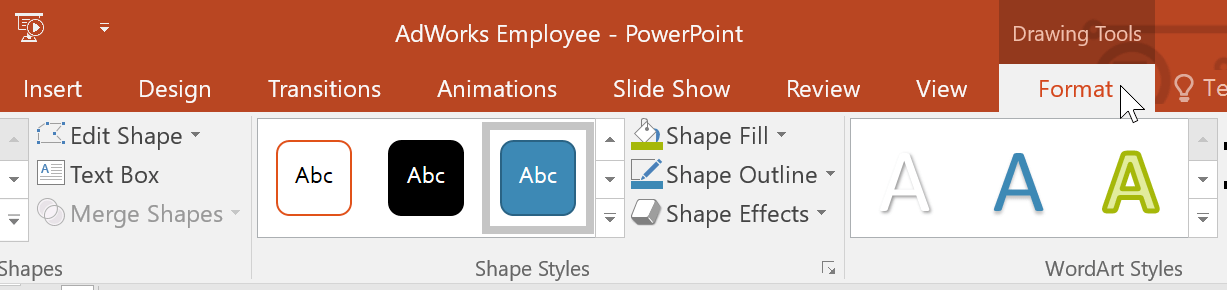
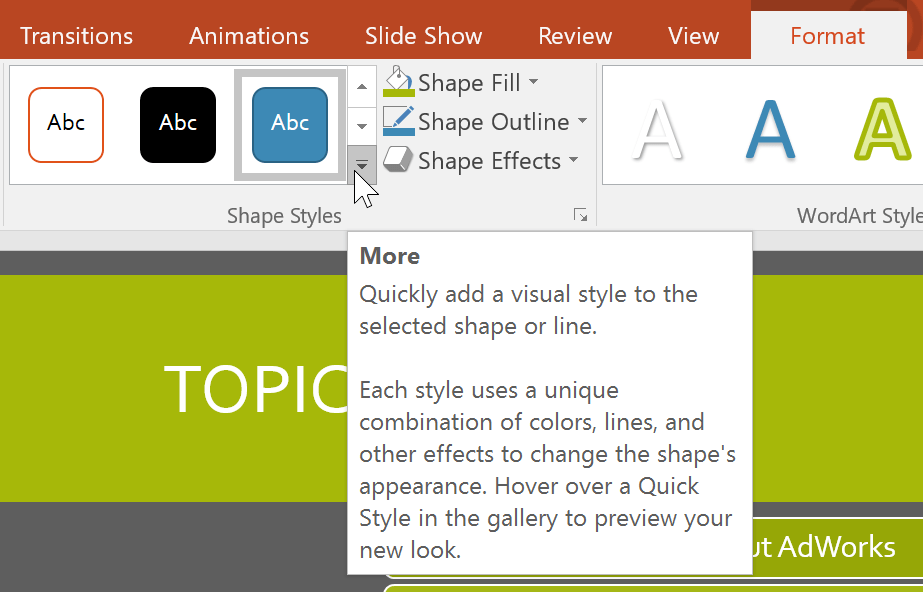
3. To change the style or color of the button, use the tools in the Shape Styles group.
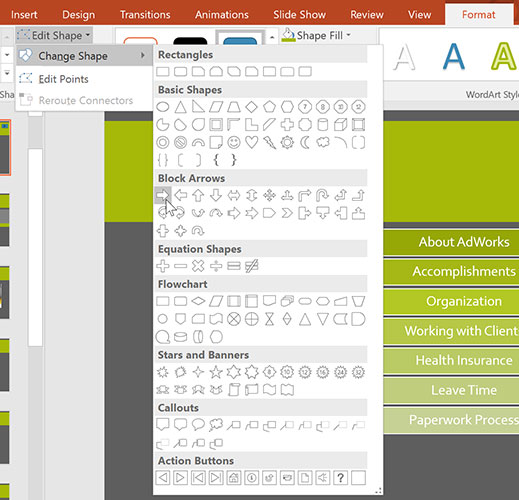
4. To change the shape of the action button, click Edit Shape in the Insert Shapes group. Choose a new shape from the drop-down menu.
Final Thoughts
Understanding powerpoint 2019 (part 30) makes it easier to evaluate the information and apply the most relevant recommendations. Focus on the key points above and verify details that may change over time.
FAQ
What is powerpoint 2019 (part 30)?
Explore powerpoint 2019 (part 30): action buttons, including the key concepts, practical examples, important considerations, and useful guidance.
What key points does this article cover?
The article focuses on Insert action buttons, How to insert an action button on a slide, How to insert an action button on all slides, with practical explanations and examples.
How can you use this information in practice?
Use the explanations to compare options, verify important details, and make a more informed decision. Apply the recommendations that best match your goals and situation.
Related Articles
 Use the Action Buttons on Slide in PowerPoint3 minutes read
 How to Create Action Buttons in Microsoft PowerPoint: Step-by-Step Guide7 minutes read
 Action Buttons in PowerPoint 20165 minutes read
 PowerPoint 2019 (Part 1): Getting Started with PowerPoint: Explained7 minutes read
 PowerPoint 2019 (Part 11): Presenting Slideshows: Explained9 minutes read
 PowerPoint 2019 (Part 6): Applying Themes: Explained5 minutes read
Reader Comments 0
Sign in with email or Google to join the discussion.