Table of Contents
Explore powerpoint 2019 (part 4): basic slide concepts, including the key concepts, practical examples, important considerations, and useful guidance.
Learn about slides and slide layouts
When you insert a new slide, there are usually placeholders to show you where the content should be placed. Slides have different layouts for these placeholders, depending on the type of information you want to include. Whenever you create a new slide, you will need to choose a slide layout that suits your content.
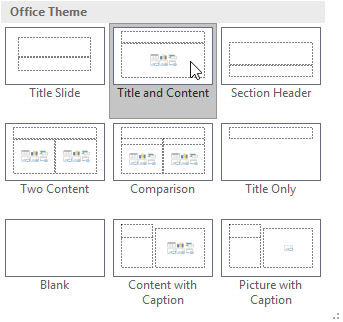
Placeholders can contain different types of content, including text, images, and videos. Many placeholders have thumbnail icons that you can click to add specific content types. In the example below, the slide has placeholders for the title and content.
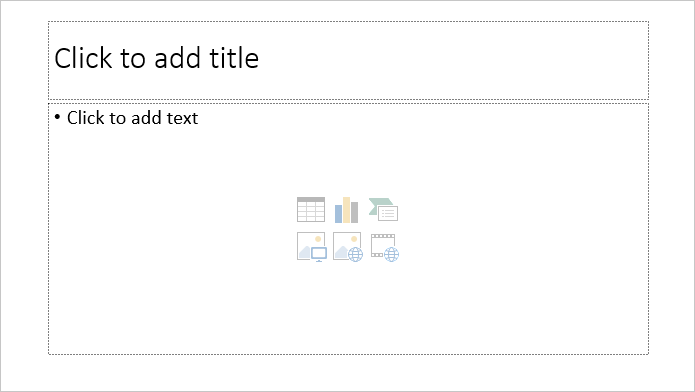
How to insert a new slide
Whenever you start creating a new presentation, a slide with a Title Slide layout will be included. You can insert as many slides as you like from various layouts.
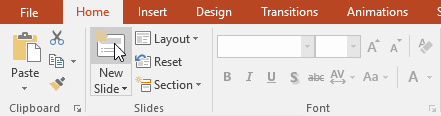
1. From the Home tab, click the bottom half of the New Slide command.

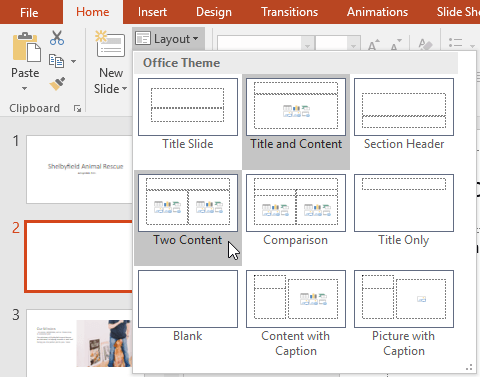
2. Select your desired slide layout from the menu that appears.
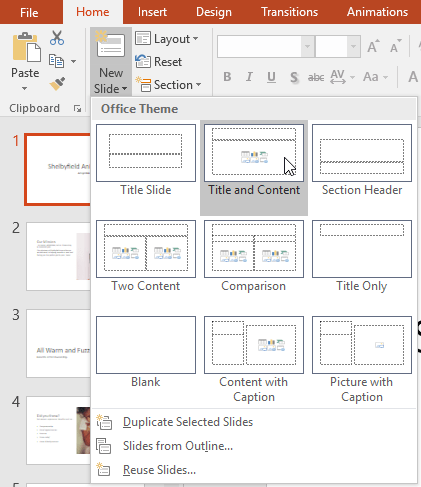
3. A new slide will appear. Click on any of the spaces and start typing to add text. You can also click on the icons to add other types of content, such as images or charts.
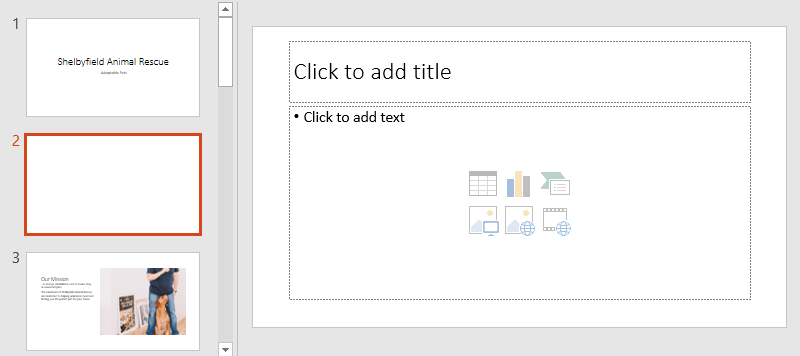
- To change the layout of an existing slide, click the Layout command, and then select the desired layout.
- To quickly add a slide that uses the same layout as the selected slide, click the top half of the New Slide command.
Organize the slides
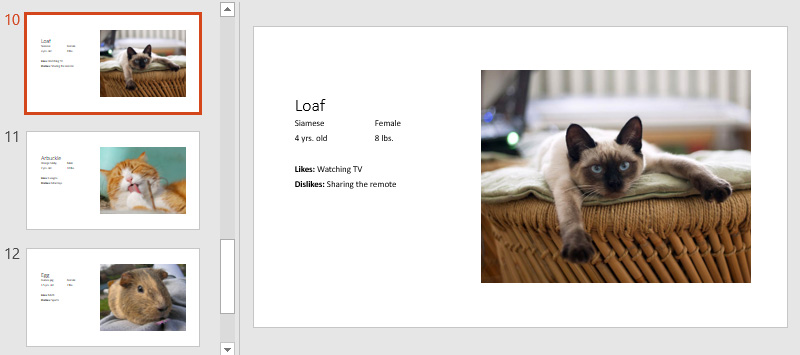
A PowerPoint presentation can contain as many slides as you like. The Slide Navigation panel on the left side of the screen makes it easy to organize your slides. From there, you can copy, rearrange, and delete slides in your presentation.
Working with slides
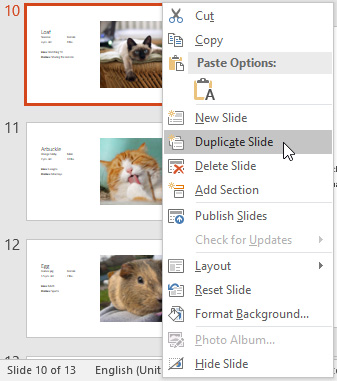
- Duplicate slides : If you want to quickly copy and paste a slide, you can duplicate it. To duplicate slides, select the slide you want to duplicate, right-click, and select Duplicate Slide from the menu that appears. You can also duplicate multiple slides at once by selecting them first.
- Moving slides : It's easy to change the order of the slides. Simply click and drag the desired slide in Slide Navigation to the desired position.
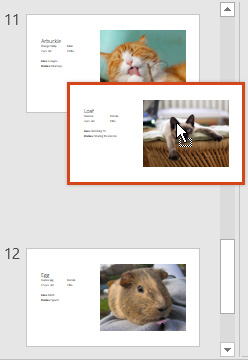
- Deleting a slide : If you want to delete a slide from your presentation, simply select the slide you want to delete, then press the Delete or Backspace key on your keyboard.
How to copy and paste slides
If you want to create several slides with the same layout, you might find it easier to copy and paste a slide you've already created instead of starting with a blank one.
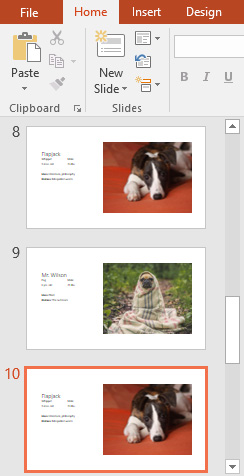
1. Select the slide you want to copy in Slide Navigation , then click the Copy command on the Home tab. You can also press Ctrl + C on your keyboard.
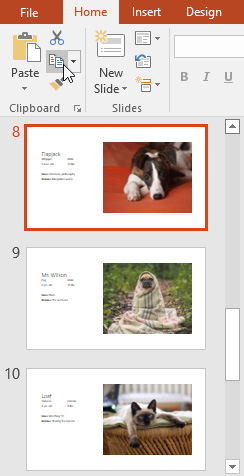
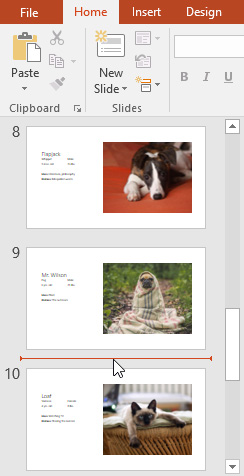
2. In Slide Navigation , click just below a slide (or between two slides) to select the insertion point. A horizontal insertion point will appear.
3. Click the Paste command on the Home tab. You can also press Ctrl + V on your keyboard.
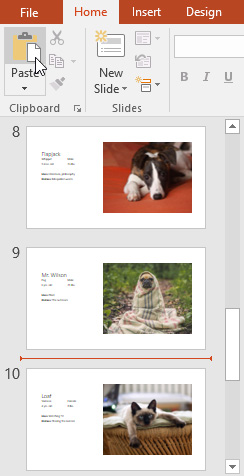
4. The slide will appear at the selected location.
Customize slide layout
Sometimes you might find that a slide layout isn't quite right for your needs. For example, a layout might have too many—or too few—placeholders. You might also want to change how the placeholders are arranged on the slide. Fortunately, PowerPoint makes it easy to adjust slide layouts as needed.
Adjust the placeholder
- Select a placeholder : Hover your mouse over the edge of the placeholder and click (you may need to click on the text in the placeholder first to see the border). The selected placeholder will have a solid line instead of a dotted line.

- Moving a placeholder : Select the placeholder, then click and drag it to the desired location.
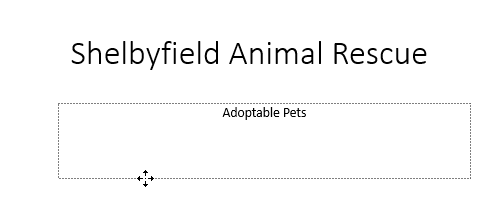
- Resizing a placeholder : Select the placeholder you want to resize. Resizing handles will appear. Click and drag these handles until the placeholder is the desired size. You can use the corner handles to change the height and width of the placeholder simultaneously.

- To delete a placeholder : Select the placeholder you want to delete, then press the Delete or Backspace key on your keyboard.
How to add a text box
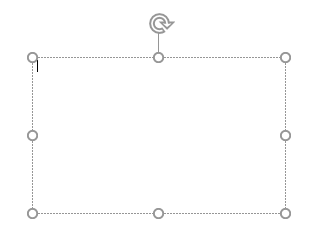
Text can be inserted into both placeholders and text boxes. Inserting text boxes allows you to add content to your slide layout. Unlike placeholders, text boxes remain in the same location, even if you change the theme.
1. From the Insert tab, select the Text Box command.

2. Click and drag to draw a text box on the slide.

3. A text box will appear. To add text, simply click on the text box and start typing.
Use blank slides
If you want more control over your content, you might prefer using a blank slide, without placeholders. Blank slides can be customized by adding your own text boxes, images, charts, etc.
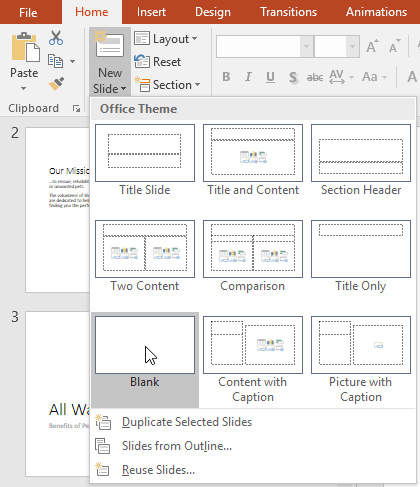
To insert a blank slide, click the bottom half of the New Slide command, then select Blank from the menu that appears.
While blank slides offer more flexibility, keep in mind that you won't be able to take advantage of the pre-designed layouts included in each theme.
How to deliver a presentation
After you've arranged the slides, you might want to play your presentation. This is how you would present your slideshow to your audience.
1. Click the Start From Beginning command on the Quick Access Toolbar to view the presentation.
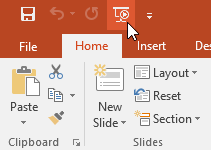
2. The presentation will appear in full-screen mode.
3. You can move to the next slide by clicking the mouse or pressing the spacebar on your keyboard. You can also use the arrow keys on your keyboard to advance or rewind slides in the presentation.
4. Press the Esc key to exit presentation mode.
You can also press the F5 key at the top of your keyboard to start the presentation.
Customize slides
How to resize a slide
By default, all slides in PowerPoint 2013 use a 16 x 9 aspect ratio, or widescreen. These slides will work best with widescreen monitors and projectors. However, if you need your presentation to fit a 4 x 3 screen, you can easily resize the slides accordingly.
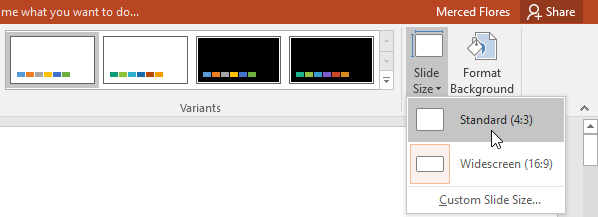
To change the slide size, select the Design tab, then click the Slide Size command. Choose your desired slide size from the menu that appears, or click Custom Slide Size for more options.
How to format the slide background
By default, all slides in a presentation use a white background. It's easy to change the background style for some or all of the slides. The background can be solid color, gradient, patterned, or image-based.
1. Select the Design tab, then click the Format Background command.

2. The Format Background control panel will appear on the right. Select your desired options. For example, we will use a light yellow color.
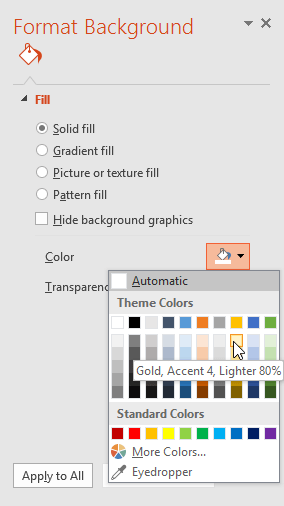
3. The background style of the selected slide will be updated.
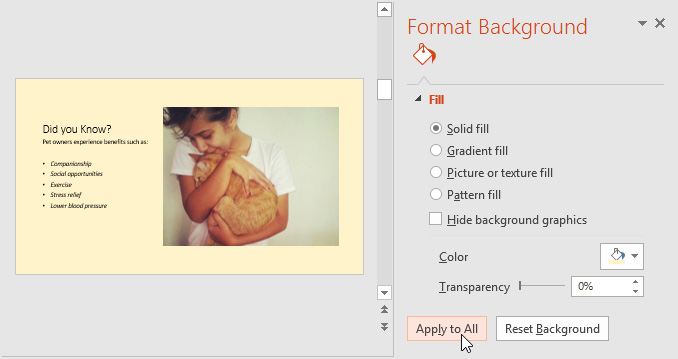
4. If desired, you can click Apply to All to apply the same background style to all slides in your presentation.
How to apply a theme
Themes are predefined combinations of colors, fonts, and effects that can quickly change the look and feel of an entire slideshow. Different themes also use different slide layouts, which can alter the arrangement of your existing placeholders.
1. Select the Design tab on the Ribbon, then click the More drop-down arrow to see all available themes.

2. Choose your desired theme.
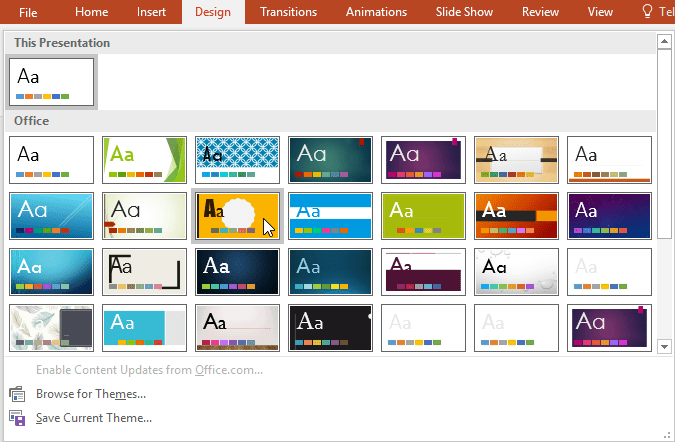
3. The theme will be applied to your entire presentation.
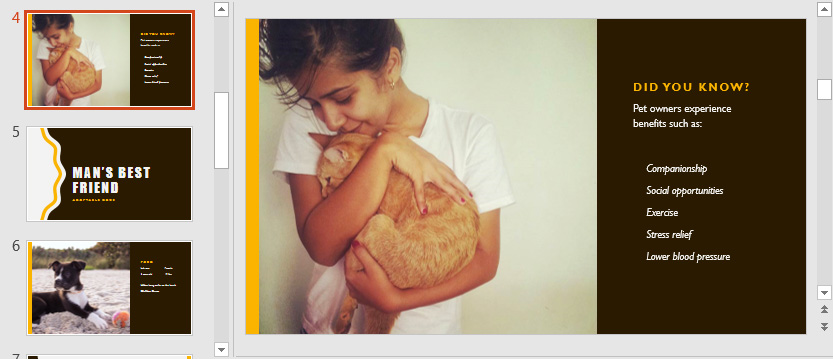
Try applying a few themes to your presentation. Some themes will work better than others, depending on your content.
Final Thoughts
Understanding powerpoint 2019 (part 4) makes it easier to evaluate the information and apply the most relevant recommendations. Focus on the key points above and verify details that may change over time.
FAQ
What is powerpoint 2019 (part 4)?
Explore powerpoint 2019 (part 4): basic slide concepts, including the key concepts, practical examples, important considerations, and useful guidance.
What key points does this article cover?
The article focuses on Learn about slides and slide layouts, How to insert a new slide, Organize the slides, with practical explanations and examples.
How can you use this information in practice?
Use the explanations to compare options, verify important details, and make a more informed decision. Apply the recommendations that best match your goals and situation.
Related Articles
 PowerPoint 2019 (Part 8): Managing Slides: Explained6 minutes read
 How to Export Outline for PowerPoint Slides3 minutes read
 Powerpoint Thank You Wallpapers, Thanks for the Slide Ends3 minutes read
 Instructions to Resize Slide Pages in PowerPoint: Change Slide Size3 minutes read
 How to Create PowerPoint Slide Frames: Create PowerPoint Slides4 minutes read
 PowerPoint 2019 (Part 1): Getting Started with PowerPoint: Explained7 minutes read
Reader Comments 0
Sign in with email or Google to join the discussion.