Table of Contents
Outlook's updated interface introduces new steps for printing emails, attachments, and even calendar items. Many people new to this Outlook interface are confused about how to print emails. Here's how to print emails in Outlook.
How to Print Emails in Outlook Windows
Step 1:
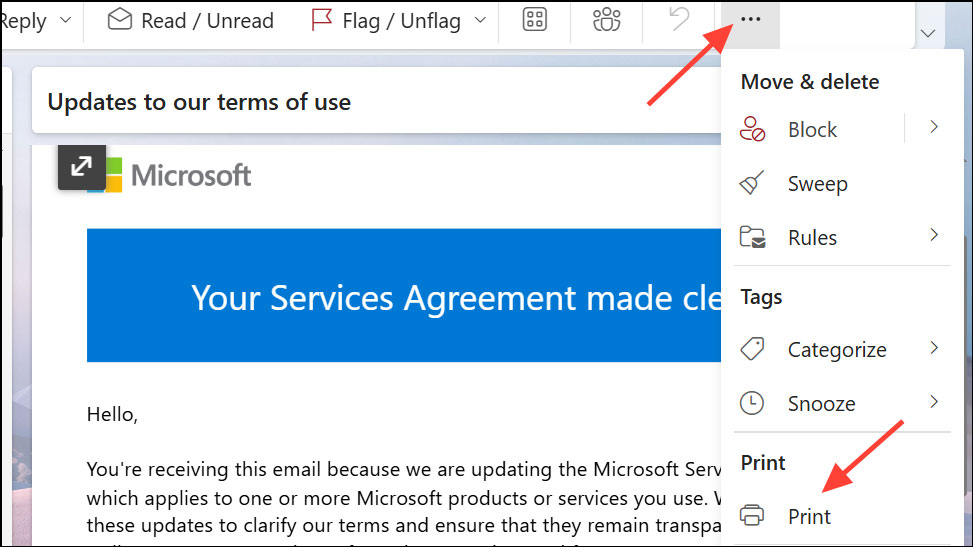
Open the Outlook app and navigate to the email you want to print. Next, tap the 3-dot icon and select Print from the options menu.
Step 2:
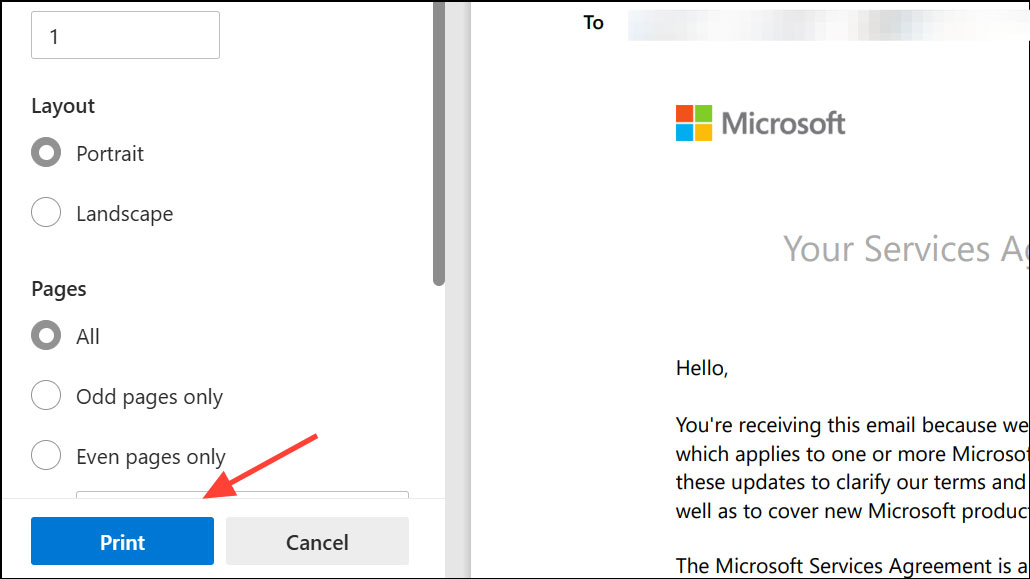
A print preview window will appear. Here you can preview how your email will look when printed. Finally, click Print to execute.
Instructions for printing Outlook mail attachments
Step 1:
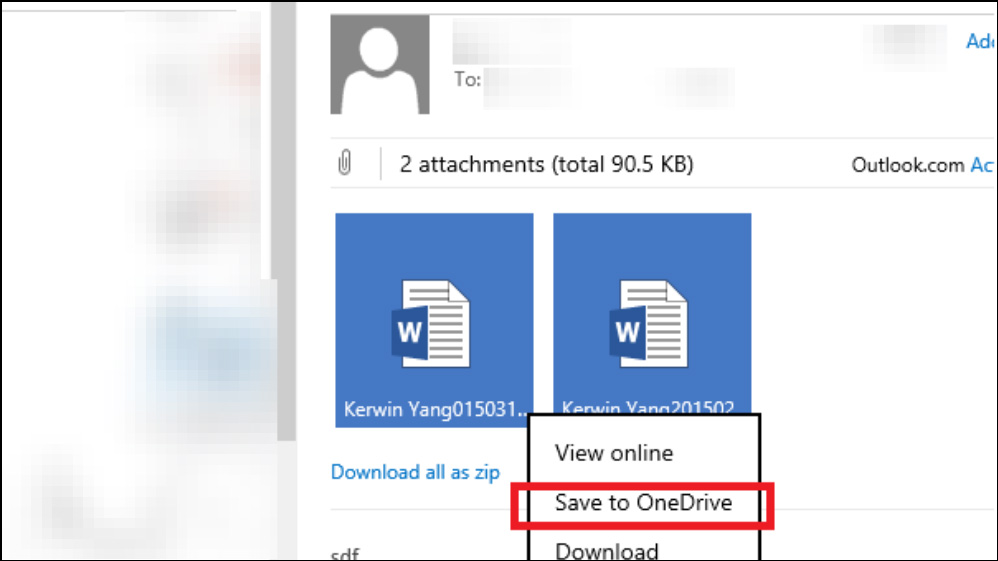
Open the email with the attachment, then select the attachment and select Download or Save to OneDrive.
Step 2:
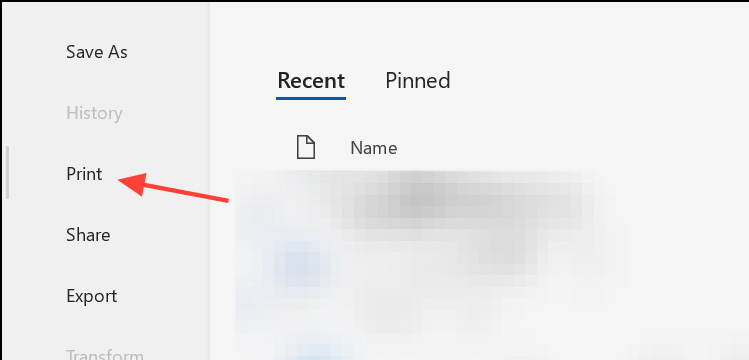
Use the print function in the attachment app to print the file. The new Outlook app does not support printing attachments directly from the email window.
How to print a specific section or page of an email
Open the email and use the Print to PDF option by selecting Microsoft Print to PDF . This will save the entire email as a PDF file on your computer.
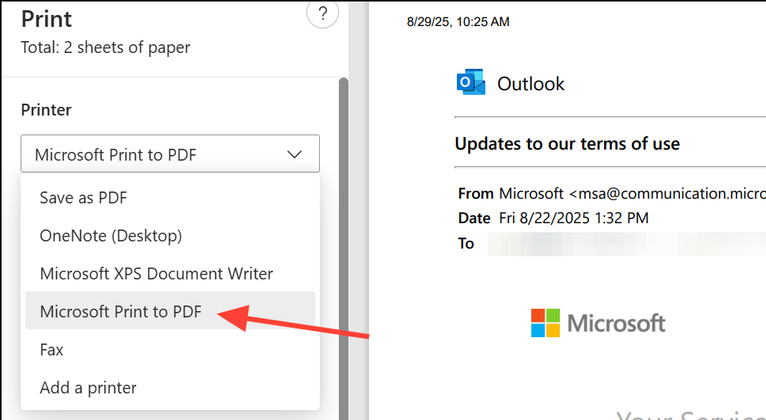
Open the PDF file using a PDF reader on your computer and then print as usual.
Final Thoughts
Following the steps in order and checking version-specific settings should make it easier to Print Emails on Outlook. If an option looks different, verify the device, app, or operating-system version before changing additional settings.
FAQ
What is the best way to Print Emails on Outlook?
Start with the requirements described in the article and follow the steps in order. Outlook's updated interface introduces new steps for printing emails, attachments, and even calendar items. Many people new to this Outlook interface are confused about how to print emails. Here's how to print emails in Outlook.
What should you know about How to Print Emails in Outlook Windows?
Open the Outlook app and navigate to the email you want to print. Next, tap the 3-dot icon and select Print from the options menu.
What should you do if the instructions do not match your screen?
Check the device, software version, account permissions, and regional settings. Interfaces can change after updates, so use the closest matching option and consult the official support documentation when necessary.
Related Articles
 How to Print Email in Outlook3 minutes read
 Microsoft Outlook Acceleration Tips5 minutes read
 How to Scheduling Sending Emails and Delaying Sending Emails in7 minutes read
 Instructions for Pinning Emails in Outlook: What to Know5 minutes read
 minutes read
 Instructions on Selecting Multiple Emails in Outlook: Explained4 minutes read
Reader Comments 0
Sign in with email or Google to join the discussion.