Table of Contents
This practical guide explains how to schedule email sending in outlook. Follow the steps in order, review the requirements first, and use the troubleshooting notes when a setting or option does not work as expected.
How to Schedule Email Sending in Outlook on Desktop
The process of scheduling emails in Outlook is pretty much the same across Windows, macOS, and the web version.
Step 1:
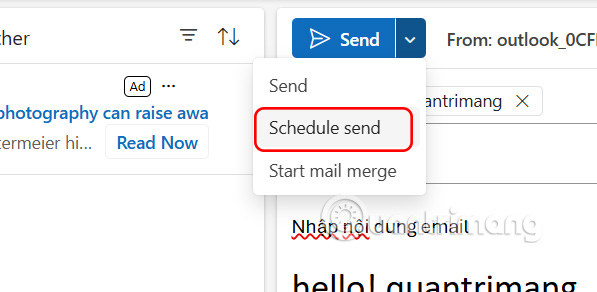
At the Outlook interface on the computer, we compose an email as usual . Then you select the arrow icon next to Send . Now you select Schedule send .
Step 2:
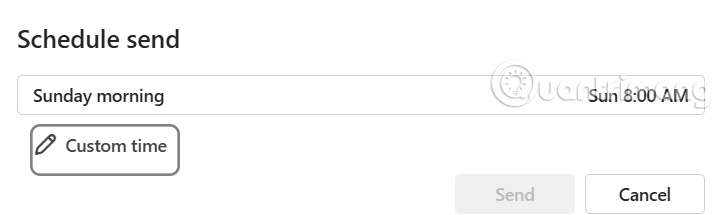
The Outlook email sending time selection interface appears. You can select the suggested time, or click Custom time to select a different email scheduling time you want.
Step 3:
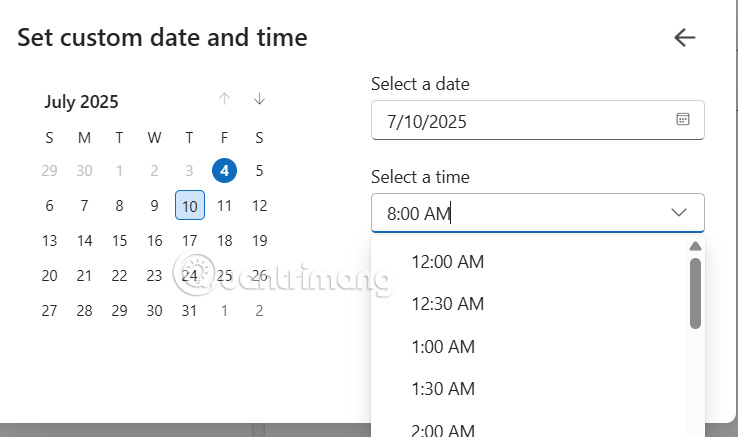
We select the date and time you want to schedule sending Outlook email and then click Send to schedule.
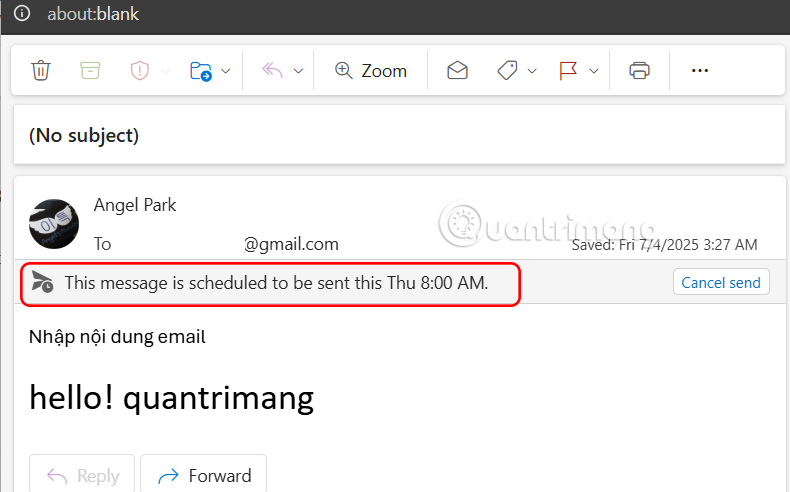
Scheduled emails sent in Outlook are saved with the time as shown below. Here you can click Cancel send to cancel scheduling the email on Outlook computer.
How to Schedule Outlook Emails on Android
Currently, only Outlook on Android has the option to schedule a timer.
Step 1:
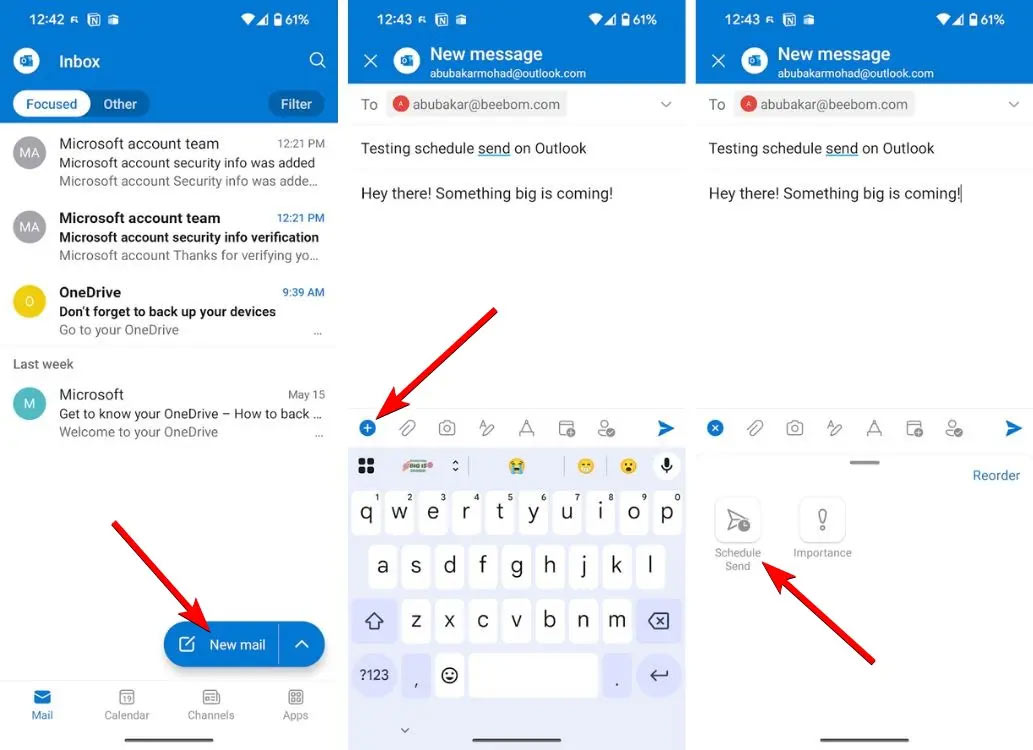
In the Outlook Android app interface, click New mail and compose a new email as usual.
Now select the green plus icon in the toolbar below and select Schedule Send to schedule sending emails on Outlook.
Step 2:
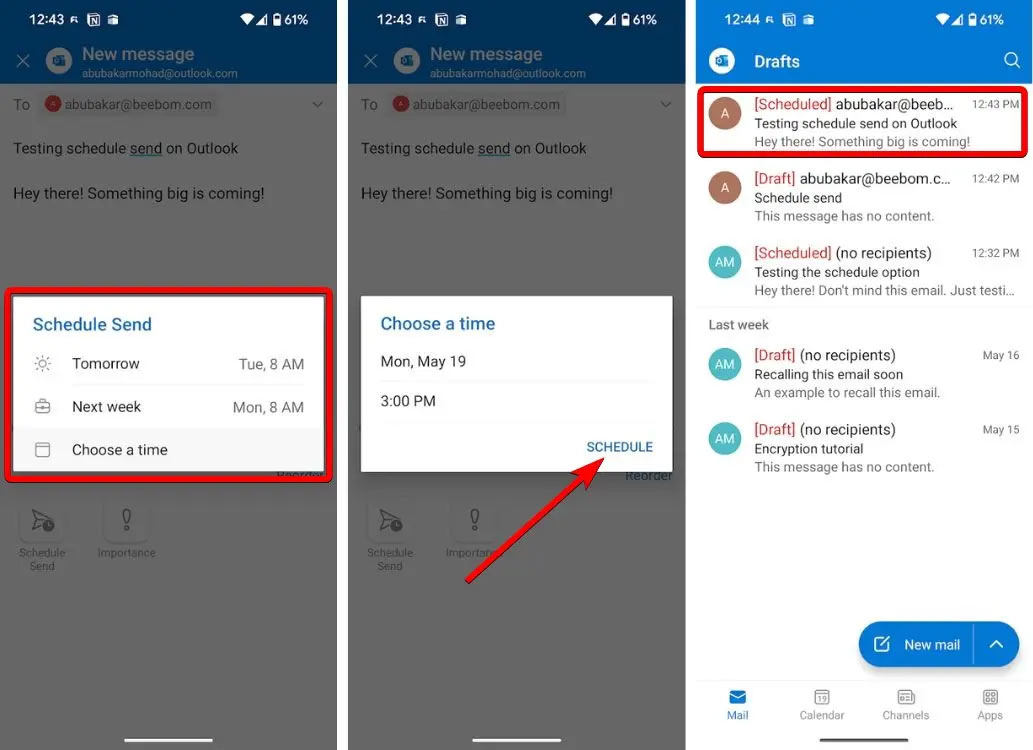
Next, you also choose the time you want to send this Outlook email and then click Schedule and you're done. The email scheduled to be sent in Outlook will be displayed in the Drafts section for you to track and cancel sending if you want.
FAQ
How to Schedule Email Sending in Outlook on Desktop?
The process of scheduling emails in Outlook is pretty much the same across Windows, macOS, and the web version.
How to Schedule Outlook Emails on Android?
Currently, only Outlook on Android has the option to schedule a timer.
What does this guide cover?
This guide explains schedule email sending in outlook, including the main steps, important details, and practical considerations.
Related Articles
 How to Scheduling Sending Emails and Delaying Sending Emails in7 minutes read
 minutes read
 How to Schedule an Event in Outlook3 minutes read
 Instructions for Sending Free SMS Via Outlook3 minutes read
 How to Enable Outlook Email Spell Checking Before Sending: Practical Guide7 minutes read
 Schedule Android Messages: How to Schedule Sending Sms on Android9 minutes read
Reader Comments 0
Sign in with email or Google to join the discussion.