Table of Contents
This practical guide explains how to insert a table into an outlook email. Follow the steps in order, review the requirements first, and use the troubleshooting notes when a setting or option does not work as expected.
How to insert a table into Outlook email on PC
Step 1:
You open Outlook and create a new email. Then, in the email interface, click Insert on the toolbar above.
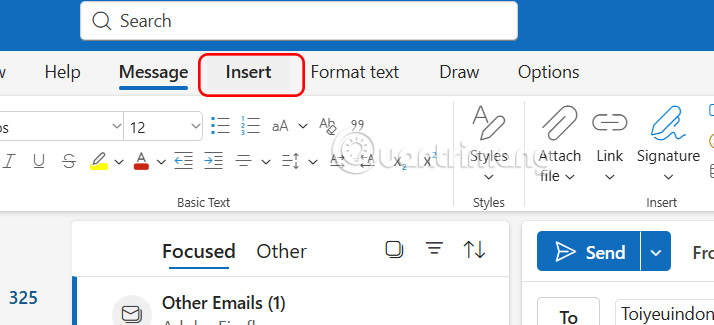
You will then see the options to insert into email below, select Table .
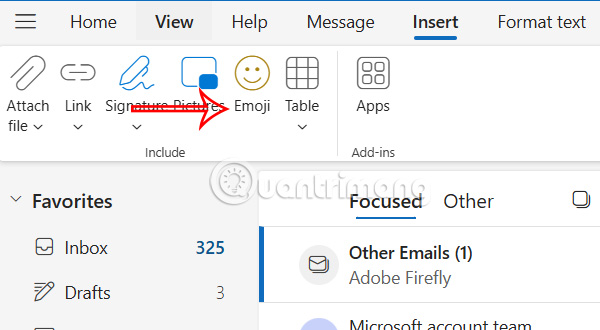
Step 2:
Select the number of columns and rows you want to insert in your Outlook email as usual. The maximum number of rows and columns is limited to 10 rows and 10 columns.
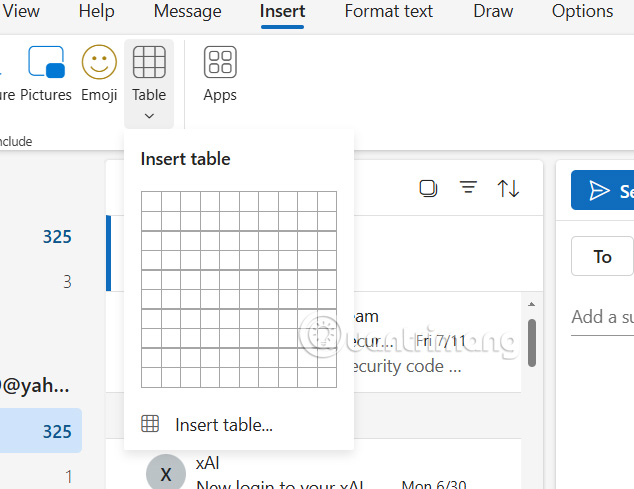
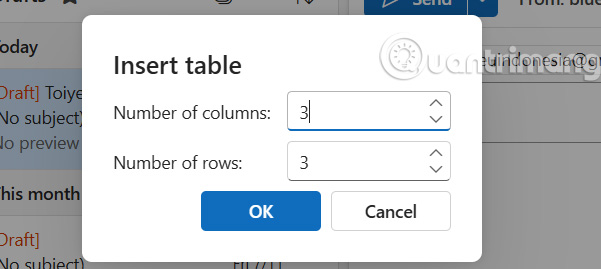
In case you want more rows and columns , click Insert table , then fill in the number of columns and rows you want to create the table and click OK.
Step 3:
Now you enter the title and content into the table as usual. At the top of the interface are the Outlook email table customization tools for you to use to change the table.

In addition, when you highlight a cell in the table and select the 3-dot icon, there are also options for the table as shown.

Finally, you edit the content in the table and send the email as usual.
How to insert a table into Outlook mobile email
There is no option to create a table on the Outlook app like on the desktop, so you will need to access the Outlook web version to do this.
Step 1:
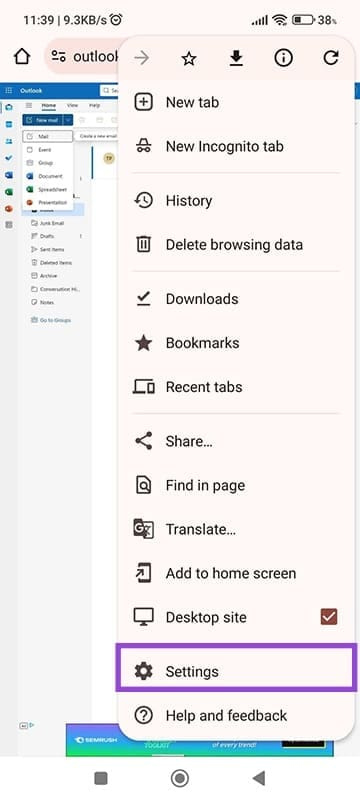
You access Outlook web on your phone using a browser and then enter your personal account. Next, select the 3 dots icon and select Desktop site .
Step 2:
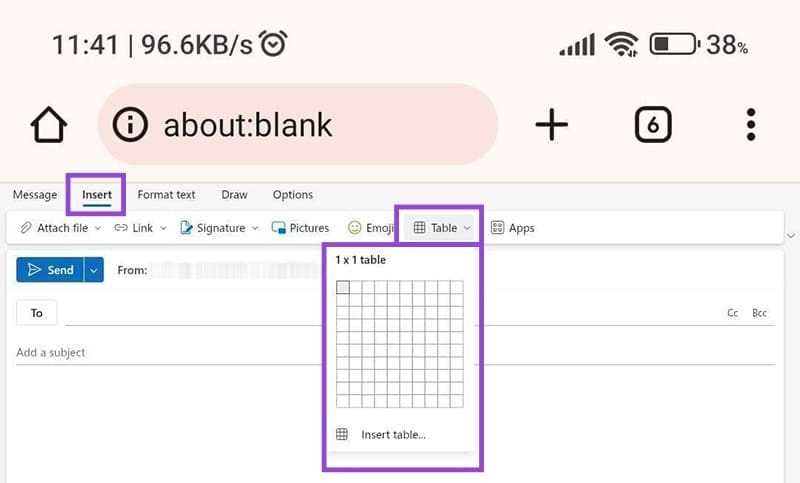
Next, compose a new email, then click Insert and select Table to create as usual.
How to insert a table into an Outlook email from another platform
You can use a dedicated table editor like Google Sheets or Excel to create the table, then paste it directly into the email.
Step 1:
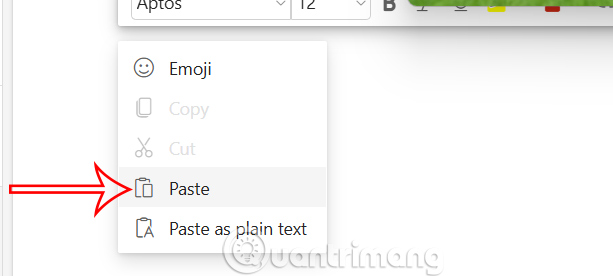
Open the table you want to insert into Outlook email and copy the entire table . In the new email interface, right-click and select Paste .
Step 2:
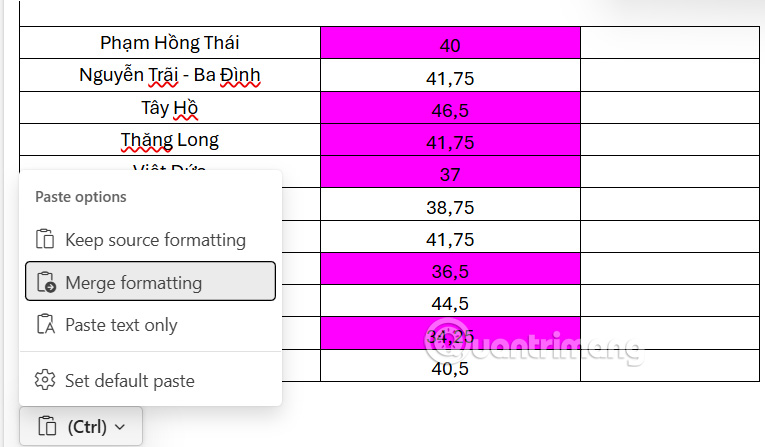
You will then see the data table inserted into your Outlook email. Click the Ctrl button below to see the option to paste with formatting, or just the table contents.
FAQ
How to insert a table into Outlook email on PC?
You open Outlook and create a new email. Then, in the email interface, click Insert on the toolbar above.
How to insert a table into Outlook mobile email?
There is no option to create a table on the Outlook app like on the desktop, so you will need to access the Outlook web version to do this.
How to insert a table into an Outlook email from another platform?
You can use a dedicated table editor like Google Sheets or Excel to create the table, then paste it directly into the email.
Related Articles
 How to Insert Emoticons (Smileys) in Outlook Email4 minutes read
 How to Insert a Table into an Email in Gmail5 minutes read
 Assign Background Image to Email in Outlook: Instructions2 minutes read
 How to Set Up Email in Outlook Latest 20225 minutes read
 How to Print Email in Outlook3 minutes read
 How to Insert an Image into an Outlook Signature3 minutes read
Reader Comments 0
Sign in with email or Google to join the discussion.