Table of Contents
The autoformat and autocorrect features can be very helpful when working with Excel numbers and formulas, but sometimes they can affect your data by automatically converting numbers to dates.
The autoformat and autocorrect features can be very helpful when working with numbers and formulas in Excel, but sometimes they mess up your data by automatically converting numbers to dates. This often happens when you enter fractions or decimals. Here are some ways to stop Excel from automatically formatting as dates.
Prevent Excel from automatically formatting dates using cell formatting
If Excel automatically corrects to a date, it's likely that the range has been converted to Custom. If so, you'll need to re-format a cell or range with the specific format you want so Excel doesn't automatically format dates in blank cells.
You should highlight the data area you want to format according to the data type you want, then in the format selection section you choose the format type you want to use.
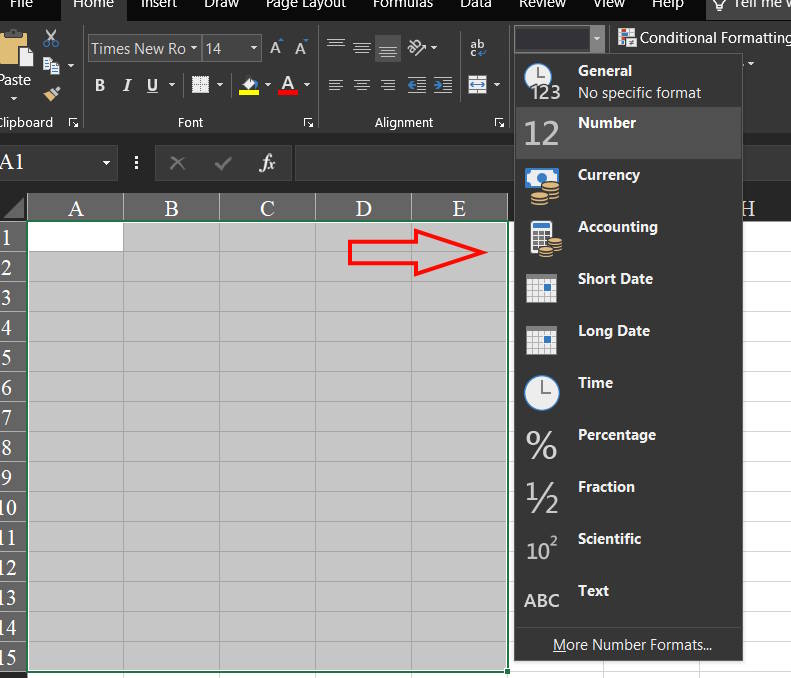
Enter text to prevent Excel date auto formatting
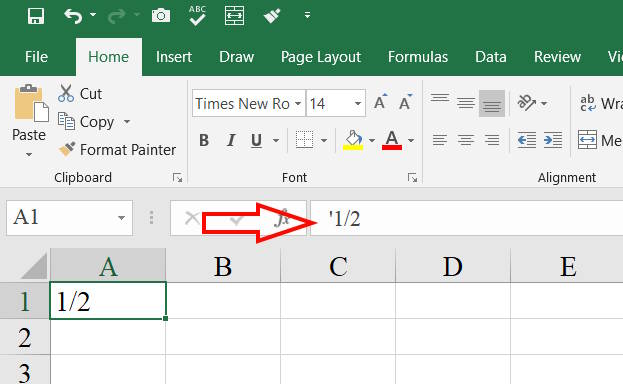
One of the easiest ways to get Excel to display the exact text you want instead of autocorrecting to a date or number is to use the ' (apostrophe) character at the beginning. This indicates that you are entering a string of characters, forcing Excel to display it as text, but still automatically register it in the format that Excel autocorrects.
Excel does not display the caret when viewing data, but it does display it in the formula bar when you select a cell.
Prevent Excel from saving fractions as dates
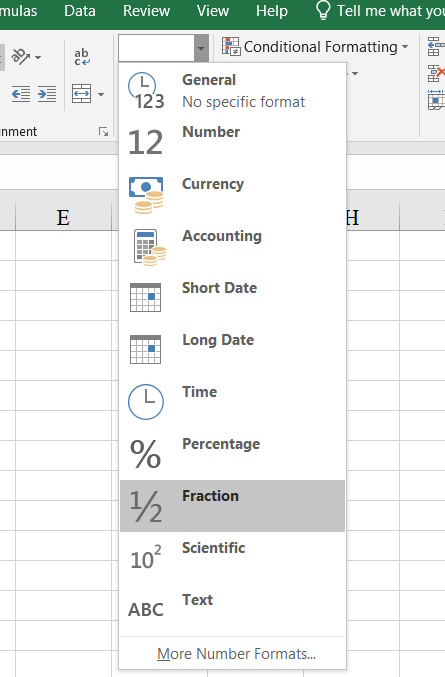
To automatically apply number formatting to cells containing fractions (such as 1/2), you can also use a leading zero and a space. Or you can change the format to Fraction.
- How to stop Excel from changing fractions to date format
FAQ
What should you know about stop Excel from automatically formatting as a date?
In practical terms, the autoformat and autocorrect features can be very helpful when working with Excel numbers and formulas, but sometimes they can affect your data by automatically converting numbers to dates.
Why does stop Excel from automatically formatting as a date matter?
The article highlights that prevent Excel from automatically formatting dates using cell formatting If Excel automatically corrects to a date, it's likely that the range has been converted to Custom.
What is the main takeaway?
The main takeaway is that enter text to prevent Excel date auto formatting One of the easiest ways to get Excel to display the exact text you want instead of autocorrecting to a date or number is to use the ' (apostrophe) character at the.
Related Articles
 DATE Function: Converts Numbers to a Valid Date Format5 minutes read
 How to Fix the Date #VALUE Error in Excel: Edit Date Excel Error4 minutes read
 Date Functions in Excel, DAY, WEEKDAY, MONTH8 minutes read
 How to Fix Date Errors When Copying to Another Excel File4 minutes read
 How to Use Conditional Formatting to Conditional Formatting in Excel7 minutes read
 How to Formatting Data in Excel: Step-by-Step Guide4 minutes read
Reader Comments 0
Sign in with email or Google to join the discussion.