Table of Contents
This guide provides a clear, practical overview of "DATE Function: Converts Numbers to a Valid Date Format". It organizes the most useful details, explains important considerations, and highlights the steps or choices that matter most.
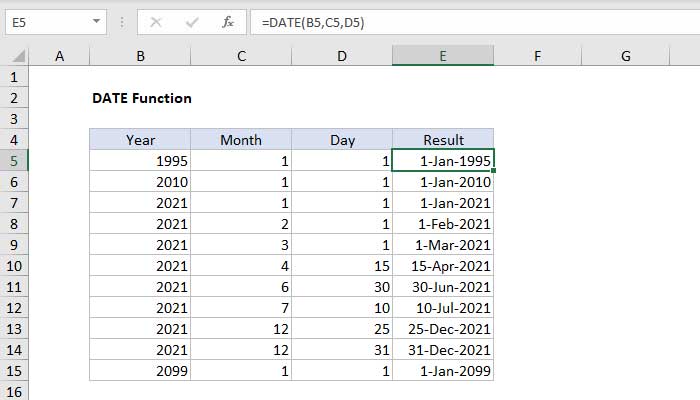
What is the DATE function in Microsoft Excel?
The DATE function in Excel creates a valid date in year, month, and day. The DATE function is useful for organizing dates that need to change dynamically based on other values in the spreadsheet.
- Purpose : Create date by year, month and day of week.
- Return value : A valid Excel date.
- Argument :
- Year - Number of years.
- Month - Month number.
- Day - Number of days.
- Recipe:
=DATE(năm, tháng, ngày)
Notes when using the DATE function in Excel
The DATE function in Excel creates a date using year, month, and day of the week arguments. Each argument is supplied as a number, and the result is a serial number that represents a valid date in an Excel spreadsheet. Apply a number format to display the output from the DATE function as a date.
In general, the DATE function is the safest way to create dates in an Excel formula because the year, month, and day values are numeric and clear, as opposed to displaying dates as text which can be misleading.
Example of how to use the DATE function in Microsoft Excel
Example 1: Numbers are 'hard-coded'
For example, you can use the DATE function in Excel to create dates 1/1/1999 and 6/1/2010 using the following formula:
=DATE(1999,1,1) // kết quả: Jan 1, 1999 =DATE(2010,6,1) // kết quả: Jun 1, 2010Example 2: Cell reference
The DATE function in Excel is useful for arranging dates that need to change dynamically based on other input data in a spreadsheet. For example, with 2018 in cell A1, the formula below returns April 15, 2018:
=DATE(A1,4,15) // Apr 15, 2018If A1 then changes to 2019, the DATE function will return a date for 04/15/2019.
Example 3: With SUMIFS, COUNTIFS
The DATE function in Excel can be used to provide dates as input data to other functions, such as SUMIFS or COUNTIFS, because you can easily sort dates using year, month, and day values from a cell reference or formula result.
For example, to count days greater than 1/1/2019 in a spreadsheet in A1, B1, and C1 containing the year, month, and day, you can use the formula:
=COUNTIF(range,">"&DATE(A1,B1,C1))The result of COUNTIF will update according to the data in A1, B1, C1 as they are changed.
Above is how to use and examples of using the DATE function in Excel . Hopefully this lesson on Excel functions is useful to you.
FAQ
What is the DATE function in Microsoft Excel?
The DATE function in Excel creates a valid date in year, month, and day. The DATE function is useful for organizing dates that need to change dynamically based on other values in the spreadsheet.
What should you know about notes when using the DATE function in Excel?
The DATE function in Excel creates a date using year, month, and day of the week arguments. Each argument is supplied as a number, and the result is a serial number that represents a valid date in an Excel spreadsheet. Apply a number format to display the output from the DATE function as a date.
What should you know about example 1: Numbers are 'hard-coded'?
For example, you can use the DATE function in Excel to create dates 1/1/1999 and 6/1/2010 using the following formula:
What should you know about example 2: Cell reference?
The DATE function in Excel is useful for arranging dates that need to change dynamically based on other input data in a spreadsheet. For example, with 2018 in cell A1, the formula below returns April 15, 2018:
Related Articles
 How to Use the DATEVALUE Function in Excel3 minutes read
 The VALUE Function Converts a Numeric String to a Number3 minutes read
 How to Use the DATEVALUE Function in Excel3 minutes read
 The Text Function Converts a Numeric Value Into Text in3 minutes read
 How to Change the Date and Time Format on Windows, Change the Slash to a Dot10 minutes read
 How to Use the MONTH Function in Excel2 minutes read
Reader Comments 0
Sign in with email or Google to join the discussion.