Table of Contents
An Excel workbook can disappear in several different ways, and each one needs a different recovery method. Use Recycle Bin for a saved file that was deleted, Recover Unsaved Workbooks for a new file that was never saved, and version history for a workbook whose good data was overwritten. If the file was permanently deleted, stop writing to that drive before trying a recovery tool.
| Problem | Best first step |
|---|---|
| Saved workbook deleted from a local folder | Windows Recycle Bin |
| Deletion just happened in File Explorer | Ctrl+Z while the same File Explorer window is active |
| Workbook stored in OneDrive or SharePoint was deleted | Cloud Recycle Bin |
| Excel closed before a new workbook was saved | Document Recovery or Recover Unsaved Workbooks |
| Wrong values were saved over a good version | Version History, File History, or another backup |
Restore a deleted workbook from Windows Recycle Bin
- Open Recycle Bin from the desktop or Start search.
- Search for the workbook name, or sort by deletion date.
- Check that the file extension is the one you expect, such as .xlsx, .xlsm, .xlsb, or .xls.
- Right-click the workbook and select Restore.
The file returns to its previous folder. A file deleted with Shift+Delete, removed from some external drives, or purged from Recycle Bin will not appear there.
Undo a deletion immediately with Ctrl+Z
If you just deleted the file in File Explorer and have not performed another undoable action, keep that File Explorer window active and press Ctrl+Z. This can restore the most recent file operation.
Use this shortcut only as an immediate undo. It is not a recovery history you can rely on after closing File Explorer, restarting Windows, or making other file changes. If nothing happens, check Recycle Bin instead of repeatedly pressing the shortcut.
Restore a workbook deleted from OneDrive or SharePoint
A workbook inside a synced OneDrive folder may be deleted from the cloud when it is deleted on the PC. Sign in to the correct OneDrive account on the web, open Recycle bin, select the workbook, and choose Restore. For a workbook shared in a Teams channel, open its SharePoint library and check that site’s Recycle Bin.
Microsoft’s OneDrive restore guide gives the current web steps. Work and school retention periods can be controlled by an administrator, so report an important loss quickly.
Recover an Excel workbook that was never saved
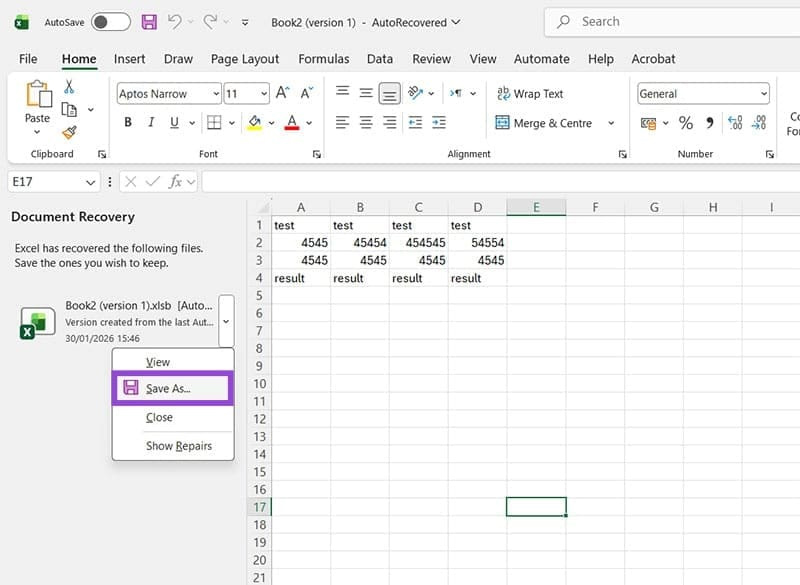
If Excel or Windows closed unexpectedly, reopen Excel. The Document Recovery pane may automatically show recent AutoRecovered copies. Compare their timestamps, open the newest likely version, check its contents, and save it under a new name.
If the pane does not appear:
- Open Excel and select File > Info > Manage Workbook > Recover Unsaved Workbooks. Some versions also show Recover Unsaved Workbooks at the bottom of File > Open.
- Select a candidate file and choose Open.
- Check every important sheet; the recovery copy may not include the latest edits.
- Select Save As and save the workbook to a known location.
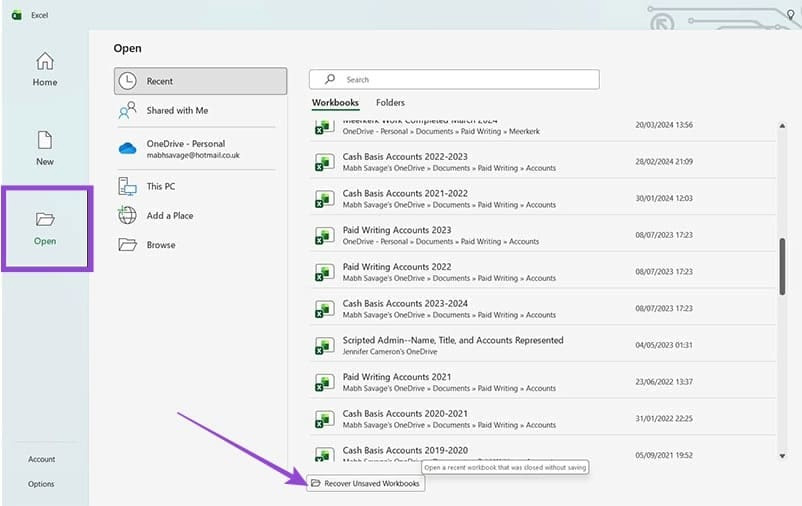
Unsaved files often have generic names such as Book1. Use the modified time and open candidates one at a time rather than assuming the first result is correct.
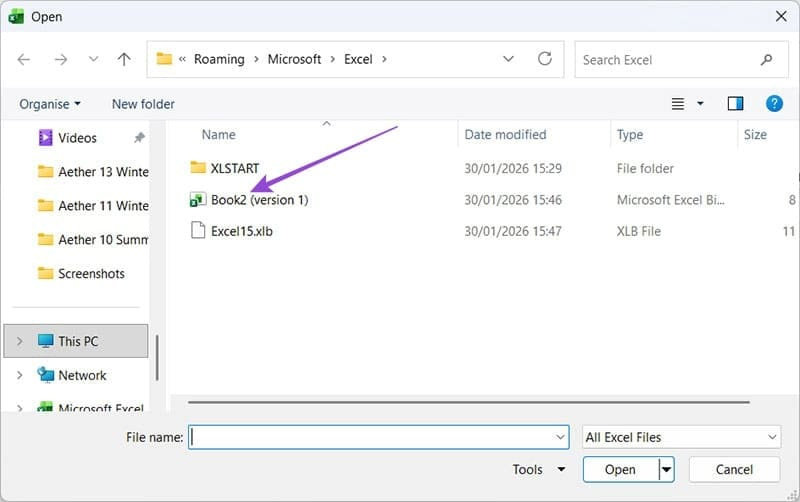
Microsoft’s Office recovery instructions document the unsaved-workbook path. AutoRecover can help after a crash, but it does not guarantee a complete copy and may not retain a workbook that you deliberately closed and chose not to save.
Recover an overwritten or damaged workbook
Use OneDrive or SharePoint Version History
- Open the workbook, or find it in OneDrive on the web.
- Select the filename in Excel’s title bar and choose Version History. You can also try File > Info > Version History.
- Open an older version and verify the worksheets, formulas, links, and macros you need.
- Copy the required cells into a new workbook, or choose Restore if the older version should replace the current one.
Version History requires supported cloud storage and can be limited by an organization’s settings. Microsoft’s version-history guide explains the available interfaces.
Use Windows File History
If the workbook was local and File History was enabled before the loss, open the folder that contained it, right-click the folder, and select Restore previous versions. Preview or restore to a separate folder first. TipsMake’s File History guide covers the recovery controls.
If the workbook was permanently deleted
Stop using the affected drive. New downloads, installations, or saved documents can overwrite the deleted data. Check every backup and synced service first. If no copy exists, Microsoft’s Windows File Recovery can attempt recovery from local internal drives, external drives, and USB devices. Save recovered files to a different drive.
The tool cannot recover directly from cloud storage or network shares. If the storage device is failing, the workbook is irreplaceable, or the computer contains important business records, stop using it and consider a professional recovery service.
AutoSave and AutoRecover are different
- AutoSave continuously saves supported Microsoft 365 files stored in OneDrive or SharePoint. Because changes sync quickly, use Version History if an unwanted edit was also saved.
- AutoRecover periodically stores recovery information for crashes or unexpected shutdowns. Configure it under File > Options > Save.
- A backup provides a separate recovery copy. Sync alone can reproduce deletions or corruption across devices.
Save a new workbook early, keep AutoRecover enabled, and use versioned cloud storage or an independent backup for important files. TipsMake’s backup basics guide includes a simple restore test so you know the copy can actually be opened.
Related Articles
 【3 Steps】how to Recover Deleted Excel Files on Windows 10/11?7 minutes read
 How to Recover Deleted Files on Linux8 minutes read
 How to Recover Files Deleted by Windows Defender: Step-by-Step Guide3 minutes read
 How to Use Foremost to Recover Deleted Files in Linux5 minutes read
 How to Recover Deleted Data or Secure Format11 minutes read
 How to Recover Accidentally Deleted Files in Os X7 minutes read
Reader Comments 0
Sign in with email or Google to join the discussion.