Table of Contents
This practical guide explains how to delete individual system restore points in Windows. Follow the steps in order, review the requirements first, and use the troubleshooting notes when a setting or option does not work as expected.
Delete individual restore points using Command Prompt
The most reliable way to delete restore points in Windows is to use the vssadmin command line tool, which is used to create and delete shadow copies. This tool can list all of your current restore points and delete them individually.
To determine the restore point in the command line, we will have to use the date the restore point was created. Here's how to find it:
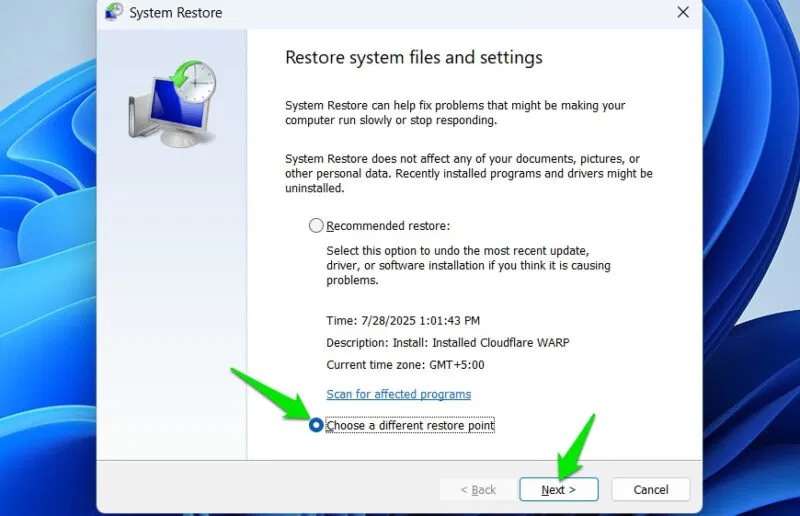
Press Win + R keys and type rstrui.exe in the Run dialog box to open System Restore. Here, select the Choose a different restore point option and click Next .
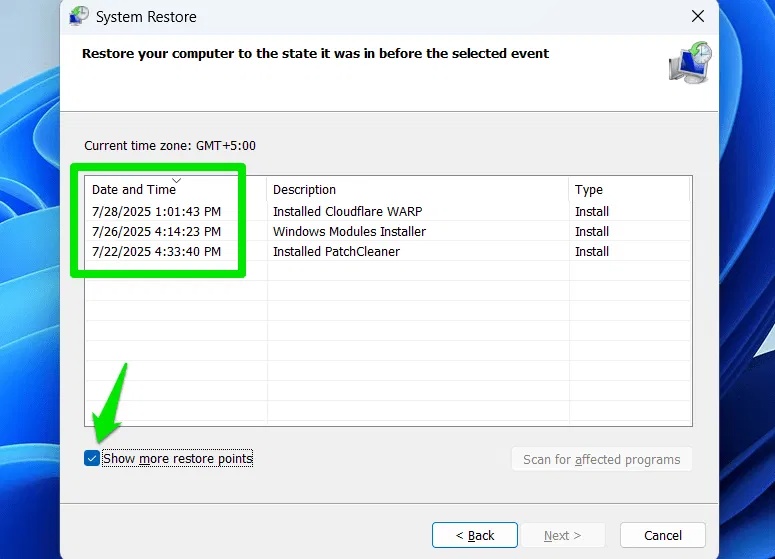
Then, select the Show more restore points option to view all the restore points. Make a note of the date and time of the restore points you want to delete.
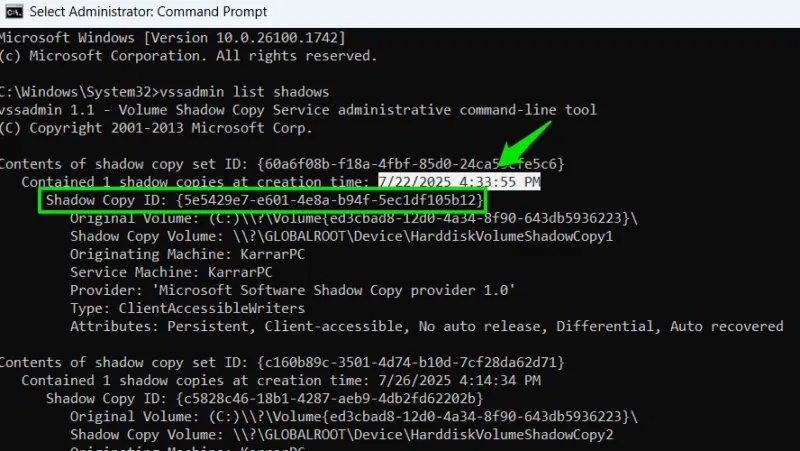
Now, search for 'cmd' in Windows Search, right-select Command Prompt and select Run as administrator . Type the following command here and press Enter .
vssadmin list shadowsThis command will list all restore points along with a bunch of information about them. You'll need to look at the creation time to find the restore point you want to delete. Once you've located it, copy the Shadow Copy ID of that restore point (including the curly brackets), which in our example is {5e5429e7-e601-4e8a-b94f-5ec1df105b12} .
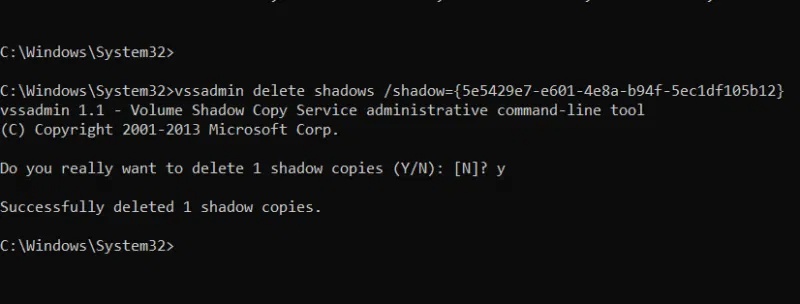
Next, use the following command and replace the ID at the end with the ID of the shadow copy you want to delete:
vssadmin delete shadows /shadow=(Shadow Copy ID)The resulting command will look like this:
vssadmin delete shadows /shadow={5e5429e7-e601-4e8a-b94f-5ec1df105b12}You will be asked to confirm the action, type Y , then press Enter to confirm deleting the restore point. You can repeat the process to delete all the restore points you want to delete.
Use a third-party tool to delete each restore point
While vssadmin is fairly straightforward, deleting multiple restore points one by one can become tedious if you have to do it frequently. A third-party tool can make this process easier by automatically identifying all restore points and allowing you to delete them with a single click.
You should use CCleaner for this purpose. While CCleaner's main function is to clean up junk data, it also has a secondary tool for managing restore points.
Open CCleaner, go to Tools -> System Restore , you will see all the restore points currently saved. Select the restore point you want to delete and click Remove at the bottom to delete it. You can hold down the Ctrl key and select multiple restore points to delete at once.
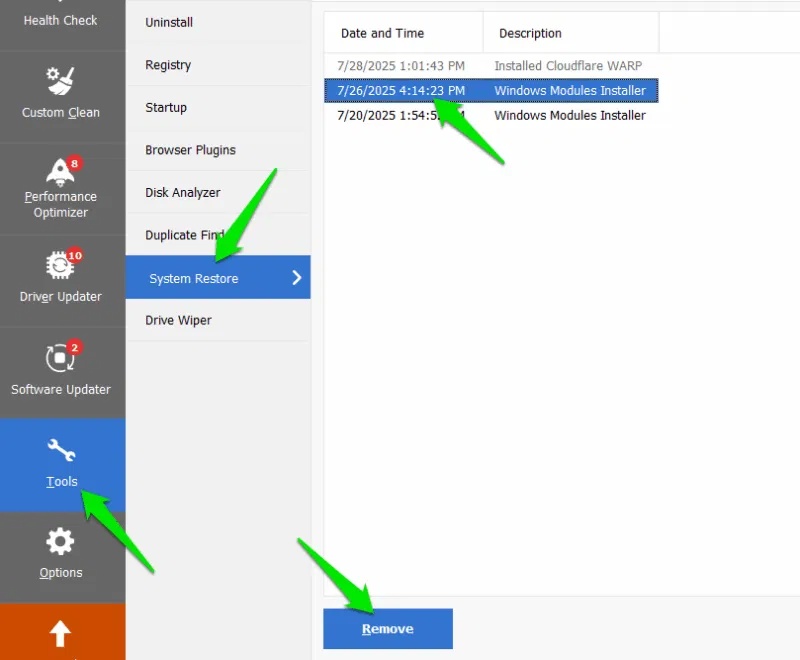
For safety reasons, CCleaner will not allow you to delete the latest restore point to ensure you always have a point to revert to. You are free to delete all other restore points individually.
Bonus Tip: Use Windows Disk Cleanup
If you're deleting restore points to create disk space but don't want to risk deleting all of them, you can also use Disk Cleanup to delete only the old restore points while keeping the latest restore point. Open Disk Cleanup using Windows Search, go to the More Options tab, and click Clean up under System Restore and Shadow Copies .
Managing restore points is important, especially as data can continue to grow in size. You should use vssadmin if you only have one restore point to delete; installing a third-party application may not be suitable for a single task. If you're having trouble with a restore point, here are all the ways to troubleshoot System Restore.
FAQ
What should you know about delete individual restore points using Command Prompt?
The most reliable way to delete restore points in Windows is to use the vssadmin command line tool, which is used to create and delete shadow copies. This tool can list all of your current restore points and delete them individually.
What should you know about use a third-party tool to delete each restore point?
While vssadmin is fairly straightforward, deleting multiple restore points one by one can become tedious if you have to do it frequently. A third-party tool can make this process easier by automatically identifying all restore points and allowing you to delete them with a single click.
What should you know about bonus Tip: Use Windows Disk Cleanup?
If you're deleting restore points to create disk space but don't want to risk deleting all of them, you can also use Disk Cleanup to delete only the old restore points while keeping the latest restore point. Open Disk Cleanup using Windows Search, go to the More Options tab, and click Clean up under System Restore and Shadow.
Related Articles
 How to Delete System Restore Points in Windows 104 minutes read
 How to Delete a System Restore Point in Windows 108 minutes read
 How to Delete Old Windows Restore Points to Free up Space8 minutes read
 Configure the System Restore Feature in Windows 109 minutes read
 Instructions for Creating Backup and Restore Points (Restore4 minutes read
 Instructions on How to Use System Restore on Windows8 minutes read
Reader Comments 0
Sign in with email or Google to join the discussion.