Table of Contents
Learn how to enable Windows 11 point-in-time restore with clear steps, practical tips, and troubleshooting guidance for a reliable result.
Instructions to enable Windows 11 point-in-time restore
Step 1
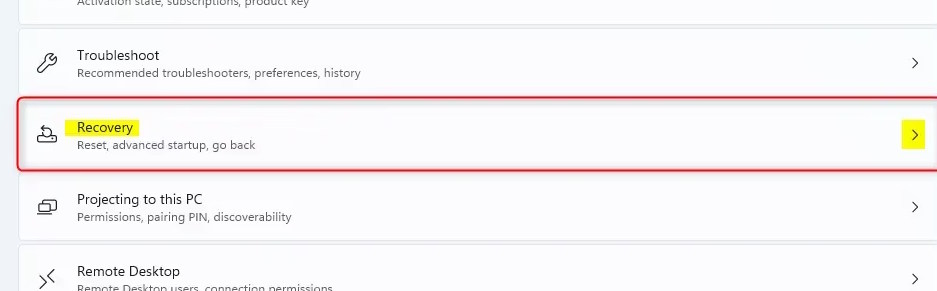
You open Settings on your computer then click on System on the left side of the interface. Now you click on Recovery on the side interface.
Step 2
Switch to the new settings interface, you will see the Point-in-time restore option, restore according to the point in time on the computer. You just need to enable On mode to use this setting on the computer.
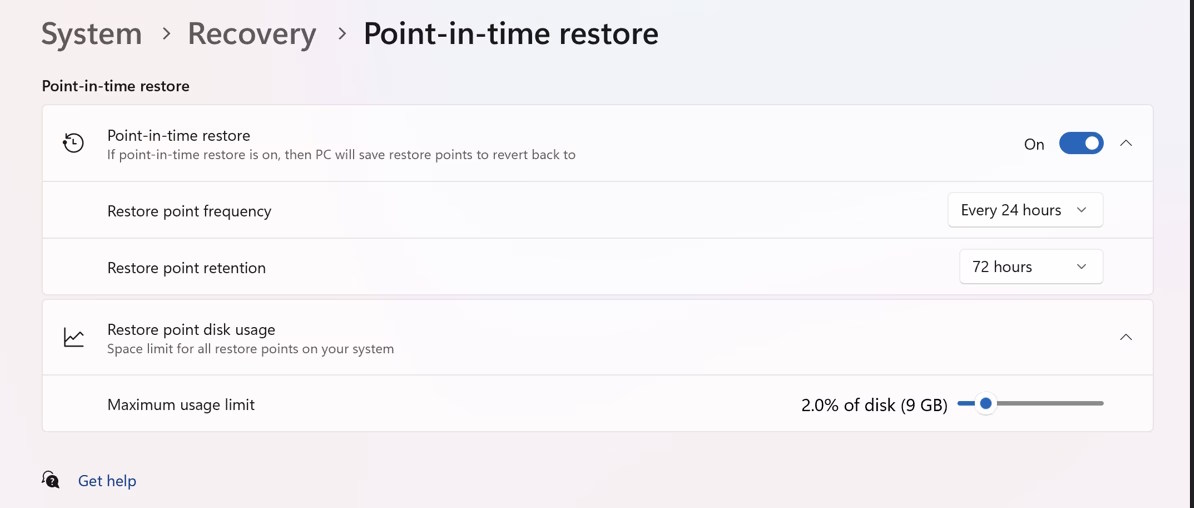
Restore points are automatically recorded at regular intervals (default: 24 hours). All restore points are stored locally on the system and recorded in the background.
When point-in-time recovery is enabled, the scheduler will schedule the next restore point based on the boot time and the most recent restore point. If there is no recent restore point, a restore point will be scheduled immediately after it is enabled. Each restore point is retained for up to 72 hours after which it is automatically deleted.
Final Thoughts
Use this guide as a practical checklist for how to enable windows 11 point-in-time restore. Work through the steps in order, verify each result, and adjust the options to match your needs.
FAQ
What do you need before following this How to Enable Windows 11 Point-in-time Restore guide?
Review the required tools, accounts, settings, or materials mentioned in the article. Learn how to enable Windows 11 point-in-time restore with clear steps, practical tips, and troubleshooting guidance for a reliable result.
What are the main steps for how to enable windows 11 point-in-time restore?
Follow the sections in order, especially Instructions to enable Windows 11 point-in-time restore, Step 1, Step 2. Complete each step before continuing and verify the result as you go.
What should you do if the process does not work as expected?
Recheck the prerequisites, update the relevant app or service, review the settings, and repeat the step that caused the issue. Use any troubleshooting notes included in the guide.
Related Articles
 How to Create Restore Point on Windows 10 with Just 1 Double5 minutes read
 Instructions for Creating Backup and Restore Points (Restore4 minutes read
 How to Manage System Restore Points Using Ccleaner (Windows)6 minutes read
 Click: How to Do a System Restore6 minutes read
 How to Delete a System Restore Point in Windows 108 minutes read
 How to Delete Individual System Restore Points in Windows6 minutes read
Reader Comments 0
Sign in with email or Google to join the discussion.