Table of Contents
Learn how to restore the classic blue powershell interface in Windows 11 with clear steps.
Restore the classic PowerShell blue color via Terminal
Step 1
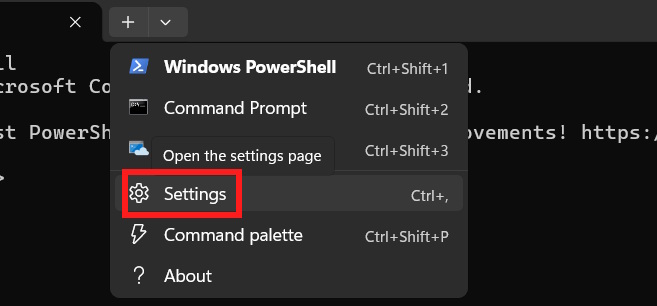
Open Terminal on your computer, then click the arrow icon and select Settings .
Step 2
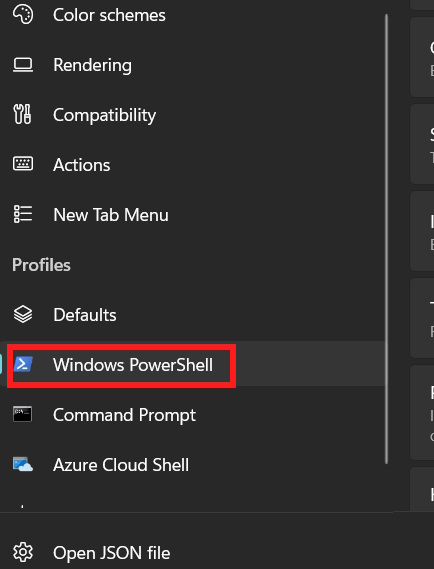
Once the settings interface is displayed, click on Windows PowerShell to make changes.
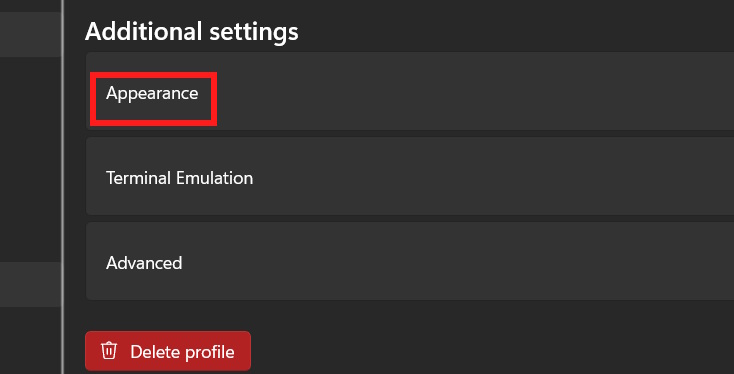
Look to the side and click on Appearance to customize the look and feel of Windows PowerShell.
Step 3
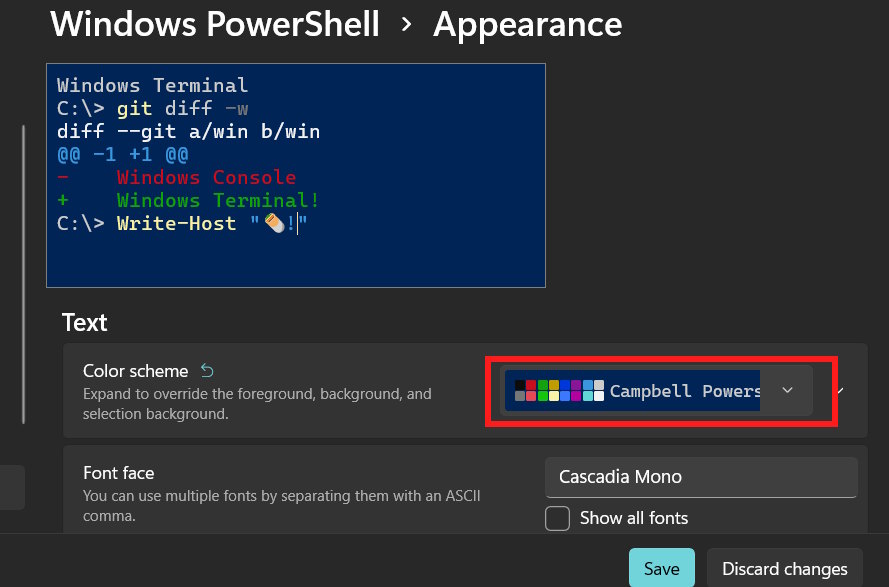
In the interface shown in the image, under the Color scheme section , select Campbell PowerShell from the list. You will then see the PowerShell interface turn blue as shown in the image.
Finally, click Save to save the new changes to the interface.
How to revert to classic green PowerShell colors via JSON file
Step 1
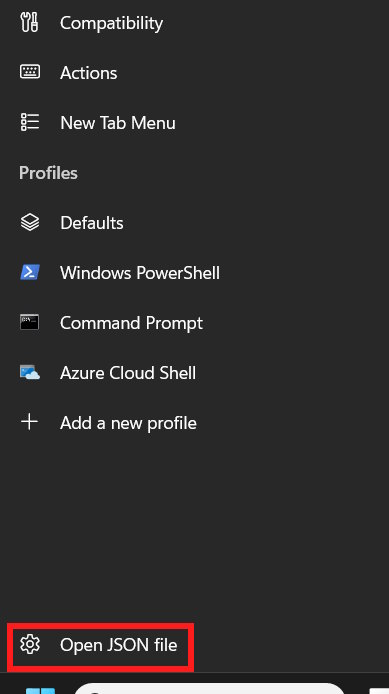
In the PowerShell settings interface, select "Open JSON file" at the bottom of the interface.
Step 2
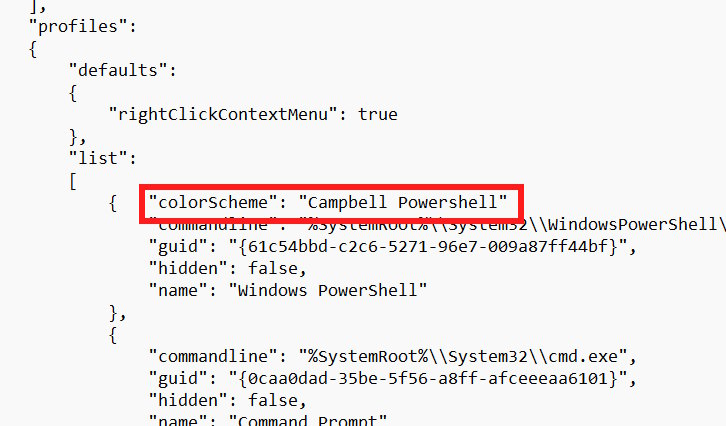
In the JSON file opener, find the profiles section , scroll down to the square brackets , and paste the command below to change the information.
"colorScheme": "Campbell Powershell"
Finally, press Ctrl + S to save .
Final Thoughts
Use this guide as a practical checklist for how to restore the classic blue powershell interface in windows 11. Work through the steps in order, verify each result, and adjust the options to match your needs.
FAQ
What do you need before following this How to Restore the Classic Blue PowerShell Interface in Windows 11 guide?
Review the required tools, accounts, settings, or materials mentioned in the article. Learn how to restore the classic blue powershell interface in Windows 11 with clear steps.
What are the main steps for how to restore the classic blue powershell interface in windows 11?
Follow the sections in order, especially Restore the classic PowerShell blue color via Terminal, Step 1, Step 2. Complete each step before continuing and verify the result as you go.
What should you do if the process does not work as expected?
Recheck the prerequisites, update the relevant app or service, review the settings, and repeat the step that caused the issue. Use any troubleshooting notes included in the guide.
Related Articles
 How to Restore the Classic Look of Your iPhone3 minutes read
 Windows Terminal Is About to Have a Retro Version with a3 minutes read
 How to Install Powershell 7.0 in Windows 10/8/73 minutes read
 12 Most Useful PowerShell Commands for Windows8 minutes read
 About Powershell15 minutes read
 What Is PowerShell Basic Commands in PowerShell6 minutes read
Reader Comments 0
Sign in with email or Google to join the discussion.