Table of Contents
Learn how to restore the old version of whatsapp on Windows 10 and Windows 11 with clear steps.
Many people are calling on Meta to bring back WhatsApp UWP. While not perfect, this version is still considered far superior to the current 'app'. Unfortunately, there's no official way to revert to the old version, but if you're willing to do it manually, you can still restore WhatsApp UWP on Windows 10 and 11.
How to revert to the old version of WhatsApp on Windows
To restore an older version of WhatsApp, you need two things: the installation file of the last UWP version and to pause updates from the Microsoft Store. Turning off updates is crucial, because otherwise, Windows will automatically update WhatsApp immediately after installation, rendering all your efforts useless. Fortunately, both steps are quite simple.
It's important to note that this is only a temporary solution. This method will definitely stop working in the future, and you won't receive any updates for the old app, including security patches or new features. However, for now, the old version of WhatsApp still works, enough to keep you from using the new version for a while longer.
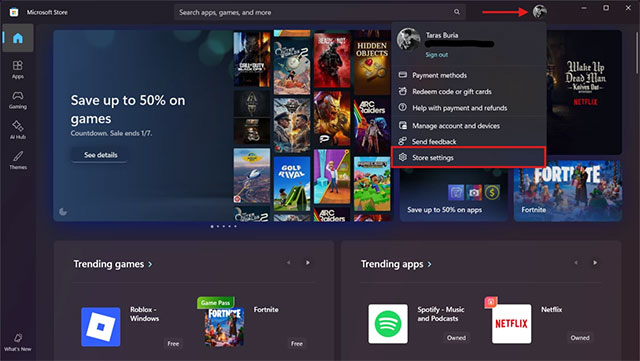
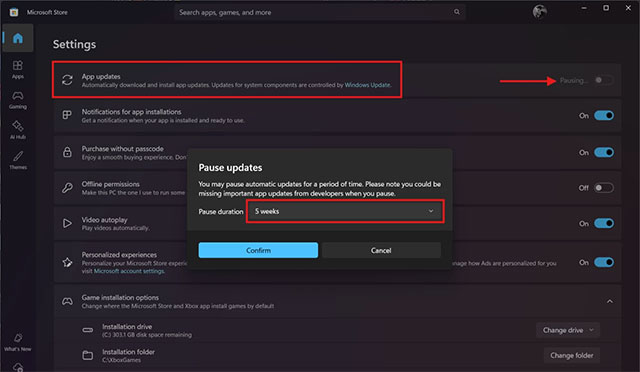
First, if WhatsApp is installed on your computer, uninstall it by right-clicking and selecting Uninstall . Then, open the Microsoft Store, click on the account icon, and go to Store Settings . Here, turn off automatic updates and select a 5-week pause period when prompted.
Next, you need to download the final version of WhatsApp UWP's installation file. This file was extracted directly from the Microsoft Store when the application was still available. Before installing, you should check the file's digital signature in the Properties section to ensure security. If you don't trust the download source, it's best not to install it. Unfortunately, there is no longer a way to download directly from the Microsoft Store, as Meta has removed all older versions.
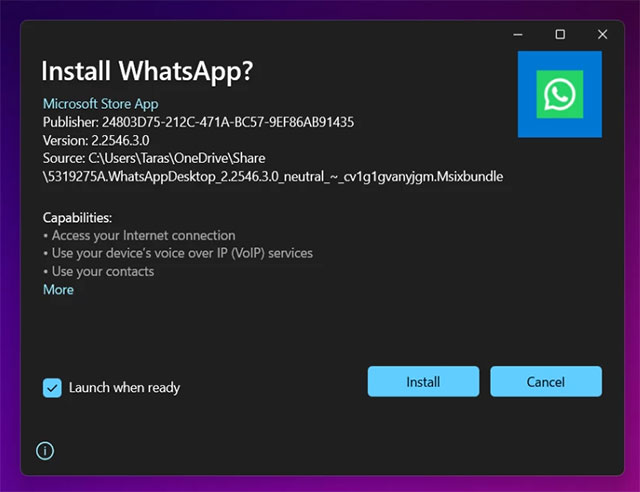
After the download is complete, simply double-click the file and select Install . Once the process is finished, the old version of WhatsApp will reappear on your Windows.
Note that after about 5 weeks, the Microsoft Store will automatically re-enable updates and proceed to update all outdated apps, including WhatsApp. When that happens, you will have to repeat all the steps above, hoping that the old version of WhatsApp will still work by then.
Final Thoughts
Use this guide as a practical checklist for how to restore the old version of whatsapp on windows 10 and windows 11. Work through the steps in order, verify each result, and adjust the options to match your needs.
FAQ
What do you need before following this How to Restore the Old Version of WhatsApp on Windows 10 and Windows 11 guide?
Review the required tools, accounts, settings, or materials mentioned in the article. Learn how to restore the old version of whatsapp on Windows 10 and Windows 11 with clear steps.
What are the main steps for how to restore the old version of whatsapp on windows 10 and windows 11?
Follow the sections in order, especially How to revert to the old version of WhatsApp on Windows. Complete each step before continuing and verify the result as you go.
What should you do if the process does not work as expected?
Recheck the prerequisites, update the relevant app or service, review the settings, and repeat the step that caused the issue. Use any troubleshooting notes included in the guide.
Related Articles
 How to Recover Deleted WhatsApp Messages and Images on iPhone5 minutes read
 How to Recover Messages on Whastapp: Restore Messages5 minutes read
 How to Restore Deleted Multimedia Files and WhatsApp Messages on8 minutes read
 These Features Make It Easier to Master Whatsapp16 minutes read
 Using WhatsApp Web Is Very Simple9 minutes read
 How to Use Whatsapp to Chat, Call, Message Your Friends3 minutes read
Reader Comments 0
Sign in with email or Google to join the discussion.