Table of Contents
Learn how to fix a stuck Windows restore error with clear steps, practical tips, and troubleshooting guidance for a reliable result.
Restart the Backup Service
Step 1
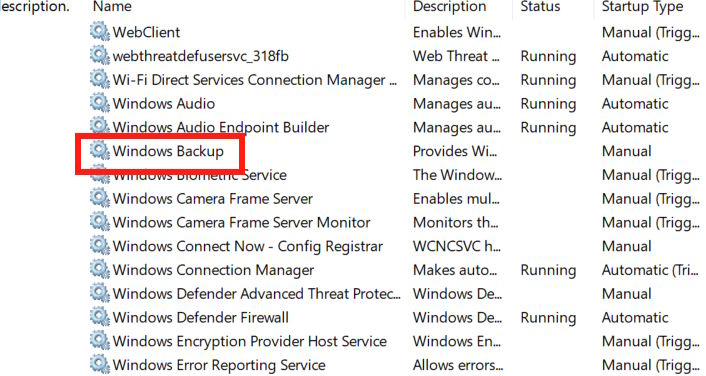
Type services.msc into the search bar to open the Windows service management page. Then, find the Windows Backup service .
Step 2
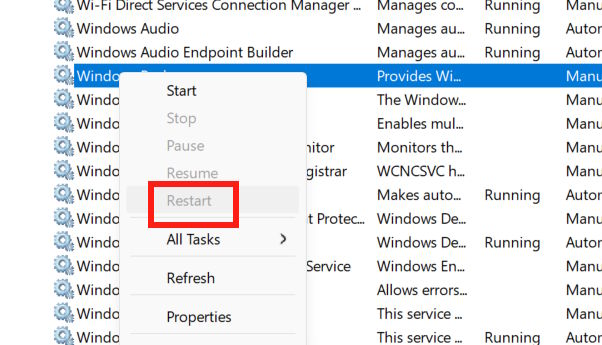
Right -click on this service and select Restart to restart the Windows Backup.
Delete previous backups
Faulty or outdated backups from previous backups can cause the backup process to get stuck.
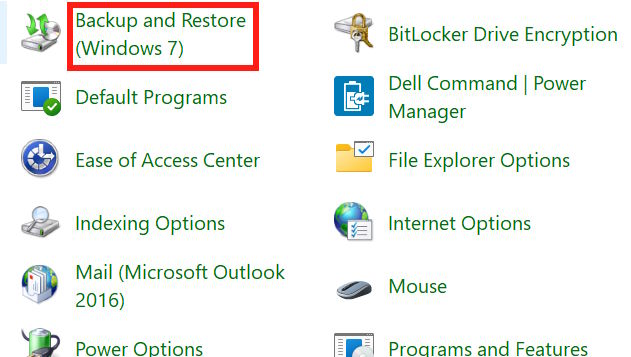
Open the Control Panel and then click on Back up and Restore to access it. Then click on Manage Space to manage previously backed-up data and delete it.
Exclude problematic folders
One major cause of Windows backup crashes is problematic files or folders.
Step 1
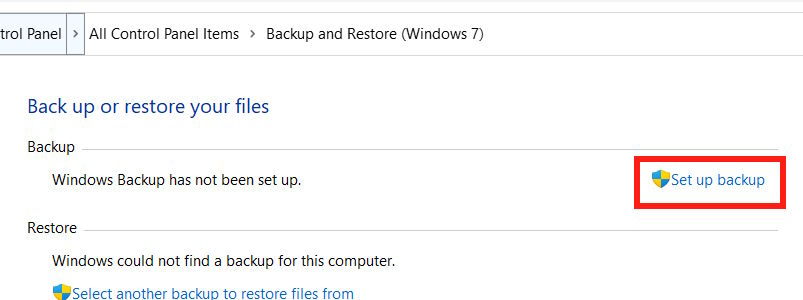
We also click on Backup and Restore in the Control Panel interface, then click on Set up backup as shown in the image.
Step 2
Select the drive you want to back up to , then select Let me choose and press Next below.
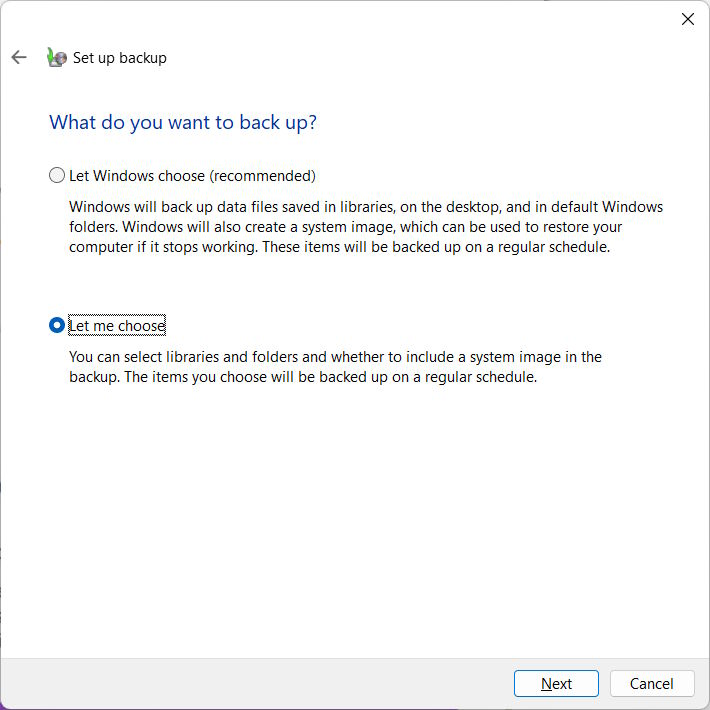
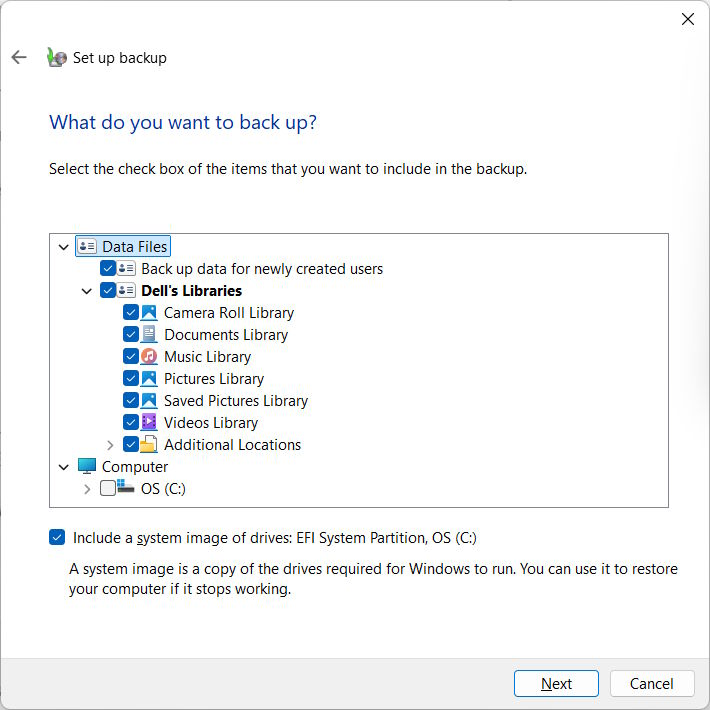
Select and exclude the folders you want to back up, then tap Next to continue. The problematic folders are located in Additional Locations under your username, specifically AppData, Searches, and Contacts. Tap Next and follow the instructions.
Use SFC, Disk Check
It's important to ensure that the backed-up files are not corrupted. You can do this by using both SFC and Disk Check simultaneously.
Type cmd into the Run dialog box, then type cmd and press Ctrl + Shift + Enter to run it as administrator. Next, enter the command sfc /scannow to run SFC . After the process is complete, restart your computer.
Reopen the Command Prompt window with administrator privileges . Then type chkdsk /f and press Enter. Once this process is complete, restart your computer.
Final Thoughts
Use this guide as a practical checklist for how to fix a stuck windows restore error. Work through the steps in order, verify each result, and adjust the options to match your needs.
FAQ
What do you need before following this How to Fix a Stuck Windows Restore Error guide?
Review the required tools, accounts, settings, or materials mentioned in the article. Learn how to fix a stuck Windows restore error with clear steps, practical tips, and troubleshooting guidance for a reliable result.
What are the main steps for how to fix a stuck windows restore error?
Follow the sections in order, especially Restart the Backup Service, Step 1, Step 2. Complete each step before continuing and verify the result as you go.
What should you do if the process does not work as expected?
Recheck the prerequisites, update the relevant app or service, review the settings, and repeat the step that caused the issue. Use any troubleshooting notes included in the guide.
Related Articles
 iPhone Stuck on Apple Logo: Causes and Solutions6 minutes read
 How to Fix System Restore Error 0x80042306 in Windows7 minutes read
 Steps to Fix Error 0x80070026 When Windows Update or Restore6 minutes read
 Fix the Error 0x100000ea (THREAD STUCK in DEVICE DRIVER M) in5 minutes read
 Fix the Error Where the Copy File Is Stuck in the Remaining 5 Seconds6 minutes read
 Instructions for Restoring the System on Windows6 minutes read
Reader Comments 0
Sign in with email or Google to join the discussion.