Table of Contents
Learn how to build a complete productivity system using Windows 11's default features with clear steps.
What many people don't realize is that the ultimate productivity tool has always been there – Windows 11. Over time, Windows 11 has evolved into a powerful productivity tool, integrating four of the best productivity tools. The best part is, you don't need to buy anything; it's all free.
Snap Layouts and Snap Group
Optimized multitasking command center
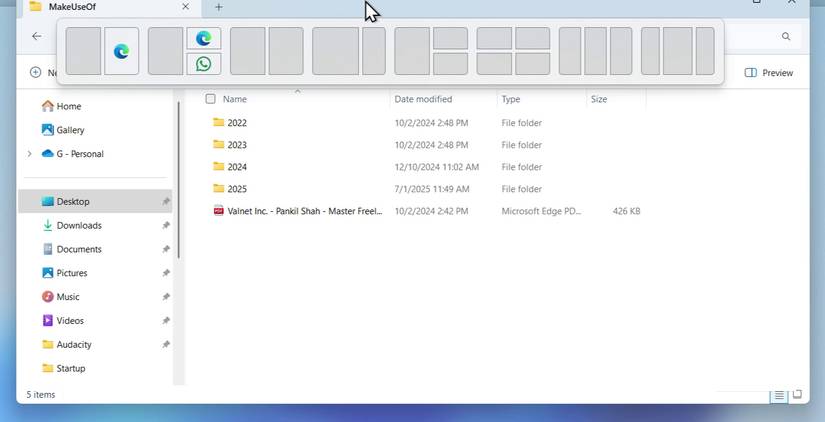
For years, Windows users enjoyed the convenience of dragging a window to either side of the screen and leaving it at about 50% or 25% of the screen to open another window on the remaining screen. Windows 11 has taken this feature and given it a significant boost.
By hovering your mouse over the Maximize button in any window, you'll see a Snap Layouts pop-up window displaying grids that adjust to the screen size. This allows us to instantly create complex workflows with multiple windows side-by-side.
The Snap Group feature makes it even better. After arranging the windows, Windows remembers that combination until you close the snap group from the taskbar or close each tab in the group. If you open another window that takes up the entire screen, you don't need to rebuild the layout from scratch when you return to that window.
Focus sessions in Windows Clock
Pomodoro is built-in with Spotify integration
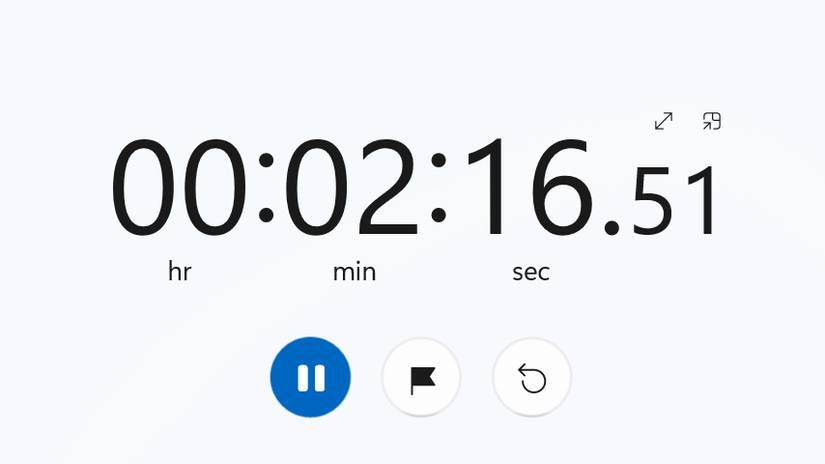
You may have overlooked the Clock app on Windows, assuming it's only for setting alarms. However, it also includes built-in productivity tools that make working on your PC much easier.
This app features focused work sessions and Spotify integration. Starting a work session acts like a Pomodoro timer and automatically mutes incoming notifications that often interrupt your workflow.
The Clock app also integrates directly with the Microsoft To Do app.
Desk Board History
An indispensable time-saving tool
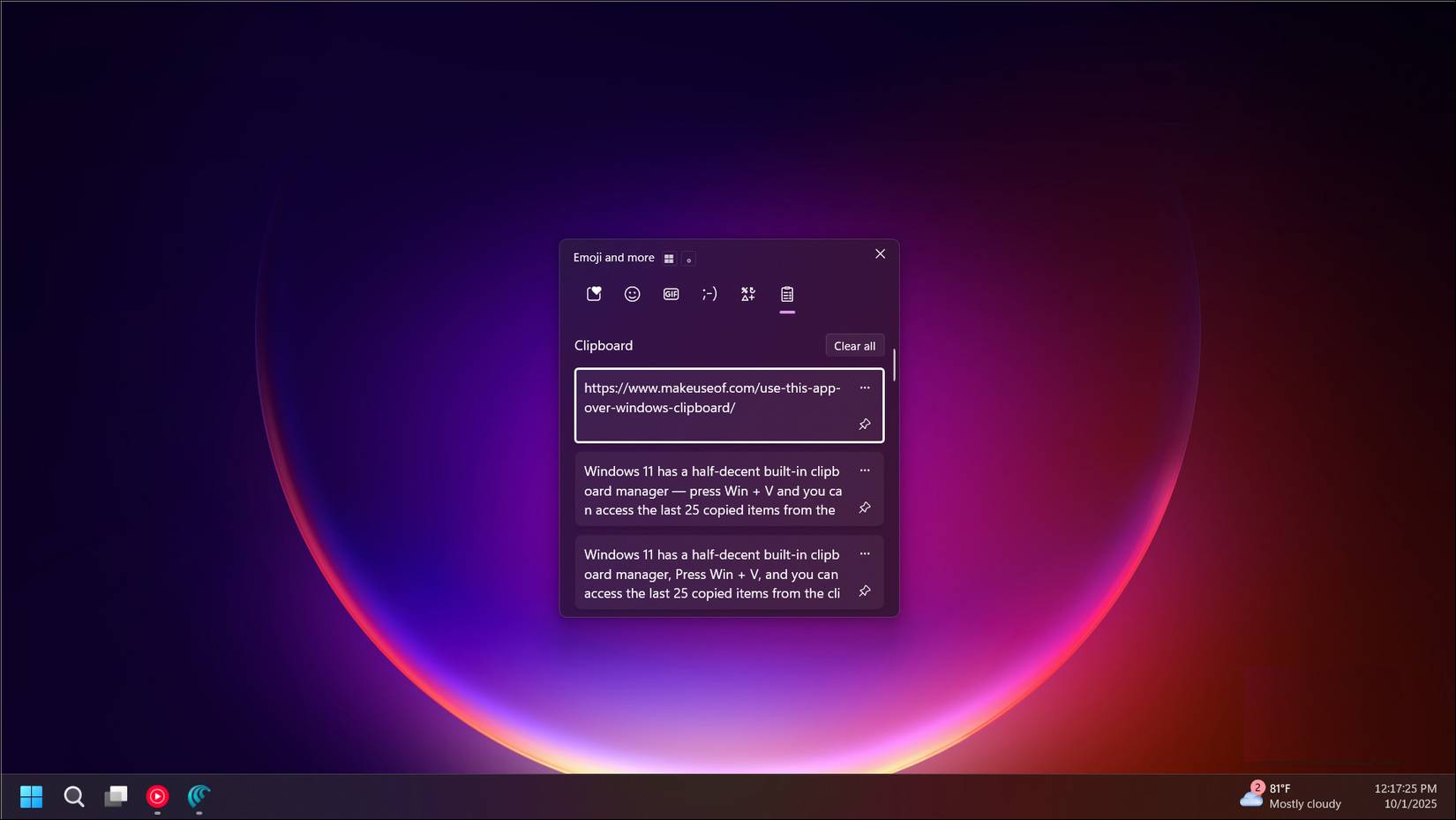
The standard copy-paste feature has one significant drawback: it suffers from "memory loss." As soon as you copy new content, it forgets what was previously copied. This results in having to switch back and forth between multiple windows to move a lot of information.
But pressing Win + V changes everything by displaying Clipboard History. It remembers a long list of items you've just added to the clipboard, including text and images. This allows you to perform batch tasks.
You can go to the source document, copy multiple items consecutively, then switch to the destination document and paste each item one by one from the Clipboard History menu.
Microsoft To Do
A very useful task tracking tool
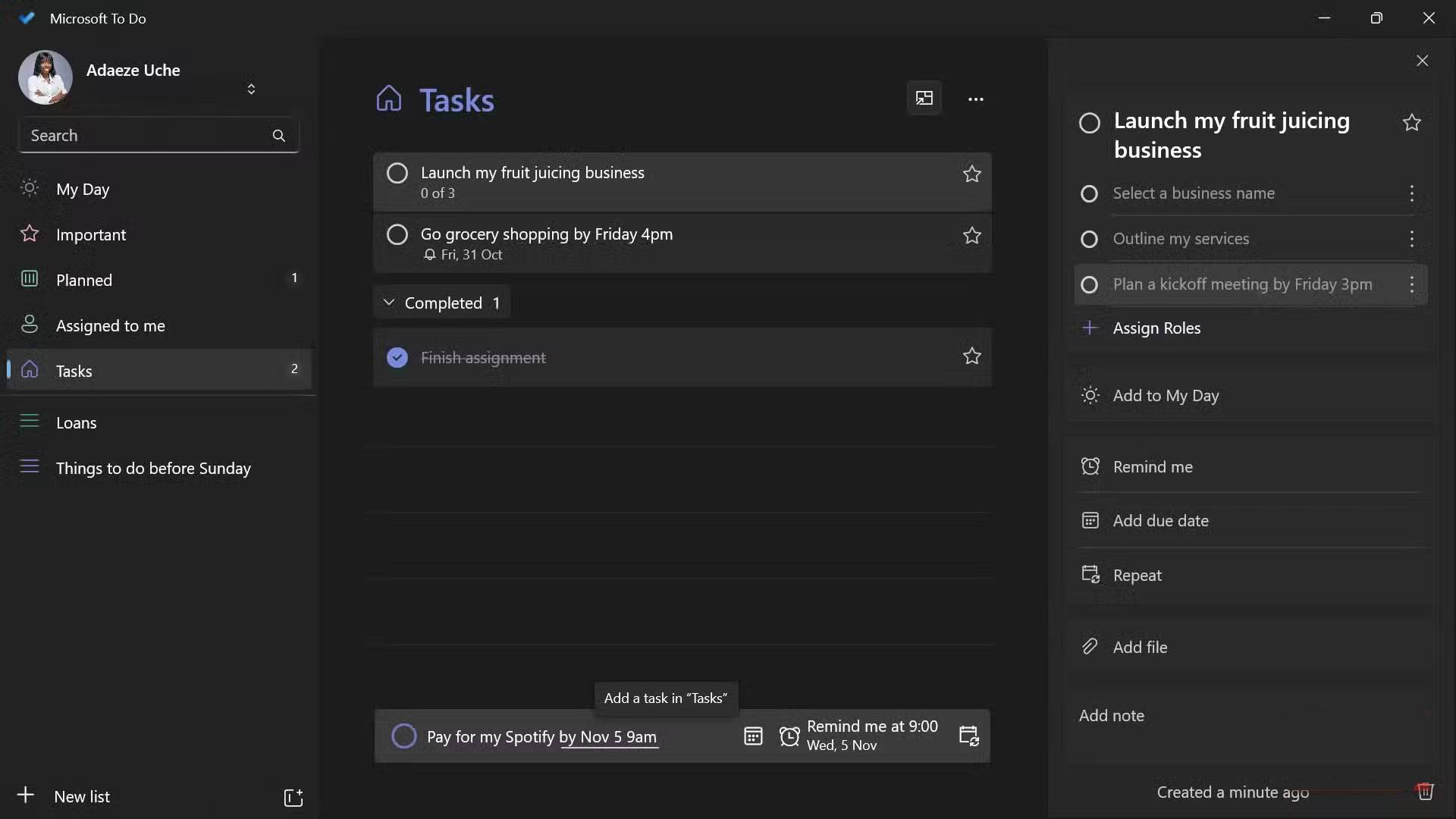
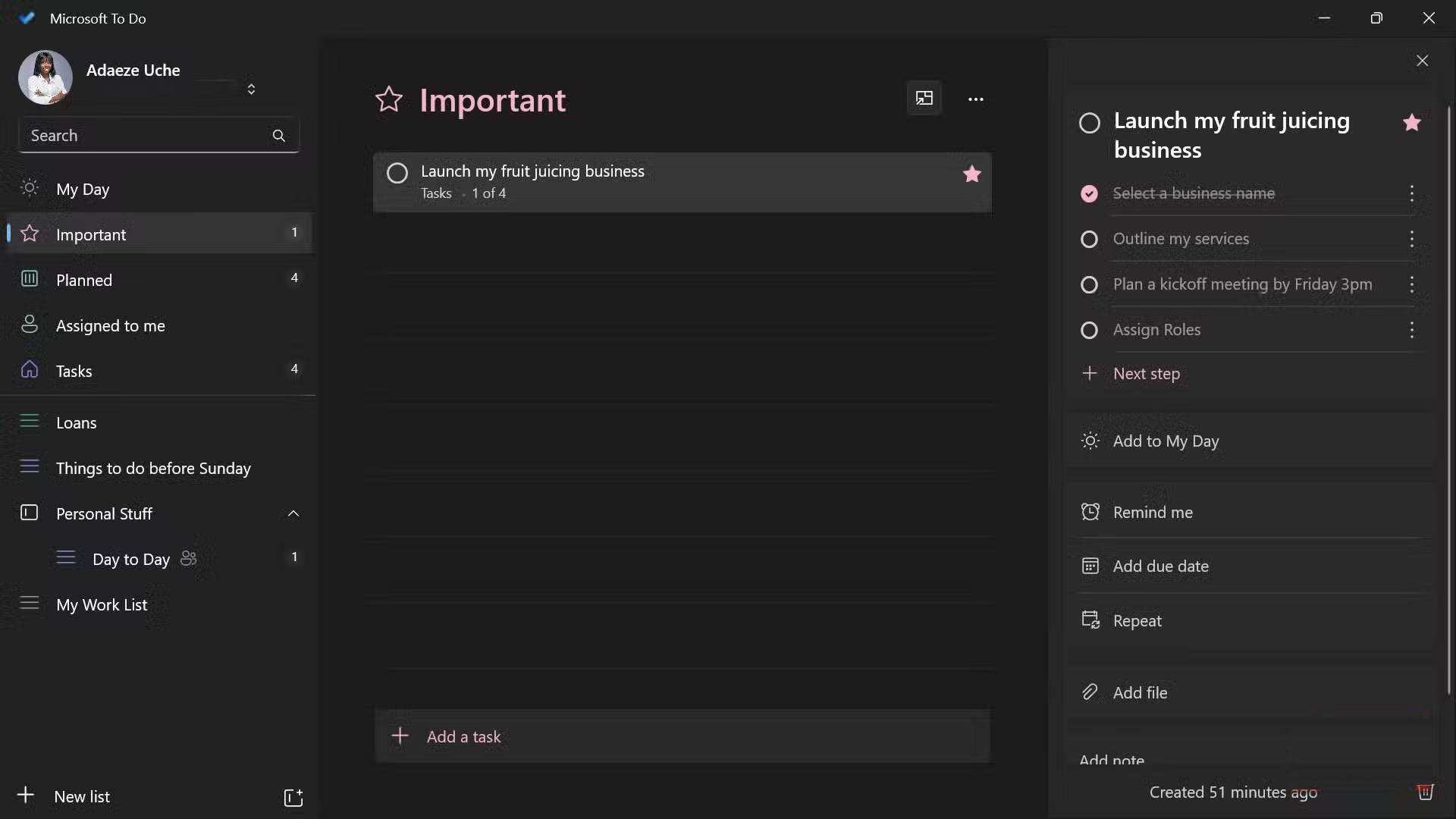
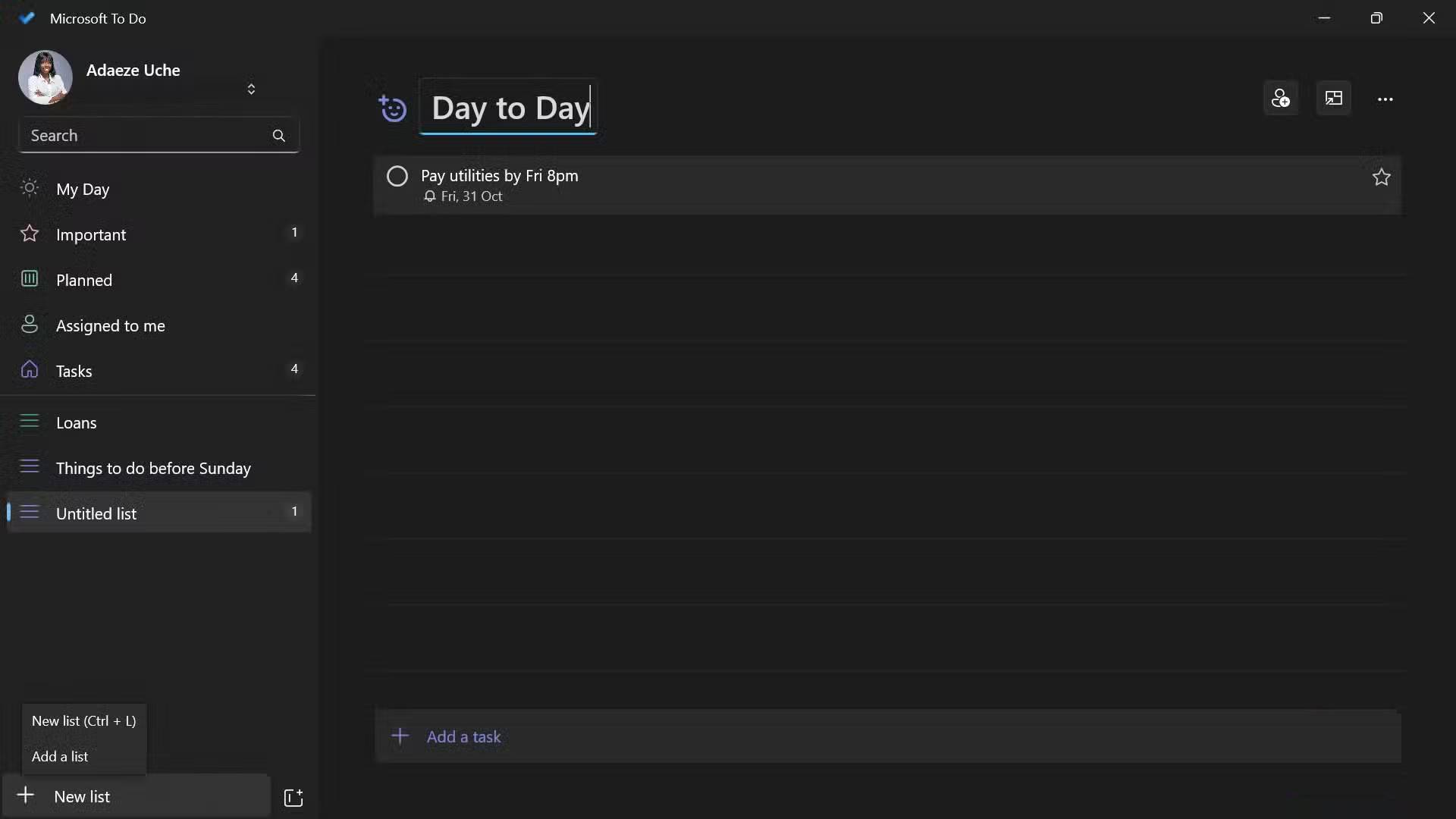
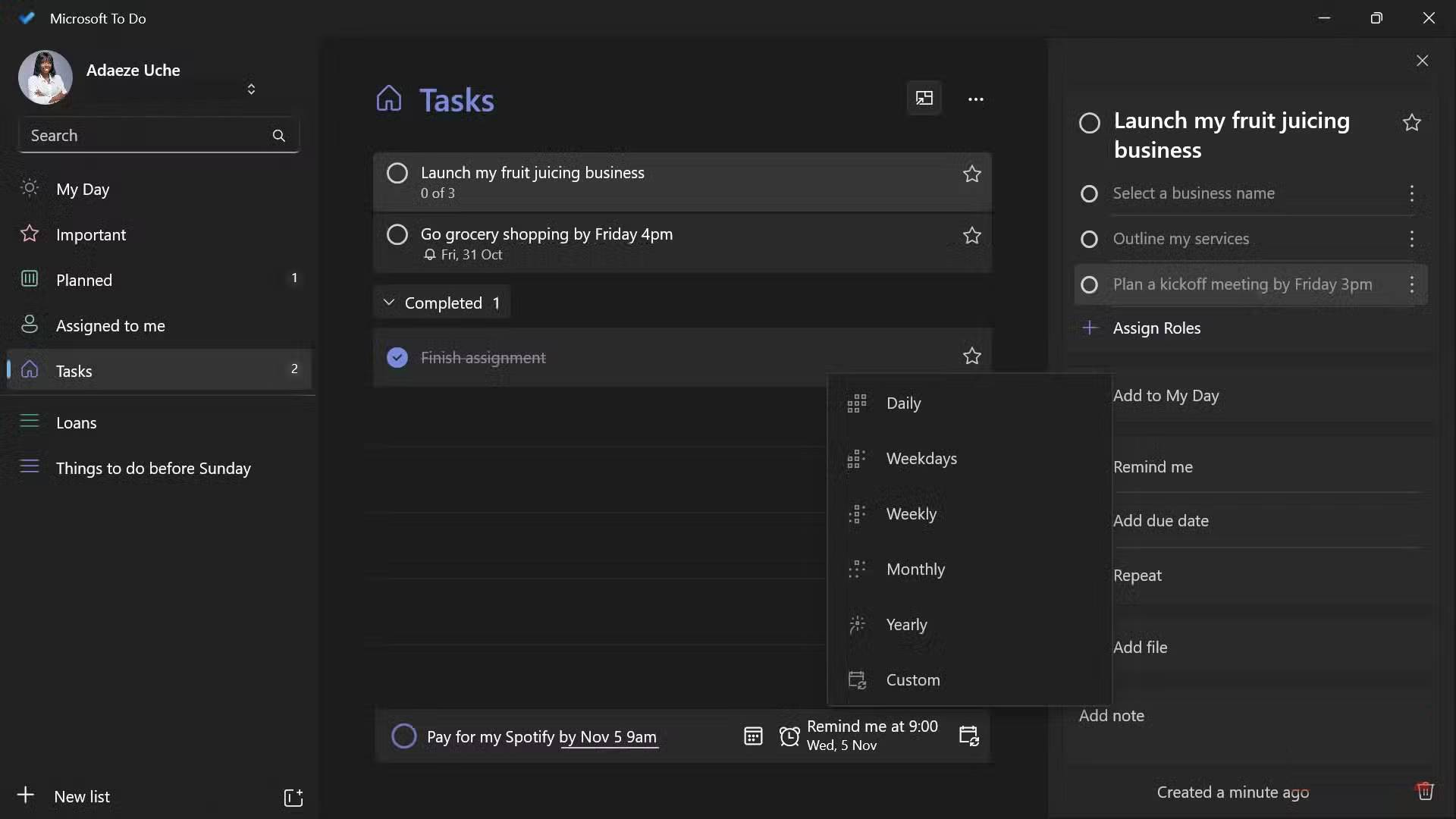
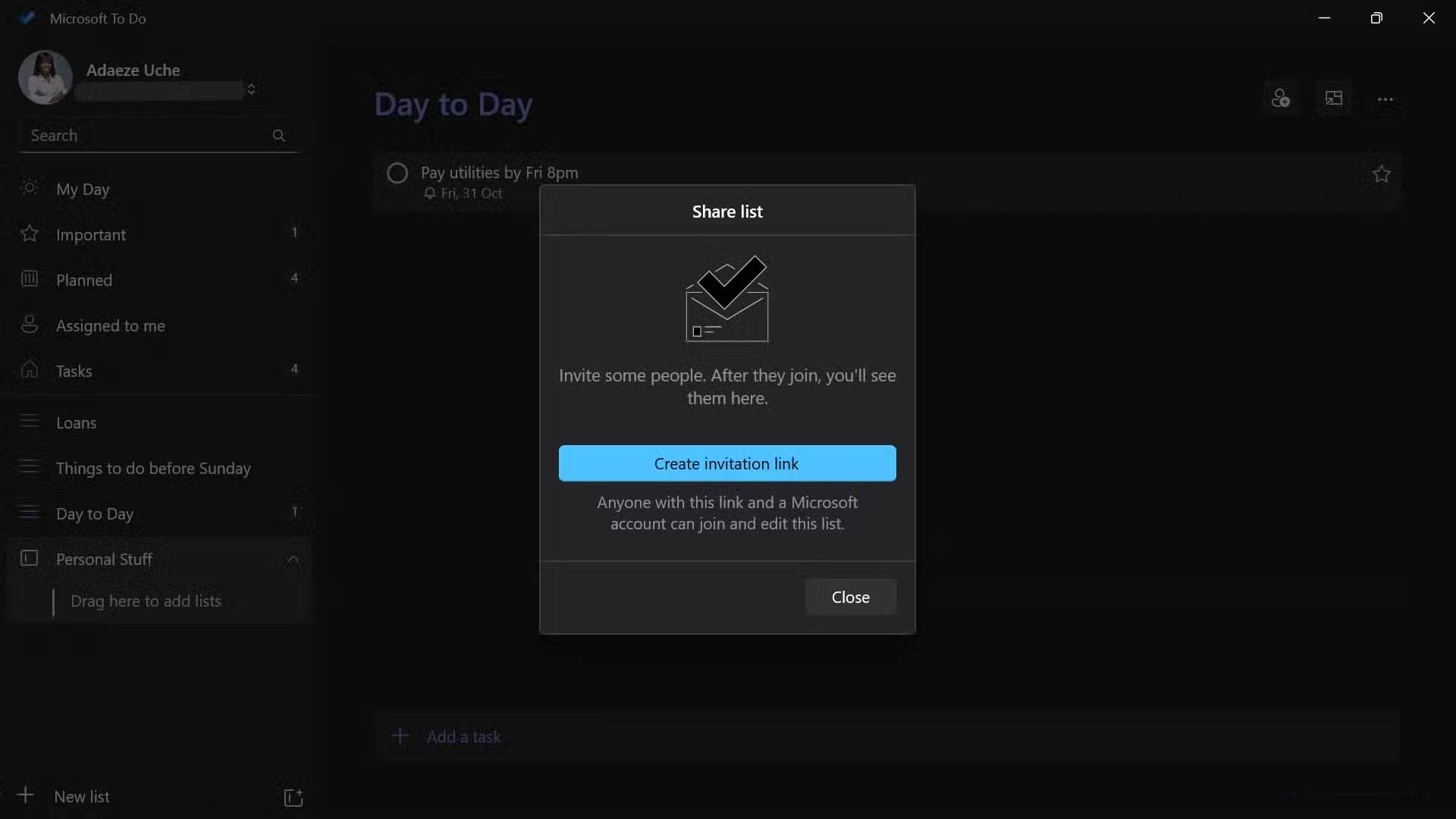
Sometimes, people spend more energy remembering things they need to do than actually doing them. Microsoft To Do effectively addresses this by acting as a centralized channel for their tasks. It sounds simple, but its true potential lies in the My Day feature.
Each day, To Do will clear your schedule, forcing you to intentionally pull tasks from various other main lists into today's plan. This mental reset helps you avoid feeling overwhelmed by an endless backlog of tasks.
And with deep integration into the Windows Clock app, you can precisely select these tasks within the Clock app's Focus Session to execute them. It transforms disjointed thoughts into a unified, actionable plan without the need for third-party registration.
Final Thoughts
Use this guide as a practical checklist for how to build a complete productivity system using windows 11's default features. Work through the steps in order, verify each result, and adjust the options to match your needs.
FAQ
What do you need before following this How to Build a Complete Productivity System Using Windows 11's Default Features guide?
Review the required tools, accounts, settings, or materials mentioned in the article. Learn how to build a complete productivity system using Windows 11's default features with clear steps.
What are the main steps for how to build a complete productivity system using windows 11's default features?
Follow the sections in order, especially Snap Layouts and Snap Group, Optimized multitasking command center, Focus sessions in Windows Clock. Complete each step before continuing and verify the result as you go.
What should you do if the process does not work as expected?
Recheck the prerequisites, update the relevant app or service, review the settings, and repeat the step that caused the issue. Use any troubleshooting notes included in the guide.
Related Articles
 Improve Productivity with These 7 Built-in Windows 10 Features!7 minutes read
 Microsoft Released Windows 10 Build 17074, Providing Operating5 minutes read
 10 Tips to Increase Productivity on Windows 1012 minutes read
 7 Windows 11 Features That Should Be Enabled by Default7 minutes read
 Details Change in Windows 10 Build 9901 Update4 minutes read
 Learn Windows 8 Before BUILD6 minutes read
Reader Comments 0
Sign in with email or Google to join the discussion.