Table of Contents
Windows Photo Viewer is not offered as the default image app in a normal Windows 11 installation, but its legacy components are still present on many systems. A Registry file can restore its file associations, after which you can select it for JPG, PNG and other supported formats.
Before changing the Registry: create a restore point, save your work and inspect any REG file in Notepad. Registry files can change system settings, so use only a source you trust. Microsoft Photos remains the supported default and is the safer choice if you do not specifically need the older viewer.
1. Restore Windows Photo Viewer
The original activation package referenced by this guide is the Windows Photo Viewer activation ZIP from How-To Geek. Because it is a third-party download, scan the archive and review the included REG file before importing it.
- Download the ZIP file and open it in File Explorer.
- Extract the archive instead of running a file directly from the compressed folder.
- Right-click the extracted Activate Windows Photo Viewer on Windows 11.reg file and choose Edit or Open with > Notepad. Confirm that it contains only the expected Windows Photo Viewer registration and file-association entries.
- Create a Windows restore point if you have not already done so.
- Double-click the REG file. Approve the User Account Control prompt only after verifying the file and its source.
- Accept the Registry Editor confirmation, then restart File Explorer or sign out and back in if Windows Photo Viewer does not appear immediately.
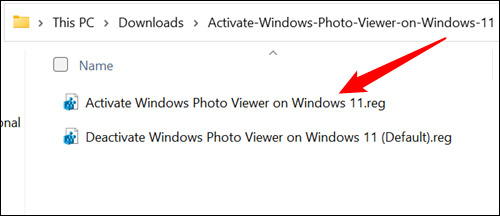

Importing a REG file is a system change, not a normal app installation. If the file contains unrelated keys, do not continue. A trusted activation file should only restore the legacy viewer’s registration and supported image associations.
2. Set Windows Photo Viewer from Open with
This is the quickest method when you want to change one image format:
- Right-click a JPG, PNG, BMP or other image file.
- Select Open with > Choose another app.
- Select Windows Photo Viewer. If it is not visible, expand the list of additional apps.
- Choose the option to always use this app for the displayed file type, then confirm.


The association applies only to that extension. Choosing the viewer for a PNG file does not automatically change JPG, BMP or TIFF files, so repeat the process for each format you use.
3. Change image associations in Settings
- Open Settings.
- Go to Apps > Default apps.
- Search for an image extension such as .jpg or .png.
- Select the app currently associated with that extension.
- Choose Windows Photo Viewer and confirm the change.
- Repeat for the remaining image formats.

Windows 11 changes parts of the Default apps interface between releases, so labels may vary slightly. The essential step is to locate the file extension and replace its current app association.
If Windows Photo Viewer does not appear
- Confirm that the activation REG file was extracted and imported successfully.
- Restart File Explorer or reboot Windows.
- Try a common format such as JPG or PNG; the legacy viewer does not support every modern image format.
- If the viewer opens but cannot display a file, use Microsoft Photos or another maintained app for that format.
Windows Photo Viewer is legacy software and does not receive the same feature development as Microsoft Photos. Restoring it is useful for people who prefer its fast, simple interface, but it should not be treated as a fully supported replacement for every image type.
Related Articles
 Get Back Windows Photo Viewer on Windows 10 to Help You See8 minutes read
 Best Photo Viewer Software on Windows 109 minutes read
 How to Add // Remove Xps Viewer Application in Windows 103 minutes read
 How to Get Windows Photo Viewer Back in Windows 104 minutes read
 5 Best Best Photo Viewing Software8 minutes read
 How to Access Event Viewer in Windows 103 minutes read
Reader Comments 0
Sign in with email or Google to join the discussion.