Table of Contents
There is no shortage of third-party apps and tools that can enhance your Windows experience. But among them, some stand out as absolutely essential because they streamline workflows, save time, and make everyday tasks much more efficient.
6. QuickLook
One of the first things you should install on any computer is QuickLook. If you've ever used a Mac, you know how convenient it is to press the spacebar to instantly preview a file. QuickLook brings the same functionality to Windows, and once you get used to it, you won't want to go back.
QuickLook is light, fast, and completely unobtrusive. Just select a file, hit the spacebar, and a neat preview appears instantly. It supports images, PDFs, Word documents, spreadsheets, presentations, and even media files.
5. Ditto
The clipboard is easily one of the most overlooked features in Windows 11. However, once you start using it, its limitations become apparent. For one thing, it can only hold 25 items at a time, which means there's a risk of overwriting what you've copied. Additionally, Windows will clear the entire clipboard after a reboot.
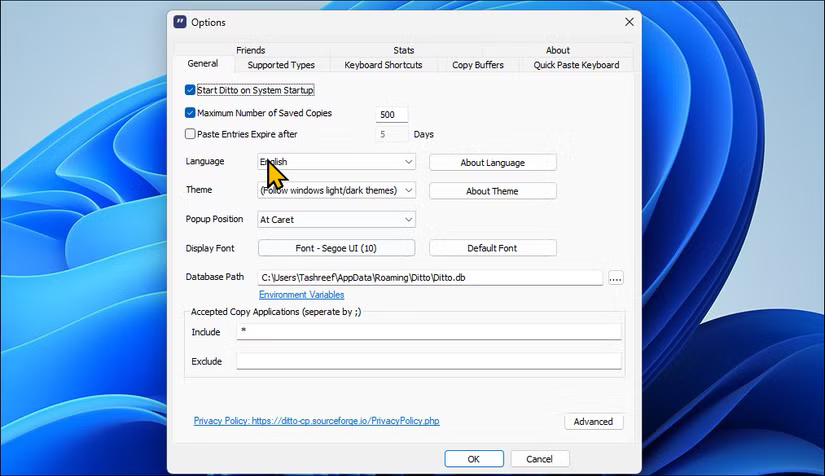
Ditto is an advanced clipboard manager that can store an unlimited number of items, from text snippets to images. With this application, you don't have to worry about losing important data just because of copying too much or restarting your computer. You can access your clipboard history instantly with an optional shortcut key.
4. AutoHotkey
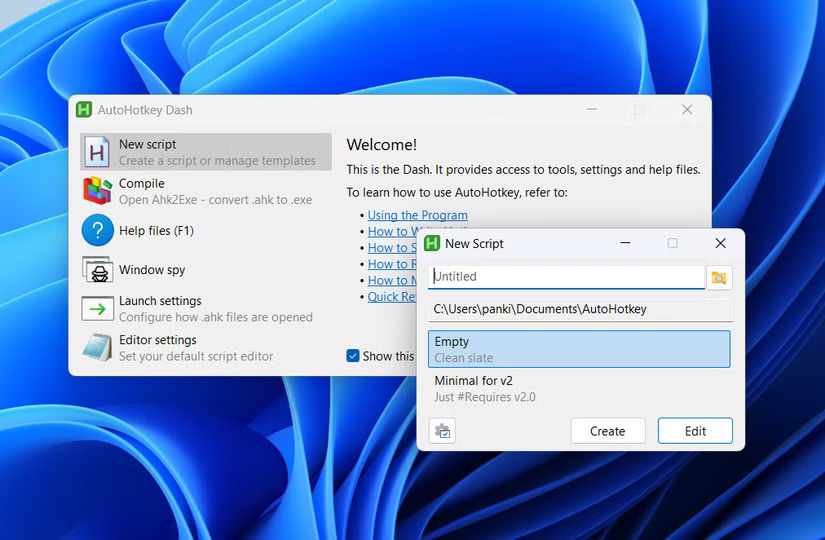
Another tool that should be available on every computer setup is AutoHotkey. It's basically a programming language, but don't let that scare you away. Think of it as a way to control your computer to your liking, whether it's creating custom shortcuts, automating repetitive tasks, or building tools that save you time every day.
Sure, Windows already provides a ton of useful keyboard shortcuts, but they only go so far. AutoHotkey lets you create your own. You can set up a keystroke to instantly launch your favorite app, expand a short text like "email" into a full email address, or even turn an unused key into a dedicated mute button.
- Work more efficiently with the free AutoHotkey tool
3. 7-Zip
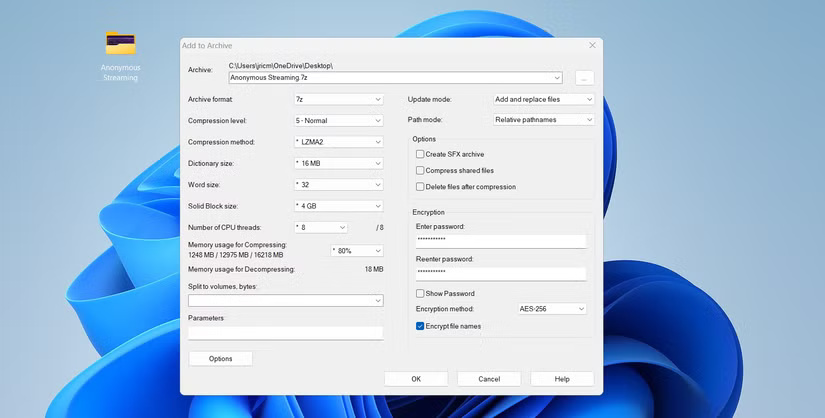
ZIP files are pretty common, and most of us need to create or open them on a regular basis. Windows has built-in support for ZIP files, but it can't handle large files or other formats. That's where 7-Zip comes in. It's a free, open-source application that fixes all of those problems while remaining lightweight and highly secure.
7-Zip can handle almost every popular compression format out there, including ZIP, RAR, TAR, GZ, and its own highly efficient 7z format. The compression ratio is impressive, meaning your files take up less space without slowing down your computer.
2. PDFgear
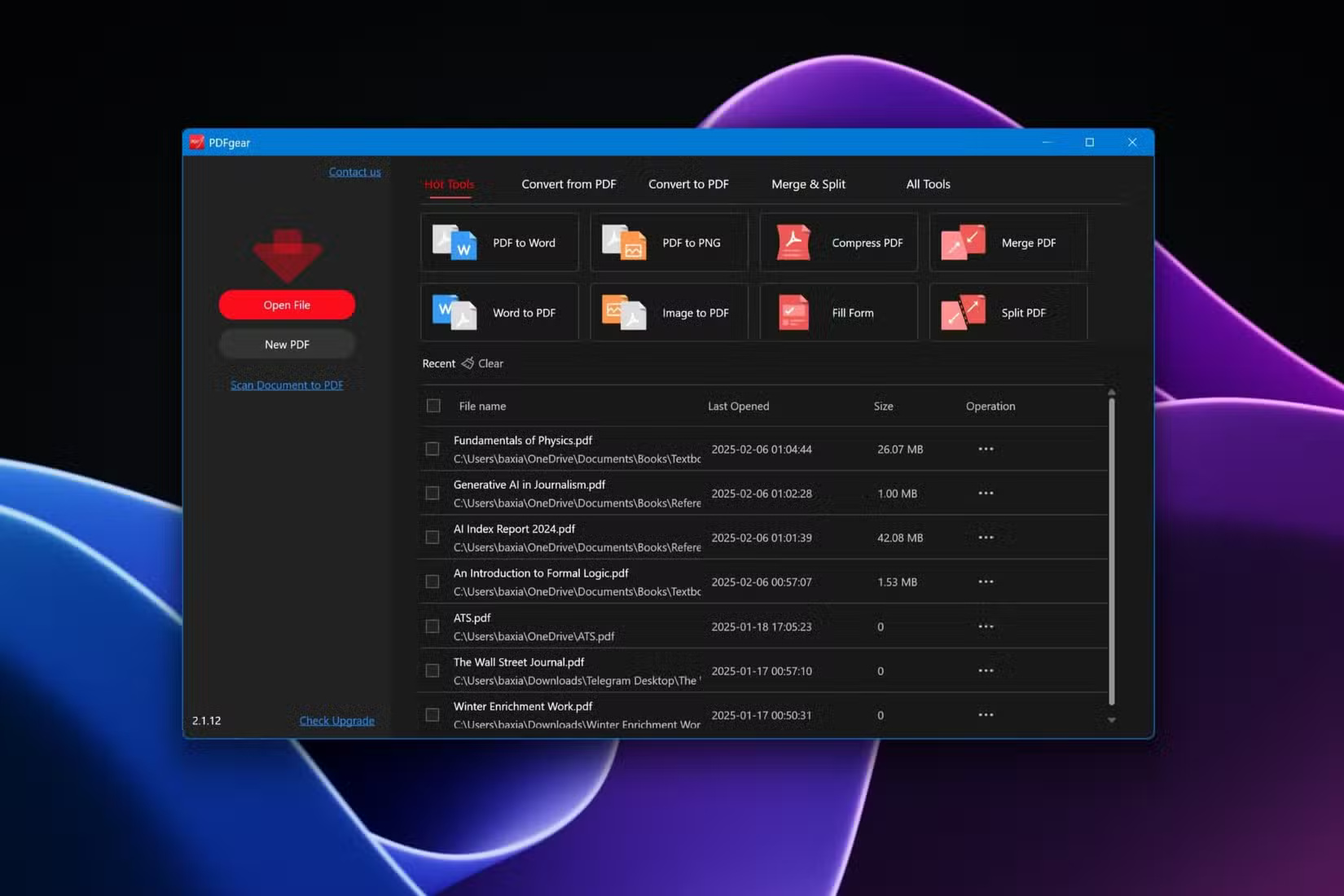
Whether you are a student or a working person, sometimes you need to deal with PDFs. PDFGear is a free application that makes viewing, editing, and managing PDF files easy on Windows.
You can annotate, highlight, and add comments to PDFs, which is handy when reviewing documents or marking up study materials. Plus, you have all the tools you need to fill out forms, add signatures, and even create form fields.
In addition to editing, PDFGear also offers tools to rearrange, rotate, or delete pages. It's equally easy to merge multiple PDF files into a single file or split a large document into smaller pieces.
1. LocalSend
On Windows, transferring files to and from your phone or another computer is easy if you don't mind cables. But for fast, wireless file transfers to almost any device, you need LocalSend.
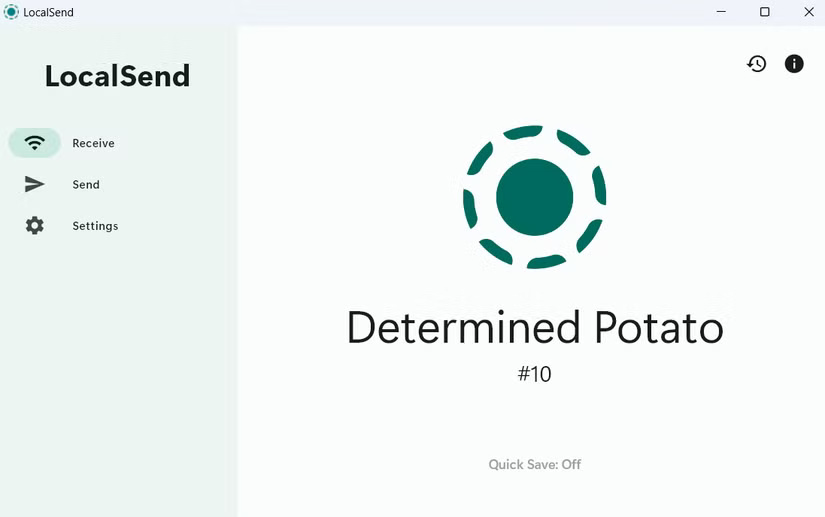
This is a free, open source application that makes it easy to transfer files between computers, phones, and tablets. LocalSend works on your local network, so file transfers are fast, secure, and completely private. You don't need to upload any files to the Internet, and there are no size limits.
Getting started is simple. Install the app on both devices and connect them to the same network. Then, select the files you want to send, select the destination device, and watch them transfer almost instantly. If you don't want to install the app on the receiving device, there's even the option to share via a link or QR code.
- Learn About LocalSend: An AirDrop-Like App for Wirelessly Transferring Files Between Devices
Final Thoughts
The development covered in this article is worth following, but specifications, dates, and feature details may change until the relevant company or organization publishes an official confirmation.
FAQ
What is the main development covered in this article?
There is no shortage of third-party apps and tools that can enhance your Windows experience. But among them, some stand out as absolutely essential because they streamline workflows, save time, and make everyday tasks much more efficient.
What should you know about 6. QuickLook?
One of the first things you should install on any computer is QuickLook. If you've ever used a Mac, you know how convenient it is to press the spacebar to instantly preview a file.
Is every reported detail officially confirmed?
Not necessarily. Product leaks, preview builds, research reports, and early announcements can change. Confirm important specifications, dates, and availability through an official source before making a decision.
Related Articles
 Top 10+ Best AI Productivity Tools8 minutes read
 10 Tips to Increase Productivity on Windows 1012 minutes read
 How to Build a Complete Productivity System Using Windows 11's Default Features7 minutes read
 5 Practical Ways to Use AI for Better Productivity8 minutes read
 5 Generative AI Tools to Help Improve Your Work: Top Picks and Buying Guide6 minutes read
 9 Free Windows Tools You Can't Live Without7 minutes read
Reader Comments 0
Sign in with email or Google to join the discussion.