Table of Contents
Windows 11 can move the clock forward or back automatically when daylight saving time begins or ends. For the change to be correct, the PC must use the right time zone and the Adjust for daylight saving time automatically setting must be enabled where that option is available.
Regions that do not observe daylight saving time may not show the switch. If the computer is managed by an organization, an administrator policy can also prevent changes.
Enable automatic daylight saving time in Settings
- Press Windows + I to open Settings.
- Select Time & language, then Date & time.
- Confirm that Time zone matches your location. If you travel frequently, you can use Set time zone automatically when location services are available.
- Turn on Set time automatically so Windows can synchronize the clock.
- Turn on Adjust for daylight saving time automatically.
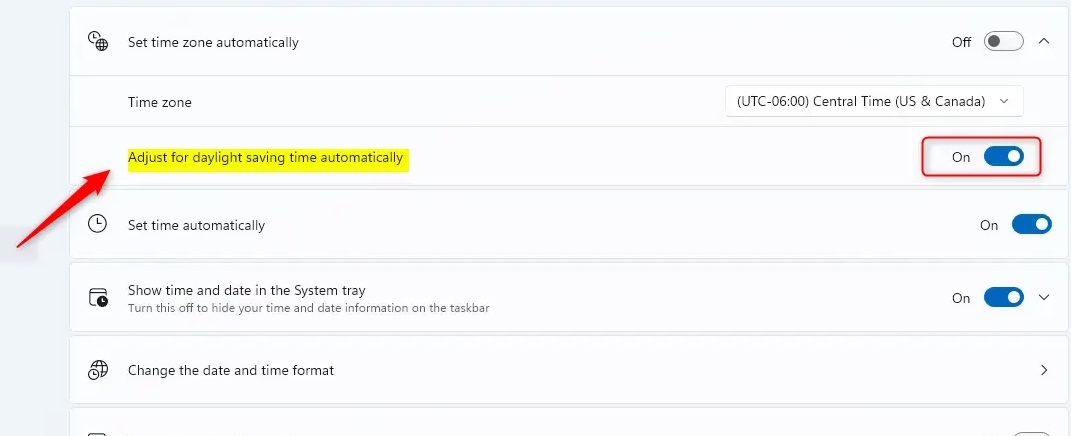
To stop Windows from applying the seasonal change, turn the daylight-saving switch off. Avoid setting the clock manually unless necessary; a manual correction can hide an incorrect time-zone selection and may be lost the next time Windows synchronizes.
Change the setting through Control Panel
The classic Date and Time dialog provides another route:
- Open Control Panel.
- Select Clock and Region, then Date and Time.
- On the Date and Time tab, choose Change time zone.
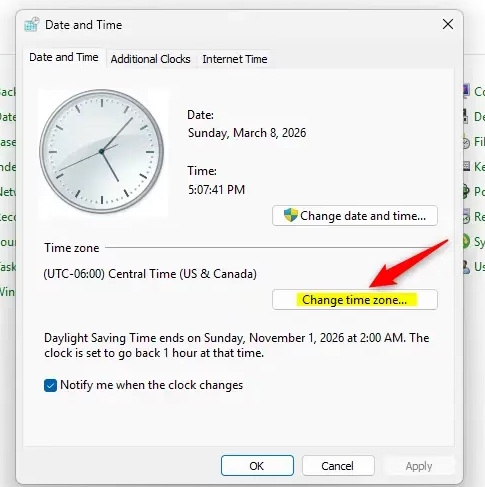
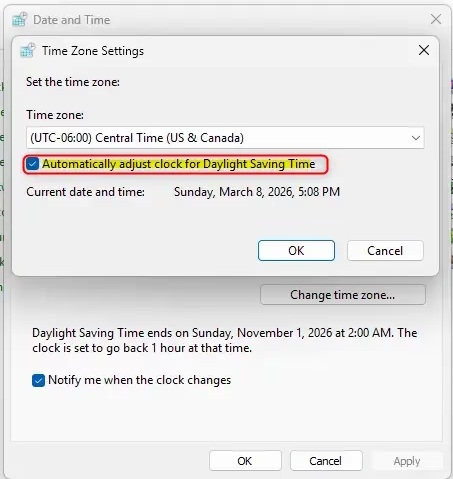
- Choose the correct time zone.
- Select Automatically adjust clock for Daylight Saving Time, then click OK.
If the daylight saving option is missing or unavailable
- Check the time zone: Windows only offers the DST control for time zones whose rules include a seasonal clock change.
- Check automatic time-zone detection: If a manual control is unavailable, temporarily disable Set time zone automatically, select the correct zone and check again.
- Synchronize the clock: In Settings > Time & language > Date & time, use Sync now if the displayed time remains wrong.
- Install Windows updates: Governments sometimes change time-zone and daylight-saving rules. Windows updates include revisions to those rules.
- Check device management: On a work or school PC, policy may lock the date and time controls. Contact the administrator rather than trying to bypass the restriction.
Should the setting be on?
Leave automatic adjustment enabled if the selected time zone observes daylight saving time. Turn it off only when you have a specific reason to keep the clock fixed. The setting does not decide whether your region uses DST; that information comes from the selected time zone and Windows’ time-zone database.
Related Articles
 How to Change Date and Time on Windows 114 minutes read
 The Easiest Way to Adjust the Date and Time on Windows 115 minutes read
 Turn on Sleep Windows 7: How to Adjust the Sleep Mode on Windows4 minutes read
 Review of Dead by Daylight - the ''fun'' Nightmare That Never Ends10 minutes read
 Latest Dead by Daylight Codes and How to Enter: Main Insights5 minutes read
 How to Adjust the Time to Turn Off the Screen Win 102 minutes read
Reader Comments 0
Sign in with email or Google to join the discussion.