Table of Contents
Learn how to disable window minimization when the monitor is disconnected in Windows 11 with clear steps.
Instructions on how to disable window minimization when the monitor is disconnected from Windows
Step 1
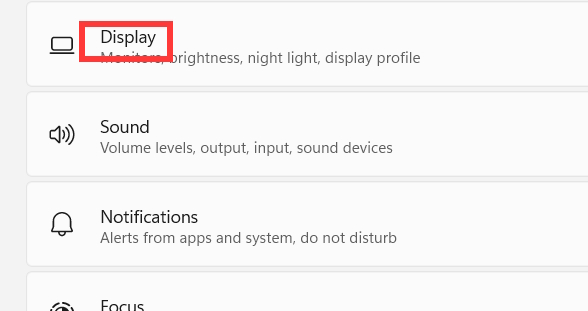
Press the Windows + I key combination to open Settings , then select System to adjust the settings. Next, select Display settings .
Step 2
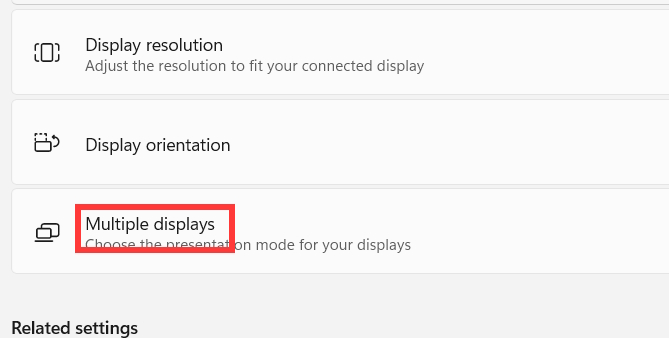
Settings for your computer's display will appear. Click on Multiple displays to expand the settings.
Step 3
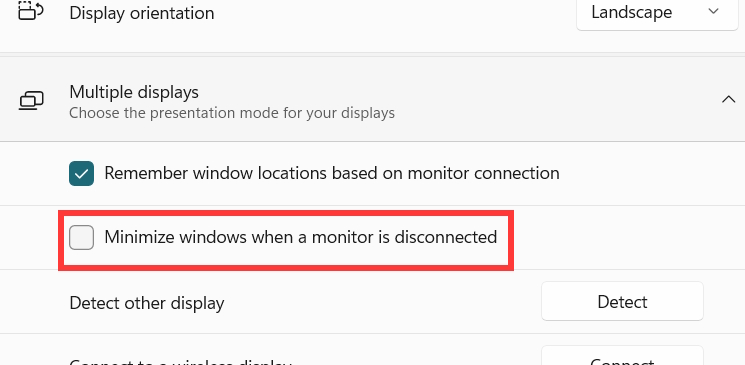
To disable window minimization when a monitor is disconnected from a Windows computer , simply turn off the "Minimize windows when a monitor is disconnected" option .
How to use Registry Editor to minimize windows
Step 1
You access Registry Editor, then navigate to the following path.
ComputerHKEY_CURRENT_USERControl PanelDesktop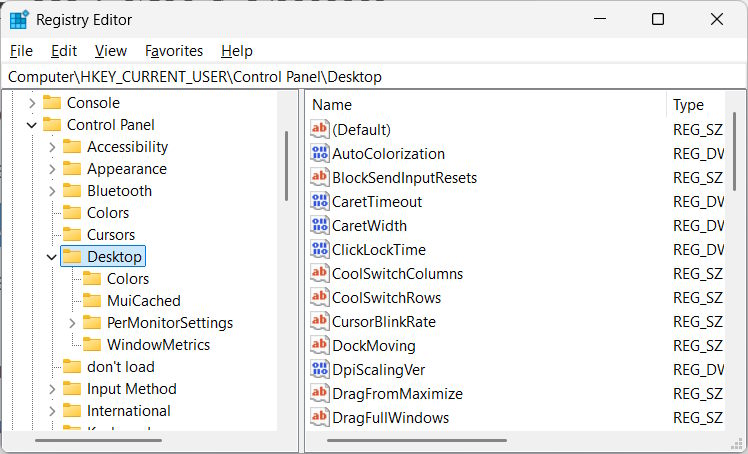
Step 2
Next, look to the side and double-click on MonitorRemovalRecalcBehavior to adjust the value.
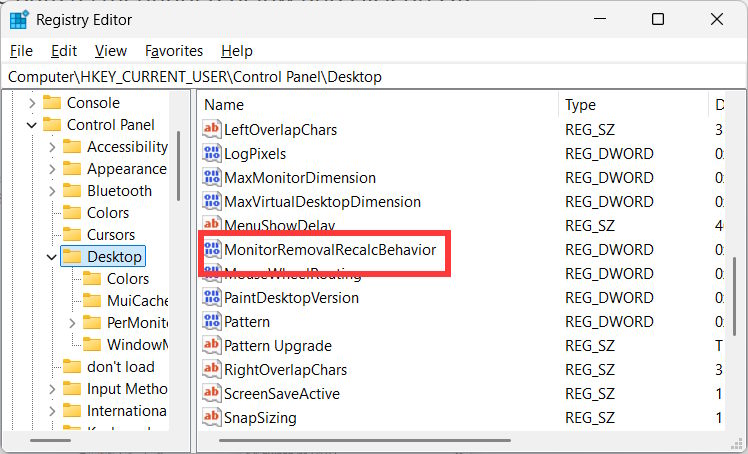
Then you enter 0 to enable window minimizing and 1 to disable window minimizing when the monitor is disconnected from the computer.
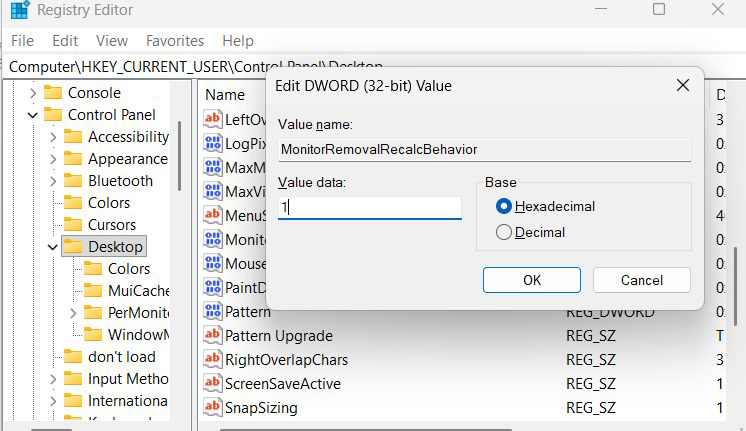
How to disable window minimization when the monitor is disconnected via the Registry
If you want to change the settings using the Registry, create a text file with the code below and save it with the.reg extension (.sr), then double-click the file to add it to the Registry.
To disable window minimization when the Windows monitor is disconnected.
reg add "HKEY_CURRENT_USERControl PanelDesktop" /v MonitorRemovalRecalcBehavior /t REG_DWORD /d 1 /fTo enable window minimization mode when the Windows monitor is disconnected.
reg add "HKEY_CURRENT_USERControl PanelDesktop" /v MonitorRemovalRecalcBehavior /t REG_DWORD /d 0 /fNote that editing the Registry can cause problems if done incorrectly.
Final Thoughts
Use this guide as a practical checklist for how to disable window minimization when the monitor is disconnected in windows 11. Work through the steps in order, verify each result, and adjust the options to match your needs.
FAQ
What do you need before following this How to Disable Window Minimization When the Monitor Is Disconnected in Windows 11 guide?
Review the required tools, accounts, settings, or materials mentioned in the article. Learn how to disable window minimization when the monitor is disconnected in Windows 11 with clear steps.
What are the main steps for how to disable window minimization when the monitor is disconnected in windows 11?
Follow the sections in order, especially Instructions on how to disable window minimization when the monitor is disconnected from Windows, Step 1, Step 2. Complete each step before continuing and verify the result as you go.
What should you do if the process does not work as expected?
Recheck the prerequisites, update the relevant app or service, review the settings, and repeat the step that caused the issue. Use any troubleshooting notes included in the guide.
Related Articles
 How to Control the Brightness of Your Computer with Windows 75 minutes read
 Instructions on How to Turn Off the Motion Effects of Windows on3 minutes read
 How to Disable Pop-up Blocker in Safari on Mac3 minutes read
 How to Allow Pop-ups to Be Displayed in Firefox4 minutes read
 Steps to Disable Powershell in Windows 104 minutes read
 How to Move Windows Window When Title Bar Click Error3 minutes read
Reader Comments 0
Sign in with email or Google to join the discussion.