Table of Contents
More than just composing emails or summarizing information, Gemini can change the way you work in Google Sheets.
You might think of Gemini, Google 's flashy AI chatbot, as just a chat tool for getting quick answers or generating text on demand. But Gemini can change the way you work in Google Sheets beyond just composing emails or summarizing information. Whether you're crunching numbers, analyzing data trends, or brainstorming complex formulas, it can help you work faster and smarter.
Build smarter spreadsheets from scratch
Go from idea to useful spreadsheet in seconds
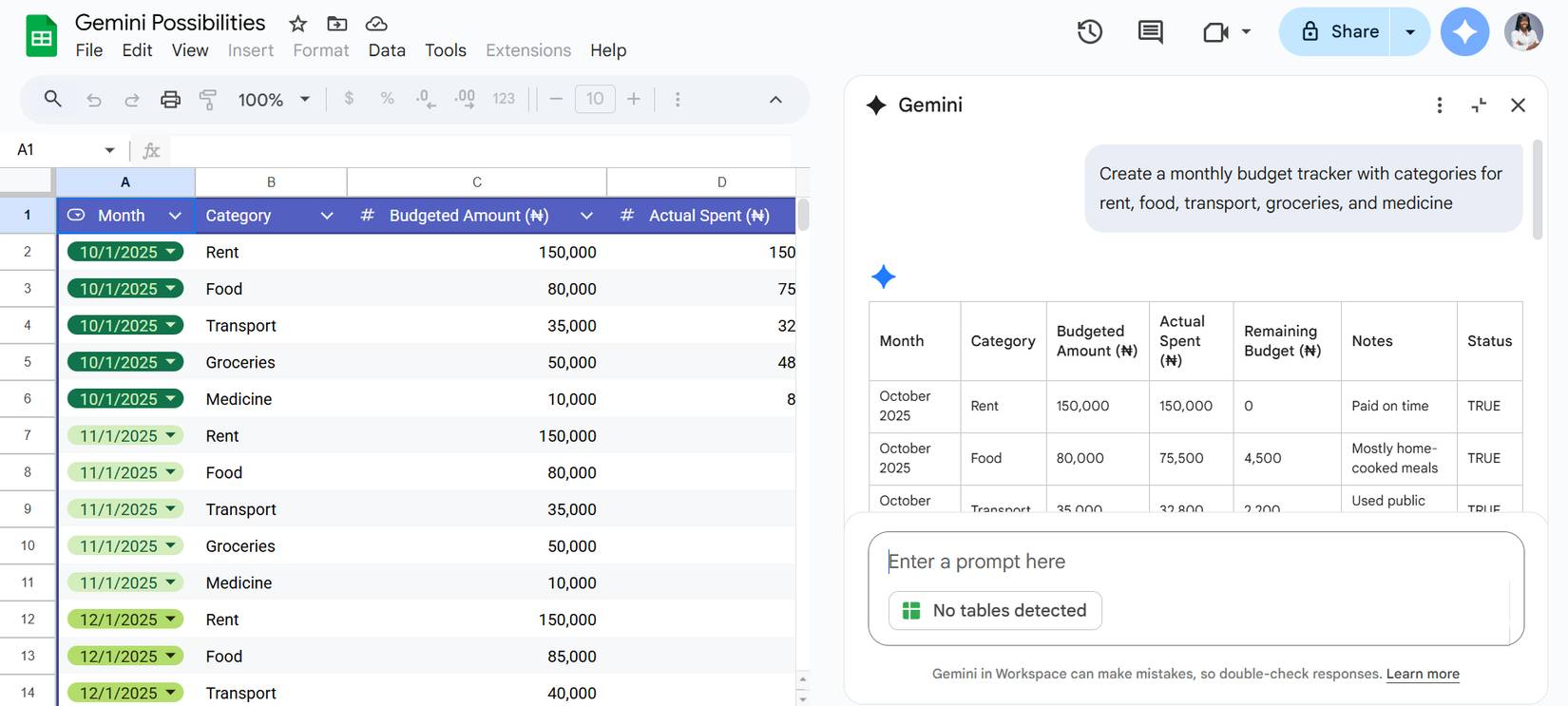
Starting a new spreadsheet often means spending time setting it up—adding headers, formatting columns, and building a structure—before you can actually start working. But with Gemini in Sheets, you can avoid manually setting up a layout by simply typing in the content you want.
For example, you can ask Gemini to create a monthly budget tracker with categories for rent, food, transportation, groceries, and medications. It will generate a table with sample rows, relevant column headings, and even basic customizations like drop-down menus or checkboxes. This takes the tedious part out of getting started so you can focus on entering data.
Analyze and visualize your data
Turn raw data into instant insights and charts
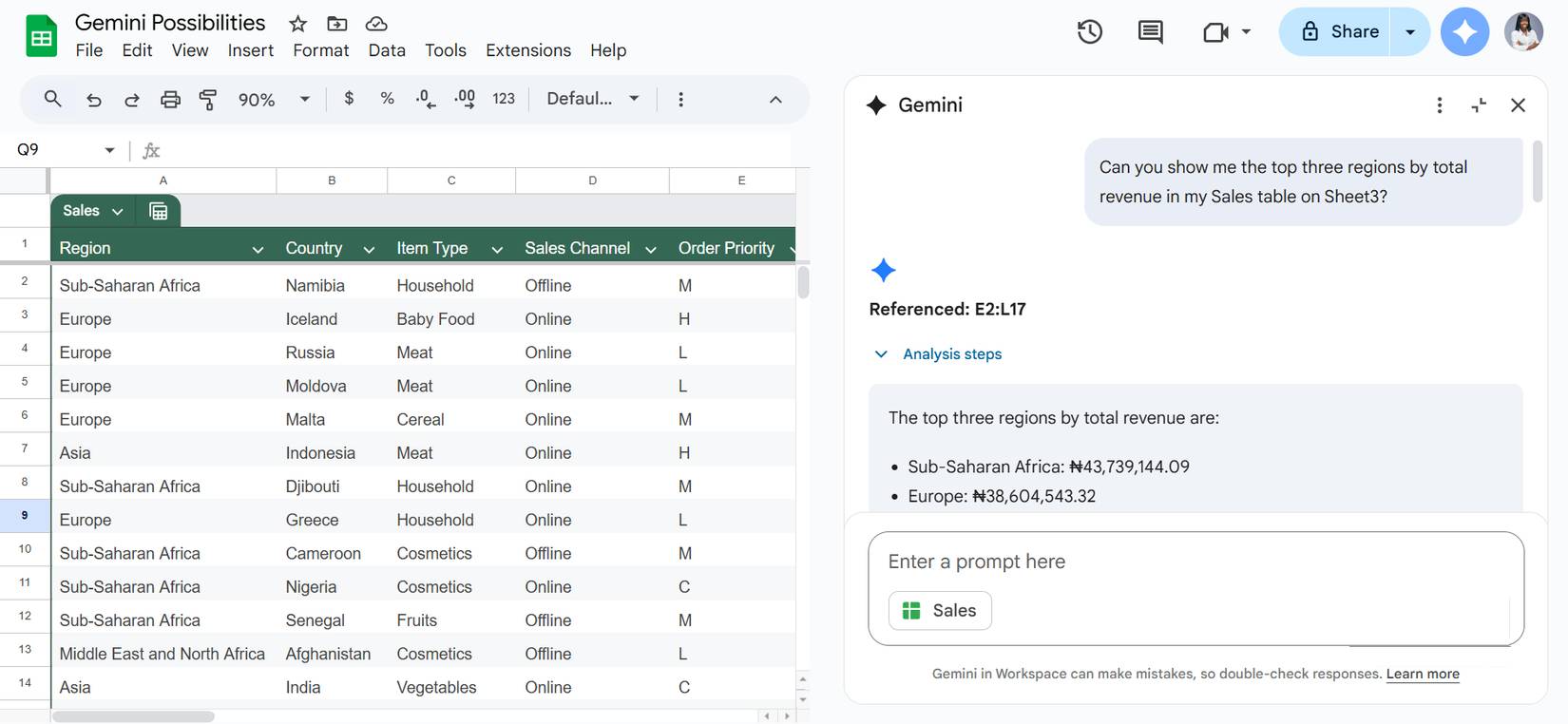
Raw data is only valuable if you can extract insights from it, and Gemini makes it easy to uncover those insights quickly. The tool can sift through hundreds of rows in a spreadsheet to identify trends, outliers, or key patterns. For example, when asking Gemini to show the top three regions by total revenue in the sales table on Sheet3, it immediately highlights Sub-Saharan Africa, Europe, the Middle East, and North Africa.
For best results, clarity is essential. When asking Gemini to analyze or visualize your data, specify the range and sheet name, and consider converting your data into a table so the AI assistant can reference it more accurately.
Clean up and organize messy data
Let Gemini handle this tedious cleaning for you
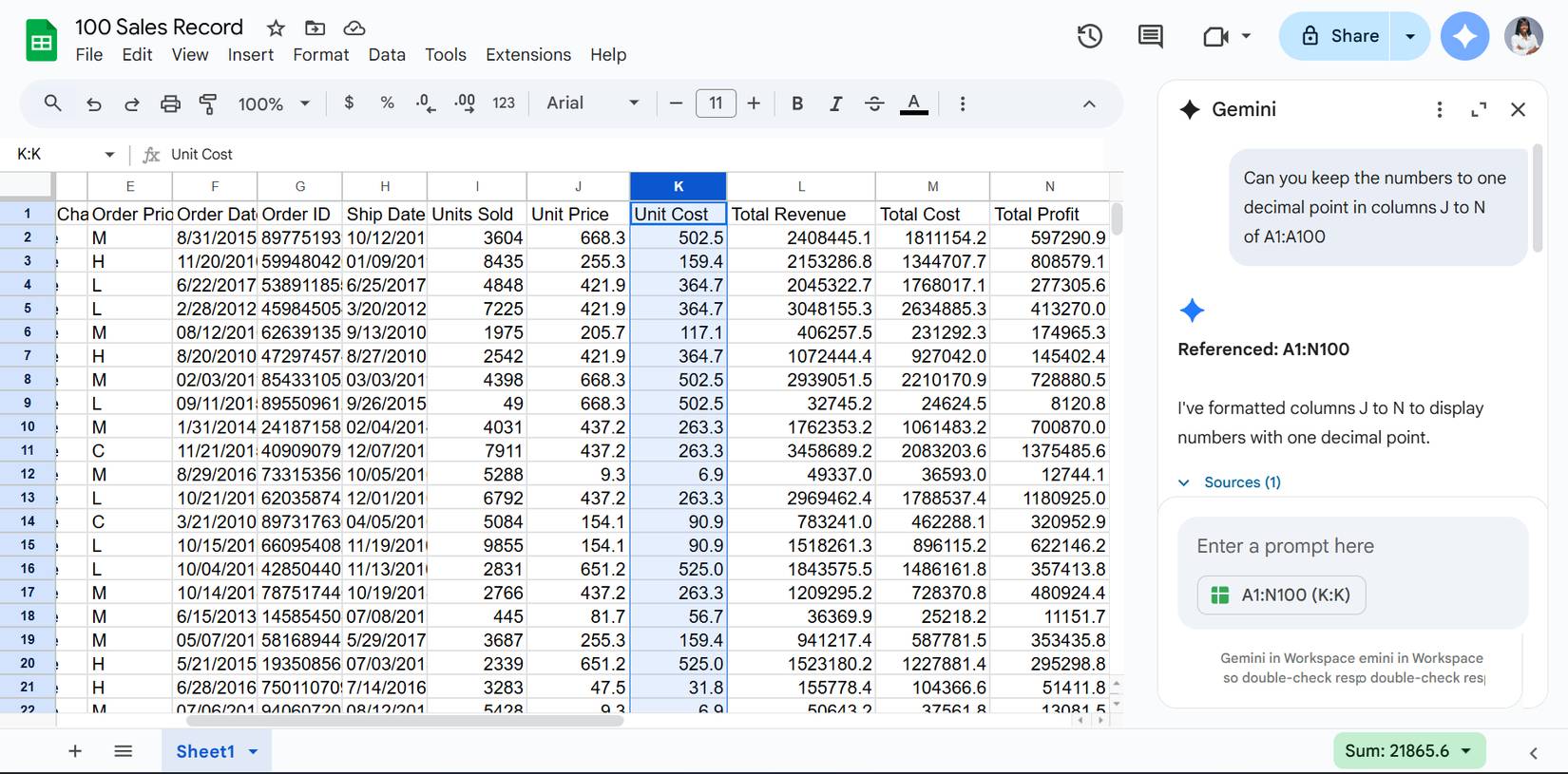
Cleaning up messy spreadsheets is rarely anyone's favorite task. You often have to remove duplicate data, fix inconsistent formatting, and make sure everything is aligned properly before you start analyzing. Luckily, Gemini can handle much of that tedious work for you.
You can ask Gemini to check for duplicate data, spell out abbreviations, adjust the number of decimal places in numeric fields, or reformat dates (for example, convert them from DD/MM/YYYY to MM/DD/YYYY). This is the simplest way to ensure consistency across your entire dataset without wasting time on repetitive editing.
Connect with the rest of the work
Connect context from Gmail and Drive
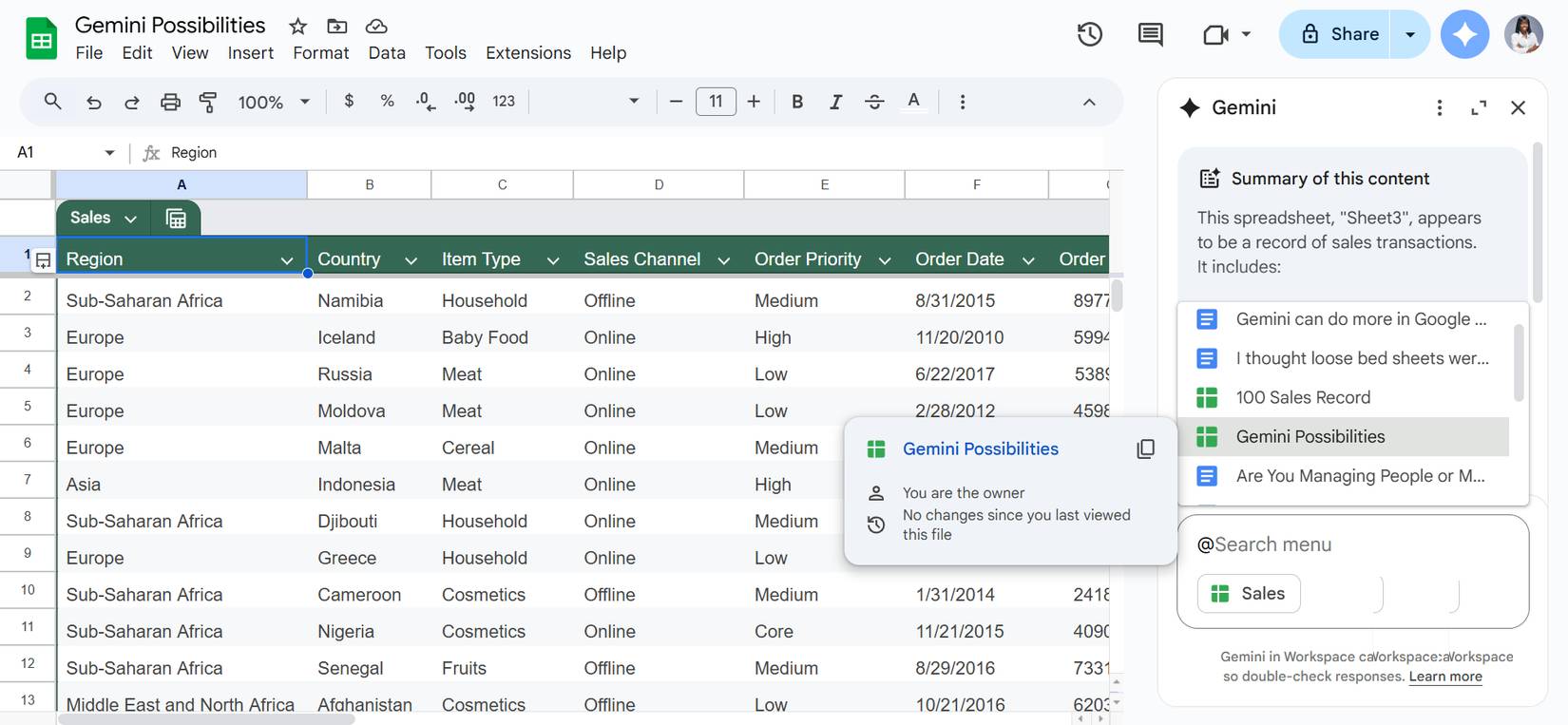
The data you're analyzing often resides in email threads, Drive folders, or reports scattered throughout your workspace. Constantly switching between tabs looking for a missing metric or important detail can disrupt your workflow. Gemini solves this problem by bringing context directly into your spreadsheets from Gmail and Google Drive so you can stay focused on your work.
Let's say you want to create an idea bank using the subject line from one of your subscribed newsletters, you could simply ask:
Can you take all the email subject lines Josh Nadeau used from my inbox and use them to create an idea bank board?
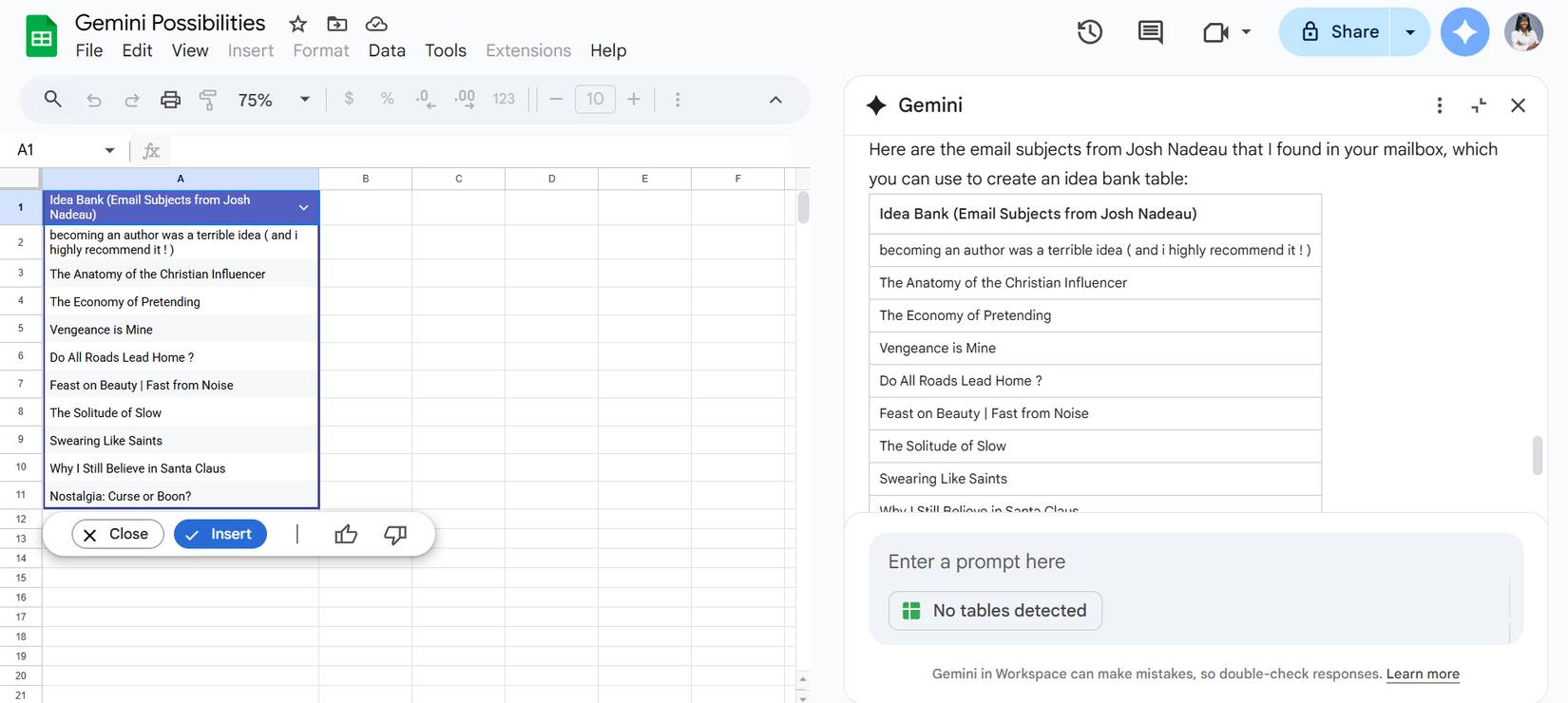
The same applies to business reports or any other type of data.
Assistant inside your spreadsheet
Collaborate with Gemini right in your spreadsheet
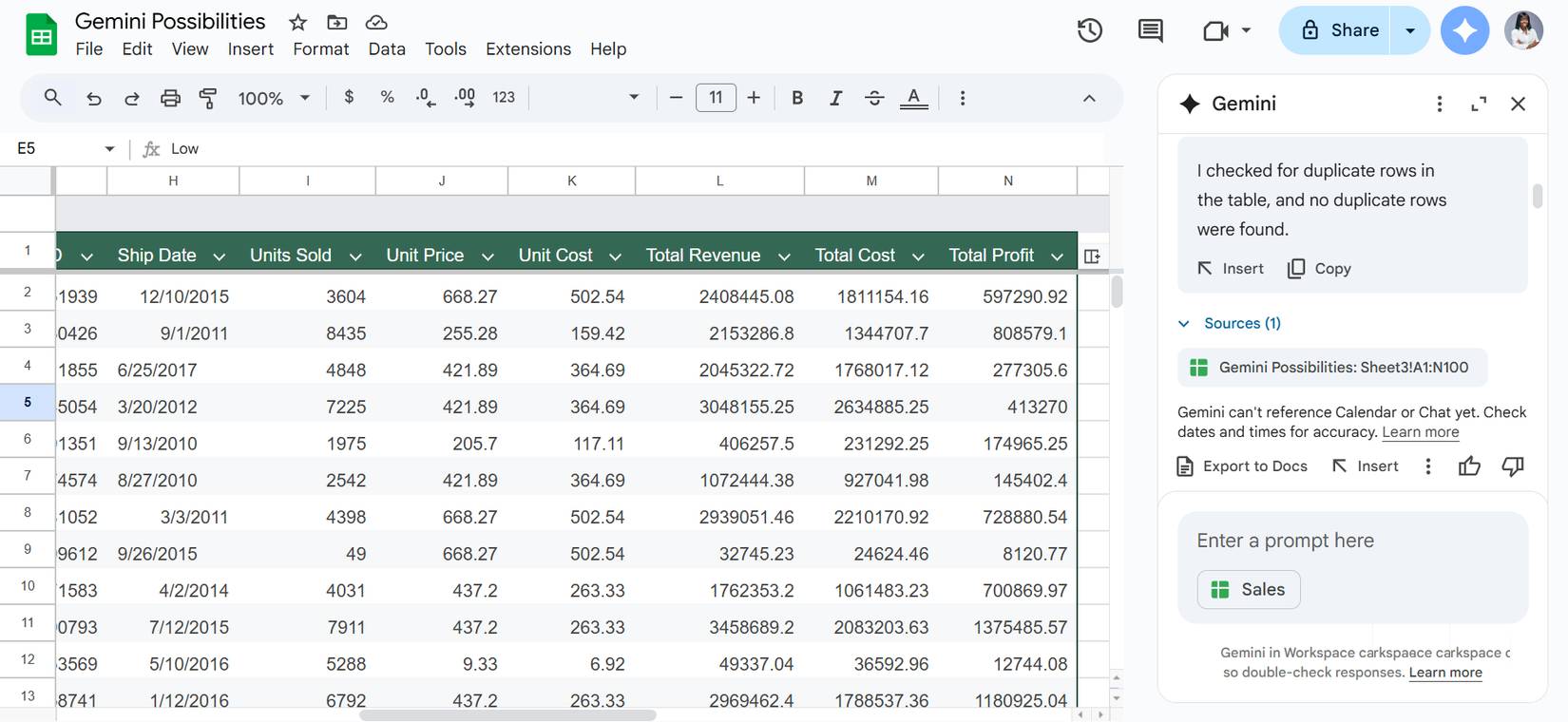
Imagine you've created a chart showing revenue trends, but you don't know how to explain it to non-technical stakeholders. You simply ask Gemini to summarize it:
Explain this graph in two sentences for a report intended for a non-technical audience.
Gemini then translates the image into jargon-free language you can use in your reports.
Since Gemini lives in a dashboard inside Google Sheets, it's always available for support. You can ask for clarification, follow up, or even export feedback directly to Google Docs.
The side panel also lets you test and tweak the prompt without cluttering up the actual spreadsheet. Just click Insert Once you're happy with the results.
FAQ
What should you know about Gemini can do more than you think in Google Sheets?
In practical terms, more than just composing emails or summarizing information, Gemini can change the way you work in Google Sheets.
Why does Gemini can do more than you think in Google Sheets matter?
The article highlights that but Gemini can change the way you work in Google Sheets beyond just composing emails or summarizing information .
What is the main takeaway?
The main takeaway is that since Gemini lives in a dashboard inside Google Sheets, it's always available for support.
Related Articles
 Instructions on Using Gemini to Create Images in Sheets: Explained5 minutes read
 minutes read
 How to Add Gemini to Improve the Google Sheets Experience10 minutes read
 Gemini 3.1 Pro or Gemini 3 Pro: Better?8 minutes read
 Instructions on Creating Automated Exam Scoring Sheets Using Gemini1 minutes read
 Gemini Can Now Summarize Responses in Google Forms3 minutes read
Reader Comments 0
Sign in with email or Google to join the discussion.