Table of Contents
Windows 11 can lock automatically after idle time or when a paired phone moves out of Bluetooth range. Choose an idle timeout when you need predictable timing; Dynamic Lock is a secondary safeguard. Press Windows + L whenever you step away, because automatic methods may leave a gap.
1. Require sign-in after the screen saver starts
- Open Settings > Personalization > Lock screen.
- Open Screen saver under related settings.
- Choose a screen saver, set Wait to your preferred number of idle minutes, and check On resume, display logon screen. Select Apply.
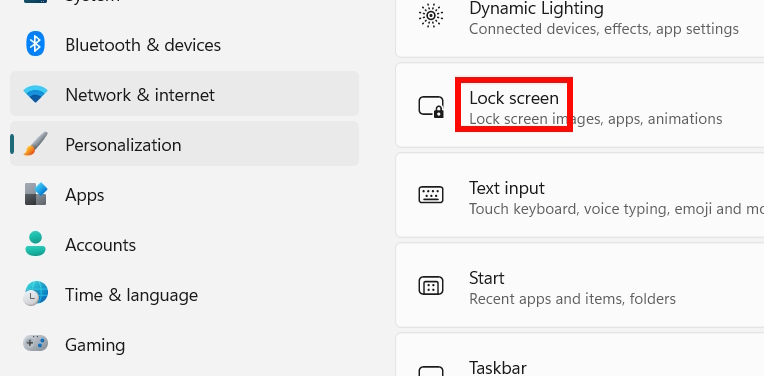
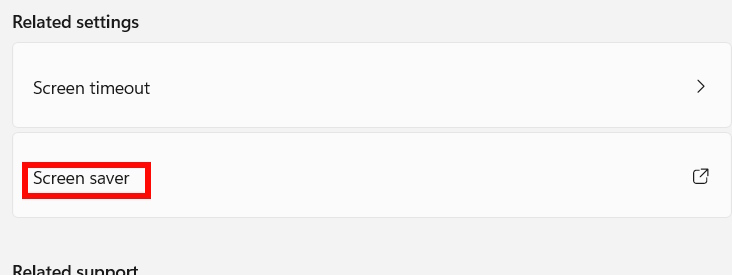
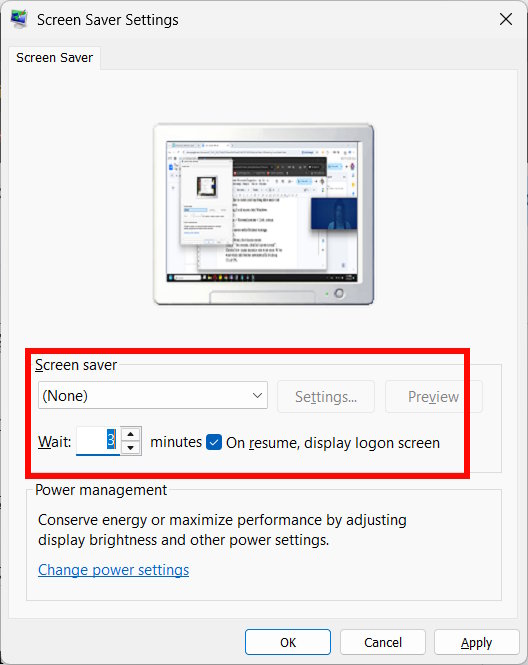
This method requires sign-in when resuming after the configured idle period. “None” can be an available screen-saver selection, but check the result on your PC: Windows power and sign-in settings can also affect when the display turns off or the session locks. Microsoft explains the screen-saver sign-in option.
2. Use Dynamic Lock with a paired phone
- Turn on Bluetooth on your phone and PC, then pair the phone under Settings > Bluetooth & devices.
- Open Settings > Accounts > Sign-in options > Dynamic lock.
- Enable Allow Windows to automatically lock your device when you're away. Walk away with the phone and test that the computer eventually locks.
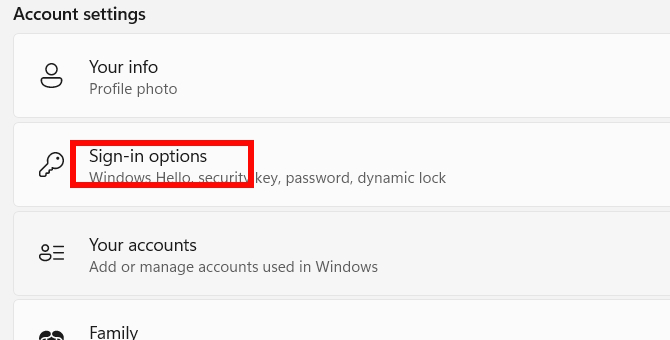
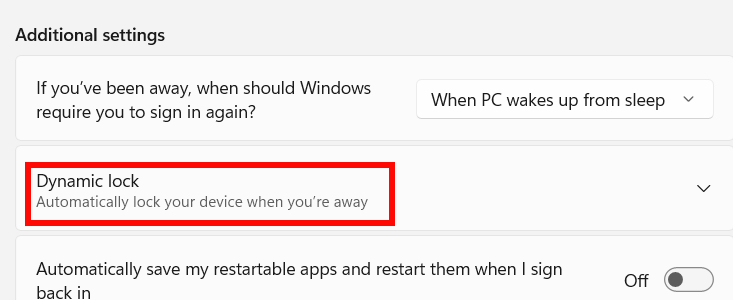
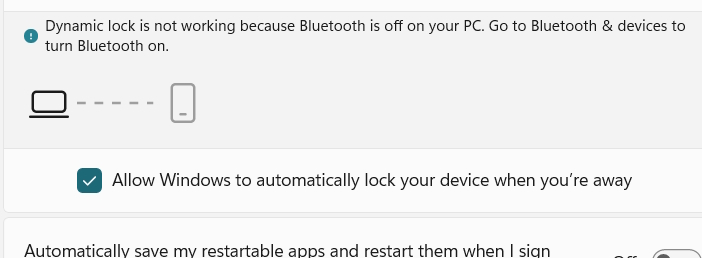
Dynamic Lock responds to the paired phone's Bluetooth signal and system idle state. It is not an immediate proximity alarm; a person may reach the unlocked PC before it locks. It also does not simply turn the display off whenever Bluetooth is disabled. See Microsoft's Dynamic Lock guidance.
3. Set the machine inactivity limit in Registry Editor
This advanced option controls a system-wide idle lock. Back up the relevant registry key and note any organization policy before changing it. Open Registry Editor as an administrator and navigate to HKEY_LOCAL_MACHINESOFTWAREMicrosoftWindowsCurrentVersionPoliciesSystem. In the right pane, open the InactivityTimeoutSecs DWORD, or create a new DWORD (32-bit) Value with that exact name if absent. Choose Decimal and enter the desired seconds, such as 300 for five minutes. A value of 0 disables this policy. The original article's path omitted separators; the path here follows Microsoft's documented registry location.
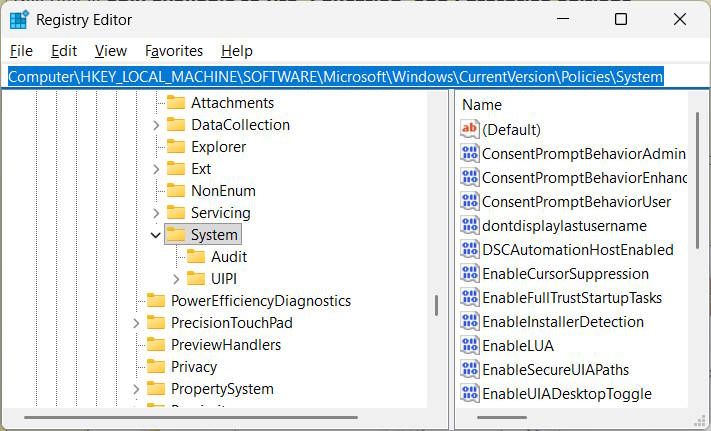
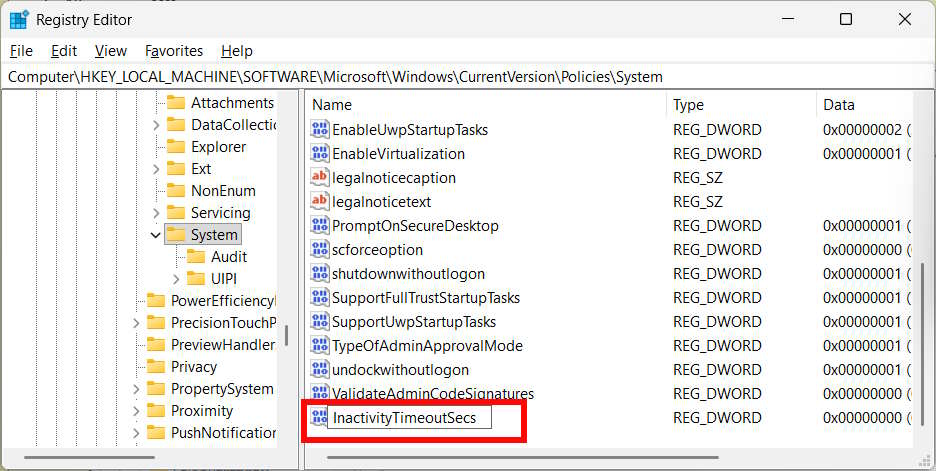
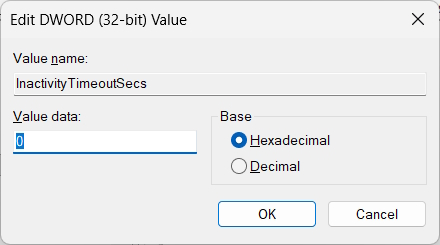
Test the result after a sign-out or restart. If the PC is managed by an employer or school, a policy may override your edit. Our Registry Editor basics cover backup and restoration.
4. Configure Local Security Policy
On Windows editions that include the Local Security Policy console, press Windows + R, enter secpol.msc, then open Local Policies > Security Options > Interactive logon: Machine inactivity limit. Enter an idle period in seconds, such as 300, and apply it. The policy accepts up to 599,940 seconds; zero disables this particular limit. This is the policy behind the registry value above, so treat methods 3 and 4 as alternative ways to set the same control.
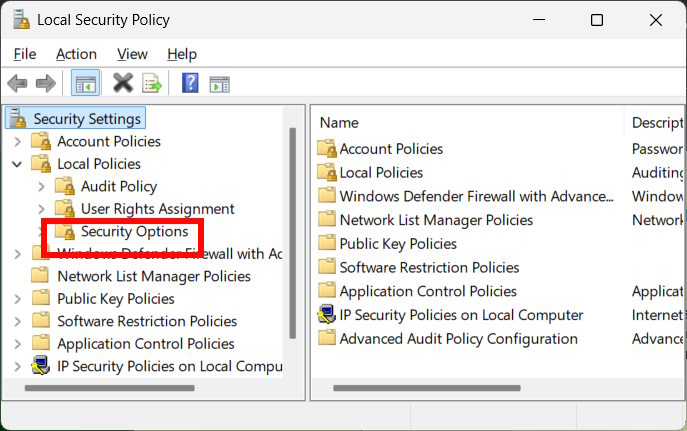
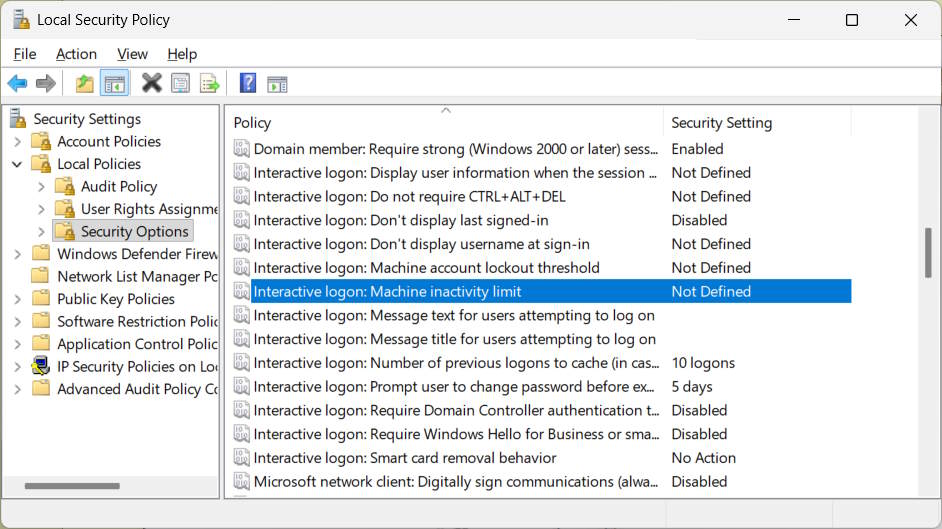
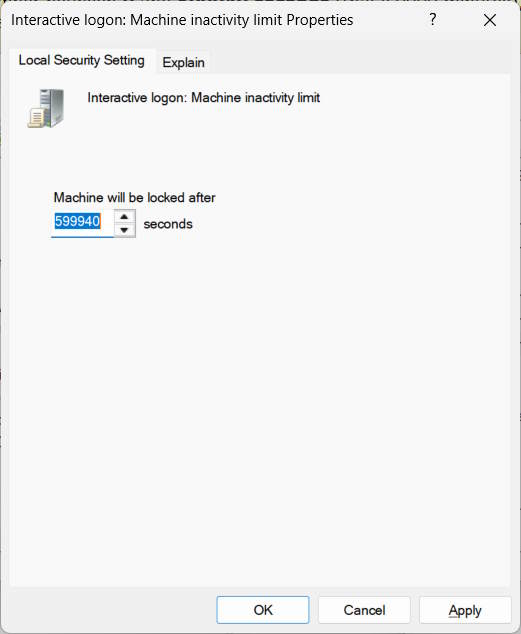
Test the lock after setting it and keep Windows + L as your immediate option. If you are troubleshooting an unexpected lock, check the screen saver, Dynamic Lock and machine inactivity limit together; see our automatic-lock troubleshooting guide.
Related Articles
 4 Ways to Lock Windows 10 Computers Super Fast3 minutes read
 How to Automatically Lock the Computer Screen Windows 10, Windows 75 minutes read
 How to Lock Windows 11 PC via Bluetooth Connection with4 minutes read
 3 Ways to Change the Windows 11 Lock Screen Timeout5 minutes read
 3 Ways to Lock Your Computer Windows 10 Very Fast2 minutes read
 How to Lock Windows PC After Automatic Login4 minutes read
Reader Comments 0
Sign in with email or Google to join the discussion.