Table of Contents
You can generate an illustration inside Google Docs with Gemini and insert it at the cursor. You can also create a full-width cover image, but Docs displays cover images only in Pageless mode. Both options require an eligible Google Workspace or Google AI plan; if the menu is missing, check your account's feature access.
Generate an image inside a document
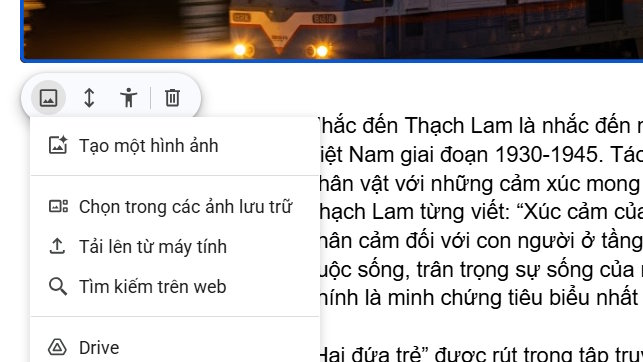
- On a computer, open your document and place the cursor where the image should appear. Choose Insert > Image > Generate an image.
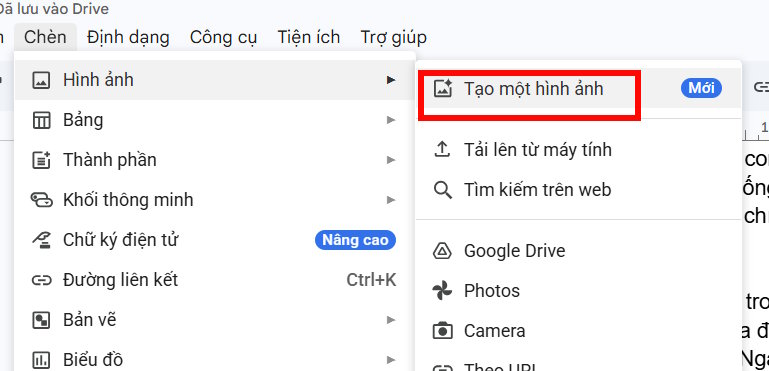
- In the image panel, choose any available size or style options. Then describe the subject, setting, composition and visual style. For example: “A simple watercolor illustration of a blue bicycle leaning against a brick wall, viewed from the side, soft morning light, no text.”
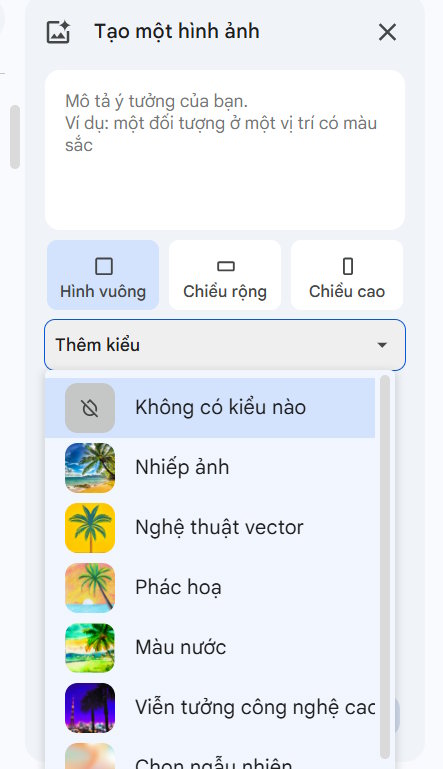
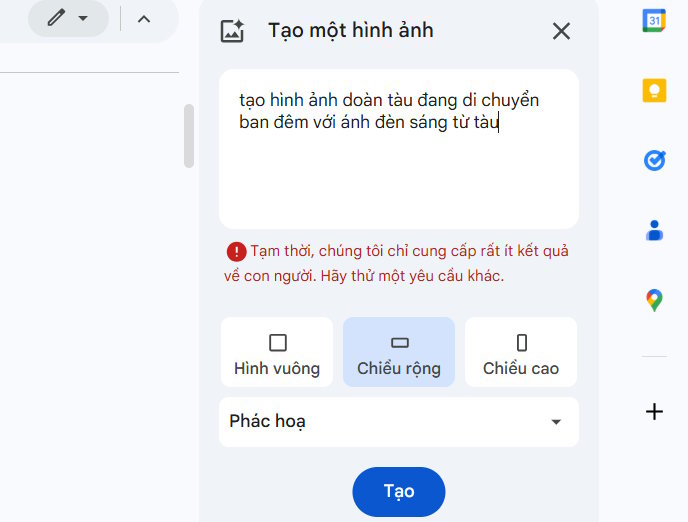
- Click Create. Inspect the suggestions for unexpected text, distorted details or a composition that does not suit the page. Revise the prompt or use View more if the first options do not work.
- Click the chosen image to insert it. Resize and position it in the document, then add meaningful alt text if it conveys information rather than decoration.

Keep the prompt concrete. “A close-up diagram of a houseplant on a desk, plain background” gives the tool clearer visual constraints than a vague request for “something beautiful.” Do not rely on generated lettering or labels without checking them carefully. For more on headings and image descriptions, see TipsMake's document structure guide.
Generate a cover image with Gemini
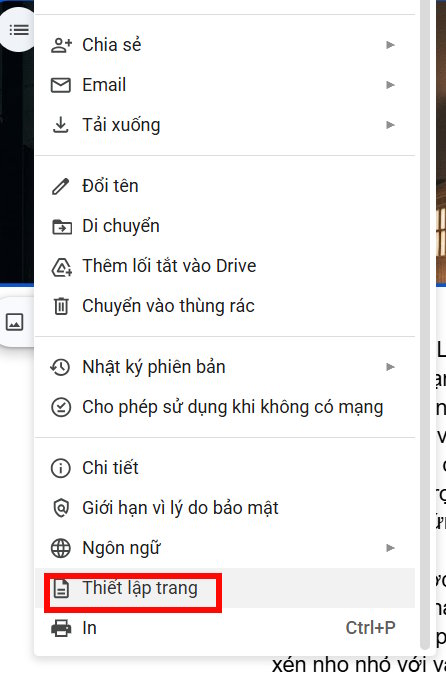
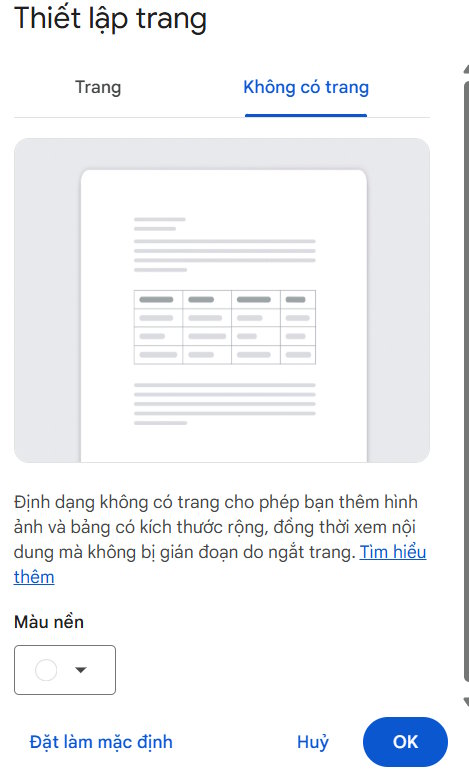
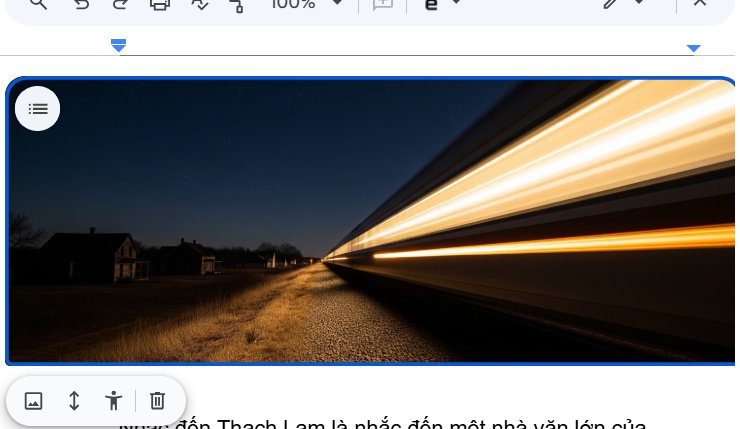
A cover image spans the width of a Pageless document. If your document uses Pages mode, open File > Page setup and switch to Pageless before adding the cover. Google notes that a cover image is hidden if you later switch the document back to Pages mode.
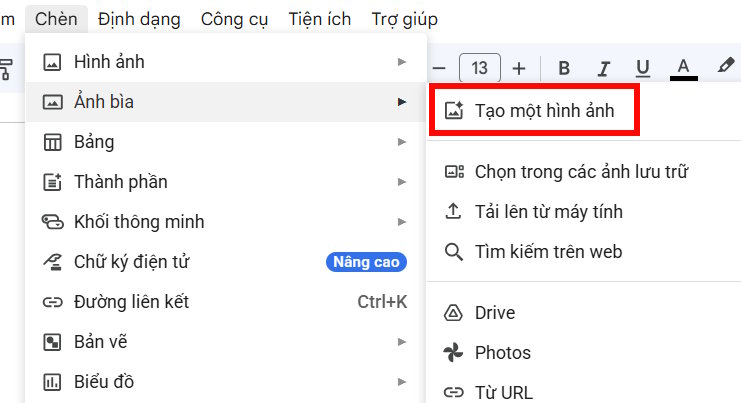
- Choose Insert > Cover image > Generate an image. You can also type
@cover imagein the document and select the cover image option.
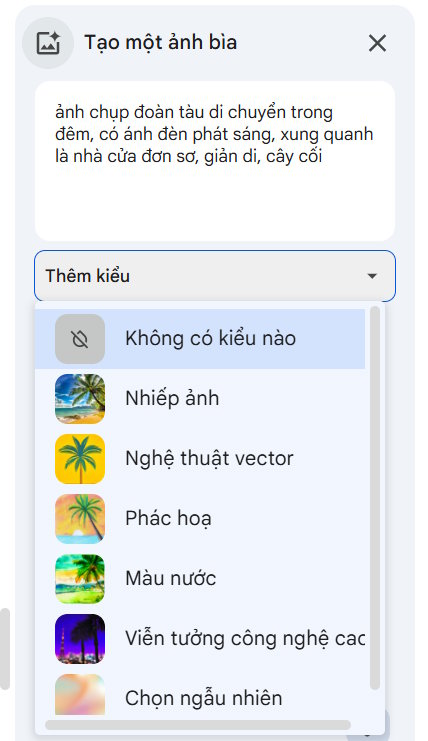
- Describe a wide composition that leaves useful visual space for the document title. Select a style if that option appears, then click Create.
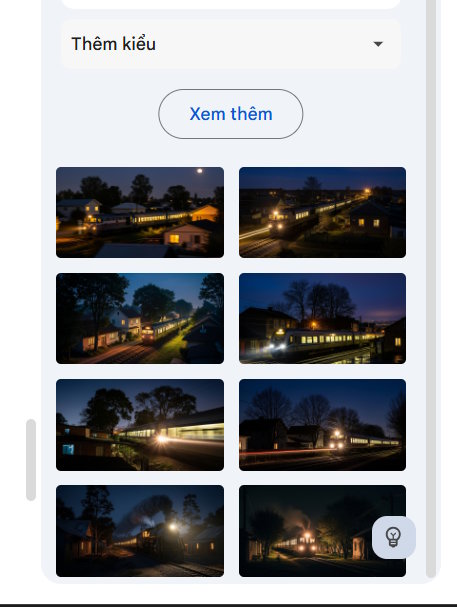
- Choose a result from the gallery or request more suggestions. Check the crop at the top of the document; a strong thumbnail may not work as a wide cover.
After insertion, select the cover to access actions such as Replace image, Reposition, Alt text or Delete. The exact labels may vary as Docs changes.
If the image option is missing
Confirm you are using an eligible account and a supported language, and check whether the feature has been enabled for your Workspace organization. Cover images additionally require Pageless mode. Google's current Docs help page lists the supported steps and availability. If you need a conventional printable first page instead, TipsMake's cover page guide describes a page-based layout; a Pageless cover image is a different feature.
Related Articles
 How to Turn Off Gemini in Google Docs10 minutes read
 4 Google Apps That Work Better with Gemini: Explained5 minutes read
 Instructions on Using Gemini to Create Images in Sheets: Explained5 minutes read
 How to Connect Google Docs with n8n16 minutes read
 The Way Google Docs Helps You Become Professional7 minutes read
 Use Gemini Canvas to Transfer Photos to Google Docs: How-To Guide3 minutes read
Reader Comments 0
Sign in with email or Google to join the discussion.