Table of Contents
Explore effective tips to fix slowness without having to reinstall Windows.
How to fix with symlink
The system sees the path, not the folder
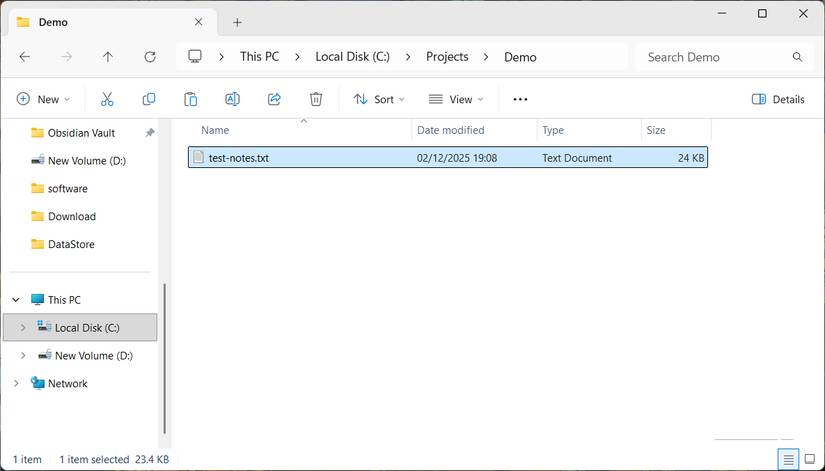
Instead of reinstalling Windows, you can move your heaviest folders to another drive and leave your system where it is. Symbolic links, also known as symlinks, allow Windows to continue using the original path while the data remains on another drive.
Moving folders to another drive sounds simple in theory, but problems start to arise when programs can't find them. Most apps rely on fixed file paths, and when those paths change, the software considers the data lost. Game launchers start asking to reinstall, editing software opens empty projects, and media apps lose track of their libraries.
Windows has a built-in solution to this problem: Symlinks. This makes a folder appear in its original location, even though the files are now on a different drive. When a program opens that folder, Windows redirects it to the new location without showing any difference in Explorer. From the application's perspective, nothing has changed. The path looks the same, so the program treats it as the original folder.
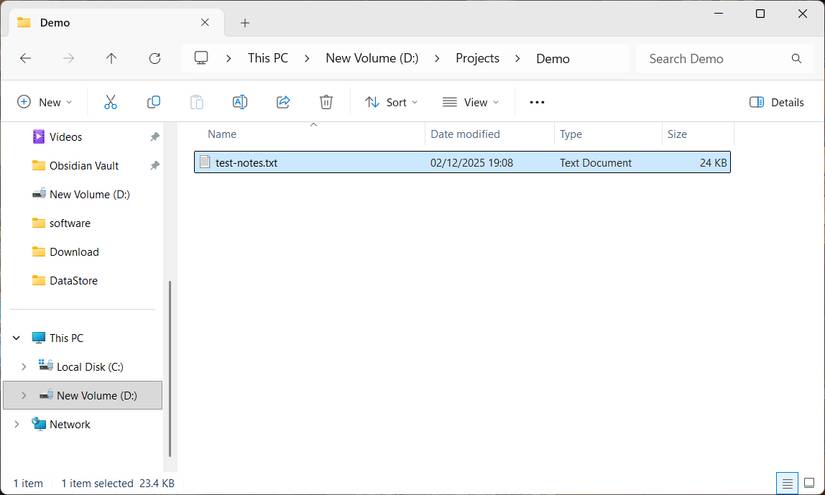
This is also the difference between a symlink and a shortcut. A shortcut is just a pointer that takes you to another location. A symlink lives in the file system. Windows treats it like a real folder. When an application opens a folder through a symlink, Windows automatically sends a request to the real location. In most cases, the program never sees the new path. It continues to behave as if the folder had never been moved.
It's this behavior that makes symlinks so useful in this situation. Entire folders can be moved to another drive while all programs continue to use them as before. The system drive stops filling up; the data is on another drive, and Windows continues to function normally.
Set up secure mklink
Redirect folders properly
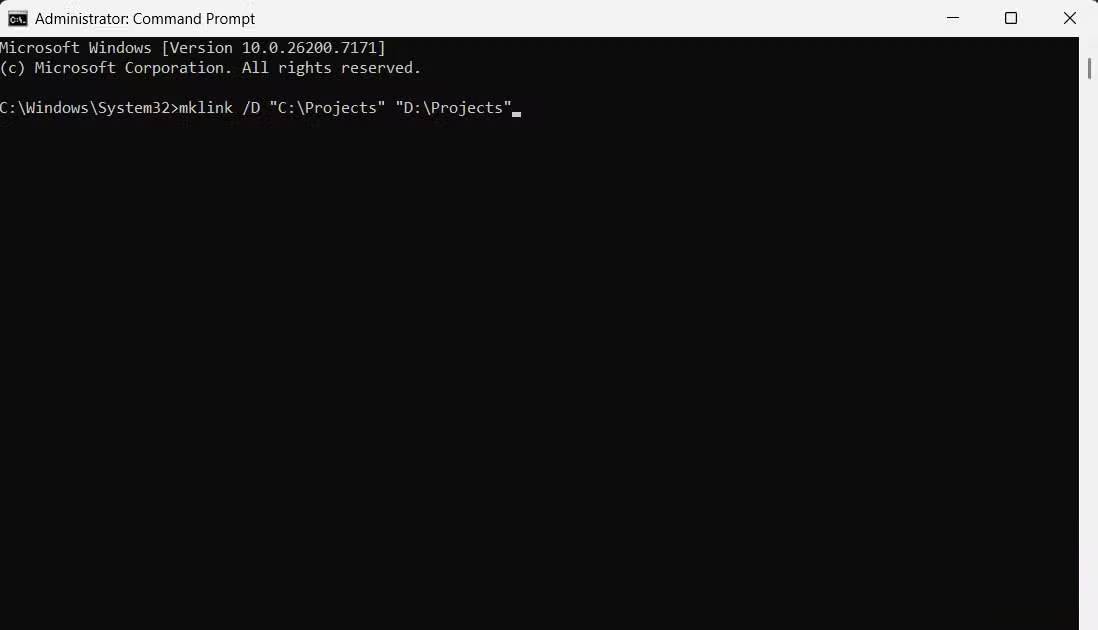
Once you know what a symlink does, setting one up is essentially a matter of running a single command. Windows has a built-in tool for this called mklink , which you can use from the Command Prompt. You can point it to an entire folder or a single file, depending on what you want to move.
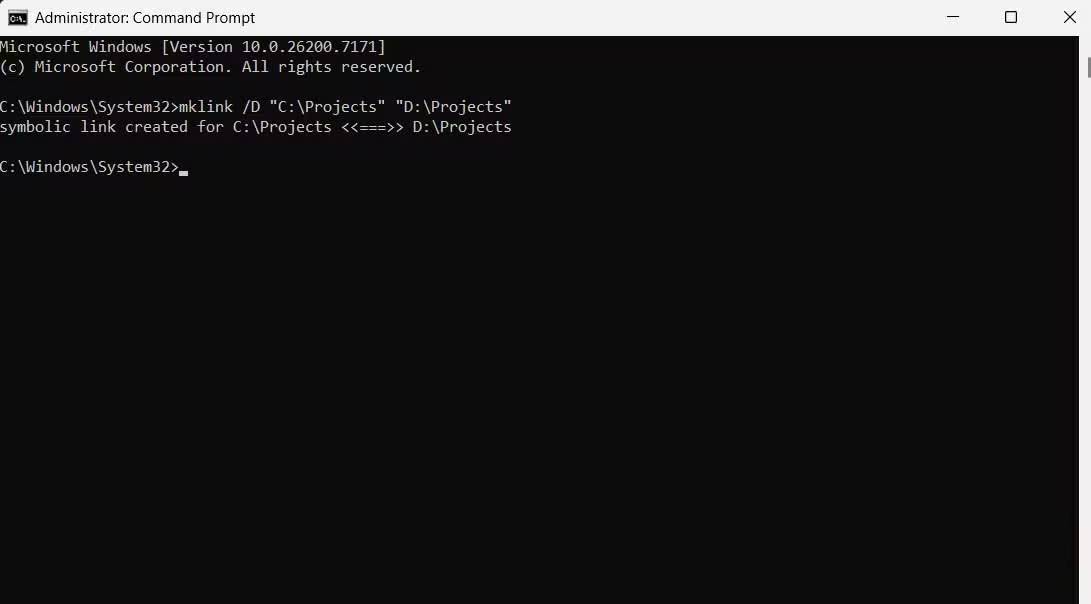
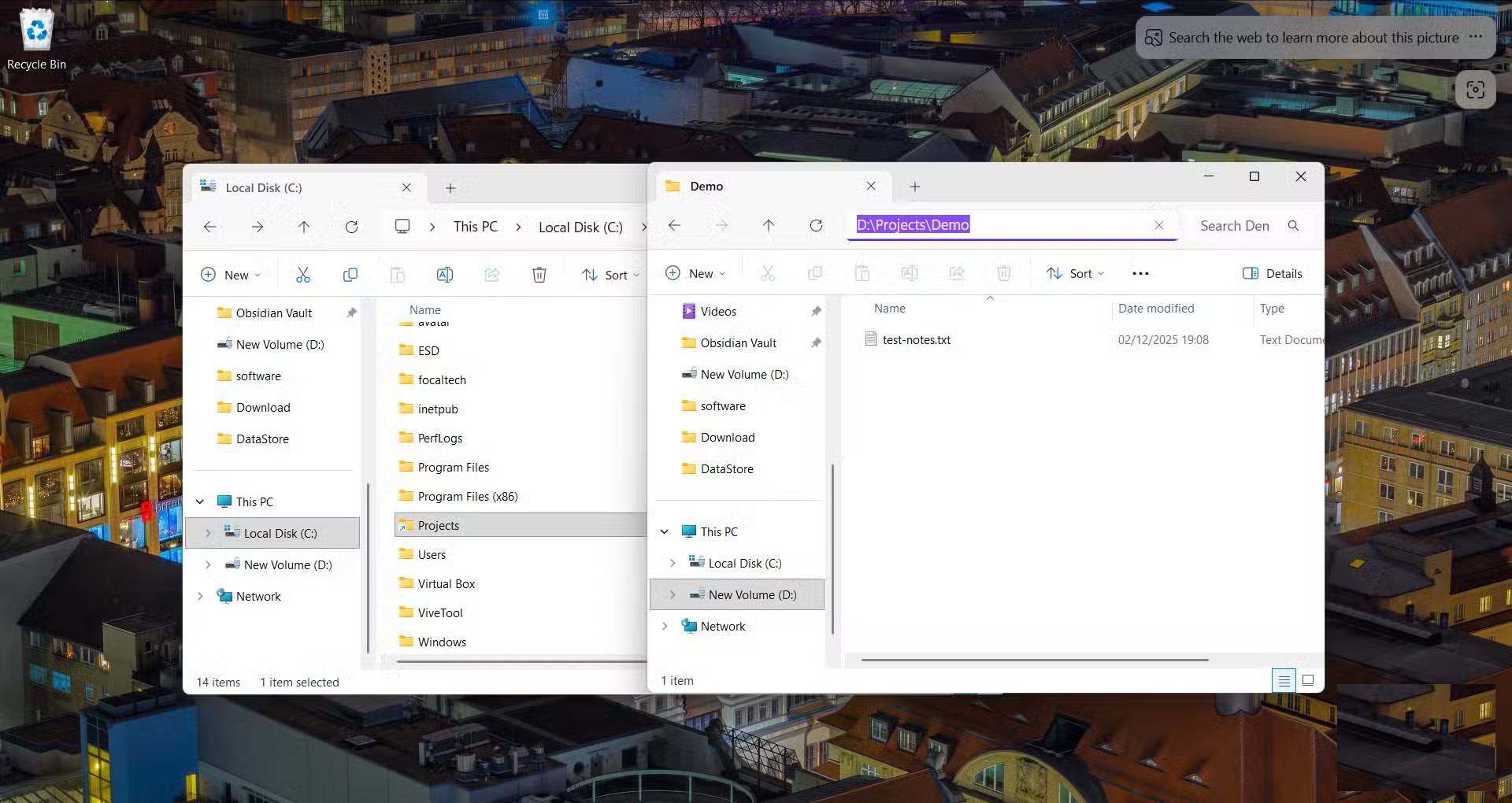
First, move the folder to the drive where you actually want the data. For example, if the folder named Projects is on drive C, move it to drive D. After moving, C: Projects will be empty. Delete that empty folder so the symlink can reuse the same path. Then, open a Command Prompt with admin rights and run the following command:
AI prompt: "Help me with redirect folders properly for Effective Tips to Fix Slowness Without Having to Reinstall Windows. Provide clear steps, examples, and practical recommendations in US English."The first path is the original location where programs used to look for the folder. The second path is the new location where the files are now located. For example, you could run:
mklink /D "C:Projects" "D:Projects"After you run the command, Windows creates a special folder at C: Projects. When you open this folder in File Explorer, you'll see the files you moved, but they're still stored at D: Projects. Edit the document, rename a subfolder, or save new content, and your changes will be written directly to the folder on drive D. If you remove the link at C: Projects , the data on D will remain in its original location.
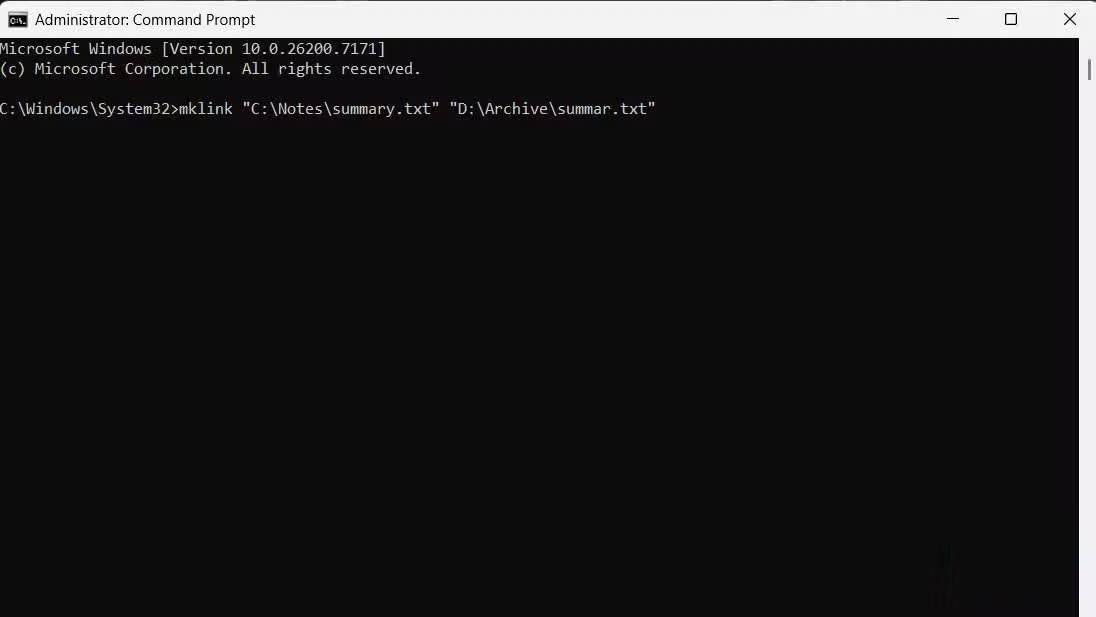
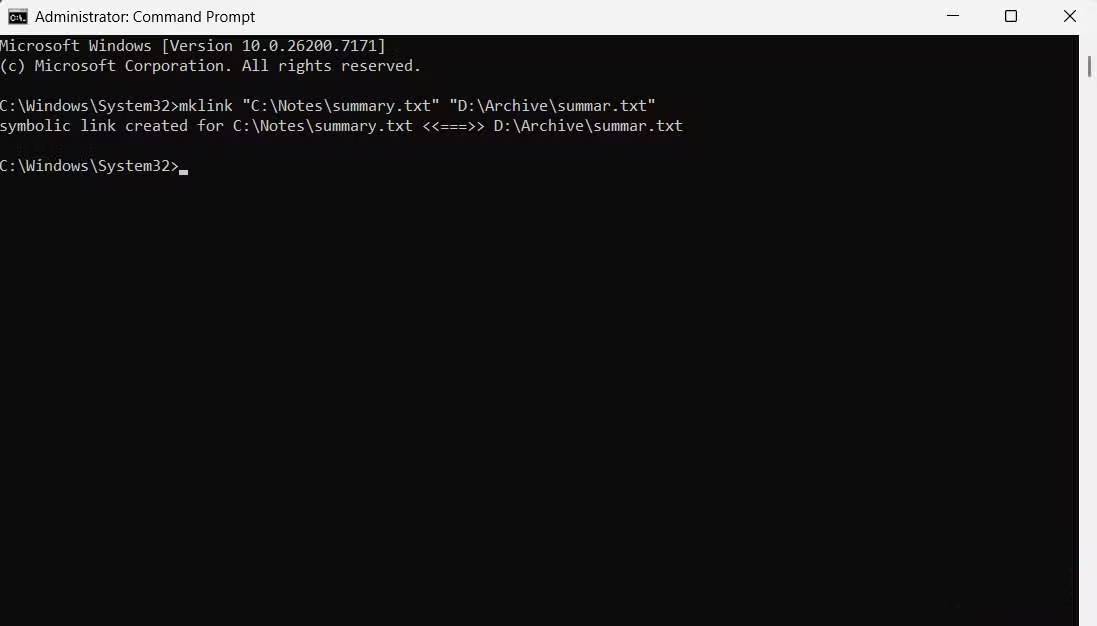
You can do the same with individual files. In that case, you omit the /D command and enter the exact file name.
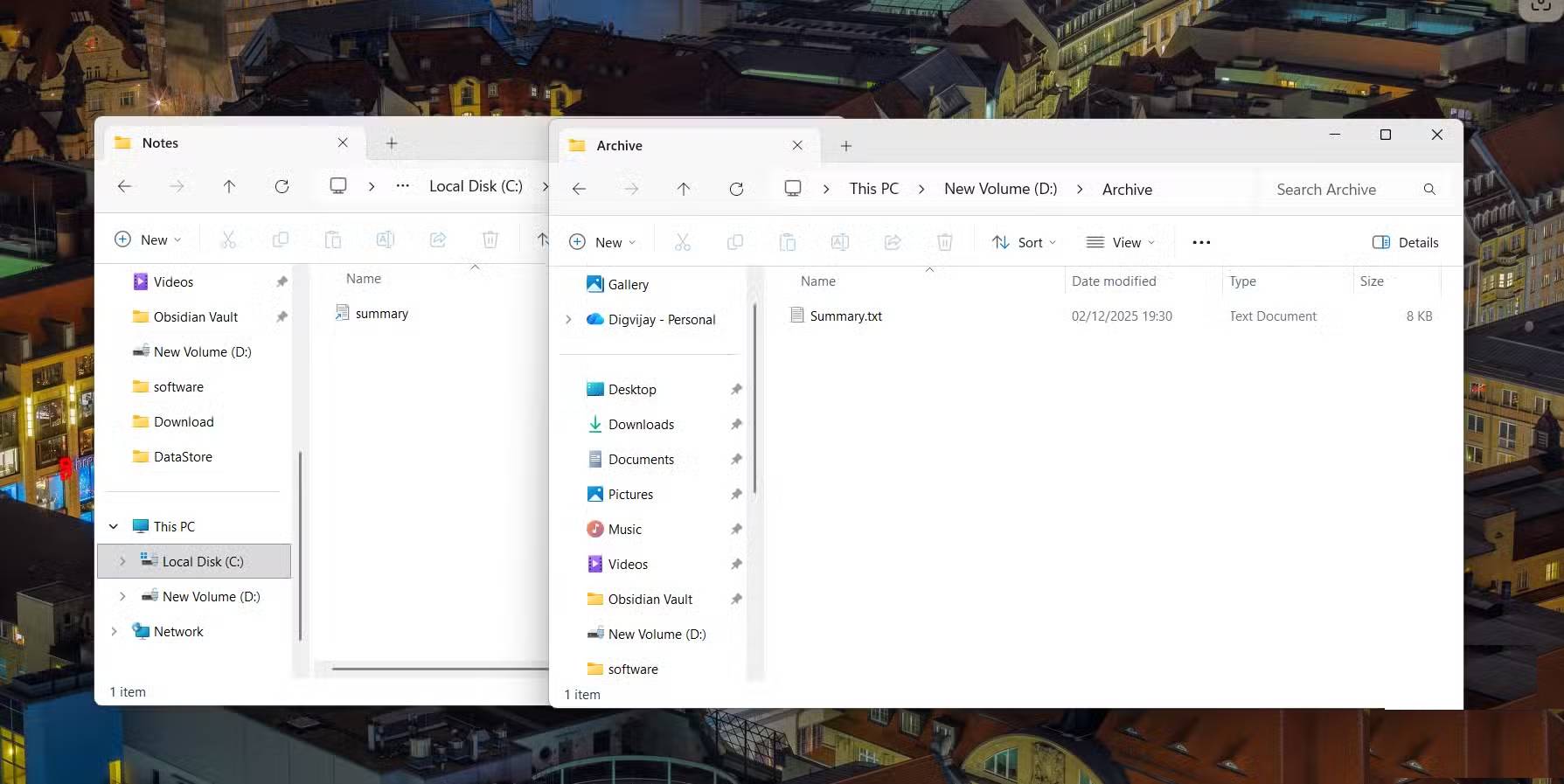
mklink "C:Notessummary.txt" "D:Archivesummary.txt"Here, C: Notessummary.txt looks like a normal file, but any changes are transferred to D: Archivesummary.txt on the drive. This is useful when a program insists on reading a file from a path, but you want to keep that file somewhere else. Symlinks themselves use almost no space. They don't copy your data. Instead, they act as a bridge between the old path and the new path, so all the actual space still comes from the new drive.
Deleting a symlink only deletes the link at the old path. The actual data remains on the new drive. When you delete a link, you only delete the pointer, not the actual destination file or folder. However, when you delete a file via a symlink, you delete the actual files in the destination folder, just as if you deleted them directly from their location on the new drive.
Final Thoughts
Use this guide as a practical checklist for effective tips to fix slowness without having to reinstall windows. Work through the steps in order, verify each result, and adjust the options to match your needs.
FAQ
What do you need before following this Effective Tips to Fix Slowness Without Having to Reinstall Windows guide?
Review the required tools, accounts, settings, or materials mentioned in the article. Explore effective tips to fix slowness without having to reinstall Windows.
What are the main steps for effective tips to fix slowness without having to reinstall windows?
Follow the sections in order, especially How to fix with symlink, The system sees the path, not the folder, Set up secure mklink. Complete each step before continuing and verify the result as you go.
What should you do if the process does not work as expected?
Recheck the prerequisites, update the relevant app or service, review the settings, and repeat the step that caused the issue. Use any troubleshooting notes included in the guide.
Related Articles
 Fix Windows XP by Reinstalling in Repair Mode6 minutes read
 Download Ghost Win Xp, Win 7, 8, 10 32 and 64bit Link Google Drive3 minutes read
 Instructions for Reinstalling Windows 8.1 on the Surface Pro5 minutes read
 How to Reinstall Windows 7 Without Using a Disc: Complete Guide10 minutes read
 Reset Windows: Complete Guide5 minutes read
 How to Reinstall Windows 8 Without a Cd3 minutes read
Reader Comments 0
Sign in with email or Google to join the discussion.