Table of Contents
Learn what if explorer crashes when opening large folders means, how it works, and which key concepts, benefits, or limitations matter most.
How to fix Explorer problem opening large folders
Restart Windows Explorer
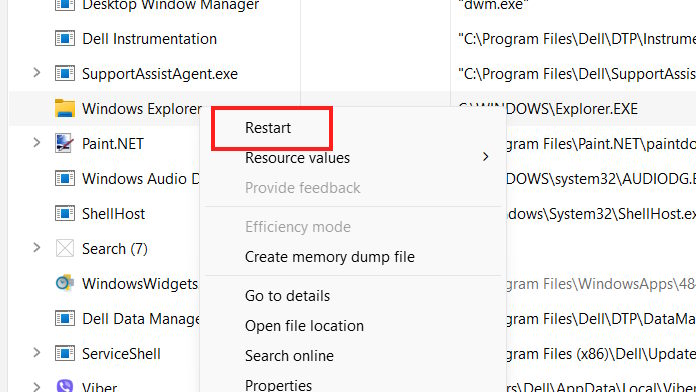
The first thing you should do is restart Explorer to fix the large folder opening error or any other error.
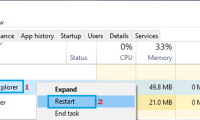
We press the key combination Ctrl + Shift + Esc to open Task Manager. Then in the interface, click on the Processes tab, then right-click on Windows Explorer and select Restart to restart Windows Explorer.
Adjust File Explorer settings
The reason why File Explorer crashes when opening large folders is because it is overloaded when displaying thumbnails and data information, especially on low-configuration computers. Try adjusting some settings to fix this problem.
Step 1
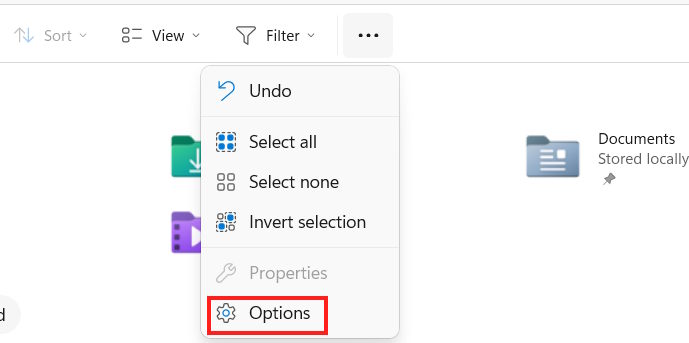
At the Explorer window interface, click on the 3-dot icon and select Options .
Step 2
To display the new interface, click on the View tab , then look down below, select Always show icons, never thumbnails to display icons without showing thumbnails.
Also, try hiding hidden folders by clicking Don't show hidden files, folders, or drives.
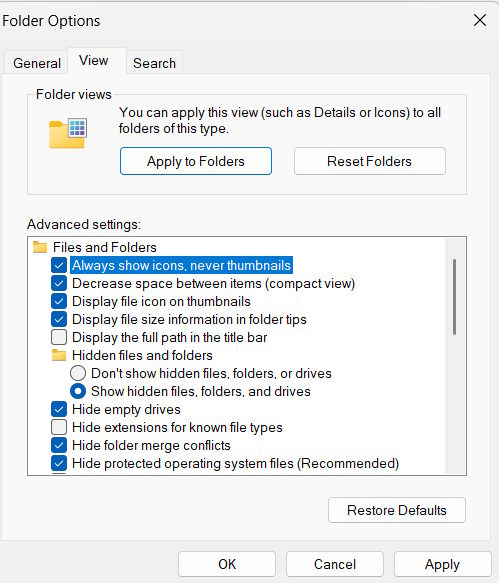
Finally click Apply and OK to save changes.
Disable QuickTime and Explorer history
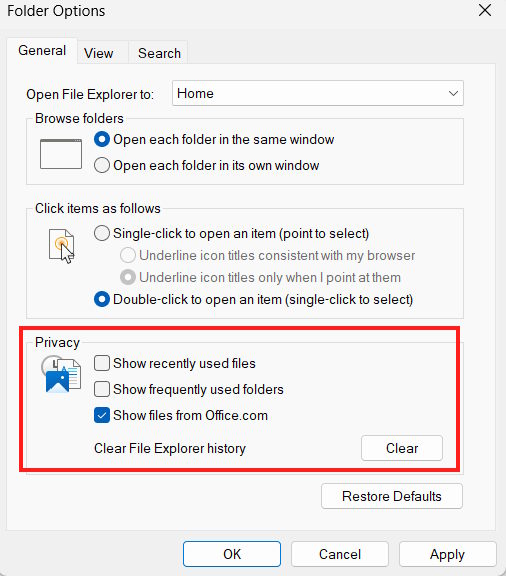
QuickTime is a convenient way to access recently used files and folders, but it can also overload Explorer.
We also open Options in Explorer. Next, in the General tab , scroll down to Privacy and uncheck all the contents in this section. Continue to click the Clear button to delete all Explorer history.
Final Thoughts
Understanding what if explorer crashes when opening large folders makes it easier to evaluate the information and apply the most relevant recommendations. Focus on the key points above and verify details that may change over time.
FAQ
What is what if explorer crashes when opening large folders?
Learn what if explorer crashes when opening large folders means, how it works, and which key concepts, benefits, or limitations matter most.
What key points does this article cover?
The article focuses on How to fix Explorer problem opening large folders, Restart Windows Explorer, Adjust File Explorer settings, with practical explanations and examples.
How can you use this information in practice?
Use the explanations to compare options, verify important details, and make a more informed decision. Apply the recommendations that best match your goals and situation.
Related Articles
 Fix File Explorer Not Responding Error in Windows 11/10: Complete Overview7 minutes read
 How to Open a Folder in New Process on Windows3 minutes read
 How to Delete Large Folders Quickly on Windows 114 minutes read
 Windows Explorer Crashes, How to Handle Errors Extremely Quickly Explained6 minutes read
 Windows Explorer Error Repeatedly Restarts and Crashes, This Is6 minutes read
 How to Fix Explorer. Exe Error on Windows 103 minutes read
Reader Comments 0
Sign in with email or Google to join the discussion.